Safe browsing means combining an up-to-date, correctly configured browser with deliberate habits — verifying links before you click, keeping software patched, using unique passwords with two-factor authentication, and isolating sensitive accounts from each other — so that one phishing email or malicious ad cannot compromise your identity, your passwords, or your money. No single setting does this; it’s the layered combination of built-in browser protections, good habits, and the right tools that keeps you safe in 2026.
What Safe Browsing Actually Covers in 2026
Safe browsing isn’t one feature you turn on — it’s a discipline made up of several moving parts: the security built into your browser (Google Safe Browsing, phishing filters, sandboxing), the habits you practice every day (checking URLs, patching software, using a password manager), and the tools you add on top (ad and tracker blockers, isolated profiles, VPNs on public networks). Miss any one layer and the others have to work harder to cover the gap.
The threat landscape has also changed enough that advice from a few years ago is no longer sufficient on its own. AI-generated phishing emails are now close to indistinguishable from legitimate correspondence, browser fingerprinting has become a serious account-linking risk even for people who aren’t doing anything wrong, and attackers increasingly go after session cookies directly rather than passwords, since a stolen session token can bypass two-factor authentication entirely.
Why Safe Browsing Matters More Than Ever
The Current Threat Landscape
A handful of trends explain why safe browsing keeps getting harder to ignore:
- Phishing attacks have risen sharply since 2020, with AI-generated emails that are nearly impossible to distinguish from legitimate messages on sight
- Ransomware targets individuals and small businesses just as often as large enterprises, encrypting files and demanding payment
- Data breaches expose millions of credentials every year, feeding directly into identity theft and account takeover
- Malvertising smuggles malicious code through legitimate, well-known advertising networks
- Session and cookie theft lets attackers hijack an already-logged-in account without ever needing your password
The Real Cost of Unsafe Browsing
The consequences of a single successful attack rarely stay contained:
- Financial loss from stolen banking credentials or fraudulent card charges
- Identity theft using harvested personal information
- Account takeover across every service that shares a reused password
- Reputation damage when a compromised social or email account is used to scam your contacts
- Downtime and cost to clean up, reset, and monitor accounts afterward
How Google Safe Browsing and Your Browser Protect You
Google Safe Browsing is the technology quietly running behind the scenes in Chrome, Firefox, and Safari, protecting billions of devices by maintaining constantly updated lists of dangerous sites and downloads. Google’s crawlers scan billions of URLs, the block lists refresh roughly every 30 minutes, and your browser checks each page you visit against those lists before it fully loads — which is why you occasionally see a red warning page instead of the site you expected.
Chrome’s Enhanced Safe Browsing mode (Settings → Privacy and Security → Security → Enhanced Protection) goes a step further, checking URLs against Google’s servers in real time rather than relying only on a locally cached list, scanning downloaded files more deeply, and flagging risky extensions before you install them. Every major browser now ships some version of this protection, though the depth and naming differ:
| Browser | Core Protection | Standout Feature | Where to Enable It |
|---|---|---|---|
| Google Chrome | Safe Browsing (Standard/Enhanced) | Real-time URL checks, Password Checkup | Settings → Privacy and Security → Security |
| Mozilla Firefox | Enhanced Tracking Protection | Total Cookie Protection, HTTPS-Only Mode | Settings → Privacy & Security |
| Apple Safari | Intelligent Tracking Prevention | Fraudulent Website Warning, Privacy Report | Safari → Settings → Privacy |
| Microsoft Edge | SmartScreen | Password Monitor, Super Duper Secure Mode | Settings → Privacy, search, and services |
None of these replace good judgment — they catch known-bad sites and files, not every novel attack — but leaving them on their default (or enhanced) settings is one of the cheapest safe browsing wins available.
The Safe Browsing Checklist: 10 Habits That Actually Work
Most successful attacks rely on skipping one of these basics, not on some exotic zero-day. Working through this list closes the gaps attackers count on:
- Keep everything updated. Enable automatic updates for your browser, operating system, and any extensions you keep — most exploited vulnerabilities were already patched before they were used against someone.
- Use a password manager and unique passwords. Tools like 1Password or Bitwarden generate and store a different password for every account, so one breach doesn’t cascade into every other service you use.
- Turn on two-factor authentication everywhere it’s offered. Prefer an authenticator app or hardware key (like a YubiKey) over SMS codes, which can be intercepted through SIM-swapping.
- Verify before you click. Hover over links to preview the real destination, check for typosquatted domains (paypa1.com instead of paypal.com), and be skeptical of any message creating artificial urgency.
- Default to HTTPS. Look for the padlock icon, enable HTTPS-Only mode in your browser, and never enter sensitive information on a plain HTTP page.
- Lock down site permissions. Deny location, camera, and microphone access by default, block third-party cookies, and periodically review which sites you’ve already granted access to.
- Isolate sensitive or multiple accounts from each other. If you manage more than one account on the same platform — personal and work email, several client dashboards, multiple storefronts — running them in one shared, unisolated browser means a single phishing hit or session-cookie theft can expose everything else in that browser too.
- Add the right browser extensions — and no more. A tracker blocker and a password manager cover most of what you need; every extra extension is another piece of code with access to what you browse.
- Treat public Wi-Fi as hostile by default. Use a VPN, avoid logging into anything sensitive, and double-check the network name before connecting — “Free_Airport_WiFi” is a favorite disguise for attacker-run hotspots.
- Scan and verify downloads. Get software only from official sources, check file extensions carefully (document.pdf.exe is not a PDF), and run anything unexpected through antivirus before opening it.
Safe Browsing Tools Worth Installing
A small, well-chosen set of tools does more for your safety than a browser full of extensions ever will:
uBlock Origin remains the standard for ad and tracker blocking — it removes malicious ads before they load and shrinks the attack surface by stopping unwanted scripts from running at all.
Bitwarden is a free, open-source password manager with solid browser integration, covering unique passwords and secure storage without a subscription requirement.
Privacy Badger, built by the EFF, learns which domains are tracking you across sites and blocks them automatically, without needing manual filter lists.
NoScript blocks JavaScript by default and only allows it on sites you trust — powerful protection against drive-by exploits, though it takes some configuration to use comfortably.
ClearURLs strips tracking parameters out of links automatically, which is useful both for your own privacy and for cleaning up links before you share them with anyone else.
Safe Browsing When You Manage Multiple Accounts
Anyone running more than one account on the same platform — a personal and work Gmail, several client social accounts, multiple storefronts — runs into a safe browsing problem that generic advice doesn’t cover: platforms actively try to detect which accounts belong to the same person.
How Accounts Get Linked Without You Realizing It
Platforms correlate accounts through several signals at once, and a single shared signal is often enough to connect two otherwise-separate logins:
- Browser fingerprinting — canvas rendering, WebGL output, fonts, and other device signals that stay consistent across sessions in a normal browser
- Shared cookies and local storage — the same browser profile leaking identifiers between tabs
- IP address correlation — every account exiting from the same network address
- Behavioral patterns — timing, navigation habits, and typing cadence that look identical across “different” accounts
This is exactly why the account-linking problem persists even for people who are careful about passwords and phishing — the linkage happens at the browser and network level, not the login form.
Isolating Profiles Properly
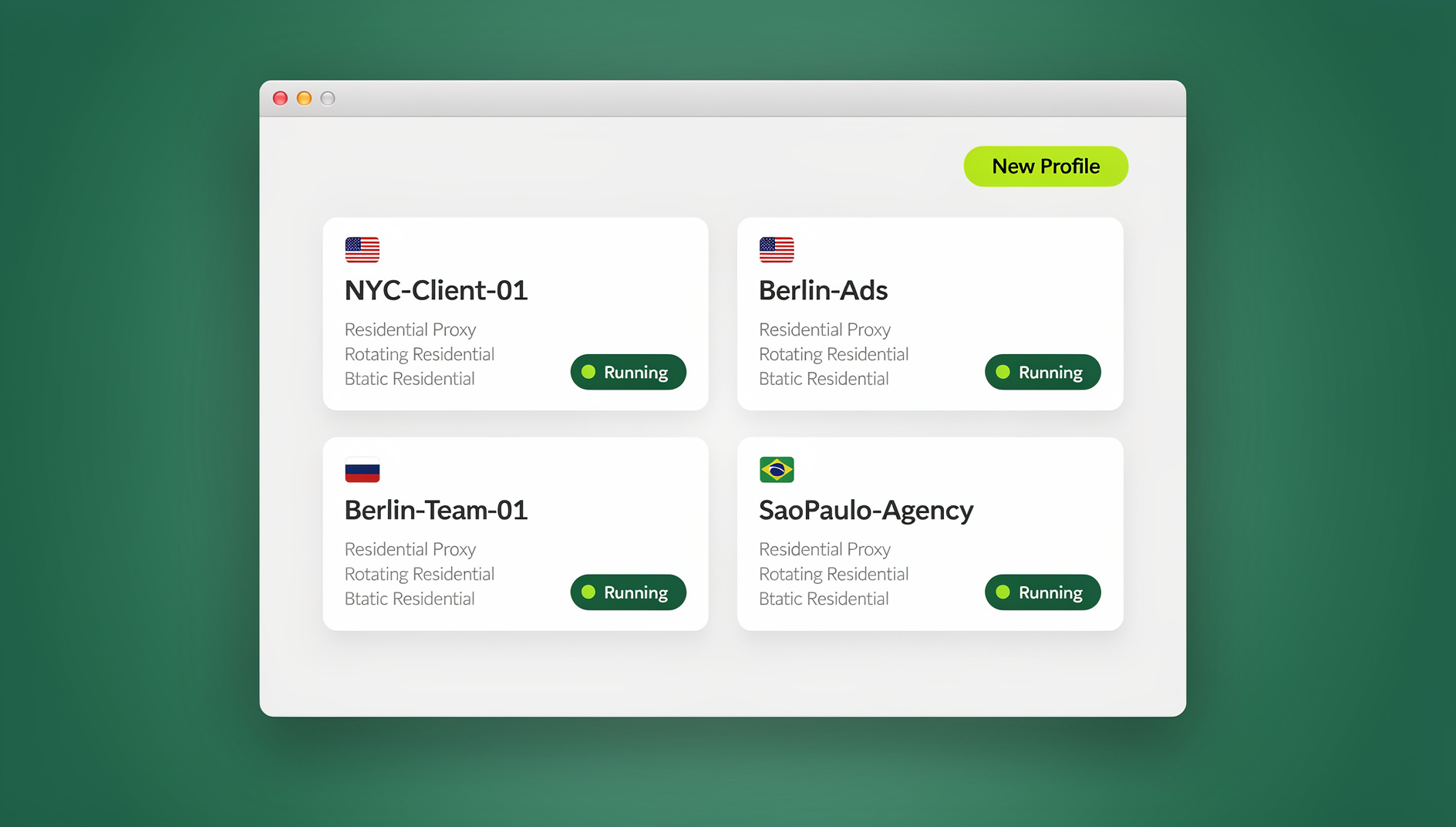
The fix is to give each account its own sandboxed environment: separate cookies and storage, a distinct fingerprint, and ideally a separate proxy, so that a security issue in one profile never spreads into another. This is a natural extension of the general secure browsing practices covered above — it just applies isolation at the account level instead of the device level.
Send.win is built specifically around this problem. It runs in two modes: Sendwin Browser, a native, downloadable desktop app for Windows, macOS, and Linux that keeps profiles local-first with encrypted cloud sync, and cloud browser sessions, which run entirely in the cloud with zero local install and are metered by cloud browsing time. Either way, each profile gets its own isolated cookies, storage, and fingerprint, so if one profile is ever compromised through a phishing link or malicious download, the damage stays contained to that single profile instead of spreading to every other account you manage in the same window.
For teams and agencies, cloud sessions also solve a real safe-browsing gap: handing a teammate a shared login over chat or email is itself a security risk, since the credential sits in plaintext in a message history forever. Sharing an isolated session instead avoids exposing the password at all. Automation-heavy teams can also connect local automation tools — Selenium, Puppeteer, or Playwright — to the desktop app through Send.win’s Automation API, available starting on the Pro plan, which lets QA and growth teams script account checks without ever running everything through one shared, unisolated browser.
| Plan | Price | Profiles | Proxy Bandwidth | Automation API |
|---|---|---|---|---|
| Pro | $19/mo ($6.99/mo billed annually — 63% off) | 150 | 5GB | Yes |
| Team | $49/mo ($20.99/mo billed annually — 57% off) | 500 | 20GB | Yes, plus 16 seats |
Both plans start with a 30-day free trial and no credit card required, which is enough time to test whether isolated profiles actually reduce the account-flagging and cross-contamination issues you’ve been seeing.
Recognizing and Avoiding Common Threats
Phishing Red Flags
- Urgent language — “Your account will be suspended immediately” is designed to make you skip verification
- Generic greetings — “Dear customer” instead of your actual name
- Mismatched URLs — paypa1.com instead of paypal.com, or a legitimate-looking subdomain hiding a different root domain
- Poor grammar and formatting — spelling errors and awkward phrasing that a real company’s communications team wouldn’t ship
- Unusual requests — being asked for a password or sensitive data over email, which legitimate services essentially never do
- Suspicious attachments — unexpected files, especially anything with an executable extension
Safe Download Practices
- Download software only from the official website or an official app store
- Verify file hashes when the publisher provides them
- Scan downloads with antivirus before opening, even from sources you mostly trust
- Be wary of “cracked” or pirated software — a common malware distribution channel
- Check file extensions carefully — a file named “invoice.pdf.exe” is not a PDF
Public Wi-Fi Safety
- Use a VPN whenever you connect to a public network
- Avoid logging into banking or other sensitive accounts on open Wi-Fi
- Verify the actual network name with staff — “Free_Airport_WiFi” is a common attacker disguise
- Disable auto-connect to open networks on your phone and laptop
- If you must handle something sensitive in public, cloud browser sessions — where the browser itself runs remotely and only an encrypted display stream reaches your device — keep more of the actual browsing activity off the local network than a normal browser tab would
Teaching Safe Browsing to Family Members
Safe browsing habits matter most for the people least likely to have thought about them. A few practical steps go a long way:
- Enable parental controls in the browser and at the router level for younger children
- Turn on SafeSearch or use a child-friendly search engine
- Set screen time limits and check in on activity periodically rather than only after something goes wrong
- Teach the same red flags covered above — urgent language, mismatched links, requests for personal information
- Keep devices in shared spaces for younger kids, and normalize reporting anything odd to a trusted adult without fear of getting in trouble
For anyone in the household who values private browsing mode for shared-computer situations, it’s worth being clear that private mode hides history from other users of the same device — it does nothing to stop tracking, fingerprinting, or malware, so it’s a privacy tool for the household, not a security tool against the internet.
🏆 Send.win Verdict
Safe browsing in 2026 is still built on the fundamentals — patch everything, use unique passwords with 2FA, verify before you click, and keep HTTPS on by default. Where the picture has changed is multi-account risk: browser fingerprinting and session-cookie theft now link and compromise accounts in ways password hygiene alone can’t stop. Send.win addresses that gap directly, with the Sendwin Browser desktop app or zero-install cloud sessions giving every account its own isolated cookies, storage, and fingerprint, so one compromised profile never becomes a compromised portfolio. Pro starts at $19/month, Team at $49/month, both with a 30-day free trial and no credit card required.
Try Send.win free today — set up isolated profiles for every account you manage before the next phishing attempt tests your setup.
Frequently Asked Questions
What does “This site may harm your computer” mean?
This warning comes from Google Safe Browsing and means the site has been flagged for distributing malware or engaging in phishing. Take it seriously — proceeding anyway risks infecting your device. If it’s your own site and you believe the flag is wrong, Google Search Console shows the specific reason and lets you request a review.
Is private/incognito browsing mode actually safe?
Only in a narrow sense. Private browsing prevents your browsing history and cookies from being saved locally, which is useful on a shared family computer, but it does nothing against network-level threats, fingerprinting, or malware. Treat it as a privacy feature for other users of your device, not a security feature against the internet.
How do I know if a website is safe to use?
Check for HTTPS (the padlock icon), the absence of any browser warning, a URL that matches the brand you expect, professional design, and verifiable contact information. Tools like VirusTotal or URLVoid can scan a suspicious link before you visit it. When in doubt about entering personal information, don’t.
Can I trust passwords saved in my browser?
Modern browser password managers are reasonably secure, particularly with full-disk encryption enabled on your device. Dedicated managers like Bitwarden or 1Password add extras — secure sharing, cross-platform sync, and breach monitoring — that most browsers lack. Either option beats reusing the same password everywhere.
What should I do immediately after clicking a phishing link?
Don’t enter any information if you haven’t already. If you did, change the password on that account and any others reusing it, enable 2FA if it wasn’t already on, scan your device for malware, and watch the affected accounts closely for a few weeks for unusual activity.
Does an isolated-profile tool like Send.win replace antivirus software?
No — they solve different problems. Antivirus scans for malicious files on your device; isolated browser profiles contain the blast radius of a compromised session or leaked cookie so it doesn’t spread to your other accounts. Running both together covers more of the threat surface than either alone.
Do I still need a VPN if I already practice good safe browsing habits?
Yes, particularly on public Wi-Fi. A VPN encrypts your traffic between your device and the network, which none of the habits above directly address. It’s a complementary layer, not a replacement for updated software, strong passwords, or link verification.
Is safe browsing different when accounts are automated with scripts?
The same principles apply, but they need to be enforced in code rather than by habit. Automation frameworks like Selenium, Puppeteer, and Playwright can drive isolated browser profiles just as a human would, which matters for QA teams or growth teams running scripted account checks without funneling every script through one shared, unisolated browser session.
Conclusion
Safe browsing is a moving target, not a checklist you complete once. The fundamentals — patched software, unique passwords, 2FA, verifying before you click, and defaulting to HTTPS — remain the backbone of staying safe online, and they cover the vast majority of real-world attacks. Layer on tracker and ad blockers, cautious download habits, and VPN use on public networks, and you’ve closed most of the obvious gaps.
Where general advice runs out is multi-account risk: the more accounts you manage on the same platform, the more a single shared browser profile becomes a liability rather than a convenience. That’s the specific problem browsing protection tools built around isolation — like Send.win’s Sendwin Browser desktop app and cloud sessions — are designed to solve, alongside the broader set of anonymous browsing options worth knowing about if privacy from tracking, not just security from attacks, is also a priority. Start with the basics, add isolation where you’re genuinely managing more than one identity, and treat safe browsing as an ongoing practice rather than a one-time setup.