Private browsing only stops your own device from saving history, cookies, and form data once you close the window — it does not hide your IP address, stop your ISP from logging traffic, or prevent websites from fingerprinting your browser. Chrome (Incognito), Firefox (Private Browsing), Safari (Private Window), and Edge (InPrivate) all work this way, and none of them make you anonymous on their own.
What Private Browsing Actually Does
When you open a private or incognito window, your browser spins up a temporary session that behaves differently from your normal browsing profile. Understanding exactly what changes — and what stays the same — is the first step to using it correctly.
What Changes in a Private Session
- No saved history — pages you visit don’t appear in your browsing history after the window closes
- Session cookies are discarded — login states and tracking cookies set during the session are wiped on close
- Form data isn’t stored — autofill suggestions and search terms aren’t remembered
- Isolation from your normal profile — the private session can’t read cookies or storage from your regular browsing
- Cache and downloads list are cleared — though any file you actually downloaded still sits on your hard drive
What Doesn’t Change
This is where most of the confusion around private browsing comes from:
- Your IP address is still visible — every site you visit, and your ISP, can see it
- Your ISP or network admin still sees your traffic — private mode only affects local storage, not what leaves your device
- Logging into an account still identifies you — Gmail, Amazon, or Facebook know exactly who you are the moment you sign in
- Browser fingerprinting still works — your hardware and software signature doesn’t reset between sessions
- Malware and unsafe downloads aren’t blocked — private mode adds zero security protection
Private Browsing Across Major Browsers
Every browser implements the same core idea slightly differently, and some pair it with additional tracking protection.
| Browser | Feature Name | Shortcut (Win) | Extra Protection |
|---|---|---|---|
| Google Chrome | Incognito | Ctrl+Shift+N | Blocks third-party cookies by default in recent versions |
| Mozilla Firefox | Private Browsing | Ctrl+Shift+P | Enhanced Tracking Protection blocks known trackers |
| Apple Safari | Private Window | Cmd+Shift+N (Mac) | Intelligent Tracking Prevention limits cross-site tracking |
| Microsoft Edge | InPrivate | Ctrl+Shift+N | Optional Strict tracking prevention mode |
Firefox and Safari go a step further than Chrome and Edge by pairing private mode with active tracker-blocking, but none of the four browsers change your IP address or randomize your fingerprint. That’s a structural limitation of the feature, not a bug any of them have failed to fix.
Private Browsing on Mobile
Mobile private browsing works the same way as desktop, but the toggle is often buried a tap or two deeper. On an iPhone or iPad, open Safari, tap the tabs icon, then tap the tab-group selector at the bottom and choose Private. On Android, open Chrome, tap the three-dot menu, and choose New Incognito Tab; Firefox for Android has a mask icon that opens a Private Tab directly from the tab tray. The same limitations apply on mobile as on desktop: your carrier or Wi-Fi network still sees your traffic, apps you’re logged into still know who you are, and device fingerprinting is if anything easier on mobile, since phone hardware and screen configurations vary less than desktop setups and are therefore more identifying.
Why Fingerprinting Defeats Private Browsing
The biggest gap in private browsing is that it does nothing about browser fingerprinting — the technique sites use to identify you from dozens of small technical signals instead of cookies. Even with a spotless private window, your browser still exposes:
- Canvas fingerprint — subtle differences in how your GPU and drivers render graphics
- WebGL fingerprint — a signature tied to your graphics hardware
- Audio fingerprint — how your system processes and outputs sound
- Installed fonts — the specific combination is often unique enough to identify a device
- Screen resolution and color depth — combined with other signals for identification
- Timezone and language settings — narrows down your likely location
- WebRTC leaks — a misconfigured browser can expose your real local and public IP even behind a proxy or VPN, a separate problem covered in our WebRTC leak protection guide
None of these signals get cleared when you close a private window, because they’re generated fresh from your actual hardware and OS every time you load a page. A tracking script doesn’t need your cookies if your fingerprint alone is unique enough to re-identify you across sessions.
When Private Browsing Is Genuinely Useful
None of this means private browsing is pointless — it solves a specific, narrow problem well.
Good Use Cases
Shared or public computers: stops the next person who sits down from seeing your history or staying logged into your accounts.
Gift shopping: keeps searches for a partner’s gift from showing up in autofill or triggering targeted ads they might see.
Quick price checks: reduces (though doesn’t eliminate) the chance that dynamic pricing raises prices based on your browsing history.
Logging into a second account briefly: lets you check a different account without signing out of your primary session first.
Sensitive one-off searches: keeps a single search for a health or financial question out of your permanent history.
Where It Falls Short
- Hiding your activity from your ISP, employer, or government
- Preventing fingerprint-based tracking across visits
- Achieving real anonymity for sensitive research or journalism
- Bypassing geographic content restrictions
- Running multiple accounts on platforms that actively detect linked devices
The Multi-Account Problem Private Browsing Can’t Solve
This last point trips up a lot of people who assume incognito mode is enough to run two accounts on the same platform. Facebook, Amazon, eBay, and Google all correlate accounts using signals private browsing never touches:
- Browser fingerprint — identical across your normal and private windows, since it’s the same hardware
- IP address — unchanged, so both accounts are seen coming from the same network
- Behavioral patterns — typing cadence, mouse movement, and session timing can flag related accounts even with different fingerprints
Real multi-account separation requires three things private browsing was never designed to provide: a unique fingerprint per account, a separate IP per account, and complete storage isolation between sessions. This is the gap that dedicated antidetect browsers exist to close, and it’s a different problem from the everyday privacy that incognito mode addresses.
Private Browsing vs. VPN vs. Tor vs. Antidetect Browser
These four tools are frequently confused because they all get filed under “privacy,” but they solve different problems and can be combined rather than treated as interchangeable.
| Tool | Hides IP? | Beats fingerprinting? | Multi-account safe? | Best for |
|---|---|---|---|---|
| Private/Incognito mode | No | No | No | Local history hygiene on a shared device |
| VPN | Yes | No | Partially | Encrypting traffic and masking location from your ISP |
| Tor Browser | Yes | Partially (standardized fingerprint) | No | High-stakes anonymity, slower everyday browsing |
| Browser profile manager (e.g., Send.win) | Yes (with proxy) | Yes | Yes | Running multiple accounts and profiles without cross-linking |
Notice that only the last category actually addresses fingerprinting and account separation together — that’s the piece private browsing, and even a plain VPN, structurally cannot deliver.
How Send.win Fills the Gap
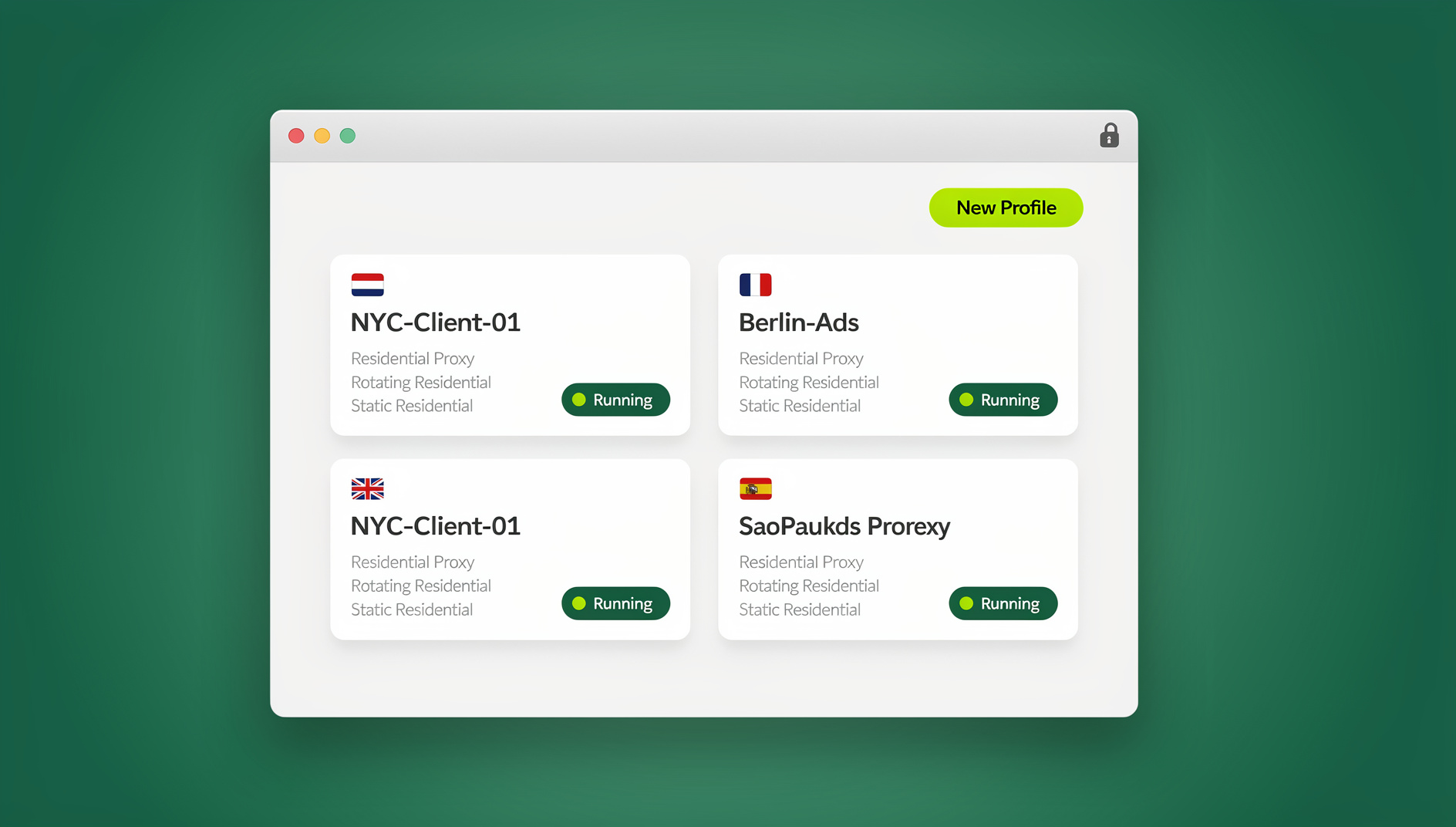
Send.win is built around two ways of running isolated browser profiles. The first is the Sendwin Browser, a native desktop app for Windows, macOS, and Linux that runs locally on your machine and keeps your profiles local-first while syncing them through encrypted cloud storage. The second is cloud browser sessions, which run entirely on Send.win’s infrastructure with zero local install — you access them from any device and pay only for the cloud browsing time you actually use.
Each profile in either mode gets its own isolated fingerprint, cookie jar, local storage, and optional proxy assignment, so accounts genuinely don’t share the signals that platforms use to link them. That’s a meaningfully different guarantee than what a private browsing tab offers, because the isolation persists across sessions instead of resetting — and disappearing — every time you close the window. For anyone doing repeat, structured anonymous browsing rather than a one-off private search, that persistence is the whole point.
Send.win has no free trial; paid plans are Pro at $19/month or $83.88/year, and Team at $49/month or $251.88/year. The first card purchase is covered by a 7-day money-back guarantee, and the only free option is the cloud demo at https://send.win/demo-browser/ (a 3-minute preview without signup, 10 minutes a day with a free account). Pro includes 150 profiles and 5GB of proxy bandwidth, while Team includes 500 profiles, 20GB of bandwidth, and 16 seats — a natural step up for agencies managing client accounts.
Building a Layered Privacy Strategy
Rather than treating private browsing as a complete solution, it works best as one layer in a stack sized to what you’re actually trying to protect.
Level 1: Everyday Hygiene
- Use private browsing for quick, sensitive one-off searches
- Install an ad and tracker blocker like uBlock Origin
- Clear cookies periodically on your main profile
- Disable third-party cookies in browser settings
Level 2: Enhanced Privacy
- Set Firefox’s Enhanced Tracking Protection to Strict
- Use a reputable, audited no-log VPN for IP and ISP-level privacy
- Enable DNS-over-HTTPS to encrypt DNS lookups
Level 3: Serious Anonymity or Multi-Account Work
- Use Tor Browser when you need strong anonymity for a specific task
- Use an isolated browser profile solution like Send.win for any account you can’t afford to have linked to another
- Keep proxies, fingerprints, and storage fully separated per account rather than relying on tabs or windows
🏆 Send.win Verdict
Private browsing is a genuinely useful tool for local history hygiene — but it was never designed to hide your IP, defeat fingerprinting, or keep multiple accounts apart, and treating it that way is where most privacy mistakes start. When you need persistent, real isolation between accounts or sessions, Send.win’s native desktop app and cloud browser sessions give each profile its own fingerprint, storage, and proxy — protection that survives closing the window, not just the current tab.
Try the Send.win cloud demo — a 3-minute preview without signup, 10 minutes a day with a free account.
Frequently Asked Questions
Can my employer see what I do in private browsing?
Yes. If you’re on a company network or a work-managed device, network monitoring tools and firewalls log your traffic regardless of whether you’re in a private window. Private browsing only controls what gets stored locally on the device — it doesn’t encrypt or hide traffic from the network it travels over.
Does private browsing stop viruses or malware?
No. Private mode provides no malware protection whatsoever. A malicious download or a compromised site can still infect your system exactly as it would in a normal window. Antivirus software and cautious browsing habits are what actually protect against malware.
Can websites still track me in incognito mode?
Yes, primarily through fingerprinting. Cookies are wiped when the private window closes, but your device’s fingerprint — canvas rendering, fonts, screen size, and more — stays consistent, letting sites correlate your visits without needing a cookie at all.
Does private browsing hide my location?
No. Your IP address is visible to every site you visit in private mode, and IP addresses reveal an approximate location. A VPN or Tor is required to actually mask your location.
Is private browsing the same as using a VPN?
No. Private browsing only affects local storage on your device. A VPN encrypts your traffic and hides your IP from the sites you visit and your ISP, but it doesn’t clear local history and doesn’t stop fingerprinting on its own.
Can I safely run two social media accounts using two private windows?
Not reliably. Both private windows share the same IP address and the same browser fingerprint, which is exactly what platforms use to detect linked accounts. Two private windows look, to the platform, like one device logging in twice.
Does closing a private window delete downloaded files?
No. Files you download during a private session remain on your hard drive after the window closes — only the browser’s internal downloads list and history entry are cleared, not the file itself.
What actually replaces private browsing for multi-account management?
A tool that gives each account its own persistent fingerprint, cookie storage, and proxy — such as Send.win’s native desktop app or cloud browser sessions — rather than a single shared browser identity that resets every time you close a tab.