Browser security is the combination of built-in browser protections, account-level safeguards, and isolation techniques that stop malware, phishing, and tracking from reaching your device through the browser — the one app where most people now spend an entire workday. Getting it right means pairing browser hardening (updates, HTTPS-only mode, permission audits) with account protections (a password manager, 2FA) and, for higher-risk work like running several accounts side by side, an isolation layer such as Send.win’s native desktop app or fully cloud-based browser sessions.
What Is Browser Security?
Browser security covers every technology, setting, and habit that protects you from web-based threats while you browse — from the sandboxing built into Chrome and Firefox to the strength of the passwords you type into a banking site. Because browsers now handle banking, healthcare portals, business SaaS tools, and personal messaging, a single compromised tab can expose financial data, medical records, or company credentials. Treating browser security as a one-time setup rather than an ongoing practice is one of the most common — and costly — mistakes individuals and IT teams make.
Two trends have raised the stakes going into 2026. First, more work happens entirely inside the browser: SaaS dashboards, cloud IDEs, ad platforms, and e-commerce back offices have replaced desktop software, so a browser compromise now reaches further than it used to. Second, sites have gotten far better at fingerprinting and tracking browsers even without cookies, which means privacy and security concerns increasingly overlap. Anyone managing multiple accounts on the same platform — agencies running client ad accounts, sellers with several marketplace storefronts, social media managers — faces both problems at once: they need strong security and a way to keep sessions from bleeding into each other.
Common Browser Security Threats
Most browser compromises fall into a handful of recurring categories. Understanding how each one works makes the corresponding protection make sense.
1. Malware and Drive-by Downloads
Malicious websites can exploit browser vulnerabilities to install malware without any action on your part. These “drive-by downloads” happen simply by loading a compromised page — no click required.
Protection: keep your browser updated, enable automatic updates, and run reputable security software.
2. Phishing Attacks
Fake websites impersonate legitimate services to steal login credentials and personal information. The best phishing pages are now nearly indistinguishable from the real thing.
Protection: check URLs carefully, use a password manager that only autofills on the correct domain, and enable phishing protection in browser settings.
3. Man-in-the-Browser Attacks
Malware running inside your browser can intercept and modify web traffic, capturing credentials or injecting malicious content into otherwise legitimate pages.
Protection: only install trusted extensions, keep your system malware-free, and consider browser isolation for high-risk sessions.
4. Cross-Site Scripting (XSS)
Attackers inject malicious scripts into trusted websites, which then execute inside your browser. These scripts can steal cookies and session tokens or redirect you to malicious sites.
Protection: modern browsers include XSS filters and Content Security Policy support; keeping your browser current is what actually benefits from those protections.
5. Extension-Based Threats
Malicious or compromised browser extensions can monitor your activity, inject ads, steal data, or hijack your browser outright. Some previously legitimate extensions get sold to bad actors who quietly add malicious code in a later update.
Protection: minimize the number of extensions you install, audit them regularly, and prefer extensions from established developers with a long update history.
6. Browser Fingerprinting and Tracking
While not a traditional “security” threat, fingerprinting identifies you without cookies, and persistent tracking enables surveillance and data harvesting across sites you never logged into. It’s worth understanding what a browser fingerprint actually reveals before assuming clearing cookies is enough to stay untracked.
Protection: use tracking protection built into your browser, and consider an isolated or antidetect browser for privacy-sensitive activity.
Browser Security Features Built Into Major Browsers
Modern browsers ship with substantial protection out of the box, though the exact implementation differs between vendors:
| Browser | Signature Protection | Sandbox Model | Tracking Defense | Best For |
|---|---|---|---|---|
| Chrome | Safe Browsing + Enhanced Protection | Site isolation (separate process per site) | Basic third-party cookie controls | Broad compatibility, enterprise policy management |
| Firefox | Enhanced Tracking Protection | Process sandboxing | Total Cookie Protection (per-site cookie jars) | Privacy-conscious general use |
| Safari | Fraudulent Website Warning | Sandboxed tab architecture | Intelligent Tracking Prevention (on-device ML) | Apple ecosystem users |
| Edge | Microsoft Defender SmartScreen | Application Guard (Hyper-V isolated instances) | Tracking prevention presets (Basic/Balanced/Strict) | Enterprise and Windows-managed environments |
All four also include sandboxing, HTTPS enforcement, pop-up blocking, download scanning, certificate verification, and Content Security Policy support — the security settings section below tells you where to find and tighten each one.
Essential Browser Security Settings You Should Enable Today
1. Keep Your Browser Updated
Browser updates ship critical security patches. Enable automatic updates and actually restart the browser when prompted — an update that’s downloaded but not applied protects nothing.
- Chrome: Menu → Help → About Chrome
- Firefox: Menu → Help → About Firefox
- Safari: Updates ship via macOS/iOS system updates
- Edge: Menu → Help → About Microsoft Edge
2. Enable HTTPS-Only Mode
HTTPS-Only mode ensures every connection is encrypted, warning you before loading a site that only supports unencrypted HTTP.
- Firefox: Settings → Privacy & Security → HTTPS-Only Mode → Enable in all windows
- Chrome: Settings → Privacy and security → Security → Always use secure connections
3. Configure Safe Browsing / SmartScreen
These features warn you about known malicious sites and downloads before you reach them.
- Chrome: Settings → Privacy and security → Security → Enhanced protection (recommended)
- Firefox: Settings → Privacy & Security → Block dangerous and deceptive content
- Edge: Settings → Privacy, search, and services → Microsoft Defender SmartScreen
4. Manage Cookies and Tracking
Balance functionality against privacy by tightening cookie handling:
- Block third-party cookies
- Clear cookies when the browser closes, at least on a secondary profile used for sensitive work
- Turn on the browser’s built-in tracking protection rather than leaving it on the default setting
5. Review Site Permissions Regularly
Audit what permissions sites have accumulated over time:
- Location access
- Camera and microphone
- Notifications
- Clipboard access
- Pop-ups
Revoke permissions from any site that no longer needs them — most people are surprised how many notification permissions they’ve granted and forgotten about.
6. Secure Your Extensions
- Install only from official extension stores
- Review requested permissions before installing anything
- Remove extensions you’re no longer actively using
- Watch for update notes that suddenly request new, broader permissions
Advanced Browser Security: Isolation Approaches
Settings and built-in protections handle most day-to-day risk, but they all still run browsing on your actual device. Isolation goes a step further by separating browsing activity from your local system entirely, and there are several ways to do it:
| Approach | Where Browsing Happens | Local Footprint | Setup Effort | Best For |
|---|---|---|---|---|
| Remote Browser Isolation (RBI) | A remote server; only rendered pixels reach you | None | High — usually an IT-managed gateway | Large enterprises with a security team |
| Local virtual machine | A VM on your own machine | Full VM disk image | Medium — manual snapshot and reset | Technical users comfortable managing VMs |
| Container isolation (Docker) | A container on your own machine | Container image plus volumes | Medium — requires container knowledge | Developers already working with containers |
| Send.win cloud sessions | Entirely in the cloud | None — zero install | Low — sign up and open a tab | Quick, disposable, or high-risk browsing |
| Sendwin Browser (desktop app) | Locally, with encrypted cloud sync | One app install, local-first data | Low — download and install | Daily multi-account work with offline access |
For teams that need browsing to happen somewhere other than the end user’s device entirely, remote browser isolation pushes execution to a remote server and streams back only pixels, so malware never touches the local machine because it never runs there. Send.win takes a related but more flexible approach: instead of a single enterprise gateway, it gives you a choice between a native desktop app (Sendwin Browser, available for Windows, macOS, and Linux) that keeps your profiles local-first while syncing them through encrypted cloud storage, or fully cloud-hosted sessions that need no install at all and are billed by cloud browsing time.
DNS Security
DNS queries reveal your browsing activity to your ISP by default. Secure DNS options include:
- DNS over HTTPS (DoH) — encrypts DNS queries; built into most modern browsers
- DNS over TLS (DoT) — an alternative encrypted DNS standard
- Private DNS providers — Cloudflare (1.1.1.1), Quad9 (9.9.9.9), NextDNS
Certificate Verification
Understanding certificate warnings protects against man-in-the-middle attacks:
- Never bypass certificate errors on a site handling anything sensitive
- Check the padlock icon to confirm the connection is actually encrypted
- Extended Validation (EV) certificates display the organization’s verified name
- Report suspicious certificates to your browser vendor rather than just clicking through
Browser Security for Multi-Account Management
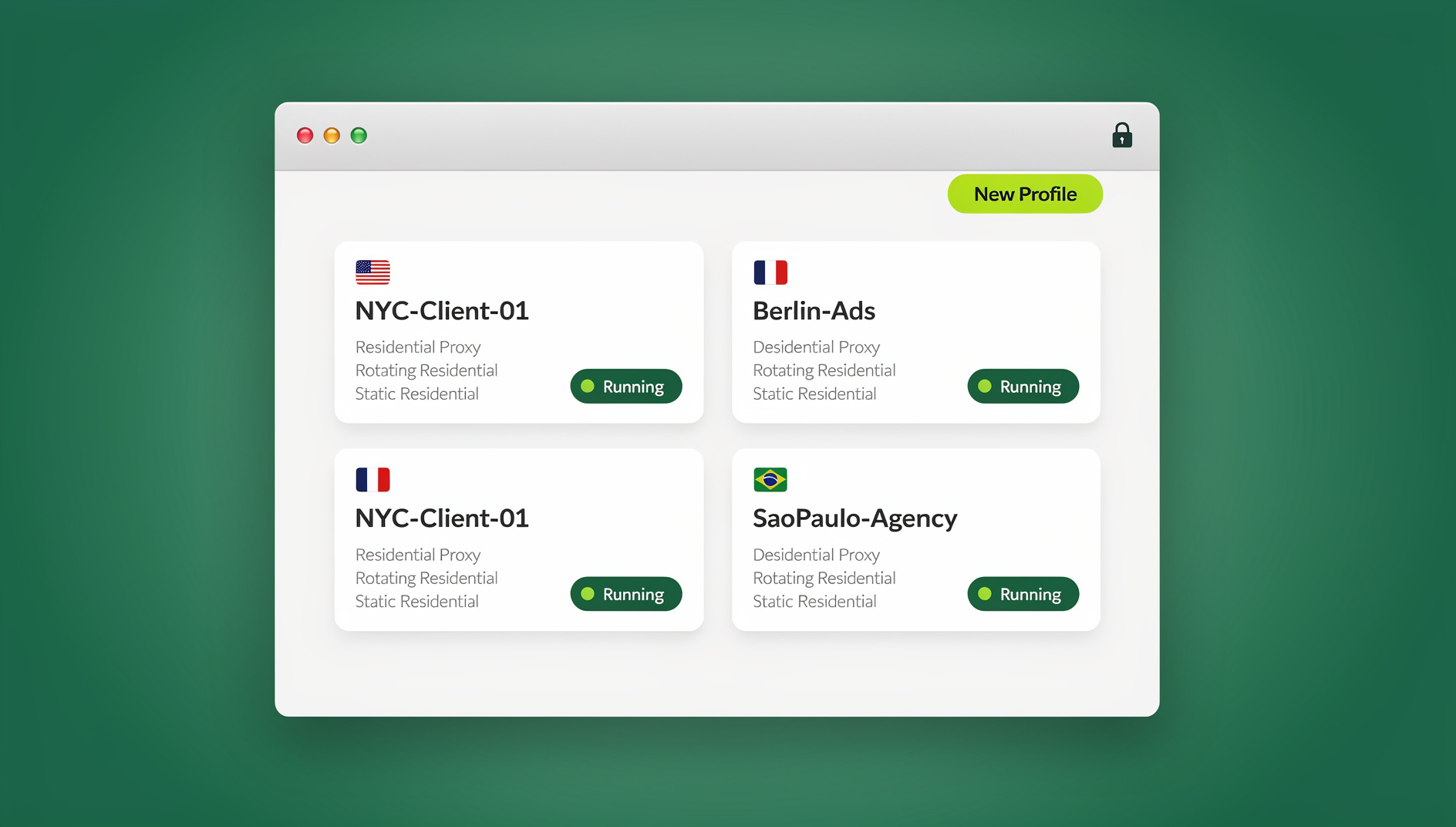
Managing multiple accounts on platforms like Facebook, Amazon, or eBay creates a security challenge that standard browser settings were never built to address.
The Challenge
Platforms detect connected accounts through several signals at once:
- Browser fingerprinting (Canvas, WebGL, audio rendering)
- Cookie sharing across domains and profiles
- IP address correlation between accounts
- Behavioral pattern analysis across sessions
None of the built-in protections covered above touch any of this — HTTPS-Only mode and Safe Browsing don’t randomize your fingerprint or rotate your IP, because that isn’t the problem they’re designed to solve.
The Solution
Antidetect browsers add security features specifically built for multi-account work:
- Fingerprint isolation — each profile presents its own browser characteristics
- Cookie isolation — complete separation of storage between profiles
- Proxy integration — a distinct IP address per profile
- WebRTC leak protection — prevents your real IP from leaking out through a misconfigured connection, which our dedicated WebRTC leak protection guide covers in more depth
Send.win builds these into every profile, whether you’re running it through the desktop app or a cloud session, so accounts genuinely don’t share the signals platforms use to link them. If you’re comparing tools in this category, our roundup of the best antidetect browser options for 2026 walks through how several vendors approach fingerprint and session isolation.
Password Security
Use a Password Manager
Password managers solve the practically impossible task of remembering a unique, complex password for every site you use:
- Generate random, strong passwords automatically
- Store passwords securely with strong encryption
- Autofill only on the legitimate domain (built-in phishing protection)
- Alert you when a stored password shows up in a breach
Recommended options: 1Password, Bitwarden, Dashlane, or a browser’s built-in manager.
Enable Two-Factor Authentication
2FA adds a second verification step beyond your password:
- TOTP apps (Google Authenticator, Authy) — time-based codes generated on your device
- Hardware keys (YubiKey) — physical tokens offering the strongest protection
- SMS codes — better than nothing, but vulnerable to SIM-swapping attacks
Monitor for Breaches
Check whether your credentials have already been exposed:
- haveibeenpwned.com — search for breached email addresses
- Browser breach monitoring — built into Chrome, Firefox, and Edge
- Password manager alerts — most flag compromised or reused passwords automatically
Choosing Between the Desktop App and Cloud Sessions
Once you’ve decided isolation is worth adding, the next question is which mode fits how you actually work. Send.win offers exactly two, and they solve slightly different problems rather than being tiers of the same thing.
The Sendwin Browser is a native, downloadable desktop app for Windows, macOS, and Linux. It’s local-first, meaning your profiles live on your machine and remain usable even without a live connection, while still syncing through encrypted cloud storage so you can pick up the same profiles on another device. This is the better fit for daily, structured multi-account work — client ad accounts, marketplace stores, recurring social media management — where you want persistence and offline access.
Cloud browser sessions run entirely on Send.win’s infrastructure with zero local install. You open a session from any device, do the work, and pay only for the cloud browsing time you use. This suits quick, disposable, or higher-risk browsing where you’d rather not have anything touch your local machine at all — checking a suspicious link, testing a site in a clean environment, or working from a locked-down device that can’t have software installed on it.
Send.win has no free trial; the only free option is the cloud demo at https://send.win/demo-browser/ (a 3-minute preview without signup, 10 minutes a day with a free account). Pro runs $19/month or $83.88/year with 150 profiles and 5GB of proxy bandwidth. Team runs $49/month or $251.88/year with 500 profiles, 20GB of bandwidth, and 16 seats — the natural step up once you’re managing client accounts across a small team. The first card purchase is covered by a 7-day money-back guarantee.
Browser Extensions and Security Risk
Carefully chosen extensions can genuinely improve your security posture, but the wrong ones do the opposite.
Extensions Worth Considering
- uBlock Origin — ad and tracker blocking, which also shrinks your attack surface
- Privacy Badger — EFF’s algorithmic tracker blocker
- NoScript (advanced users) — blocks JavaScript by default, allowlisting only what you trust
Extensions to Avoid
- Free VPN extensions — many monetize by selling your browsing data
- Third-party PDF viewers — your browser’s built-in viewer is safer and sufficient
- “Speed optimizer” or “cleaner” tools — usually bloatware with excessive permissions
- Coupon-finder extensions — commonly track your shopping activity across sites
🏆 Send.win Verdict
Solid browser security starts with the basics — updates, HTTPS-Only mode, a password manager, and 2FA — and those settings cover most everyday risk on their own. But standard settings don’t touch fingerprinting, IP correlation, or the cross-linking that platforms use to detect multiple accounts. For that, Send.win adds a real isolation layer: choose the native Sendwin Browser desktop app for persistent, local-first multi-account work with encrypted cloud sync, or spin up a fully disposable cloud session with zero install for higher-risk or one-off browsing.
Try the Send.win cloud demo — a 3-minute preview without signup, 10 minutes a day with a free account.
Frequently Asked Questions
What is the most secure browser?
Security depends on configuration as much as browser choice. Properly configured Firefox, Chrome, or Edge are all capable of strong security. For maximum anonymity, specialized privacy browsers like Tor are worth considering. For multi-account work specifically, browser profile managers like Send.win add fingerprint and session isolation that standard browsers simply don’t offer.
Can browsers get viruses?
Browsers themselves don’t “get viruses,” but they can be exploited to install malware on your system through vulnerabilities that enable drive-by downloads or code execution. Keeping your browser updated patches those vulnerabilities as they’re discovered. Running higher-risk browsing in an isolated cloud session removes the risk almost entirely, since the browsing never happens on your local device in the first place.
Should I use private browsing for security?
Private browsing provides limited security benefit. It stops your device from storing local history, but it does nothing against network threats, fingerprinting, or malware. Private browsing is useful for local privacy from other users of the same device, not for security against external threats.
How often should I update my browser?
Immediately, whenever an update is available. Modern browsers update automatically in the background, but confirm auto-updates are actually enabled and restart the browser when prompted — an update sitting undownloaded or unapplied protects nothing. Delaying updates leaves you exposed to exploits that are already public knowledge.
Are browser password managers safe?
Built-in browser password managers have improved significantly and are far safer than reusing passwords or writing them down. Dedicated managers like 1Password or Bitwarden add extras like better cross-platform support and secure sharing, but a browser’s built-in manager is a perfectly acceptable baseline for most users.
What’s the difference between browser isolation and a VPN?
A VPN encrypts your traffic and masks your IP address from the sites you visit and your ISP, but it doesn’t change your browser fingerprint or move the actual browsing execution anywhere. Browser isolation — whether remote isolation, a container, or a cloud session — physically separates where the browsing happens (or isolates the fingerprint and storage per profile) from your local device. They solve different problems and combine well; a VPN alone won’t stop fingerprint-based account correlation.
Do I need to install anything to browse securely with Send.win?
That depends on which mode you pick, and both are valid. Choose fully cloud-hosted sessions if you want zero local install — you just open a session in your regular browser and pay only for the cloud browsing time you use. Choose the Sendwin Browser desktop app for Windows, macOS, or Linux if you want local-first profiles with encrypted cloud sync and offline access. There isn’t a middle option to install — it’s one of these two, picked based on how you work.