A virtual desktop is a complete operating system environment hosted on a remote server or in the cloud and streamed to your device over the internet, instead of running on local hardware. It lets you access the same desktop, apps, and files from any laptop, tablet, or thin client, while your organization keeps the underlying data centralized, patched, and secure at the source rather than scattered across every endpoint.
What Is a Virtual Desktop?
Virtual Desktop Infrastructure (VDI) and Desktop as a Service (DaaS) are the two main ways organizations deliver virtual desktops. VDI runs virtual machines on servers you or your provider control; DaaS is the fully managed, subscription version of the same idea, hosted by a cloud vendor like Microsoft or Amazon. Either way, the desktop itself never actually lives on the device in front of you — only the pixels do.
The shift toward hybrid and remote work has pushed virtual desktop adoption well beyond its original home in large enterprises. Agencies, e-commerce sellers, and distributed teams now use lighter-weight variants of the same concept — cloud-hosted cloud desktop and cloud browser sessions — to get similar isolation and portability without standing up a full VDI deployment.
How Virtual Desktops Work
Understanding the technology behind virtual desktops helps explain both their strengths and their limitations.
The Core Architecture
Virtual desktops operate through a client-server model built from four main pieces:
- Hypervisor layer — specialized software (VMware, Citrix, Hyper-V) creates and manages virtual machines on physical servers.
- Connection broker — routes each user to their assigned virtual desktop session.
- Display protocol — transmits screen output and receives input (PCoIP, HDX, RDP).
- Client application — the thin client or software on the user’s device that renders the remote desktop.
Types of Virtual Desktop Deployments
Persistent desktops: Each user gets a dedicated virtual machine that keeps their settings, applications, and files between sessions — best for knowledge workers who need customization.
Non-persistent desktops: Users get a fresh desktop image every session, with personal data stored separately. This suits task workers, call centers, and high-security environments where a clean slate matters more than personalization.
Session-based desktops: Multiple users share a single server operating system, each in an isolated session. This is the most cost-effective model for organizations with standardized workflows.
Key Benefits of Virtual Desktops
1. Enhanced Security
Virtual desktops centralize data storage on secure servers instead of spreading it across distributed endpoints. That centralization brings:
- Data that never leaves the data center, reducing breach exposure if a laptop is lost or stolen.
- Simplified compliance with regulations such as HIPAA, PCI-DSS, and GDPR.
- Easy, uniform enforcement of security policies across every user.
- Instant patching and updates without chasing down individual endpoints.
- Isolated sessions that stop malware picked up in one session from spreading to others.
2. Remote Work Flexibility
A virtual desktop gives you the same environment wherever you log in:
- Identical desktop experience across office, home, and travel.
- Works on almost any device — laptops, tablets, thin clients, even underpowered machines.
- No complicated VPN setup for end-users.
- Consistent performance regardless of the local device’s own hardware.
3. Cost Optimization
Initial investment can be significant, but virtual desktops tend to pay off over time:
- Extended hardware lifecycles — endpoint devices only need a screen and a network connection.
- Lower IT support costs thanks to centralized management.
- Reduced energy consumption at the endpoint.
- Pay-per-use DaaS pricing that trades capital expenditure for a predictable subscription.
4. Business Continuity
Virtual desktops add resilience against disruption:
- Near-instant disaster recovery if a primary data center goes down.
- Fast provisioning for new employees or contractors.
- Scaling up or down on demand without buying new hardware.
Top Virtual Desktop and Cloud Browser Solutions in 2026
1. Azure Virtual Desktop (AVD)
Best for: organizations already invested in the Microsoft ecosystem.
Microsoft’s native DaaS offering integrates tightly with Microsoft 365, Azure Active Directory, and existing Windows licensing. Multi-session Windows 11 support makes it cost-effective for task workers running standardized apps.
Pricing: pay-as-you-go based on VM size and hours used; organizations with existing Windows E3/E5 licenses see significant savings.
2. Amazon WorkSpaces
Best for: AWS-centric organizations that need global availability.
Amazon’s DaaS offers both Windows and Linux desktops with hourly or monthly billing, and integrates cleanly with the rest of the AWS stack — a natural fit for development teams.
Pricing: starts around $21/month for basic bundles, with hourly options for intermittent users.
3. Citrix DaaS
Best for: large enterprises that need advanced features.
The industry veteran, with the most mature feature set: HDX protocol optimization, app virtualization, and detailed analytics. Hybrid deployment supports on-premises, cloud, or mixed environments.
Pricing: custom enterprise pricing, typically $10-25 per user per month depending on features.
4. VMware Horizon
Best for: organizations with existing VMware infrastructure.
Tight integration with vSphere and vSAN makes Horizon a natural choice for VMware shops, with both on-premises and cloud deployment options.
Pricing: named-user licensing starting around $150/user/year.
5. Send.win
Best for: teams and individuals who need isolated, portable browser environments rather than a full virtual operating system.
Send.win isn’t a general-purpose VDI replacement — it’s a purpose-built tool for anyone who needs multiple, isolated browser profiles: agencies running client ad accounts, e-commerce sellers operating several stores, and remote teams that need to share access without sharing passwords. It comes in two modes. Sendwin Browser is a native, downloadable desktop app for Windows, macOS, and Linux that works local-first and syncs profiles to the cloud with encryption, so your sessions follow you between machines. Cloud browser sessions run entirely on Send.win’s servers, with zero local install — you open a browser tab and you’re in a fresh, isolated session, metered by cloud browsing time rather than a persistent VM.
Pricing: no free trial; Pro at $19/month or $83.88/year with 150 profiles and 5GB of proxy bandwidth, or Team at $49/month or $251.88/year with 500 profiles, 20GB of bandwidth, and 16 seats. The first card purchase is covered by a 7-day money-back guarantee, and there’s a free cloud demo at https://send.win/demo-browser/.
Virtual Desktop vs Traditional PC
| Factor | Virtual Desktop | Traditional PC |
|---|---|---|
| Security | Centralized, easier to control | Distributed, harder to manage |
| Performance | Depends on server and network | Depends on local hardware |
| Offline access | Limited | Full |
| Graphics | Improving with GPU virtualization | Native performance |
| Management | Centralized | Per-device |
| Capital cost | Lower endpoint cost | Higher per device |
| Network dependency | Critical | Optional |
Virtual Desktop vs Cloud Browser Sessions: What’s the Difference?
It’s easy to lump virtual desktops and cloud browser tools together because both stream a remote environment to your screen, but they solve different problems. A virtual desktop replicates an entire operating system — file explorer, installed apps, local storage, the works — and is billed and managed accordingly. A virtual browser like the cloud sessions inside Send.win replicates just the browser layer: tabs, cookies, saved logins, and a unique fingerprint per profile, with none of the operating-system overhead.
That distinction matters for cost and setup time. Spinning up a full VDI desktop for someone who only needs an isolated browser session is overkill — you’re paying for and patching an entire OS to solve a browser-level problem. If what you actually need is browser isolation between client accounts, ad platforms, or marketplace logins, a lighter-weight tool gets you there in seconds instead of minutes, and at a fraction of the per-seat cost of enterprise VDI.
Common Use Cases for Virtual Desktops
Healthcare
HIPAA compliance requires strict data controls. Virtual desktops keep patient records on secure servers while letting clinicians log in from any workstation.
Financial Services
Banks and trading firms use VDI for regulatory compliance, preventing data exfiltration while still supporting remote work policies.
Education
Universities give students consistent lab environments accessible from personal devices, eliminating software installation headaches.
Call Centers
Non-persistent desktops with session recording support quality assurance and reduce data-theft risk in high-turnover environments.
Digital Marketing Agencies
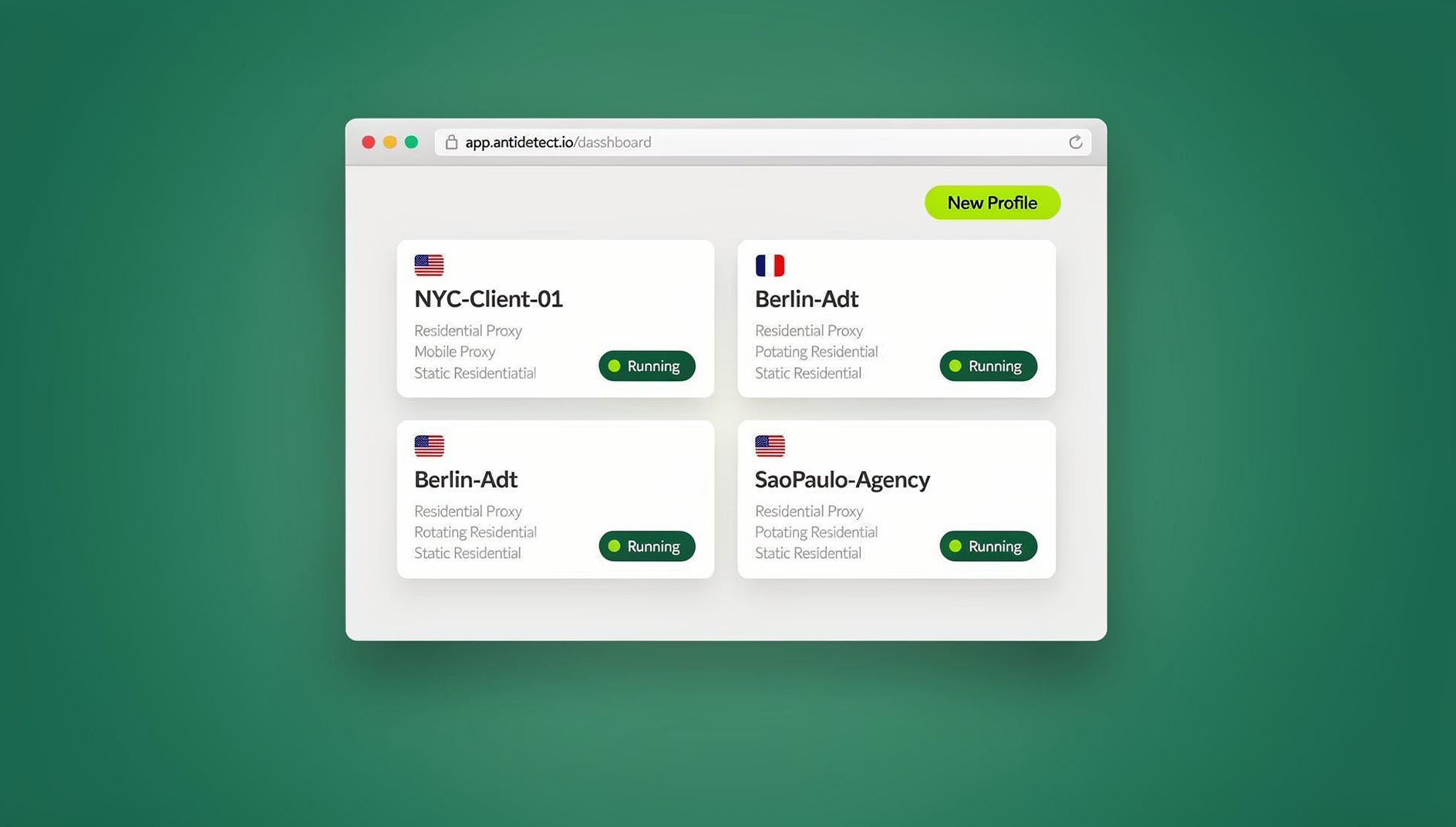
Agencies juggling dozens of client accounts need isolation more than they need a full desktop replica. This is where tools built specifically for managing multiple accounts — like Send.win — outperform general VDI: each client gets its own isolated profile with its own cookies, fingerprint, and (optionally) proxy, without the overhead of licensing a full virtual machine per account.
Implementing Virtual Desktops
Step 1: Assess Your Workloads
Categorize users by their computing needs:
- Task workers: basic productivity apps — shared desktop pools work well.
- Knowledge workers: office suite and collaboration tools — persistent desktops recommended.
- Power users: development, design, data analysis — may need GPU resources.
Step 2: Choose a Deployment Model
- On-premises VDI: maximum control, higher upfront cost.
- DaaS: lower barrier to entry, predictable monthly costs.
- Hybrid: sensitive workloads on-prem, standard workloads in the cloud.
Step 3: Optimize Network Architecture
Virtual desktop performance depends heavily on network quality:
- Minimize latency between users and the hosting location.
- Implement QoS policies for desktop traffic.
- Consider SD-WAN for distributed offices.
- Evaluate local breakout for cloud-hosted services.
Step 4: Pilot and Iterate
Start with a pilot group to catch issues before a full rollout. Monitor performance metrics and gather user feedback to refine the implementation before scaling further.
Common Challenges and Solutions
Performance Issues
Problem: users experience lag or poor video quality.
Solution: upgrade display protocols, enable hardware acceleration, optimize network paths, or move to GPU-enabled VMs for graphics-intensive work.
Application Compatibility
Problem: specialized software doesn’t behave well in a virtual environment.
Solution: use application virtualization, keep a small pool of physical workstations for exception cases, or evaluate cloud-native alternatives to the software itself.
User Adoption
Problem: employees resist moving away from a familiar local desktop.
Solution: communicate the benefits clearly, provide training, make sure performance is equivalent or better, and keep collecting feedback for continuous improvement.
Virtual Desktop and Cloud Browser Pricing at a Glance
| Solution | Type | Starting Price | Best For |
|---|---|---|---|
| Azure Virtual Desktop | Full DaaS | Pay-as-you-go (VM-based) | Microsoft-centric IT |
| Amazon WorkSpaces | Full DaaS | From ~$21/month | AWS-centric teams |
| Citrix DaaS | Full DaaS | ~$10-25/user/month | Large enterprises |
| VMware Horizon | VDI | ~$150/user/year | Existing VMware shops |
| Send.win | Native app + cloud browser sessions | $19/month (Pro), no free trial | Multi-account management, agencies, e-commerce |
🏆 Send.win Verdict
If you need a full virtual operating system for compliance-heavy or graphics-intensive workloads, stick with a dedicated VDI or DaaS platform like Azure Virtual Desktop, Citrix, or Horizon. But if what’s actually driving the search for “virtual desktop” is a need to isolate accounts, keep client work separate, or run several profiles without buying a machine for each one, Send.win solves that specific problem more directly — and far more affordably — with a native desktop app for Windows, macOS, and Linux plus zero-install cloud browser sessions for when you don’t want to install anything at all.
Try the Send.win cloud demo — a 3-minute preview without signup, 10 minutes a day with a free account.
Frequently Asked Questions
How much does a virtual desktop cost?
DaaS solutions typically range from $20-50 per user per month for basic configurations. Enterprise VDI implementations vary widely by scale, with total cost of ownership often landing between $80-150 per user annually once you include infrastructure, licensing, and management overhead. Lighter tools that only need to isolate browser sessions, such as Send.win, cost a fraction of that — plans start at $19/month, with no free trial.
Can virtual desktops run offline?
Traditional VDI requires constant connectivity, since the operating system itself lives on a remote server. Some solutions offer limited offline capability through local caching, but this isn’t the primary use case. Workers who genuinely need regular offline access are usually better served by a laptop with strong endpoint security controls than by trying to force offline VDI to work.
Are virtual desktops secure?
Virtual desktops offer real security advantages by centralizing data and simplifying patch management, but security still depends on proper implementation. A misconfigured deployment can be just as vulnerable as a poorly managed fleet of laptops. Organizations should follow vendor hardening guides and pair VDI with endpoint detection, network segmentation, and identity management rather than treating it as a security silver bullet.
What internet speed do I need for a virtual desktop?
Most virtual desktop solutions work well with 5-15 Mbps per user for standard office productivity. Video conferencing and graphics-heavy work need more bandwidth. Latency usually matters more than raw bandwidth — aim for under 100ms to the hosting location for a responsive experience.
Is Send.win a virtual desktop?
Not in the traditional VDI sense — Send.win doesn’t replicate a full operating system. It gives you a native desktop app for Windows, macOS, and Linux with encrypted cloud sync, plus separate zero-install cloud browser sessions, both built specifically around isolated browser profiles rather than a general-purpose remote OS.
Does Send.win support automation?
No. Send.win has no automation interface — no API, SDK, headless mode or Selenium/Puppeteer/Playwright support on any plan.
Do I need a credit card to try Send.win?
No. Send.win has no free trial; the only free option is the cloud demo at https://send.win/demo-browser/, and the first card purchase is covered by a 7-day money-back guarantee.
How is Send.win priced compared to full VDI platforms?
Send.win’s Pro plan starts at $19/month ($6.99/month billed annually — 63% savings) with 150 profiles and 5GB of proxy bandwidth, and Team starts at $49/month ($20.99/month billed annually — 57% savings) with 500 profiles, 20GB of bandwidth, and 16 seats. That’s substantially cheaper per seat than enterprise DaaS platforms, because it isn’t billing you for a full virtual machine — just the isolated browser environment.