Workspace streaming delivers a complete desktop environment — applications, files, browsers, and settings — from a remote server to any device with an internet connection, so the heavy computing happens in the cloud while you interact with it in real time. Instead of installing and running software locally, your screen becomes a live window into a machine that lives somewhere else, which removes hardware limits and lets you work from whatever device is in front of you.
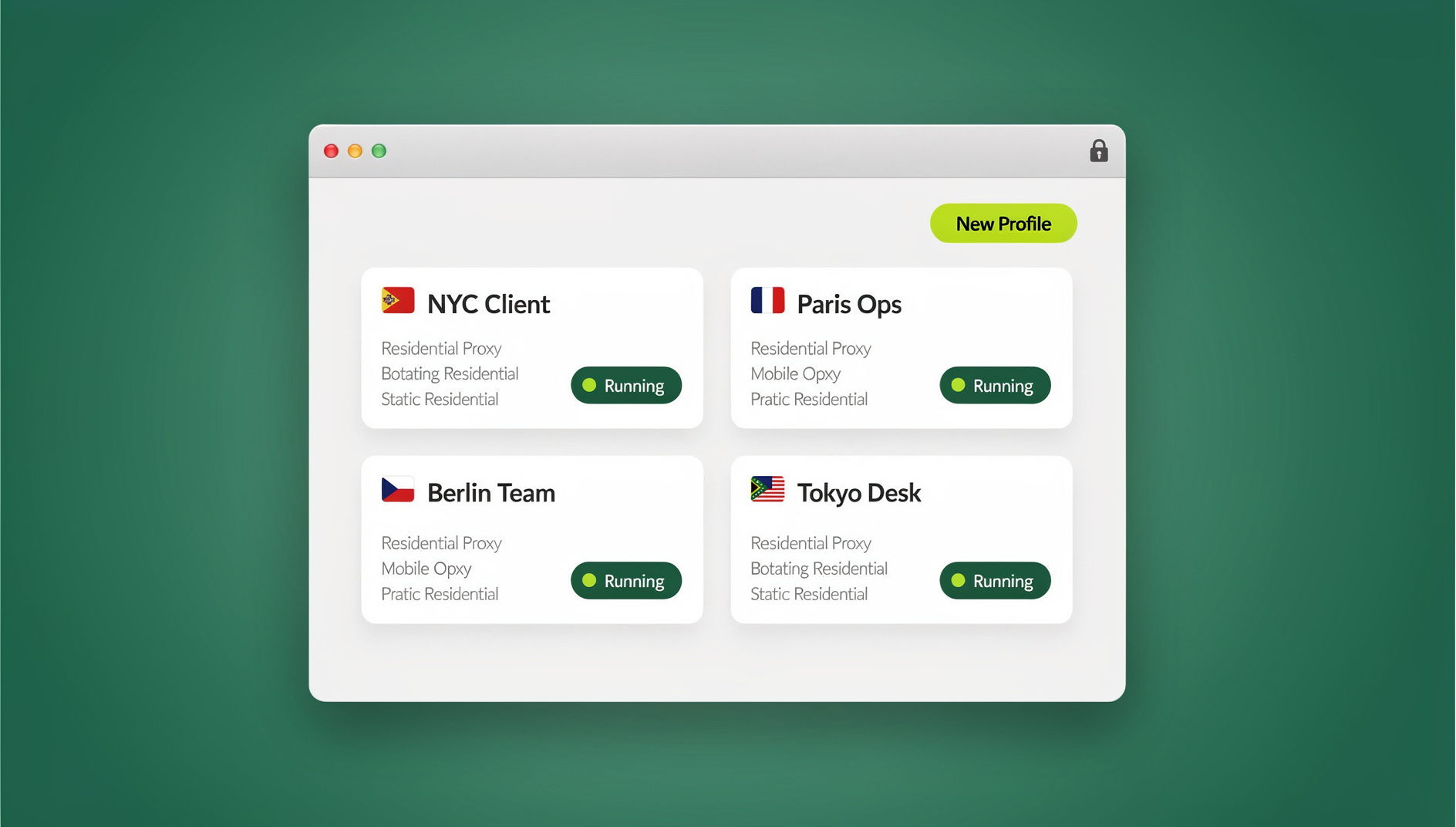
Think of it as the Netflix model applied to your work computer. The processing happens on someone else’s servers, but you experience it as though everything were running right in front of you. That single shift — moving the compute away from the device in your hands — is what makes instant access from anywhere, disposable environments, and hardware-independent teams possible.
How Workspace Streaming Works
The Streaming Pipeline
Every workspace streaming session, regardless of vendor, follows roughly the same sequence of steps:
- A cloud server boots and runs your full desktop environment (Windows, Linux, or a custom OS image).
- The display output is captured and encoded as a video stream, typically using H.264 or the more efficient H.265 codec.
- Stream delivery pushes compressed frames to your device over the internet, usually over a low-latency protocol tuned for interactive use rather than passive video.
- A client decoder — a native app or a browser tab — renders the incoming video on your screen.
- Input capture sends your mouse movements, clicks, keystrokes, and touch gestures back to the server, where they’re applied to the remote session.
- The full round trip — your input, the server’s reaction, and the new frame reaching your eyes — typically takes 15-50ms on a decent connection, which is imperceptible for the vast majority of tasks.
Streaming Protocols
The protocol underneath a workspace streaming platform determines how it feels to use. Some are built for enterprise VDI deployments; others are optimized for lightweight, browser-based delivery.
| Protocol | Developer | Latency | Quality | Use Case |
|---|---|---|---|---|
| RDP (Remote Desktop Protocol) | Microsoft | Good | Good | Windows desktops |
| PCoIP | Teradici/HP | Excellent | Excellent | Enterprise VDI |
| HDX (ICA) | Citrix | Excellent | Excellent | Citrix environments |
| Blast Extreme | VMware | Very Good | Very Good | VMware Horizon |
| WebRTC-based | Various | Good | Good | Browser-based access |
| DCV | AWS (NICE) | Very Good | Very Good | AWS workloads |
None of these protocols is universally “best” — the right choice depends on what you’re streaming and how it’s consumed. PCoIP and HDX squeeze out excellent quality at low latency but usually require dedicated client software and enterprise licensing. WebRTC-based streaming, by contrast, runs inside an ordinary browser tab, which trades a bit of peak fidelity for zero-install convenience — a tradeoff that matters a lot if you’re rolling a workspace out to hundreds of people who shouldn’t have to install anything first.
Types of Workspace Streaming
1. Desktop as a Service (DaaS)
Full Windows or Linux desktops running in the cloud, provisioned and billed like any other cloud resource:
- Amazon WorkSpaces: AWS-powered virtual desktops with multiple hardware bundles to choose from.
- Azure Virtual Desktop: Microsoft’s cloud desktop offering, including Windows 11 multi-session support.
- Citrix DaaS: Enterprise-grade delivery with advanced session brokering and management.
- VMware Horizon Cloud: Multi-cloud virtual desktop infrastructure for large deployments.
2. Application Streaming
Individual applications streamed without handing you a full desktop:
- Microsoft 365 web apps: Office applications running inside the browser.
- Figma: A full design tool that never leaves the browser tab.
- NVIDIA GeForce NOW: Gaming-grade graphics streamed from cloud GPUs.
- Adobe Creative Cloud web: Select Adobe tools accessible without a local install.
3. Browser Workspace Streaming
The third category isolates just the browser rather than an entire OS, and it’s where the multi-account and privacy use cases live:
- Each browser profile runs as its own workspace on remote or local-first infrastructure.
- Sessions persist between connections, so you pick up exactly where you left off.
- Each profile gets its own fingerprint, cookies, and proxy configuration.
- It’s a natural fit for managing multiple accounts without needing separate physical machines.
This is the model that multi login browsers like Send.win are built around, though the implementation varies. Send.win actually spans both ends of the workspace-streaming spectrum. Sendwin Browser is a native, downloadable desktop application for Windows, macOS, and Linux — it’s local-first, meaning your browser sessions run on your own machine’s hardware, while profile data is encrypted and synced to the cloud so it follows you across devices. Separately, Send.win also offers cloud browser sessions that run entirely on remote infrastructure with zero local install, which is true workspace streaming in the classic sense: nothing touches your disk, and usage is metered by cloud browsing time rather than bundled into a flat fee. Choosing between the two is really a choice between local performance with sync, or full remote isolation with nothing installed at all.
Workspace Streaming Platforms Compared
| Platform | Type | Starting Price | Best For |
|---|---|---|---|
| Amazon WorkSpaces | Full Desktop | $21/month | AWS-integrated workflows |
| Azure Virtual Desktop | Full Desktop | Pay-per-use | Microsoft 365 organizations |
| Citrix DaaS | Full Desktop | $12/user/month | Large enterprises |
| Kasm Workspaces | Container Desktop | Free (self-hosted) | DevOps, security teams |
| Shells.com | Cloud Desktop | $4.95/month | Personal cloud desktops |
| Send.win | Native Desktop App + Cloud Sessions | From $19/mo (Pro) or $49/mo (Team); 7-day money-back guarantee on first card purchase; free cloud demo available | Multi-account browser management |
Why Teams Use Workspace Streaming
Remote and Hybrid Work
- Employees access their complete work environment from home, the office, or the road.
- BYOD setups let personal laptops reach corporate desktops securely, without exposing corporate data to the local machine.
- New hires get onboarded in minutes instead of days, since there’s no hardware to ship or configure.
- Seasonal or contract workers get instant access without a permanent hardware investment.
Multi-Account Management
Workspace streaming is especially well suited to managing multiple online identities, since each identity can live in its own isolated environment:
- Each account gets its own workspace with a distinct fingerprint, cookie jar, and proxy.
- There’s no cross-contamination between accounts, because the isolation happens below the application layer.
- All of your workspaces are reachable from a single device, rather than one machine per account.
- Team members can use session sharing to hand off access to a colleague without ever exchanging a password.
Security-Sensitive Browsing
- Risky links and unfamiliar sites can be opened from an isolated workspace instead of your primary machine.
- Malware inside the stream can’t escape the session to reach your actual device.
- Disposable workspaces reset to a clean state after each use, so nothing lingers between sessions.
- Solid session isolation keeps sensitive data on the server rather than scattered across employee laptops, which also helps with compliance.
Software Development
Engineering teams have quietly become one of the biggest users of workspace streaming, since it sidesteps the “works on my machine” problem entirely — everyone connects to the same underlying environment instead of trying to keep a fleet of laptops in sync.
- Consistent, pre-configured development environments for an entire team.
- GPU-accelerated workspaces for machine learning workloads.
- Testing across multiple OS versions without maintaining a closet full of physical hardware.
- Faster onboarding for new developers, since the environment is already built.
Getting the Best Performance from Workspace Streaming
Network Requirements
| Quality Level | Bandwidth | Latency | Experience |
|---|---|---|---|
| Basic (office work) | 5 Mbps | <100ms | Good for documents, email |
| Standard (general use) | 15 Mbps | <50ms | Smooth for most tasks |
| Premium (media/design) | 25+ Mbps | <30ms | Excellent for all tasks |
| Ultra (competitive gaming) | 50+ Mbps | <15ms | Near-native experience |
Optimization Tips
- Use a wired connection over Wi-Fi when possible for consistent, jitter-free latency.
- Pick the closest server region to minimize round-trip time.
- Adjust stream quality to match your bandwidth — a lower resolution buys you lower latency.
- Close bandwidth-heavy local apps, like video calls or large downloads, while streaming.
- Enable hardware decoding on the client so your GPU handles stream rendering instead of the CPU.
- Use H.265 where supported — it compresses roughly 50% better than H.264 at the same visual quality.
Self-Hosted vs. Cloud Workspace Streaming
| Aspect | Self-Hosted | Cloud (DaaS) |
|---|---|---|
| Upfront cost | High (hardware + setup) | None (subscription) |
| Ongoing cost | Low (electricity, maintenance) | Monthly per-user fee |
| Control | Complete | Limited to provider options |
| Scalability | Hardware-limited | Instantly scalable |
| Maintenance | Your responsibility | Provider-managed |
| Data sovereignty | On-premises | Provider’s data centers |
How Send.win Approaches Workspace Streaming
Rather than forcing everyone into a single delivery model, Send.win gives you a choice depending on what a given task needs. If you want the responsiveness of local hardware combined with the convenience of cross-device continuity, you install Sendwin Browser, the native desktop app available for Windows, macOS, and Linux. It’s local-first — your tabs and profiles run on your own CPU and GPU — while everything is encrypted and synced to the cloud in the background, so a profile you built on one machine is exactly the same when you open it on another.
If you’d rather not install anything at all, Send.win’s cloud browser sessions run entirely on remote servers and stream to whatever device you’re using, the same way any other cloud browser platform does. That’s useful for shared or locked-down devices, quick one-off tasks, or teams that want zero footprint on end-user hardware. Usage in this mode is metered by cloud browsing time instead of a flat monthly allowance.
| Plan | Price | Profiles | Proxy Bandwidth | Seats | |
|---|---|---|---|---|---|
| Free Trial | $0 for 30 days, no credit card | Limited | Limited | — | 1 |
| Pro | $19/mo ($6.99/mo billed annually — 63% off) | 150 | 5GB | Yes | 1 |
| Team | $49/mo ($20.99/mo billed annually — 57% off) | 500 | 20GB | Yes | 16 |
🏆 Send.win Verdict
Workspace streaming is the right tool whenever local hardware is the bottleneck, whether that’s a full DaaS desktop for an entire office or an isolated browser workspace for a single account. If your main need is managing multiple accounts, proxies, and profiles without cross-contamination, Send.win covers both extremes of the spectrum: a native desktop app for local-speed browsing with encrypted cloud sync, and zero-install cloud sessions for when you want nothing touching your device at all.
Try the Send.win cloud demo — a 3-minute preview without signup, 10 minutes a day with a free account.
Frequently Asked Questions
What is workspace streaming?
Workspace streaming is the delivery of a full desktop, application, or browser environment from a remote server to your device over the internet, with the actual computing happening on the server rather than the device you’re holding. Your screen shows a live, interactive video feed, and your inputs are sent back to the server in real time.
Is workspace streaming the same as VDI?
VDI (Virtual Desktop Infrastructure) is one specific implementation of workspace streaming, where virtual machines host individual desktops. Workspace streaming is the broader umbrella that also includes DaaS, application streaming, and browser-level streaming.
Can I use workspace streaming for gaming?
Yes. Services like NVIDIA GeForce NOW, Xbox Cloud Gaming, and Amazon Luna stream gaming-grade graphics to any device. Competitive gaming, though, needs very low latency (under 15ms), which limits you to nearby server regions and a wired connection.
How secure is workspace streaming?
Very secure when implemented properly, because only pixels are transmitted — the underlying data never leaves the server. Even if your local device were compromised, an attacker couldn’t reach data that was never stored there. Encryption in transit (TLS 1.3) protects the stream itself.
What happens if my internet disconnects during a streaming session?
Most platforms preserve your session state. When you reconnect, you resume exactly where you left off. Some keep sessions alive for hours; others enforce a shorter, configurable timeout.
Do I need to install anything to use Send.win?
It depends on which mode you choose. Sendwin Browser is a native desktop app you download for Windows, macOS, or Linux, giving you local performance with encrypted cloud sync. If you’d rather skip installation entirely, Send.win’s cloud browser sessions run fully in the cloud and stream to your screen, so nothing is installed locally.
How much bandwidth do I actually need for smooth workspace streaming?
For general office work, 5 Mbps with sub-100ms latency is usually enough. For a consistently smooth experience across most tasks, aim for at least 15 Mbps and under 50ms latency — the same range recommended for standard video conferencing.
How is workspace streaming different from remote desktop tools like TeamViewer or AnyDesk?
Classic remote-desktop tools connect you to a specific physical computer that has to already be turned on somewhere, and if that machine goes offline, so does your access. Workspace streaming instead connects you to a purpose-built cloud instance or container that exists independently of any single physical machine, can be spun up or torn down on demand, and typically scales far more easily across a whole team.