If you upload to more than one channel — a main channel plus a gaming or shorts spin-off, a personal channel plus three client channels, or a whole agency’s worth of brand accounts — you already know the pain of juggling logins. You manage multiple YouTube accounts by signing out and back in, opening a pile of incognito windows, or keeping a second laptop just for “the other channel.” All three approaches are slow, and two of them can actually get channels flagged. Send.win was built to remove that friction with isolated browser profiles, unique fingerprints, and a proper way to hand access to a team — without ever sharing a password.
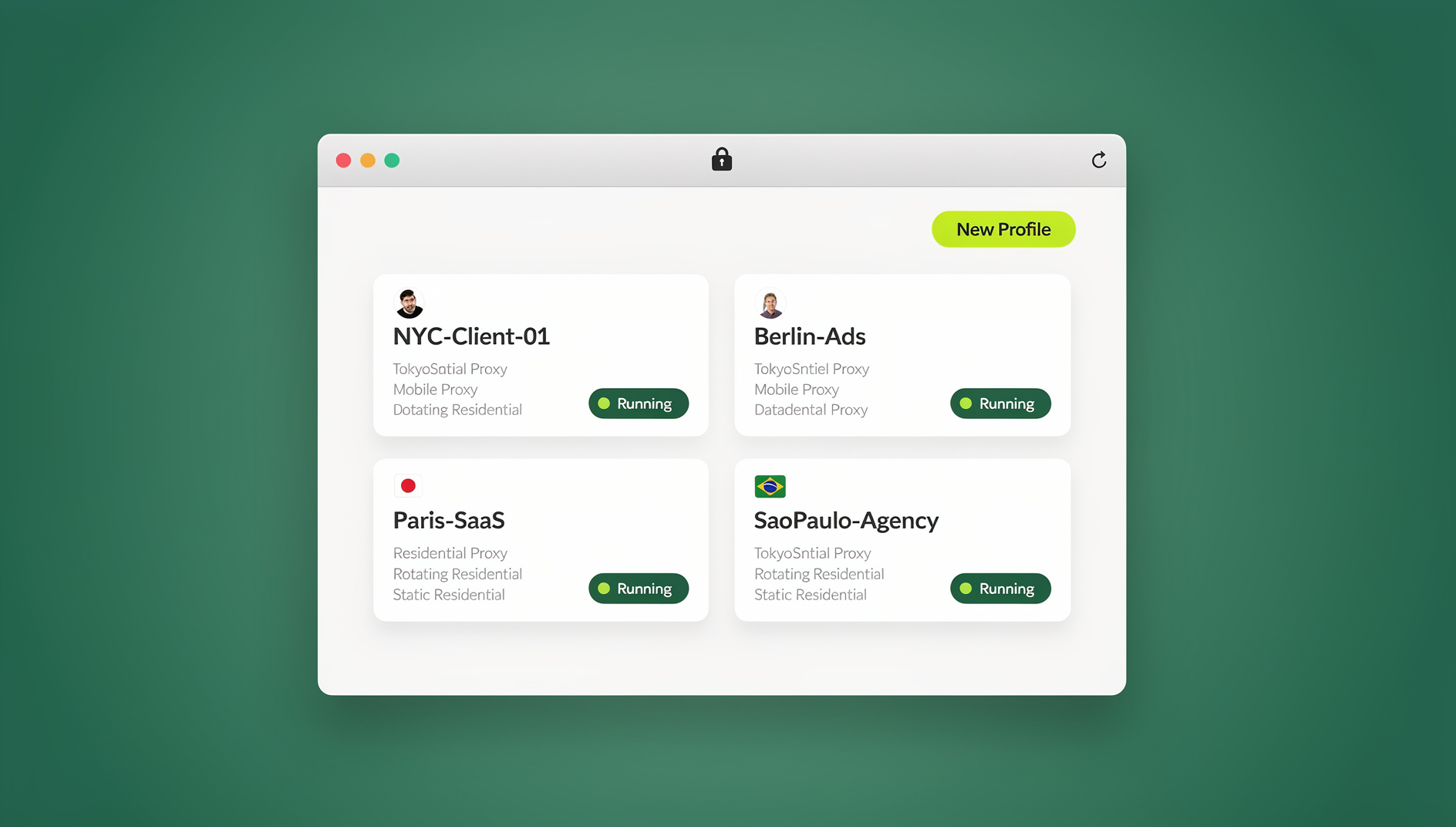
This guide walks through exactly why juggling YouTube logins the old way causes problems, how Send.win’s profiles solve it step by step, and how creators and agencies use the Desktop app and Automation API to run channel management at scale in 2026.
Why Creators, Agencies, and Brands Run Multiple YouTube Channels
Running more than one YouTube account is normal, not niche. Common reasons channel owners end up needing to manage multiple YouTube accounts at once include:
- Content separation — a main channel plus a gaming, vlog, or Shorts-only spin-off that targets a different audience or algorithm niche.
- Agency and freelance work — social media managers and video editors who upload, schedule, and moderate comments across several client channels every day.
- Multi-brand companies — one business running separate channels per product line, region, or language market.
- Backup and testing channels — creators who keep a secondary channel to test thumbnails, titles, or content formats before rolling them out to the main audience.
- MCNs and networks — multi-channel networks that need to log into dozens of creator channels for uploads, analytics checks, or monetization support.
- Personal vs. professional split — keeping a personal Google identity fully separate from a monetized business channel.
Whatever the reason, the underlying need is the same: log into several distinct YouTube/Google identities, switch between them quickly, and do it without one account’s session bleeding into another.
The Problem With How Most People Do It Today
Before tools like Send.win existed, there were really only three workarounds, and each one comes with a real cost.
Constant Sign-In and Sign-Out
Logging a Google account out and a different one in every time you switch channels is slow, breaks your saved Studio settings, and makes it easy to accidentally post or comment from the wrong identity — a mistake that’s hard to undo once a comment or upload goes live under the wrong channel name.
Incognito Windows and Secondary Browsers
Incognito mode lets you hold a second session open, but it clears cookies and saved logins the moment you close the window, so you’re re-authenticating (often with 2FA) every single session. Running a second full browser just for one extra account also means duplicating bookmarks, extensions, and settings — and neither method changes your device’s underlying browser fingerprint, so Google can still see that two “different” accounts are logging in from the exact same machine, canvas signature, and IP address.
Chrome Profiles and Multiple Devices
Native Chrome profiles are better than incognito but still share the same OS-level fingerprint components and, in most home or office setups, the same IP address across every profile — which is exactly the kind of overlap that can get closely-related channels flagged for suspected duplicate ownership or coordinated activity. Buying a second device solves the fingerprint problem but is expensive and doesn’t scale past two or three accounts.
| Method | Session Persistence | Unique Fingerprint | Proxy Support | Team Sharing | Scales Past 5 Accounts |
|---|---|---|---|---|---|
| Sign in/out repeatedly | No | No | No | No | No |
| Incognito windows | No | No | No | No | No |
| Chrome profiles | Yes | No | Manual only | No | Poor |
| Second physical device | Yes | Partial | Manual only | No | Poor |
| Send.win profiles | Yes | Yes | Built-in | Yes | Yes |
What Is Send.win (and How It Fixes This)
Send.win is a multi-login browser built specifically for the problem above. Instead of one browser sharing one fingerprint across every account, Send.win creates a separate isolated profile for each YouTube (or Google) account you manage. Each profile gets:
- Its own unique browser fingerprint (canvas, WebGL, fonts, timezone, screen parameters) so every channel looks like it’s coming from a genuinely different device.
- Its own persistent cookies, cache, and login session, so you stay signed in between launches — no re-authenticating every time.
- An optional dedicated proxy (residential, datacenter, or mobile), so each channel can also have its own consistent IP address and geolocation.
- Its own tab and window, kept visually separate with a colored border so you never mistake which channel you’re actively working in.
This isolation is the same reason agencies use Send.win as a multi-login browser for platforms well beyond YouTube — the exact pattern that makes it possible to manage multiple Instagram accounts also applies directly to running several YouTube channels side by side, since both platforms watch for the same device-overlap signals when accounts share a browser and IP.
Step-by-Step: Managing Multiple YouTube Accounts With Send.win
Here’s the current setup process, whether you’re going from zero to your first two channels or migrating an existing roster of client accounts.
- Create a Send.win account. Sign up at send.win — the plan includes a 30-day free trial with no credit card required, so you can test the full workflow with your real channels before paying anything.
- Choose Desktop app or Cloud browser. Download the native Desktop app for Windows, macOS, or Linux for the fastest local experience, or launch profiles straight from the cloud dashboard if you’re on a shared or locked-down machine and don’t want to install anything.
- Create a new profile for your first channel. Give it a clear name (e.g. “Main Channel” or the client’s brand name) and, if you manage several clients, tag it with a group so your profile list stays organized as it grows.
- Assign a proxy (optional but recommended). Pick a residential or mobile proxy that matches the geographic region your channel’s audience is based in, so the login location stays consistent every session.
- Launch the profile and log into YouTube. The isolated browser window opens exactly like a normal browser — sign into Google/YouTube as you normally would. This session now lives permanently inside that profile.
- Repeat for every additional channel. Create one profile per YouTube/Google account. There’s no practical limit built into the workflow — plans scale from a handful of profiles up to hundreds for larger teams.
- Pin or group your profiles. Once you have more than a few channels, use groups and naming conventions so switching between “Client A — Main,” “Client A — Shorts,” and “Client B — Main” takes one click instead of a search.
From this point forward, opening any channel is a single click on its profile — no logging out, no incognito window, no second device.
Using the Send.win Desktop App for Daily Channel Management
For anyone managing YouTube channels every day, the native Desktop app (available for Windows, macOS, and Linux) is the fastest way to work. Because it runs locally rather than in a browser tab, each profile opens as its own isolated window with persistent sessions, so switching between five client channels feels like switching between five separate apps rather than reloading tabs. Uploads, Studio analytics, comment moderation, and community posts all behave exactly as they would in a normal Chrome window — the only difference is that each channel’s cookies, cache, and fingerprint never touch each other.
Sharing YouTube Channel Access With Your Team (Without Passwords)
Agencies and multi-person teams rarely want to hand out the actual Google password for a client’s YouTube account — that’s a support burden and a security risk if someone leaves the team. Send.win profiles can be shared directly with teammates: they get working access to log in, upload, and respond to comments, without ever seeing or being able to export the underlying credentials. Because each shared profile relies on session isolation, one editor’s activity on “Client A” never leaks cookies, autofill data, or login state into “Client B,” even when both are open on the same shared team account. This is part of why managing multiple social profiles for clients is one of the most common uses of Send.win among agencies — YouTube channel management is simply one slice of that broader workflow.
Scaling Up: Automating YouTube Workflows With the Automation API
Once you’re managing dozens of channels — a network of creator partners, a large agency roster, or a brand with regional channels in every market — clicking through profiles manually stops scaling. The Automation API, included on the Team plan, exposes Send.win’s isolated profiles to Selenium, Puppeteer, and Playwright, so you can script repetitive channel tasks programmatically while every action still runs through its own isolated fingerprint and proxy. Practical uses include:
- Scheduled scripts that log a health check across every managed channel (are uploads processing, is monetization status normal, are there new strikes or restrictions).
- Bulk comment moderation or pinned-comment updates pushed across a whole channel roster in one run.
- Automated screenshot or analytics-export capture for client reporting, without a human logging into each channel by hand.
- QA scripts that verify a new upload or thumbnail renders correctly across every regional/brand channel before a campaign goes live.
Because each automated session still runs inside its own Send.win profile, scripted actions carry the same fingerprint and proxy isolation as a manual login — automation doesn’t mean giving up the separation that keeps channels safe.
YouTube Brand Accounts vs. Separate Google Accounts vs. Send.win Profiles
A common point of confusion is whether you even need separate logins at all — YouTube’s own “Brand Account” switcher lets one Google account manage several channels already. The table below shows where that native option stops being enough.
| Approach | Best For | Shares Login Identity? | Unique Fingerprint/IP | Team Access Without Password Sharing |
|---|---|---|---|---|
| YouTube Brand Accounts (one Google login) | Channels under one owner, same team, no separation needed | Yes — same Google account | No | Limited (Studio permissions only) |
| Separate Google accounts, same browser | Fully distinct owners/clients | No, but same device signals | No | No |
| Send.win profile per account | Distinct owners/clients that need real separation | No | Yes | Yes |
If every channel genuinely belongs to the same person or the same brand with no need to hide the connection, the native Brand Account switcher is fine. The moment channels belong to different clients, different niches you want kept apart, or accounts you don’t want linked by shared device fingerprints, that’s when a dedicated profile per account — the Send.win approach — becomes the safer setup.
Best Practices for Running Multiple YouTube Channels Safely
- Give each monetized channel its own proxy. Sharing one IP across several monetized channels is one of the more common triggers for manual review.
- Keep geography consistent per channel. Match the proxy region to where that channel’s audience and stated location actually are.
- Never log a second channel into a profile that already belongs to another account. One profile, one channel — that’s what keeps the isolation meaningful.
- Use consistent naming/group conventions as your channel count grows past five or six, so handoffs between team members stay fast.
- Rotate access, not passwords, when a teammate leaves. Revoke their shared profile access instead of resetting the account password and re-sharing it.
- Back up who has access to what — especially for agencies managing client channels, so ownership handoffs at contract end are clean.
Send.win Pricing for YouTube Creators and Agencies
Send.win offers a 30-day free trial with no credit card required, so you can set up your channel profiles and test the full workflow risk-free.
| Plan | Price | Best For | Key Inclusions |
|---|---|---|---|
| Free Trial | $0 for 30 days | Individual creators testing the workflow | No credit card required |
| Pro | $19/mo ($6.99/mo billed annually — 63% off) | Solo creators, small multi-channel setups | 150 profiles, 5GB proxy bandwidth |
| Team | $49/mo ($20.99/mo billed annually — 57% off) | Agencies and MCNs managing many client channels | 500 profiles, 20GB bandwidth, Automation API, 16 seats |
🏆 Send.win Verdict
If you manage more than one YouTube channel — whether that’s a personal spin-off channel or a full agency roster of client accounts — Send.win replaces sign-in/sign-out chaos and risky shared-fingerprint logins with a dedicated, proxy-backed profile per channel. The Desktop app makes day-to-day switching effortless, team members get real access without ever touching a password, and the Automation API lets larger operations script routine channel checks and reporting at scale.
Try Send.win free today — set up your first few YouTube profiles in minutes with the 30-day trial, no credit card required.
Frequently Asked Questions
Can I manage multiple YouTube accounts without switching browsers?
Yes. Send.win runs each YouTube account inside its own isolated profile within one app, so you switch channels with a single click instead of opening a different browser or device for each one.
Is it against YouTube’s terms of service to have multiple accounts?
Having multiple Google/YouTube accounts is allowed. What creates risk is activity that looks coordinated or deceptive across accounts — such as vote manipulation, spam, or evading a suspension. Legitimate multi-channel management for content, business, or client work is a normal, permitted use case.
What’s the difference between YouTube Brand Accounts and separate Google accounts?
A Brand Account lets one Google login manage several channels under the same identity and permissions. Separate Google accounts (each in its own Send.win profile) are fully independent identities — the right setup when channels belong to different clients, niches, or owners that shouldn’t be linked.
How many YouTube accounts can I manage with Send.win?
It depends on your plan. Pro includes 150 profiles and Team includes 500 profiles, so most solo creators, small teams, and agencies have plenty of headroom, and additional profiles can be added as needed.
Do I need a proxy for every YouTube account?
It’s recommended, especially for monetized or client channels. A dedicated proxy per profile keeps each channel’s IP and location consistent and separate from your other accounts, reducing the chance of channels being linked by shared network signals.
Do I need a browser extension to use Send.win, or is there another option?
No — Send.win doesn’t use a browser extension. The native Desktop app for Windows, macOS, and Linux is the primary way most users run their profiles today, giving faster, more stable session persistence than a browser add-on would. A cloud browser option is also available for running profiles entirely in the cloud without installing anything locally.
Can I automate tasks like uploads, comments, or reporting across channels?
Yes, on the Team plan. The Automation API supports Selenium, Puppeteer, and Playwright, letting you script repetitive tasks — health checks, comment moderation, reporting screenshots — across many channel profiles while keeping each session’s isolation intact.
Is Send.win free to try before I commit?
Yes. Send.win offers a 30-day free trial with no credit card required, which is enough time to set up your channel profiles, test proxy assignment, and confirm the workflow fits before choosing the Pro or Team plan.