Why the Right Toolkit Still Matters for Freelancers in 2026
Freelancing in 2026 looks nothing like it did even five years ago. You are no longer just writing copy, designing logos, or coding features — you are juggling five or six client dashboards, three email inboxes, a dozen open tabs of research, and at least one social account per client that you are not supposed to mix up with your own. A freelancer’s toolkit is no longer a nice-to-have list of browser extensions; it is the difference between billing 30 productive hours a week and burning 50 hours chasing your own tabs, passwords, and client logins.
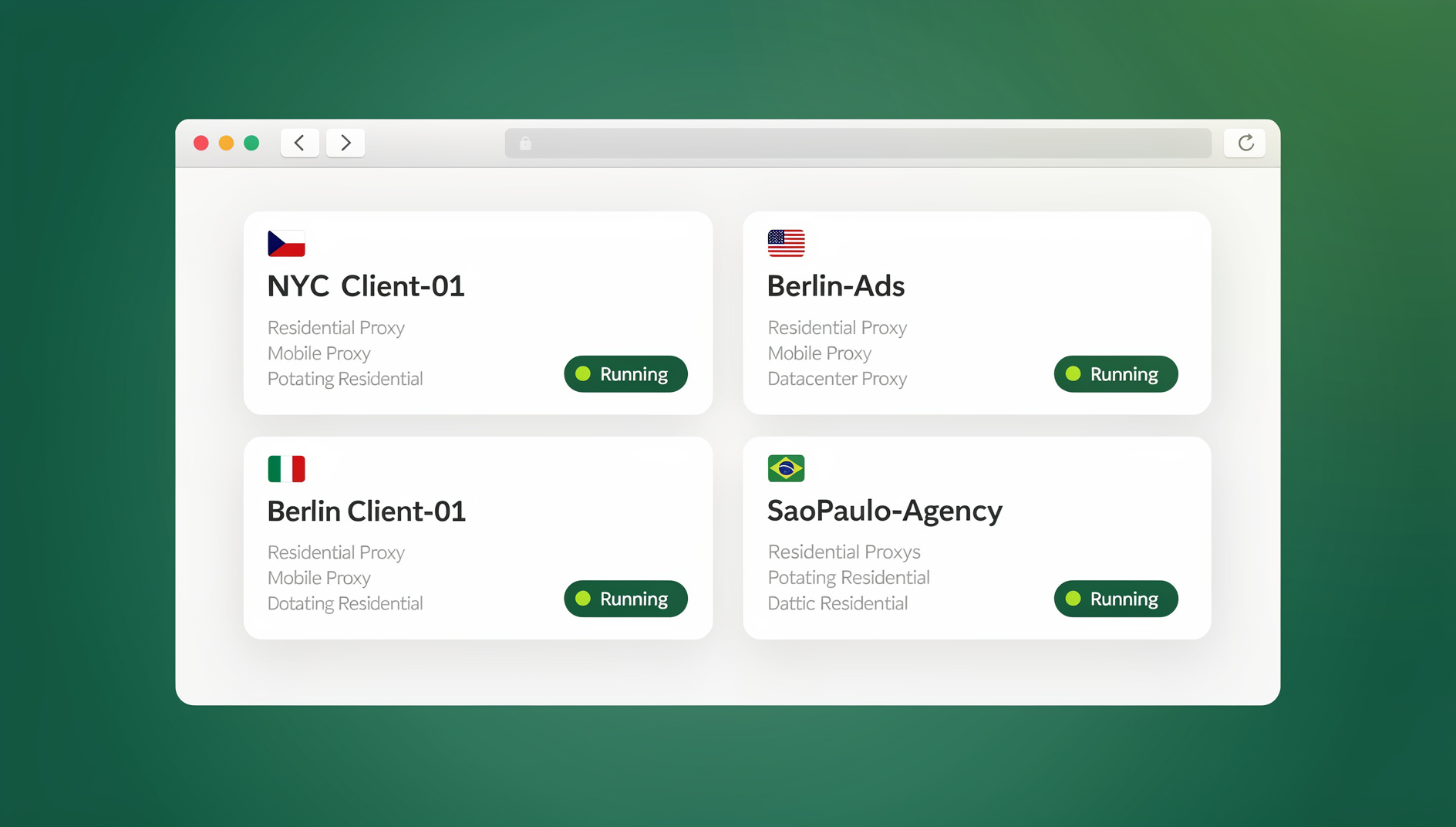
This guide updates the classic “freelancer toolkit” list for 2026 — keeping the tools that still earn their place in your browser bar, retiring the ones that have quietly died or gone stale, and adding the one category almost every freelancer toolkit list still gets wrong: how you actually log in to and manage all those separate client accounts safely, without constantly logging out, clearing cookies, or risking a mixed-up session that gets a client’s ad account flagged.
The Complete Freelancer’s Toolkit: 15 Essential Tools for 2026
Below is the full stack, organized by the job it does. We’ll go deeper on each category right after the table.
| Tool | Category | Best For | Price |
|---|---|---|---|
| Send.win | Multi-login & client account management | Running isolated client browser profiles safely | Pro $19/mo or $83.88/yr, Team $49/mo or $251.88/yr; 7-day money-back guarantee on first card purchase |
| Grammarly | Writing & proofreading | Client emails, proposals, deliverables | Free / Premium |
| Boomerang for Gmail | Email scheduling | Follow-ups, snoozing, read receipts | Free / Paid tiers |
| Loom | Async video & screen recording | Client updates, feedback loops | Free / Paid tiers |
| Google Keep | Quick notes & capture | Cross-device to-do lists | Free |
| StayFocusd | Focus & distraction blocking | Deep work sessions | Free |
| OneTab | Tab management | Taming 50+ open tabs | Free |
| Save to Pocket | Read-it-later | Research & content curation | Free / Premium |
| Fiverr Workspace | Invoicing & contracts | Freelance business admin | Free |
| Google Drive & Docs Offline | Cloud storage | File sharing, offline editing | Free / Paid tiers |
| ColorZilla | Design utility | Color picking, gradient generation | Free |
| WhatFont | Design utility | Identifying web fonts | Free |
| Check My Links | QA utility | Finding broken links | Free |
| Web Developer Checklist | Dev utility | Auditing site best practices | Free |
| Magical | Text expansion & autofill | Repetitive data entry | Free / Paid tiers |
Managing Multiple Clients and Accounts Without the Chaos
The Multi-Client Problem Every Freelancer Faces
Here’s the part of freelancing nobody puts in a “getting started” guide: the moment you have more than two clients, you are also managing more than two identities online. One client wants you inside their Facebook Ads Manager. Another wants you posting to their Instagram and Pinterest. A third has you inside their Google Analytics, their Fiverr messages, and their Slack — all while you keep your own personal and business accounts running in parallel. Doing this in one regular Chrome window means constant logging in and out, mixed-up cookies, and — worst case — a client’s ad account getting flagged because it suddenly looks like it’s being accessed from a device shared with unrelated accounts.
This is exactly the pain point covered in our deep dive on the secret tool freelancers use to juggle multiple clients without burning out — and it’s the single biggest gap in most “freelancer toolkit” lists, including the original version of this one.
How a Multi-Login Browser Like Send.win Solves It
Send.win is a browser profile manager built for exactly this situation. Instead of one browser identity for everything, you create a separate isolated profile for each client — each with its own cookies, local storage, and its own consistent browser fingerprint. Log in to Client A’s Facebook Business Manager in one profile and Client B’s Google Ads account in another, side by side, in the same window, with zero cross-contamination. Nothing bleeds between profiles, so each client’s cookies and storage stay completely separate.
For freelancers managing five, ten, or even fifty separate logins across marketing, e-commerce, and social platforms, this single change removes hours of weekly friction — no more incognito windows, no more separate browser installs, no more crossed wires. It’s the same reason agencies rely on a proper multi-login browser rather than juggling multiple physical devices or browser installs.
Step-by-Step: Setting Up Client Profiles in Send.win
- Sign up for a paid plan at send.win — the first card purchase is covered by a 7-day money-back guarantee, or try the free cloud demo first.
- Create a new profile for each client from your dashboard, naming it clearly (e.g., “Client A — Meta Ads,” “Client B — Pinterest”).
- Assign a proxy to each profile if the client needs a specific location or IP consistency — Send.win includes built-in proxy support so you don’t need a separate proxy subscription.
- Log in to the client’s accounts inside that dedicated profile. From this point on, that profile “remembers” only that client’s sessions, cookies, and fingerprint.
- Switch between clients instantly by opening a different profile tab — no logging out, no clearing cache, no risk of mixing sessions.
- Share a profile with a subcontractor or teammate (if you’re scaling up) without ever handing over the actual password, using Send.win’s team-sharing controls.
If you subcontract overflow work or run a small team of VAs to help with client accounts, this same workflow is what makes managing multiple Fiverr accounts safely possible without violating platform terms by sharing raw credentials or logging in from the same fingerprinted browser.
The Send.win Desktop App
Send.win isn’t just a web dashboard — it also ships as a native Desktop app for Windows, macOS, and Linux, so your client profiles, proxies, and sessions live in a proper installed application rather than a browser tab you might accidentally close. Each profile keeps its own cookies, storage, sessions, fingerprint settings and proxy, so client work stays organised and separate.
Writing, Email, and Communication Tools
Grammarly for Client-Ready Writing
Grammarly still earns its spot in 2026. It checks grammar, spelling, tone, and clarity across nearly every text field in your browser — proposals, client emails, Slack messages, even Google Docs. For freelancers, the tone-detection feature is particularly useful: it flags when a message to a client reads as overly blunt or uncertain before you hit send.
Boomerang for Gmail — Smarter Email Management
Boomerang lets you schedule emails to send later, snooze incoming messages until you’re ready to deal with them, and get reminded if a client hasn’t replied to something time-sensitive. If you work across time zones — which most freelancers do — scheduling send times so messages land during a client’s business hours is a small habit that noticeably improves response rates.
Loom for Async Video Communication
Loom remains one of the best tools for cutting down on back-and-forth meetings. Record a quick screen-and-camera walkthrough of a deliverable, a bug, or feedback, and send the link instead of scheduling a call. For freelancers working with multiple clients across different schedules, async video is often faster than trying to find a shared meeting slot.
Focus, Notes, and Task Management
Google Keep for Quick Capture
Google Keep is still the fastest way to jot down a note, save a link, or dictate a voice memo that syncs instantly across your phone and laptop. It’s not a full project management system, but for capturing fast-moving ideas between client calls, it’s hard to beat.
StayFocusd for Deep Work
StayFocusd blocks or time-limits distracting sites once you’ve used your allotted daily minutes. For freelancers without a manager checking in, this kind of self-imposed guardrail is often the difference between a focused billable morning and an afternoon lost to social media.
OneTab and Save to Pocket for Tab Overload
OneTab compresses dozens of open tabs into a single list, freeing up memory and mental clutter instantly. Save to Pocket lets you queue up articles and research for later instead of leaving twenty tabs open “just in case” — both are small tools that solve a very real freelancer problem: research sprawl.
Freelance Business Operations Tools
Fiverr Workspace for Invoicing and Contracts
Fiverr Workspace (formerly AND.CO) still handles the unglamorous side of freelancing well: invoicing, contracts, proposals, time tracking, and expense tracking, all from one dashboard. If you’re running your freelance business as an actual business — and you should be — a tool like this keeps the paperwork from eating into billable hours.
Cloud Storage: Google Drive and Docs Offline
Save to Google Drive and Google Docs Offline round out the file-management side of the stack: save web content or screenshots directly to Drive, and keep editing documents even without an internet connection while traveling or working from unreliable Wi-Fi.
Design and Developer Utility Extensions
ColorZilla, WhatFont, Check My Links, and Web Developer Checklist
If any part of your freelance work touches design or front-end development, this quartet of utilities is still worth installing:
- ColorZilla — eyedropper, color picker, and gradient generator for pulling exact colors and palettes off any live page.
- WhatFont — hover over any text to instantly identify the exact web font and service serving it.
- Check My Links — crawls a page and flags every broken link, saving a manual QA pass before you hand off a site to a client.
- Web Developer Checklist — audits a page against best-practice standards so you can catch issues before a client does.
Magical for Text Expansion and Autofill
Magical automates repetitive typing — expanding shortcuts into full text snippets and autofilling data between tabs, spreadsheets, and forms. For freelancers doing outreach, data entry, or repetitive client reporting, it can save several hours a month in pure typing time.
How to Build Your Own Freelance Tool Stack
Not every freelancer needs all 15 tools on day one. Here’s a practical way to prioritize:
- Start with account isolation. If you work with more than one client, a multi-login browser like Send.win should be the very first thing you set up — everything else compounds on top of a clean, organized login system.
- Add one writing tool. Grammarly (or a comparable alternative) protects your professionalism in every email and proposal you send.
- Pick one focus tool. StayFocusd or an equivalent site blocker, so you’re not relying on willpower alone during deep work blocks.
- Add business admin last. Fiverr Workspace or a similar invoicing tool becomes essential once you have recurring clients and cash flow to track.
- Layer in niche utilities as needed. Design and dev tools like ColorZilla or Check My Links only matter if your actual client work touches that discipline.
Common Mistakes Freelancers Make With Their Tool Stack
- Using one browser profile for every client. This is the single biggest risk — mixed sessions can trigger fraud or bot-detection flags on client ad accounts, sometimes leading to suspensions that aren’t your fault but land on your reputation anyway.
- Sharing raw passwords with subcontractors or VAs. Instead of handing over credentials, share an isolated profile or session so you can revoke access instantly without a password reset.
- Installing tools you never open again. A toolkit is only useful if you actually use it — audit your extensions every few months and remove anything gathering dust.
- Ignoring time zone visibility in client tools. If your account activity for a client based in another region looks like it’s coming from the wrong location or device fingerprint, it can raise unnecessary red flags — proxy and fingerprint consistency matters more than most freelancers realize.
🏆 Send.win Verdict
Every other tool on this list makes you more productive inside a single account. Send.win is the one tool that makes it possible to run all of your clients’ accounts side by side in the first place — with isolated profiles, built-in proxies, and a native desktop app. If you work with more than one client, it belongs at the top of your 2026 toolkit, not somewhere in the middle of the list.
Try Send.win today — plans start at Pro $19/mo or $83.88/yr, and your first card purchase is covered by a 7-day money-back guarantee. You can also preview it for free in the cloud demo at https://send.win/demo-browser/ and set up your first client profile in minutes.
Frequently Asked Questions
What is the most important tool in a freelancer’s toolkit for 2026?
If you work with more than one client, account isolation comes first. A multi-login browser like Send.win prevents the cross-contamination and login chaos that undermine every other productivity tool on this list — everything else compounds better once your logins are organized.
Do I need to pay for a freelancer toolkit, or can I get by with free tools?
Most of the tools in this guide have solid free tiers — Grammarly, Google Keep, OneTab, StayFocusd, ColorZilla, WhatFont, Check My Links, and Web Developer Checklist are all free to start. Send.win has no free trial, but the first card purchase is covered by a 7-day money-back guarantee, and there’s a free cloud demo you can try before committing to a paid Pro or Team plan.
How much does Send.win cost for freelancers?
Send.win’s Pro plan is $19/mo (or $83.88/yr) with 150 profiles and 5GB of proxy bandwidth — plenty for most solo freelancers. The Team plan is $49/mo (or $251.88/yr) and adds 500 profiles, 20GB bandwidth, and 16 seats, which is better suited to small agencies or freelancers who bring on subcontractors.
Can I share client account access with a subcontractor safely?
Yes. Instead of sharing a password, share the specific Send.win profile tied to that client. The subcontractor gets working access to log in and complete tasks, and you can revoke that access instantly at any time without changing the client’s actual password.
Is a multi-login browser only useful for marketers and agencies?
No. Any freelancer who logs into more than one client’s accounts — social media managers, virtual assistants, e-commerce consultants, ad specialists, and web developers testing client sites — benefits from isolated profiles, not just marketing agencies running dozens of ad accounts.
What’s the difference between Send.win’s Desktop app and using it in a regular browser?
The Desktop app (available for Windows, macOS, and Linux) runs your profiles as a dedicated installed application rather than tabs inside your everyday browser, reducing the chance of accidentally mixing a client session into your personal browsing and giving you a persistent, purpose-built workspace for client work.
Do any of these tools work together, or should I pick just one category?
They’re designed to stack. A typical 2026 freelance setup might run Send.win for account isolation, Grammarly for writing, Boomerang for email timing, and Loom for client updates — all active at once without conflicting, since Send.win’s isolation applies at the browser-profile level, not the extension level.
Where can I find more freelance-specific productivity guides?
Check out our roundup of the best freelance websites for finding client work in 2026, which pairs well with the account-management workflow covered in this guide.