If you have ever juggled a personal chat thread, a WhatsApp Business inbox, a customer-support queue, and a handful of client accounts all on WhatsApp, you already know the pain: constant logins and logouts, missed messages, and the nagging fear of tripping a ban. In 2026, running multiple WhatsApp accounts on one device is no longer a workaround for the tech-savvy — it is a baseline requirement for agencies, e-commerce sellers, sales reps, and support teams who live inside WhatsApp all day.
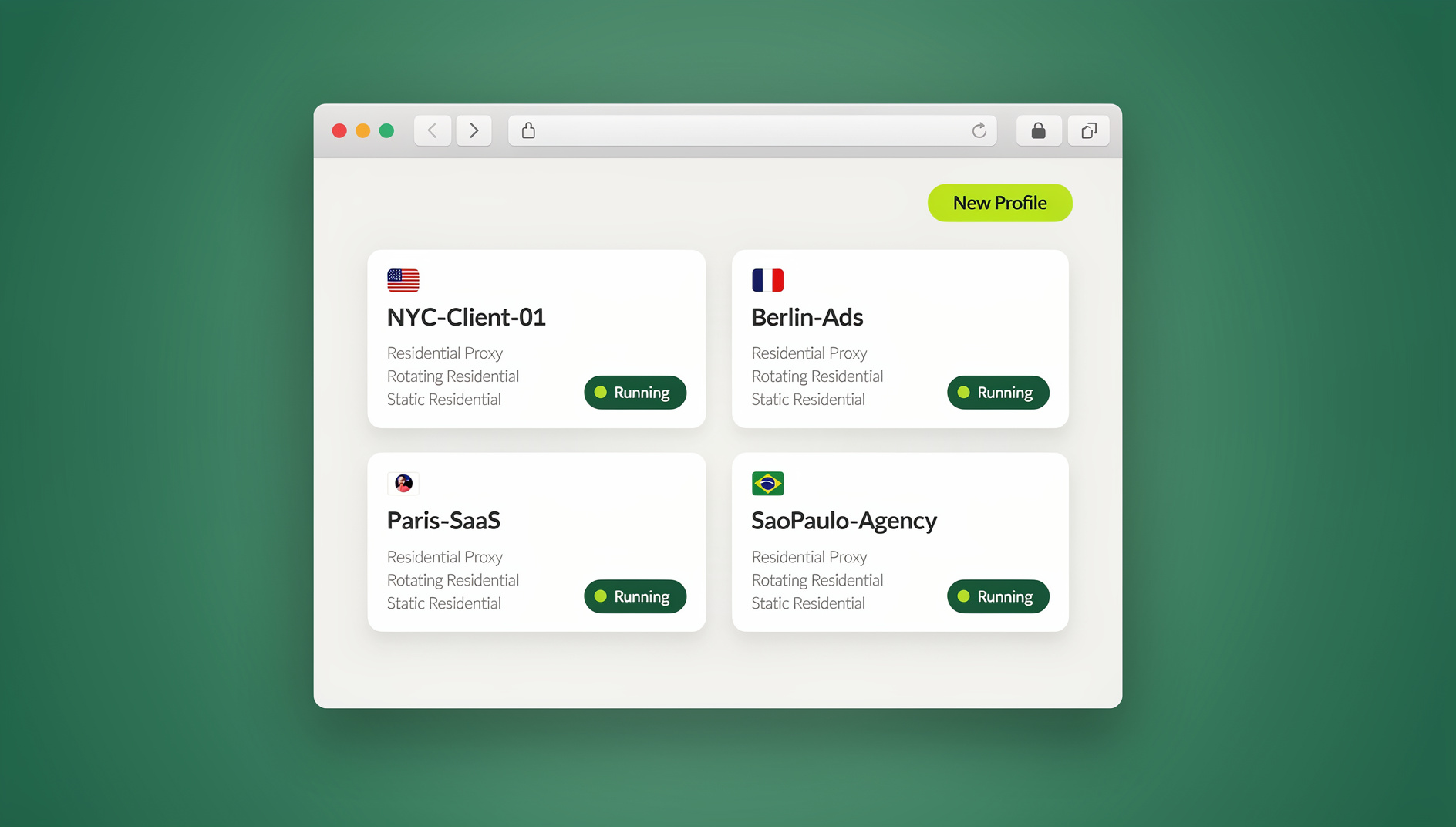
The good news: you genuinely can run several WhatsApp accounts on a single phone, laptop, or desktop right now, and you have more options than the classic “dual SIM” trick. This guide walks through every real method — from native phone features to cloud-based session isolation — and shows exactly how to set it up without getting flagged or banned.
Why Managing Multiple WhatsApp Accounts on One Device Matters in 2026
WhatsApp stopped being a personal messenger years ago. Today it doubles as a full business communication channel, and most teams touch it for:
- Customer support — fast replies, order updates, and issue resolution.
- Sales and lead generation — sending quotes, catalogs, and follow-ups straight from chat.
- Order tracking — shipping and delivery notifications for e-commerce buyers.
- Marketing and broadcast campaigns — promotions, offers, and re-engagement sequences.
The catch is that WhatsApp still ties one account to one phone number in the way most people use it, so anyone running more than one or two identities hits a wall fast — unless they know how to work around that limit safely.
Can You Really Run Multiple WhatsApp Accounts on One Device?
Yes. There are five practical methods in 2026, ranging from “built into your phone” to “built for agencies running dozens of accounts at once.” Here is the honest breakdown of each, including where they fall short.
Method 1 — Dual SIM Phones
If your phone supports two SIM cards, you can install WhatsApp with one number and WhatsApp Business with the second.
- Pros: Fully official, zero policy risk, no extra software.
- Cons: Capped at two accounts and two physical SIMs — not realistic for agencies or sellers running five, ten, or fifty accounts.
- Best for: Freelancers or solo operators who only need a personal and a business line.
Method 2 — App Cloning / Parallel Apps (Android & iOS)
Most modern Android phones ship with a built-in cloning feature: Samsung calls it “Dual Messenger,” Xiaomi calls it “Dual Apps,” Oppo/Vivo call it “App Clone,” and OnePlus calls it “Parallel Apps.” The process is simple:
- Open Settings → Apps → Dual Apps (naming varies by manufacturer).
- Enable cloning for WhatsApp.
- Register the cloned copy with a second phone number.
Pros: Free, no third-party install, works on most recent phones.
Cons: Usually capped at two or three clones, and WhatsApp Web pairing can glitch on cloned instances.
Best for: Small teams that only need WhatsApp + WhatsApp Business + one cloned account.
Method 3 — Browser-Based Multi-Login with a Cloud Browser (No Install Needed)
This is where things scale. Instead of relying on a phone’s hardware limits, tools like Send.win let you run each WhatsApp Web login inside its own isolated cloud browser session — meaning the browsing environment itself lives in the cloud, not on your hard drive.
This matters for anyone who framed the problem as “I need to access my accounts from anywhere without installing anything.” Cloud browser sessions are a genuinely separate mode from a desktop application: there is nothing to download, the profile and its cookies persist on Send.win’s servers, and you can pick the session back up from a different laptop, an office PC, or a borrowed machine and it looks exactly the same. Cloud browsing time is metered on paid plans alongside cloud sync, profile sharing, and team seats, so it is a real, billed capability — not marketing language for “it’s just a browser.”
- Unlimited accounts — no artificial two- or three-account ceiling.
- Unique fingerprint per profile — each session gets its own browser fingerprint so accounts do not read as duplicates of one another.
- Built-in proxy support — assign a distinct IP/location to each WhatsApp session to avoid ban triggers from shared IP clustering.
- Team sharing — hand a session to a teammate without ever revealing the underlying login credentials.
- Zero local install — works from any PC, Mac, or Chromebook with a browser.
💡 Pro tip: Unlike keeping ten browser profiles saved locally, a cloud browser session stores everything server-side, so logging in from a new device does not force you to re-scan a QR code or re-verify from scratch.
Method 4 — The Send.win Desktop App for Local, Persistent Profiles
Not every workflow wants the cloud. If you run WhatsApp Web on the same physical machine every day and prefer a native, always-open window over browser tabs, Send.win’s Desktop app for Windows, macOS, and Linux is the better fit. It installs locally, keeps each WhatsApp profile in its own persistent, isolated browser instance on your own hardware, and does not draw on the metered cloud-browsing allowance at all — you are running the sessions yourself, locally, just with proper fingerprint isolation between them.
This is the mode to reach for when you want a dedicated app pinned to your taskbar or dock for WhatsApp multi-account work, rather than tabs in a shared browser window — and it is what most solo operators and small in-office teams default to, while the cloud browser tends to be what remote and hybrid teams pick instead.
Method 5 — Virtual Browser Profiles & Anti-Detect Browsers (Advanced)
For advanced anonymity or multi-country account setups, some operators combine anti-detect browser profiles with proxies to run WhatsApp Web logins that look like they originate from entirely different devices and regions. This is powerful for international market research or multi-brand operations, but it is also the most technically involved option and the easiest to misconfigure. A managed platform that already bundles fingerprint isolation, proxy assignment, and session storage in one place — rather than stitching several separate tools together — removes most of the setup risk here.
Comparison Table: Which Method Fits Your Situation
| Method | Max Accounts | Install Required | Ban Risk | Best For |
|---|---|---|---|---|
| Dual SIM | 2 | None | Very low | Personal + one business line |
| App Cloning | 2–3 | None (built into OS) | Low | Small teams, casual use |
| Cloud browser sessions | Unlimited* | None — no local install | Low, with proxy/IP isolation | Remote teams, agencies, multi-device access |
| Desktop app | Unlimited* | Yes — native Windows/macOS/Linux client | Low, with proxy/IP isolation | Solo operators, in-office setups, offline-first workflows |
| Anti-detect + proxies (DIY) | Unlimited* | Varies by tool stack | Depends heavily on setup quality | Advanced/international operations |
*Subject to your plan’s saved-session and live-session limits.
Step-by-Step: Setting Up Multiple WhatsApp Accounts with Send.win’s Cloud Browser
Here is the exact workflow for the no-install, access-from-anywhere method:
Step 1: Create Your Send.win Account
Go to send.win and sign up. Send.win has no free trial, but the first card purchase is covered by a 7-day money-back guarantee, so you can test the full workflow before committing long-term. You can also try the free cloud demo at send.win/demo-browser.
Step 2: Pick a Plan That Matches Your Account Volume
- Pro ($19/mo, or $6.99/mo billed annually) — 150 profiles and 5GB of proxy bandwidth, solid for freelancers and small operators managing a handful of WhatsApp lines.
- Team ($49/mo, or $251.88/yr) — 500 profiles, 20GB of bandwidth, 16 seats, built for agencies and support teams running dozens of accounts across multiple people.
Step 3: Launch a New Cloud Browser Session per WhatsApp Account
Each session is a fully isolated environment with its own fingerprint. Open WhatsApp Web inside it, scan the QR code with the phone number for that account, and you are logged in — with no bleed-through to any other session running in parallel.
Step 4: Attach a Proxy to Each Session
Send.win ships with built-in proxy support, so you can assign a distinct IP and location to each WhatsApp profile. This is the single biggest factor in avoiding bans when you run several accounts side by side — WhatsApp’s detection systems look hardest at accounts that all appear to log in from the same address.
Step 5: Share Sessions With Your Team Without Sharing Passwords
For agencies and support teams, hand a live session to a colleague directly. They get working access to that WhatsApp account without ever seeing the login credentials, and you can revoke access instantly if someone leaves the project.
Step-by-Step: Using the Send.win Desktop App Instead
If you would rather run everything locally on your own Windows, macOS, or Linux machine:
- Download and install the Send.win Desktop app for your operating system.
- Create a new isolated profile for each WhatsApp account you need.
- Open WhatsApp Web inside that profile and pair it with the relevant phone number.
- Repeat for every account — each profile keeps its own cookies, fingerprint, and (optionally) proxy, fully separated on your own hardware.
Profiles created in the Desktop app can later be synced to the cloud on paid plans, so you are not locked into one mode — you can start locally and move to cloud browsing (or vice versa) as your team grows.
Automating WhatsApp Workflows at Scale (For Technical Teams)
Agencies running dozens of WhatsApp accounts often want to script repetitive actions — checking session health, rotating proxies, or coordinating bulk actions across accounts — rather than clicking through each one by hand. Send.win does not offer an automation interface: there is no API, SDK, headless mode or Selenium/Puppeteer/Playwright support on any plan. Instead, Send.win is a browser profile manager for professionals and teams, with isolated browser profiles that each keep their own cookies, storage, sessions, fingerprint settings and proxy, available as a Desktop app for Windows, macOS and Linux or as a cloud browser that runs on Send.win’s server in the EU.
Who Actually Needs Multiple WhatsApp Accounts?
1. Agencies
- Manage many client WhatsApp accounts from a single dashboard.
- Assign specific accounts to specific team members.
- Prevent cross-contamination between different clients’ conversations.
2. Sales Teams
- Segment accounts by region, product line, or campaign.
- Respond instantly without logging in and out between conversations.
- Cut down on missed leads caused by slow account switching.
3. Support Teams
- Run separate accounts per brand or department.
- Keep multiple live sessions open at once for faster response times.
4. E-commerce Sellers
- Keep customer support separate from order-notification broadcasts.
- Run promotions for multiple stores without mixing messages or customer lists.
Common Problems and How to Avoid Them
| Problem | Cause | Solution |
|---|---|---|
| Account ban | Logging in and out too frequently from the same IP | Assign a unique proxy per account instead of sharing one IP across sessions |
| Lost chat history | Relying on unofficial WhatsApp mods | Stick to official WhatsApp Web inside a properly isolated session |
| Mixed-up messages | Reusing one browser profile for several accounts | Isolate every account in its own cloud or desktop session |
| Hitting a device limit | WhatsApp’s per-account device cap | Use cloud infrastructure to bypass local device-count restrictions |
| Slow team handoffs | Sharing raw login credentials between staff | Share the session, not the password, so access can be revoked instantly |
WhatsApp’s Native Multi-Device Mode in 2026 — What It Does and Doesn’t Solve
WhatsApp’s own multi-device feature lets a single account stay active on a phone plus up to four other linked devices, even when the phone is offline. It is a genuine convenience upgrade, but it is easy to misread it as a multi-account solution — it is not. It still ties one account to one number across those linked devices. If you need several distinct WhatsApp identities running in parallel, you still need proper session isolation, whether that is a cloud browser, a desktop app with isolated profiles, or another dedicated multi-login setup.
Send.win vs WADesk vs Rambox for WhatsApp Multi-Accounting
| Feature | Send.win | WADesk | Rambox |
|---|---|---|---|
| Unlimited WhatsApp accounts | Yes (plan-dependent) | No | No |
| Cloud browser sessions (no install) | Yes | No | No |
| Native desktop app | Yes | Yes | Yes |
| Automation API (Selenium/Puppeteer/Playwright) | No | No | No |
| Unique fingerprint per profile | Yes | No | No |
| Built-in proxy support | Yes | No | No |
| Team sharing without exposing passwords | Yes | No | No |
Where a similar solution comes up as a comparison point rather than a full platform, our multi-login browser guide breaks down how that category of tool works more broadly, and the concept underpinning all of it — session isolation — is worth understanding before you commit to any single vendor.
What It Costs to Run Multiple WhatsApp Accounts Safely
Current Send.win pricing (2026):
- Free cloud demo — 10 minutes a day in the cloud browser, no credit card required; the desktop app has no free trial.
- Pro — $19/mo ($6.99/mo billed annually — 63% off): 150 profiles, 5GB proxy bandwidth.
- Team — $49/mo ($251.88/yr): 500 profiles, 20GB bandwidth, 16 seats.
Add-ons are available for teams that outgrow their plan’s bandwidth or profile count, so you are not forced into the next tier just to add a couple of extra accounts.
If your business also juggles other messaging platforms alongside WhatsApp, the same isolated-session approach carries over directly — our managing multiple Telegram accounts guide covers the equivalent setup for teams running both apps side by side, and if “no local footprint” is the priority for your whole stack rather than just WhatsApp, it is worth reading how a cloud browser with no local footprint applies more broadly across the sites and tools your team logs into daily.
🏆 Send.win Verdict
Dual SIM and app cloning are fine if you only need two WhatsApp identities, but they hit a hard ceiling fast. If you are running more than a couple of accounts — across an agency, a sales team, or multiple stores — you need real session isolation, a unique fingerprint per account, and proxy support so each account keeps its own separate cookies, storage and fingerprint. Send.win covers all three, plus the flexibility to run those sessions either as a no-install cloud browser you can pick up from any device, or as a native Desktop app if you prefer everything local.
Try Send.win today — the first card purchase is covered by a 7-day money-back guarantee, and you can get your first isolated WhatsApp sessions running in minutes. You can also preview it for free in the cloud demo.
Frequently Asked Questions
Can I really run more than two WhatsApp accounts on one device?
Yes. Dual SIM and app cloning cap out around two or three accounts, but browser-based session isolation — through either a cloud browser or a desktop app with separate profiles — removes that ceiling entirely, limited only by your plan’s saved and live session allowances.
Will WhatsApp ban me for running multiple accounts on the same device?
Running multiple accounts is not against WhatsApp’s terms on its own. Bans usually happen when several accounts share the exact same IP address and browser fingerprint and behave in bulk-messaging patterns. Isolating each account with its own fingerprint and a distinct proxy is the standard way to avoid that pattern.
What is the difference between the Send.win Desktop app and cloud browser sessions?
The Desktop app is a native Windows, macOS, or Linux client that runs isolated profiles locally on your own machine — nothing is metered by cloud-browsing time. Cloud browser sessions run those same isolated profiles on Send.win’s servers instead, so there is nothing to install and you can pick a session up from any device; cloud browsing time is metered and included on paid plans alongside cloud sync and profile sharing. They are two separate, real modes — pick whichever fits how your team works, and you can mix both.
Do I need to install anything to use the cloud browser method?
No. That is the specific advantage of cloud browser sessions — they run entirely in Send.win’s cloud, so you access them through a normal web browser on any PC, Mac, or Chromebook without installing a separate application.
Can I automate actions across many WhatsApp accounts at once?
No. Send.win has no automation interface — no API, SDK, headless mode or Selenium/Puppeteer/Playwright support on any plan. It is a browser profile manager: each profile keeps its own cookies, storage, sessions, fingerprint settings and proxy, so agencies can organise many accounts across separate isolated profiles instead of scripting them.
Is WhatsApp’s native multi-device feature the same as running multiple accounts?
No. Multi-device mode lets one WhatsApp account stay active across a phone and up to four linked devices — it is still a single account, not several. For genuinely separate WhatsApp identities running in parallel, you still need session isolation.
Which method should agencies use versus solo freelancers?
Solo freelancers and small businesses usually do fine on dual SIM, app cloning, or a Pro-plan cloud/desktop setup for a handful of accounts. Agencies and support teams running dozens of client accounts across multiple staff members typically need the Team plan for the extra seats, profile count and bandwidth.
How much does it cost to safely run multiple WhatsApp accounts?
Send.win has no free trial; the first card purchase is covered by a 7-day money-back guarantee, and the only free option is the cloud demo at https://send.win/demo-browser/. Pro is $19/mo or $83.88/yr for 150 profiles, and Team is $49/mo or $251.88/yr for 500 profiles and 16 seats.
Whichever method you choose — dual SIM for two accounts, app cloning for a small team, or full session isolation for an agency — the underlying rule stays the same: keep every account’s fingerprint, IP, and cookies separate, and multi-account WhatsApp stops being risky and just becomes another routine part of running the business.