Manage multiple Telegram accounts in 2026 without juggling phones, burning SIM cards, or risking a ban wave — that’s the real goal for marketers, community managers, resellers, and anyone running more than one Telegram identity. Telegram’s native multi-account switcher works fine for two or three personal profiles, but it falls apart fast once you’re running ten client channels, a dozen outreach accounts, or a team that needs shared access without shared passwords. This guide covers every realistic method — from Telegram’s built-in switcher to cloning apps, desktop clients, and cloud-based browser profiles — with a straight answer on which approach actually holds up at scale.
Why Telegram Multi-Accounting Has Gotten Harder in 2026
Telegram has tightened its abuse detection over the last two years, and the platform now correlates far more signals than just phone number and IP address. Device fingerprint, browser fingerprint, session timing patterns, and shared network fingerprints across “unrelated” accounts all feed into automated flags. Running five Telegram accounts from the same unmodified browser profile, on the same IP, with the same device fingerprint, is exactly the pattern that trips detection — even if every account is used for entirely legitimate business purposes like customer support, community moderation, or affiliate marketing.
That’s the core problem this guide solves: not just “how do I log into two Telegram accounts,” but how to keep each identity cleanly isolated so one flagged account doesn’t take the rest down with it.
Telegram’s Built-In Multi-Account Switcher (and Its Limits)
How Native Account Switching Works
Telegram’s mobile and desktop apps both support adding multiple accounts under Settings, letting you tap between them without logging out. It’s genuinely useful for a personal account plus a work account — two or three identities you check throughout the day.
- Open Telegram (mobile or desktop) and go to Settings.
- Tap your profile photo/name at the top, then choose Add Account.
- Verify the new number via SMS or an existing Telegram session.
- Switch between accounts by tapping the profile switcher — Telegram supports up to three accounts on official mobile clients.
Where Native Switching Breaks Down
The native switcher has three hard limits that make it unsuitable for anything beyond casual personal use:
- Account cap — official clients cap you at three accounts; anything beyond that requires unofficial forks or a completely separate approach.
- Shared device fingerprint — every account you add still runs on the same device, same IP, and same underlying session context, which is exactly the correlation signal Telegram’s anti-abuse systems look for.
- No team sharing — there’s no way to hand a teammate access to one of your switcher accounts without literally handing them your phone or your login code.
Three Realistic Ways to Scale Beyond Native Switching
Once you’re past two or three accounts, you need real isolation — not just a UI toggle. There are three approaches worth considering, and each solves a different piece of the puzzle.
1. Phone Cloning Apps (Parallel Space, App Cloner, Dual Apps)
Android cloning apps duplicate the Telegram app in an isolated sandbox, letting you run a second (or third) copy on the same phone. This is a low-cost way to add one or two extra accounts, but it has real downsides: it only works on Android, most cloners still share the device’s hardware fingerprint (IMEI, sensor data) with the original app, and there’s no desktop equivalent — so it’s a mobile-only patch, not a scalable system.
2. Isolated Desktop Profiles
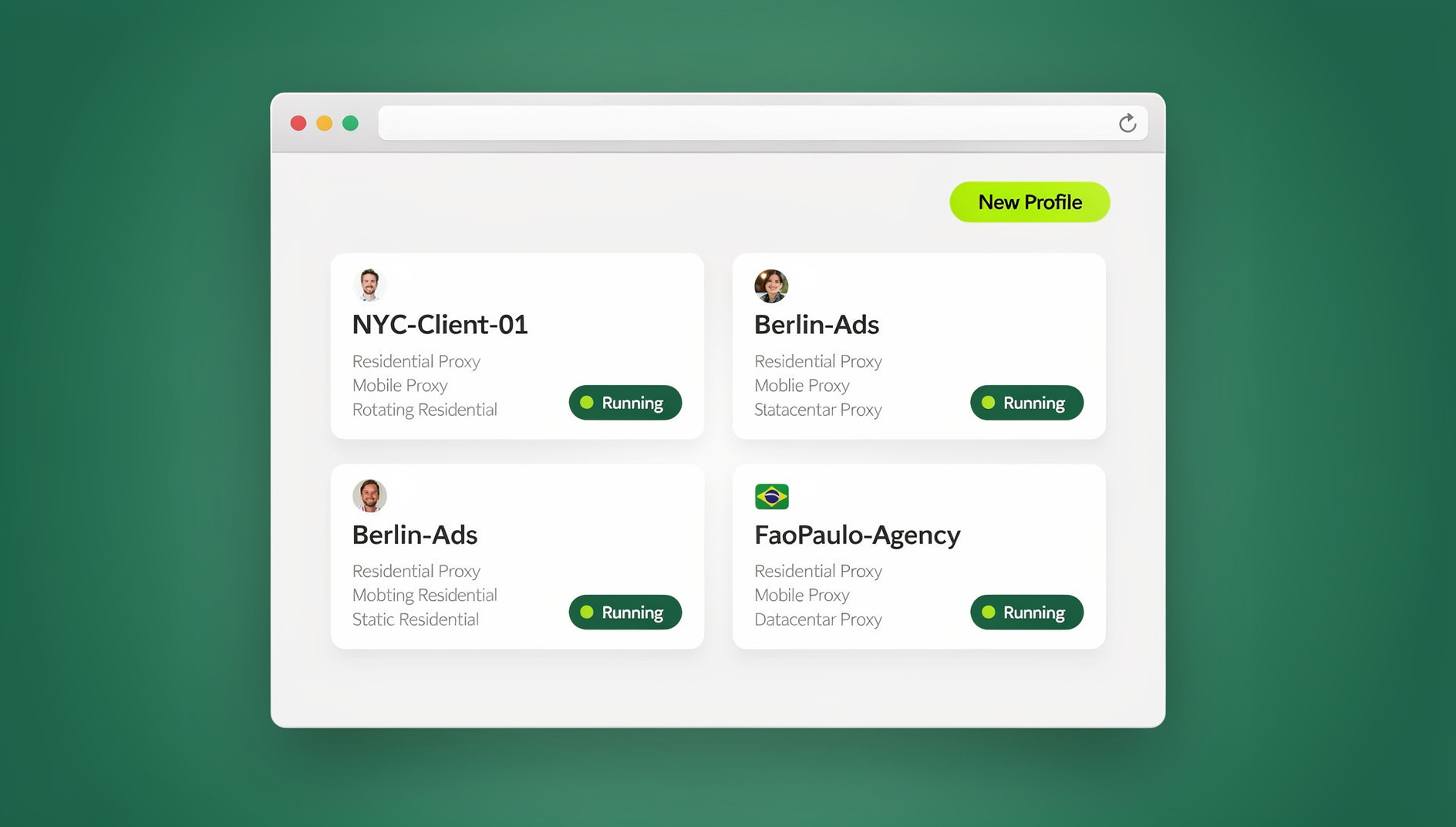
For people who prefer working from a desktop and want each Telegram identity to feel like it’s running on a completely separate machine, a dedicated desktop application that generates a unique browser fingerprint per profile is the more durable option. Send.win’s native Desktop app (Windows, macOS, and Linux) does exactly this: each profile gets its own isolated fingerprint — canvas, WebGL, fonts, timezone, and more — so five Telegram Web logins look like five genuinely different devices to any detection system, not five tabs in the same browser. You install it once, and every profile you create afterward runs locally with persistent, isolated storage.
3. Cloud Browser Sessions (No Install, Access From Anywhere)
The Desktop app is great when you’re always working from the same machine. But a lot of Telegram multi-accounting happens across devices — you set up a profile at your desk, then need to check it from a laptop on the road, or a teammate in another city needs to log into the exact same session without you re-sharing credentials. That’s what Send.win’s cloud browser sessions are built for: your Telegram profile runs entirely on Send.win’s servers, in the cloud, with zero local install required. You open a browser tab, load the session, and you’re inside that isolated Telegram Web identity — from any computer, on any network, with the fingerprint, cookies, and login state exactly as you left them.
Cloud sessions are metered by monthly “cloud browsing time” (similar to how proxy bandwidth is metered), and they’re included on Send.win’s paid plans alongside cloud sync, profile sharing, and team seats — so the same account that runs your desktop profiles can also spin up a cloud session when you need pure “no install, any device” access. This is genuinely a separate mode from the Desktop app, not a rebrand of it, and it’s the right answer specifically for “manage Telegram from anywhere without installing anything” use cases.
Step-by-Step: Setting Up Multiple Telegram Accounts With Send.win
Whether you go Desktop app or cloud session, the workflow for isolating each Telegram identity looks like this:
- Sign up for a Send.win account — there’s no free trial, but the first card purchase is covered by a 7-day money-back guarantee, so you can test the full isolation workflow before committing. You can also preview it for free with the cloud demo at send.win/demo-browser.
- Create a new profile from your dashboard. Each profile generates its own unique browser fingerprint automatically.
- Attach a proxy to the profile so the IP address matches the identity — a US-based Telegram account should route through a US residential IP, not whatever IP your other nine accounts share. If you’re not sure how, our guide on adding a proxy to any session walks through it in under two minutes.
- Log into Telegram Web inside that isolated profile, exactly as you would in any normal browser tab.
- Repeat for each additional Telegram identity — this is where a step-by-step tutorial on creating multiple sessions in Send.win’s cloud browser is genuinely useful if you’re setting up more than three or four accounts at once.
- Save and label each profile clearly (client name, region, account purpose) so switching between them is a one-click action, not a guessing game.
Comparison: Native Switching vs. Cloning Apps vs. Isolated Profiles
| Method | Account limit | Unique fingerprint per account | Cross-device access | Team sharing |
|---|---|---|---|---|
| Telegram native switcher | 3 | No — shared device | No | No |
| Phone cloning apps | 3-5 (Android only) | Partial — shares hardware ID | No | No |
| Send.win Desktop app | Unlimited (plan-dependent) | Yes — per-profile isolation | Same machine only | Yes, via shared profiles |
| Send.win Cloud browser sessions | Unlimited (plan-dependent) | Yes — per-profile isolation | Yes — any device, no install | Yes, real-time |
Automating Telegram Workflows at Scale
Individual multi-accounting solves the “log in without conflicts” problem. Agencies and larger teams often need the next step: repeatable actions across dozens of Telegram accounts — scheduled broadcasts, CRM-triggered messages, or moderation workflows. Send.win has no automation interface: there is no API, SDK, headless mode or Selenium/Puppeteer/Playwright support on any plan, so scripted workflows are not possible. What Send.win does offer is isolated browser profiles — each with its own cookies, storage, sessions, fingerprint settings and proxy — so teams can organise and run many Telegram Web sessions side by side without sharing one browser identity.
If you’re not at the scripting stage yet, third-party Telegram bots built on the Bot API can still help with scheduling and broadcast tasks, but they operate at the bot-account level, not your personal or business Telegram identity — worth knowing the distinction before you build a workflow around the wrong layer.
Keeping Every Telegram Identity Ban-Safe
Fingerprint Isolation Matters More Than IP Alone
A common mistake is assuming a fresh proxy IP is enough. It isn’t. If ten Telegram accounts run through ten different proxies but share the same canvas, WebGL, and font fingerprint, Telegram’s detection systems can still cluster them as the same operator. Genuine isolation needs both — a distinct IP and a distinct fingerprint per profile, which is exactly what browser fingerprinting protection is designed to provide.
Match Proxy Geography to Account Context
Telegram accounts registered or primarily used from a specific country should route through matching residential proxies. A mismatch — a US phone number logging in daily through a Southeast Asian IP, for example — is a red flag on its own. If you’re managing Telegram access for users in a region with local network restrictions, our guide on using Telegram in Vietnam with Send.win covers proxy and access considerations specific to that kind of scenario.
Stagger Activity, Don’t Batch It
Logging into all ten accounts simultaneously and sending near-identical messages within the same minute is a pattern, not coincidence, to automated review systems. Stagger logins and message sends by minutes, not seconds, and avoid identical message templates across accounts whenever possible.
Sharing Telegram Access With Your Team — Without Sharing Passwords
Handing a teammate your Telegram login means handing them your 2FA code, your recovery number, and effectively your identity. Isolated cloud profiles solve this differently: you share the session, not the credentials. A teammate gets access to the exact logged-in Telegram Web state — no password, no verification code, no risk of them (or an ex-employee) locking you out later. Our tutorial on sharing sessions with your team covers the permission levels and revocation process in detail. Revoking access later is a single click, which matters far more than it sounds like it should the first time someone leaves the team unexpectedly.
Best Practices Checklist for Business Telegram Multi-Accounting
- One isolated profile per Telegram identity — never reuse a browser profile across accounts.
- Match proxy location to account context — country, city, and timezone should align.
- Stagger logins and outbound messages — avoid synchronized batch activity.
- Share sessions, not passwords — use permission-based access for teammates.
- Set session timers on profiles used by contractors or temporary staff, so access auto-expires.
- Keep a labeling system — client name, account purpose, region — so switching stays fast as you scale past ten profiles.
- Log out cleanly and avoid leaving stale sessions active across too many devices at once.
🏆 Send.win Verdict
Telegram’s native switcher is fine for two or three personal accounts, but anyone managing client channels, outreach accounts, or a team of moderators needs real fingerprint isolation and proxy matching to keep each account’s cookies, storage and sessions separate. Send.win covers the whole spectrum: the Desktop app for daily local work, and Cloud browser sessions when you need to check accounts from anywhere with zero install.
Try Send.win today — there’s no free trial, but your first card purchase is covered by a 7-day money-back guarantee, and you can set up your first isolated Telegram profile in minutes.
Frequently Asked Questions
How many Telegram accounts can I run on one device?
Telegram’s official apps cap native switching at three accounts. Beyond that, you need either phone cloning apps (limited, Android-only, and still sharing the device fingerprint) or isolated browser profiles like Send.win’s, which support far more accounts because each one gets a genuinely separate fingerprint and storage context rather than sharing the device.
Will Telegram ban me for using multiple accounts?
Telegram doesn’t ban accounts simply for existing in multiples — plenty of legitimate businesses run several. Bans typically come from behavioral patterns: identical messages sent from many accounts at once, shared fingerprints across “unrelated” accounts, mismatched proxy geography, or spam-like broadcast timing. Isolating each account’s fingerprint and staggering activity meaningfully reduces this risk.
Do I need a separate phone number for every Telegram account?
Yes — Telegram requires a unique, verifiable phone number per account. What you don’t need is a separate physical device or browser for each one; that’s the part isolated profiles solve.
What’s the difference between Send.win’s Desktop app and Cloud browser sessions?
The Desktop app is a native Windows/macOS/Linux client you install once, and every profile runs locally on that machine with persistent isolated storage. Cloud browser sessions run entirely on Send.win’s servers instead — no local install at all — so you can open the exact same logged-in Telegram profile from any device, anywhere, metered by monthly cloud browsing time. They’re separate, complementary modes, not two names for the same feature.
Can my team access the same Telegram account without sharing my password?
Yes. Session-sharing tools let you grant a teammate access to an already-logged-in profile without ever revealing your password, 2FA code, or recovery number. Access can also be time-limited or revoked instantly if someone leaves the team.
Is a proxy enough to keep multiple Telegram accounts separate?
No. A proxy changes your IP address, but if every account still shares the same browser fingerprint (canvas, WebGL, fonts, timezone), detection systems can still correlate them as one operator. You need both a distinct IP and a distinct fingerprint per account for real isolation.
Can I automate messages across multiple Telegram accounts?
Yes, with the right tooling. Telegram’s own Bot API handles scheduling at the bot-account level. Send.win, however, has no automation interface — no API, SDK, headless mode or Selenium/Puppeteer/Playwright support on any plan — so it can’t be scripted. What it does provide is isolated browser profiles, each with its own cookies, storage, sessions, fingerprint settings and proxy, which is useful for agencies organising many client profiles side by side.
How much does Send.win cost for managing multiple Telegram accounts?
Send.win has no free trial. Paid plans start at Pro for $19/month or $83.88/year, with Team at $49/month or $251.88/year adding additional seats for teams sharing Telegram access across multiple people. The first card purchase is covered by a 7-day money-back guarantee, and the only free option is the cloud demo at send.win/demo-browser.