Why Logging Into Multiple Instagram Accounts in One Browser Gets Messy Fast
If you run a personal account, a business page, and a client or two on the side, you already know the drill: Instagram logs you out of one account the moment you switch to another, or it flags “suspicious login activity” because three accounts just appeared from the same device within minutes of each other. Logging in to multiple Instagram accounts in a single browser should be a five-second task. Instead, most people end up juggling private windows, a second phone, or a graveyard of browser tabs that all seem to interfere with one another.
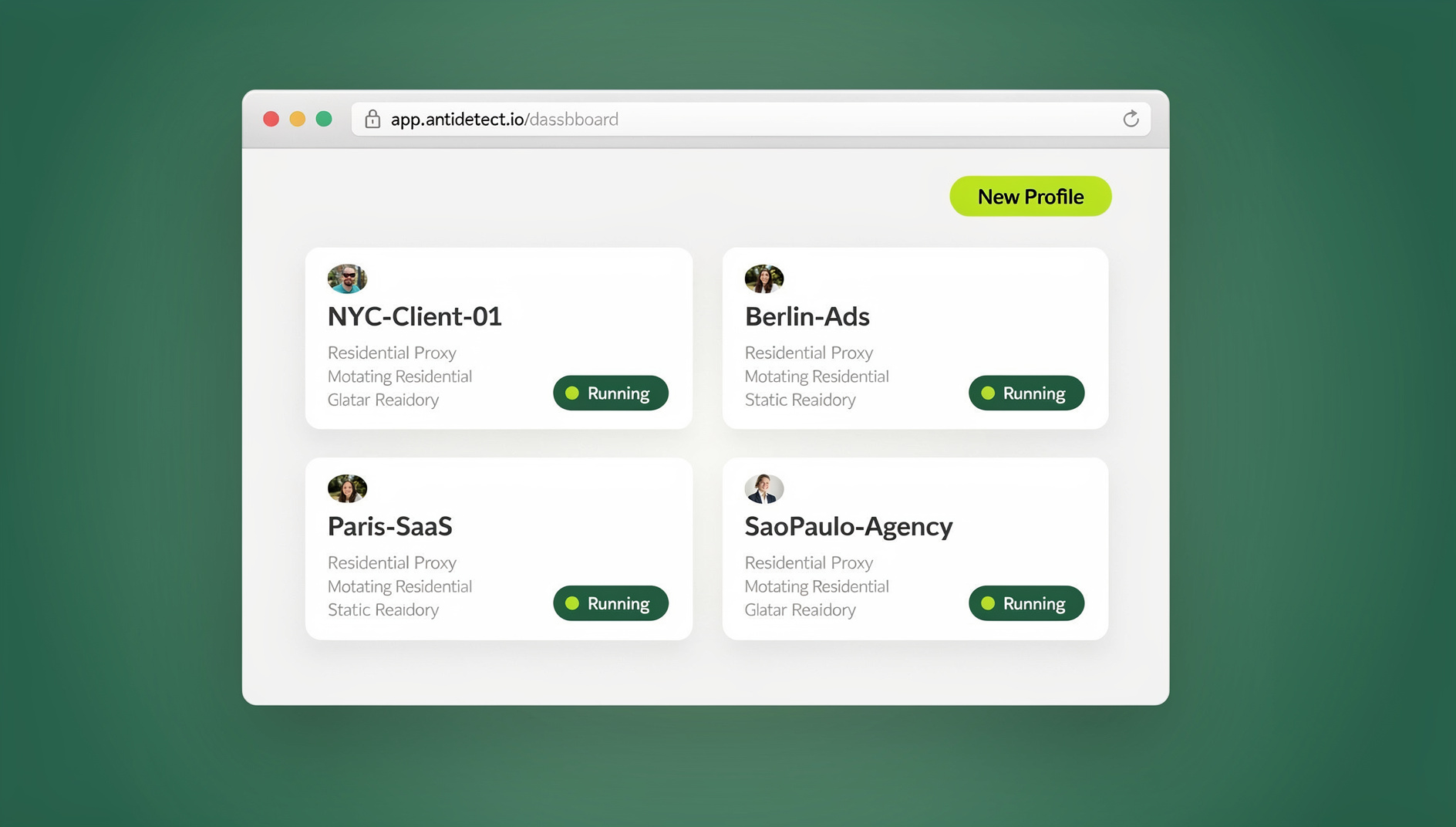
The good news is that this is a solved problem — just not with the tools most people reach for first. Instagram’s own account switcher, incognito windows, and browser extensions all work up to a point, then break down once you’re managing more than two or three accounts, running any kind of business use case, or trying to keep accounts looking like they belong to genuinely different people (which matters more than most users realize — see the section on fingerprinting below). This guide walks through every method, from the built-in Instagram switcher to dedicated multi-login browsers like Send.win, so you can pick the right one for how many accounts you actually manage.
Understanding Instagram’s Native Multi-Account Switcher (and Its Limits)
Instagram lets you add up to five accounts to a single login session through its built-in switcher — tap your profile photo, hit “Add account,” and toggle between them. On mobile this works reasonably well because the app stores each session’s tokens locally. In a desktop browser, it’s shakier: Instagram’s web client shares cookies, local storage, and device fingerprint data across every account you add, which means:
- Five-account hard cap. Agencies and sellers managing 10, 20, or 100+ accounts hit the ceiling almost immediately.
- Shared device signals. Every account you switch between is still tied to the same browser fingerprint, IP address, and cookie jar — Instagram’s systems can see they’re all coming from the same place.
- No isolation between sessions. A flag, shadowban, or temporary restriction on one account can trigger review scrutiny on the others sharing that browser profile.
- No team support. There’s no way to hand a teammate access to one account without handing over the password (and access to every other account in the switcher).
For one personal and one backup account, the native switcher is fine. For anything resembling multi-account management at scale — agency work, dropshipping storefronts, influencer collaborations, or affiliate campaigns — it’s the wrong tool.
Method 1: Browser Profiles and Container Tabs
The next step up is using your browser’s built-in profile system (Chrome Profiles, Edge Profiles) or a containers extension (like Firefox Multi-Account Containers). Each profile gets its own cookie jar, so Instagram sessions genuinely don’t overlap.
What Works
- Free and built into the browser — no new software to install.
- Sessions stay logged in independently; switching profiles doesn’t log you out of the others.
- Good enough for 2-5 accounts used casually.
Where It Breaks Down
- Same machine fingerprint. Every profile still reports the same canvas hash, WebGL renderer, screen resolution, timezone, and installed fonts. Instagram’s anti-fraud systems increasingly correlate device fingerprints across accounts, not just cookies — so profiles don’t actually make the accounts look separate.
- Same IP address. Unless you’re manually rotating a VPN or proxy per profile, every account logs in from the same network address.
- No built-in proxy or timezone matching. You’d need separate extensions or manual configuration to make each profile appear to be in a different location, and most people never bother.
- Profile sprawl. Beyond 5-6 profiles, switching between them via the browser’s profile menu becomes tedious, and there’s no dashboard view of which account is which.
Profiles solve the cookie-collision problem but not the fingerprinting problem — which is exactly where most “why did my second account get flagged” stories start.
Method 2: Incognito Windows and Session-Swapping Extensions
A lot of people try private/incognito windows next, sometimes paired with a cookie-editor or session-manager extension that lets you export and re-import login cookies between tabs.
Pros
- Zero setup — every browser has an incognito mode.
- Works for a quick one-off login without saving history.
Cons
- Sessions don’t persist. Close the window and you’re logged out — no good for accounts you check daily.
- Cookie-editor extensions are a security risk. Pasting exported session cookies into random browser extensions hands your login tokens to whatever that extension’s developer chooses to do with them. Several popular “cookie manager” extensions have been caught harvesting session data.
- Still one fingerprint, one IP. Same underlying problem as browser profiles — incognito mode changes nothing about how your device presents itself to Instagram.
- No session isolation guarantee. Some incognito implementations still share certain storage APIs across windows in the same browser instance, which can cause cross-contamination you won’t notice until an account gets locked.
Incognito is fine for a single quick check. It is not a multi-account management strategy.
Method 3: Antidetect and Multi-Login Browsers — the Professional Approach
This is where dedicated multi-login browser tools come in. Instead of one fingerprint shared across profiles, each Instagram account gets its own isolated “profile” with its own independently randomized canvas, WebGL, audio, font, and hardware fingerprint, its own cookie jar, its own proxy/IP assignment, and its own timezone and locale matching. To Instagram, each profile genuinely looks like a different device, in a different location, used by a different person — because in every measurable signal, it is.
This category is generally called an antidetect browser, and it’s the standard tool for anyone managing Instagram accounts professionally — social media managers, agencies, dropshippers, affiliate marketers, and influencers running multiple brand personas. If you want the deeper technical breakdown of how fingerprinting actually works and why it matters more than IP address alone, our guide on browser fingerprint basics covers it in detail.
| Method | Max Practical Accounts | Unique Fingerprint | Built-in Proxy | Team Sharing | Best For |
|---|---|---|---|---|---|
| Instagram native switcher | 5 | No | No | No | One person, casual use |
| Browser profiles | 5-10 | No | No | No | Light personal + backup account |
| Incognito/extensions | 1-2 at a time | No | No | No | Quick one-off logins |
| Antidetect/multi-login browser (e.g. Send.win) | Unlimited (plan-based) | Yes | Yes | Yes | Agencies, sellers, teams, influencers |
Introducing Send.win: A Purpose-Built Multi-Login Browser for Instagram Accounts
Send.win is a browser profile manager built specifically for people who need to run more than a handful of accounts without the accounts bleeding into each other. It’s the natural next step once you’ve outgrown browser profiles or incognito tricks, and it’s designed so every Instagram account you manage gets its own isolated cookies, storage and fingerprint settings.
Unique Fingerprints Per Profile
Every Send.win profile generates its own randomized canvas, WebGL, audio context, font list, and hardware signature, so two Instagram accounts opened in two different Send.win profiles present as two completely unrelated devices — even if they’re both running on the same physical laptop.
Built-In Proxy Support
Attach a residential, mobile, or datacenter proxy to each profile directly inside Send.win, with automatic timezone and locale matching to the proxy’s location. No juggling separate proxy-manager software or manually editing browser settings per account.
Browser Isolation
Each profile’s cookies, local storage, cache, and session data are fully sandboxed from every other profile — there’s no shared state for Instagram (or its fraud-detection scripts) to correlate between accounts.
Team Sharing
On the Team plan, you can share specific Instagram profiles with teammates or clients without ever handing over the actual Instagram password — useful for agencies managing client accounts or teams splitting posting duties across time zones.
Three Ways to Actually Run Send.win
This is the part most comparisons skip, so it’s worth being precise about: Send.win isn’t a single “mode” — it’s three distinct ways of running your Instagram profiles, and which one is right for you depends on your setup.
- Desktop app (Windows, macOS, Linux): the native client most people install and run locally. This is where you’ll manage profiles day-to-day if you’re at a dedicated workstation — full control, local performance, no monthly time metering.
- Cloud browser sessions: if you need to check an Instagram account from a laptop that doesn’t have Send.win installed, or from a shared/public machine, you can run the same profile as a cloud browser session instead — no desktop install required at all. This is metered by monthly cloud browsing time on paid plans (similar to how proxy bandwidth is metered), and it comes bundled with cloud sync and profile sharing, so a profile you set up on desktop is instantly available in the cloud too. If your workflow is genuinely “log in from anywhere, on any device, without installing anything,” cloud browser sessions — not the desktop app — are the feature you actually want.
Most people managing 5-30 Instagram accounts will live almost entirely in the desktop app, dip into cloud browser sessions when traveling or working from a second device, and keep everything organised through separate profiles rather than manual clicking.
Step-by-Step: Setting Up Multiple Instagram Logins in Send.win
- Sign up for Send.win. Pick a paid plan at send.win — the first card purchase is covered by a 7-day money-back guarantee, or try the free cloud demo first.
- Create a new profile for each Instagram account. Inside the dashboard, click “New Profile,” give it a name (e.g., “IG — Client A” or “IG — Personal”), and Send.win will generate a unique fingerprint automatically.
- Attach a proxy to the profile. Add a residential or mobile proxy matching the account’s intended geography — Send.win auto-matches the timezone and locale to the proxy location.
- Launch the profile and log into Instagram normally. Since the profile is fully isolated, this session behaves exactly like logging into Instagram on a brand-new device.
- Repeat for each additional account. Each new profile is independent — there’s no five-account cap, and no risk of one login interfering with another.
- Save and label profiles for quick access. Your dashboard shows every Instagram profile at a glance, so switching between accounts is a single click instead of a logout/login cycle.
- (Optional) Share a profile with a teammate if you’re on the Team plan, so a social media manager can post to a client’s account without ever seeing the password.
- (Optional) Run the profile as a cloud browser session if you need access from a device that doesn’t have the desktop app installed.
Best Practices for Managing Multiple Instagram Accounts Safely
- Never share a fingerprint across unrelated accounts. Even with a multi-login browser, don’t reuse the exact same profile for two different Instagram identities — create a new one for each account.
- Match proxy geography to the account’s claimed location. A profile that says “based in Chicago” but logs in through a Vietnamese IP is one of the easiest patterns for automated fraud systems to catch.
- Warm up new accounts slowly. Avoid mass-following, mass-posting, or mass-DMing from a freshly created profile in the first few days — ramp up activity gradually like a real new user would.
- Keep session behavior human-paced. Random delays between actions, natural scrolling patterns, and varied session lengths all reduce the chance of automated-behavior flags.
- Don’t cross-post identical content instantly across accounts. Simultaneous, byte-identical posts across accounts is a pattern platforms actively look for.
- Use two-factor authentication per account where Instagram supports it, and store recovery codes securely per profile, not in one shared document.
- Review login activity periodically. Instagram’s own security settings show recent login locations and devices — check these occasionally to confirm nothing looks out of place.
Send.win vs. DIY Methods: Side-by-Side
| Feature | Instagram Switcher | Browser Profiles | Send.win |
|---|---|---|---|
| Account limit | 5 | Browser-dependent | Plan-based, effectively unlimited |
| Unique fingerprint per account | No | No | Yes |
| Built-in proxy management | No | No | Yes |
| Cloud access without install | No | No | Yes (cloud browser sessions) |
| Automation/API support | No | No | No |
| Team/client sharing without passwords | No | No | Yes |
| Free trial | N/A | N/A | No (7-day money-back guarantee on first card purchase; free cloud demo) |
🏆 Send.win Verdict
If you’re only juggling two Instagram accounts, the native switcher or a browser profile will get you by. But the moment you’re managing accounts for clients, running multiple brand pages, or scaling past a handful of profiles, separate cookies, storage and fingerprint settings per profile stop being optional — they’re what keeps every account organised as its own browsing identity. Send.win handles that automatically, whether you’re working locally through the desktop app or logging in from anywhere with a cloud browser session.
Try Send.win today — pick a paid plan (the first card purchase is covered by a 7-day money-back guarantee) or start with the free cloud demo, and log into every Instagram account you manage without the login shuffle.
Frequently Asked Questions
Can I get banned for logging into multiple Instagram accounts in one browser?
Instagram doesn’t ban accounts simply for being accessed from the same browser, but it does watch for correlated device fingerprints, shared IPs, and identical behavior patterns across accounts. Using isolated profiles with unique fingerprints and separate proxies significantly reduces the risk of accounts being linked and flagged together.
How many Instagram accounts can I log into at once with the native switcher?
Instagram’s built-in account switcher supports up to five accounts per login session. Beyond that, you’ll need browser profiles or a dedicated multi-login browser.
What’s the difference between browser profiles and an antidetect browser?
Browser profiles separate cookies and local storage but still share the same device fingerprint (canvas, WebGL, fonts, hardware signature) across every profile. A browser profile manager like Send.win gives each profile its own consistent fingerprint settings, so accounts don’t just have separate cookies — each profile keeps its own browser identity.
Do I need a proxy for each Instagram account?
It’s strongly recommended, especially once you’re managing more than two or three accounts. Logging into multiple accounts from the same IP address is one of the clearest signals platforms use to link accounts together. Send.win lets you attach and auto-configure a proxy per profile directly in the dashboard.
Can I access my Instagram profiles without installing anything?
Yes. Send.win’s cloud browser sessions run your profiles entirely in the cloud, so you can log in from any device without installing the desktop app — useful for checking accounts while traveling or from a shared computer. This is metered by monthly cloud browsing time on paid plans and syncs automatically with profiles you’ve set up on desktop.
Can I automate posting across multiple Instagram accounts?
No. Send.win has no automation interface — no API, SDK, headless mode or Selenium/Puppeteer/Playwright support on any plan. Each profile keeps its own cookies, storage and fingerprint settings, so you manage accounts through the desktop app or cloud browser sessions.
Can I share an Instagram account with a teammate without giving them the password?
Yes. Send.win’s Team plan lets you share individual profiles with teammates or clients directly — they get working access to the logged-in session without ever seeing the actual Instagram credentials.
What does Send.win cost?
Send.win has no free trial. The Pro plan is $19/month or $83.88/year, and the Team plan is $49/month or $251.88/year. The first card purchase is covered by a 7-day money-back guarantee, and the only free option is the cloud demo at send.win/demo-browser/.
Is it safe to use extensions that copy Instagram login cookies between browser tabs?
Generally, no. Cookie-copying extensions require you to hand over active session tokens to third-party code, and several popular “session manager” extensions have been found harvesting or leaking that data. A dedicated multi-login browser with isolated profiles avoids the need to export or paste session cookies at all.
Conclusion
Logging into multiple Instagram accounts doesn’t have to mean constant logouts, a graveyard of browser tabs, or accounts getting flagged because they all look like they’re coming from the same place. Instagram’s native switcher and basic browser profiles work fine for one or two casual accounts, but anyone managing accounts professionally — for clients, brands, or a growing portfolio of stores and pages — needs the fingerprint isolation, proxy control, and cloud browser flexibility that a dedicated browser profile manager like Send.win provides. Between the desktop app for daily driving and cloud sessions for access from anywhere, there’s a mode that fits however many Instagram accounts you’re actually running. If you’re comparing full browser profile options beyond Instagram specifically, our best antidetect browser comparison is a good next stop.