Managing multiple Discord accounts from one browser means keeping each login in its own isolated profile — separate cookies, cache, and browser fingerprint — so you can switch between a gaming account, a moderator account, and a work server without logging out or triggering a suspicious-login flag. The fastest way to do this in 2026 is a dedicated multi-account browser like Send.win, though built-in browser profiles and container tabs work fine for lighter, two-or-three-account use.
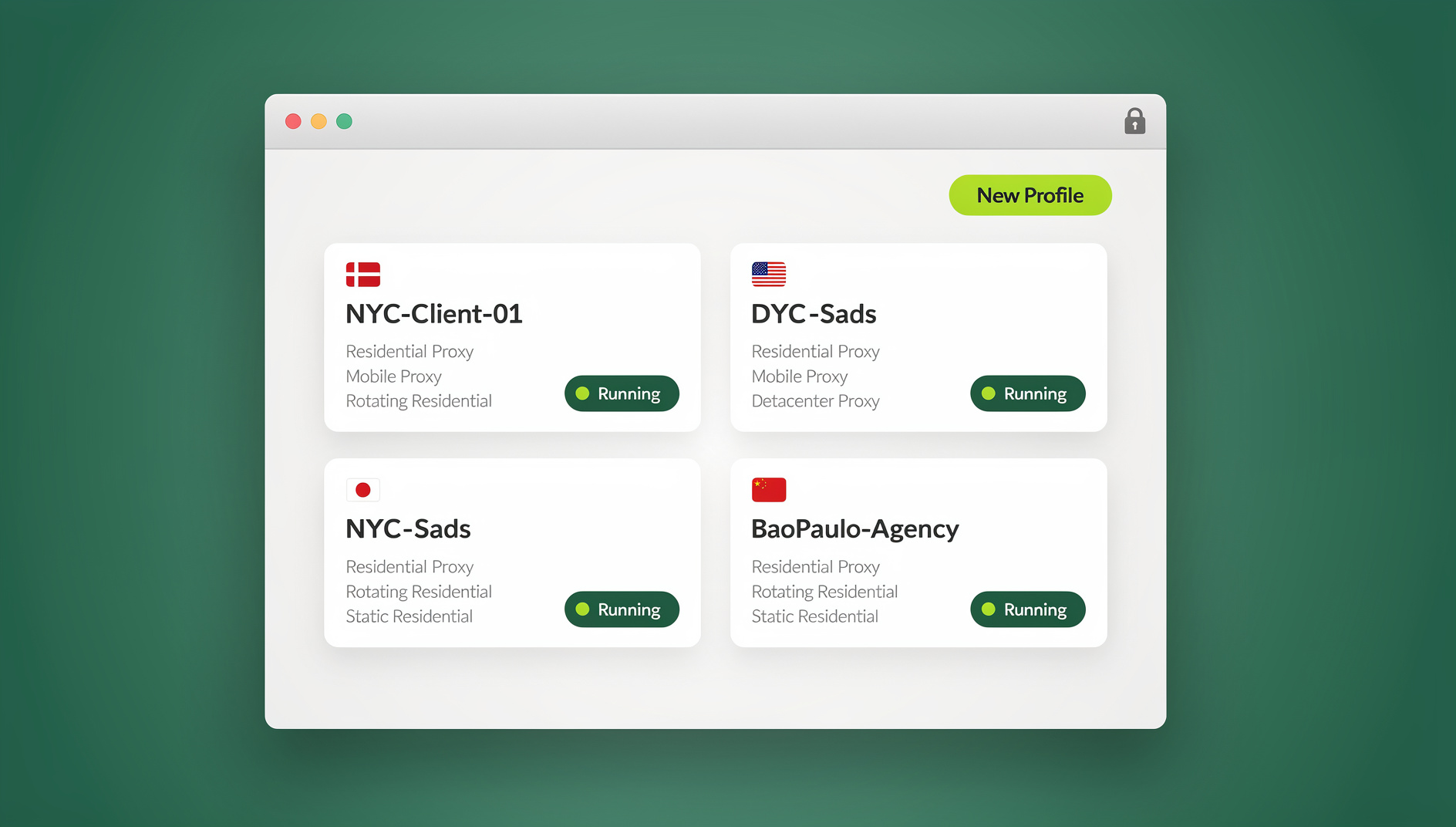
If you’re juggling a work Discord for team chats, a gaming server for your squad, and a couple of community groups on the side, you already know the drill: constant sign-outs, mismatched notifications, and the nagging worry that Discord will flag your account for logging in and out too often from the same device. This guide walks through every practical option for running several Discord accounts in one browser — from free built-in features to purpose-built tools — so you can pick the right setup for how many accounts you actually manage.
Why You Might Need Multiple Discord Accounts
Discord stopped being just a gaming chat app years ago. In 2026 it’s a hub for remote work collaboration, NFT and Web3 communities, course cohorts, and creator fan servers. A few common reasons people end up running more than one account:
- Separation of worlds: Keeping a professional workspace separate from gaming raids or meme-heavy friend groups avoids awkward overlap and accidental messages in the wrong channel.
- Community management: Moderators and admins running several servers often keep a dedicated account per community so permissions, roles, and history stay clean.
- Privacy and security: Funneling everything through one account concentrates risk. If it’s compromised or harassed, everything tied to it is exposed. Splitting activity across accounts limits the blast radius.
- Marketing and growth: Creators and community managers frequently run promo or outreach accounts alongside their main identity to engage different niches without mixing audiences.
The common thread: none of this requires anything shady. Discord’s terms permit multiple accounts — the friction comes from managing them cleanly in a single browser without constant logouts.
The Real Challenges of Running Several Discord Logins in One Browser
A normal browser window only holds one Discord session at a time because the account’s cookies and local storage live in a single shared space. Try to log into a second account and the first gets kicked out. A few specific pain points show up once you’re past two accounts:
- Detection and flags: Repeatedly logging in and out of different accounts from the same browser fingerprint and IP can read as suspicious activity to Discord’s anti-abuse systems.
- Wasted time: Constantly signing out, clearing cache, or switching devices to check a second account eats minutes you don’t get back.
- Cross-contamination: Shared cookies or cached credentials between accounts can create security holes — one compromised login shouldn’t be able to touch another.
- System strain: Running several full browser instances (or several devices) just to stay logged into different accounts slows everything down.
The fix isn’t more willpower — it’s proper session isolation, so each Discord login gets its own clean environment inside a single browser window.
Methods for Managing Multiple Discord Accounts in One Browser
Here are the realistic options in 2026, ranked roughly from lightest to most capable, with the tradeoffs for each.
Browser Profiles for Basic Separation
Chrome, Edge, and Firefox all support user profiles — separate, self-contained environments for cookies, extensions, and logins.
- Click your profile icon and choose “Add” to create a new profile.
- Name it something clear, like “Gaming Discord” or “Work Discord.”
- Open Discord in that profile’s window and log in.
- Switch between profiles from the icon whenever you need a different account.
Pros: Free, built-in, no downloads. Cons: Every profile still shares your device’s IP address and, in many cases, a similar browser fingerprint, so it’s not true isolation — just cookie separation. It also means juggling multiple browser windows rather than one clean interface. This works fine for two or three accounts but gets unwieldy past that.
Container Tabs and Incognito Windows
Firefox’s Multi-Account Containers add-on and Chrome’s Incognito mode are quick, free alternatives for occasional use.
Containers assign each tab its own isolated cookie jar, so you can open Discord in a “Work” container and again in a “Gaming” container side by side. Incognito windows give you a blank, logged-out session, but they don’t save your login between sessions, which gets tedious if you’re checking accounts daily. Neither option masks your IP or spoofs your device fingerprint, so on their own they’re a convenience feature, not a security measure. If you want to understand exactly what a fingerprint is and why it matters for account safety, it’s worth reading up on what a browser fingerprint actually reveals about you before relying on containers alone.
Multi-Account Browser Extensions
A handful of third-party extensions add tab-based session separation on top of your existing browser — creating colored tabs or named sessions that each keep their own cookies. They’re easy to install from an extension store and can comfortably handle five to ten accounts for casual use.
Pros: Low barrier to entry, works inside the browser you already use. Cons: Limited or no proxy support, so your IP is still shared across every session, and misconfigured extensions have been known to leak session data between tabs. For anyone managing Discord communities professionally, that’s a real risk.
Dedicated Multi-Login Browsers for Power Users
Once you’re running more than five or six Discord accounts — say you moderate a dozen servers, or you’re a creator with alt accounts for giveaways and fan interaction — purpose-built multi-login tools become worth it. This category includes anti-detect browsers like GoLogin, Multilogin, and AdsPower, alongside Send.win, a browser profile manager.
These tools generate a distinct, consistent fingerprint per profile, let you attach a dedicated proxy to each one, and keep every session’s cookies and local storage fully separated — so Discord sees each account as coming from its own device, not from ten logins stacked in one browser. If you’re weighing this category against simpler options, our broader guide to managing multiple accounts safely across any platform covers the decision points in more depth.
Where Send.win Fits: Native App or Cloud Sessions
Send.win gives you two ways to run isolated Discord sessions, and both keep each account’s fingerprint, cookies, and proxy completely separate:
- Sendwin Browser (desktop app): A native, downloadable application for Windows, macOS, and Linux. It’s local-first, meaning your profiles and sessions live on your machine, with encrypted cloud sync layered on top so your setup follows you to another computer.
- Cloud browser sessions: If you’d rather not install anything, you can run a Discord session entirely in the cloud, with zero local footprint, metered by cloud browsing time rather than a flat monthly allotment.
Both routes give each Discord account its own isolated profile with a stable fingerprint and, if you need one, its own proxy. The difference is just where the browsing happens — on your machine, or entirely off it.
Step-by-Step: Setting Up Multiple Discord Accounts in Send.win
Here’s the practical setup process:
- Start with a paid plan. Send.win has no free trial; plans start at $19/month (Pro) or $49/month (Team), and your first card purchase is covered by a 7-day money-back guarantee. You can also preview the cloud demo at https://send.win/demo-browser/ before committing.
- Pick your browsing mode. Download the Sendwin Browser desktop app if you want local-first storage with encrypted sync, or launch a cloud session if you’d rather skip any install.
- Create a profile per account. Click to start a new session, name it something recognizable (“Mod Account,” “Gaming Alt,” “Giveaway Bot”), and open discord.com inside it.
- Attach a proxy if needed. Choose a server location or add your own residential/datacenter proxy for that specific profile, keeping its IP distinct from your other sessions. For a deeper walkthrough of the isolation mechanics behind this, see our guide on browser session isolation and management.
- Log in and save. Sign into that Discord account. The profile keeps its cookies, fingerprint, and login state saved for next time — no re-entering credentials.
- Repeat and switch freely. Create one profile per Discord account, then jump between them instantly without logging out of anything.
For teams running community management or moderation across several servers, sessions can also be shared with teammates without ever handing over the account password — useful when a whole team needs access to the same moderator account without everyone knowing the login.
Comparing the Options
| Method | Ease of Use | Cost | IP/Fingerprint Isolation | Realistic Scale | Best For |
|---|---|---|---|---|---|
| Browser Profiles | High | Free | None | 2–3 accounts | Casual, one-off separation |
| Container Tabs / Incognito | High | Free | None | 2–4 accounts | Quick checks, no persistence needed |
| Browser Extensions | Medium | Free/Low | Low | 5–10 accounts | Casual multi-account users |
| Anti-Detect Browsers (general) | Medium | Higher, often per-seat | High | 10+ accounts | Agencies, heavy automation |
| Send.win | High | From $19/mo (Pro) | High — per-profile fingerprint + proxy | 150–500+ profiles depending on plan | Community managers, creators, teams |
Send.win’s Pro plan runs $19/month (or $83.88/year) and includes 150 profiles and 5GB of proxy bandwidth. The Team plan, at $49/month ($251.88/year), scales that to 500 profiles, 20GB of bandwidth, and 16 seats — built for agencies or larger moderation teams managing accounts across many servers. There is no free trial; the first card purchase is covered by a 7-day money-back guarantee.
Security Tips for Managing Multiple Discord Accounts Safely
- Use a distinct proxy per account. Sharing one IP across ten logins is exactly the pattern anti-abuse systems watch for.
- Turn on two-factor authentication for every account, not just your main one.
- Avoid bot-like automation on the main login. If you do automate, keep it to a dedicated profile and reasonable, human-paced actions.
- Keep sessions encrypted and backed up. Cloud sync means losing a laptop doesn’t mean losing access to your accounts.
- Don’t reuse passwords across accounts. If one login is compromised, isolated sessions limit the damage but a shared password erases that benefit.
Real-World Examples
- Gaming creator: A streamer keeps a main account, a giveaway alt, and a fan-interaction account running side by side, synced across their desktop and laptop, without ever needing to log in and out mid-stream.
- Marketing team: An agency running promo accounts across multiple client Discord servers assigns each account its own profile and proxy so client communities never see overlapping activity.
- Volunteer moderator: Someone moderating three unrelated communities keeps each moderator identity in its own profile, so a ban decision in one server never accidentally touches another account’s history.
🏆 Send.win Verdict
For two or three Discord accounts, free browser profiles or containers are genuinely fine. Once you’re moderating multiple servers, running alt accounts for a community, or managing logins for a team, Send.win’s isolated profiles — whether through the native Sendwin Browser desktop app or a zero-install cloud session — give each account its own fingerprint and proxy without the leaks and guesswork that come with basic extensions.
Try Send.win today — start with a paid plan covered by a 7-day money-back guarantee, or preview the free cloud demo, and set up your first isolated Discord profile in minutes.
Frequently Asked Questions
Can I get banned for using multiple Discord accounts?
Not simply for having more than one account — Discord’s terms allow it. The risk comes from patterns that look automated or evasive, like rapid switching from a shared IP and fingerprint. Proper isolation, distinct proxies, and normal human activity on each account keep you well within the rules.
What’s the best free method for managing multiple Discord accounts?
Browser profiles or Firefox’s container tabs are the best free options, comfortably handling two to four accounts. Past that, the lack of IP and fingerprint isolation becomes a real limitation.
How is Send.win different from browser profiles or container extensions?
Browser profiles and containers separate cookies but still share your device’s IP and fingerprint. Send.win isolates both — each profile gets its own consistent fingerprint and, optionally, its own proxy — whether you run it through the native desktop app or a cloud session.
Do I need proxies to manage multiple Discord accounts?
For two or three accounts, not necessarily. Once you’re past five or six, especially for moderation or business use, a distinct proxy per account meaningfully reduces the chance of accounts being linked or flagged.
Can I access my Discord sessions from another device?
Yes. Sendwin Browser syncs your profiles via encrypted cloud sync, so a session set up on one machine is available on another. Cloud browser sessions work from any device with a browser, since the session itself runs remotely.
Is there a free trial for Send.win?
No — Send.win has no free trial. Paid plans start at $19/month, and the first card purchase is covered by a 7-day money-back guarantee. The only free option is the cloud demo at https://send.win/demo-browser/.
Can I automate tasks across multiple Discord accounts?
How many Discord accounts can I realistically run at once?
With Send.win, the practical ceiling is your plan’s profile limit — 150 on Pro, 500 on Team — far beyond what browser profiles or extensions can handle cleanly.