Is Incognito Browser Mode Actually Private?
An incognito browser window stops your device from saving history, cookies, and form data locally — that’s the extent of what it does. Your IP address, browser fingerprint, and network traffic stay fully visible to every website, ISP, and network administrator the entire time you’re browsing. If you need real privacy or want to run multiple accounts safely, incognito mode by itself won’t get you there.
What Incognito Mode Actually Is
Every major browser ships a version of private browsing under a different name — Chrome calls it Incognito, Firefox calls it Private Browsing, Safari calls it Private Browsing, and Edge calls it InPrivate. Functionally, they all do the same thing: open a temporary browsing session that doesn’t write history, cookies, or cached data to your hard drive once you close the window.
That’s a genuinely useful feature for a narrow set of problems. It’s also, according to years of survey data, wildly misunderstood — most people assume it makes them anonymous online. It doesn’t. Understanding exactly where the boundary sits is the difference between using incognito mode correctly and relying on it for something it was never built to do.
How Incognito Mode Works Under the Hood
What Happens When You Open a Private Window
- A fresh session spins up: no existing cookies or logged-in state carry over from your regular window.
- Storage lives in memory: cookies, cache, and site data are held temporarily rather than written to disk.
- Isolation from regular tabs: an incognito tab can’t read cookies set by your normal browsing session, and vice versa.
- Automatic cleanup: when you close the last incognito window, that session’s data is discarded.
What Incognito Mode Does Protect
- Local browsing history — nothing gets saved to the device’s history list.
- Cookies after the window closes — session cookies are wiped rather than persisted.
- Autofill and form data — anything you type isn’t saved for next time.
- Local search history — searches don’t show up in your device’s suggestions later.
- Visibility to other people on your device — someone else using the same computer can’t see what you looked at.
What Incognito Mode Does NOT Protect
- Your IP address — websites, your ISP, and any network admin still see exactly where the request came from.
- Your browser fingerprint — the unique combination of hardware and software signals your browser exposes is identical to your normal window.
- ISP-level monitoring — your internet provider logs every domain you visit regardless of mode.
- Employer or school network monitoring — corporate and campus networks can log traffic at the network layer, which incognito mode never touches.
- In-session tracking — a site can still fingerprint, profile, and correlate your activity for as long as the window stays open.
- Downloaded files — anything you download stays on disk after the window closes.
- Bookmarks created during the session — these persist just like in a normal window.
- DNS lookups — your DNS resolver still sees every domain you resolve.
The Incognito Privacy Myth, Explained
Google’s Multi-Billion Dollar Settlement
Google agreed to a multi-billion-dollar class action settlement over claims that Chrome’s Incognito mode misled users about how much privacy it actually delivered. The core allegation: Google-linked analytics, ad measurement, and other embedded tracking scripts kept collecting data about incognito sessions the whole time, because incognito mode was never designed to block server-side or third-party tracking — only local storage on the device itself. The case is a useful reminder that “private” in a browser menu means “private from other users of this computer,” not “invisible to the internet.”
Browser Fingerprinting Doesn’t Care About Incognito
Modern tracking rarely depends on cookies anymore, which is exactly why incognito mode can’t stop it. Sites increasingly rely on fingerprinting signals that are identical whether you’re in a normal or private window:
- Canvas fingerprinting — your GPU renders tiny drawing tasks in a way that’s measurably unique to your hardware.
- WebGL fingerprinting — 3D rendering output varies by graphics driver and hardware in a fingerprintable way.
- Audio fingerprinting — your audio stack processes a signal slightly differently than everyone else’s.
- Font enumeration — the list of fonts installed on your system is often distinctive enough on its own.
- Screen and hardware properties — resolution, color depth, pixel ratio, and CPU core count all add entropy.
- Navigator properties — platform, language, and timezone settings round out the picture.
None of this changes when you switch to incognito. A site using proper browser fingerprinting protection techniques on its end — or a determined tracker on the other end — can link your incognito session right back to your regular browsing without ever touching a cookie.
Incognito Mode Across the Major Browsers
The feature name, shortcut, and extra protections vary slightly by browser. Here’s how the popular options stack up:
| Browser | Feature Name | Shortcut | Notable Extra |
|---|---|---|---|
| Chrome | Incognito | Ctrl+Shift+N | Per-extension incognito toggle, optional third-party cookie blocking |
| Firefox | Private Browsing | Ctrl+Shift+P | Built-in Enhanced Tracking Protection active by default |
| Safari | Private Browsing | Cmd+Shift+N | Intelligent Tracking Prevention limits some cross-site trackers |
| Edge | InPrivate | Ctrl+Shift+N | Optional “strict” tracking prevention mode |
| Brave | Private Window | Ctrl+Shift+N | Private window with Tor routing available as an option |
When Incognito Mode Actually Makes Sense
- Shared or public devices — a library computer, a family PC, or a friend’s laptop where you don’t want your session left behind.
- Gift shopping — stops retargeted ads from spoiling a surprise for someone who shares your device.
- Price-checking — some sites vary prices based on stored cookies, and a clean session can show the baseline rate.
- A quick second login — checking a second account without fully logging out of the first.
- Viewing a site as a new visitor — useful for checking what a landing page or paywall looks like without prior cookies.
Where Incognito Mode Falls Apart
The same feature that’s handy for the cases above quietly fails at anything that requires real anonymity or account separation:
- Hiding from your ISP — traffic is visible at the network level regardless of browser mode.
- True anonymity — your IP and fingerprint both still identify you to any site that looks.
- Managing multiple accounts on one platform — the shared fingerprint across your regular and incognito windows makes it easy for a platform to connect the dots.
- Getting around geo-restrictions — your IP-based location doesn’t change just because the window is private.
- Any protection from malware or phishing — incognito mode adds zero security layers; a malicious download is just as dangerous.
- Avoiding workplace monitoring — network-level logging captures the traffic before the browser mode is even relevant.
Better Options When You Need Actual Privacy
VPN — for masking your IP address
A VPN encrypts your traffic and routes it through a server elsewhere, which hides your real IP from the sites you visit and from casual ISP monitoring. It’s a solid layer, but it does nothing about your browser fingerprint — a site can still recognize the same unique browser signature behind a dozen different VPN IPs.
Tor Browser — for the strongest anonymity
Tor routes your traffic through multiple independent relays and standardizes your fingerprint against every other Tor user, which is genuinely strong anonymity. The tradeoffs are real too: connections are noticeably slower, and a growing number of sites block Tor exit nodes outright.
Firefox Multi-Account Containers — for cookie isolation without new software
If your only problem is keeping a handful of logins separate inside one browser, Firefox Multi-Account Containers is a free, built-in way to do it. Each container keeps its own cookie jar, so you can stay logged into two accounts on the same site at once. The catch is that every container still shares the same IP address and the same underlying browser fingerprint, so it isn’t a substitute for account isolation at scale.
Send.win — for isolation that actually holds up
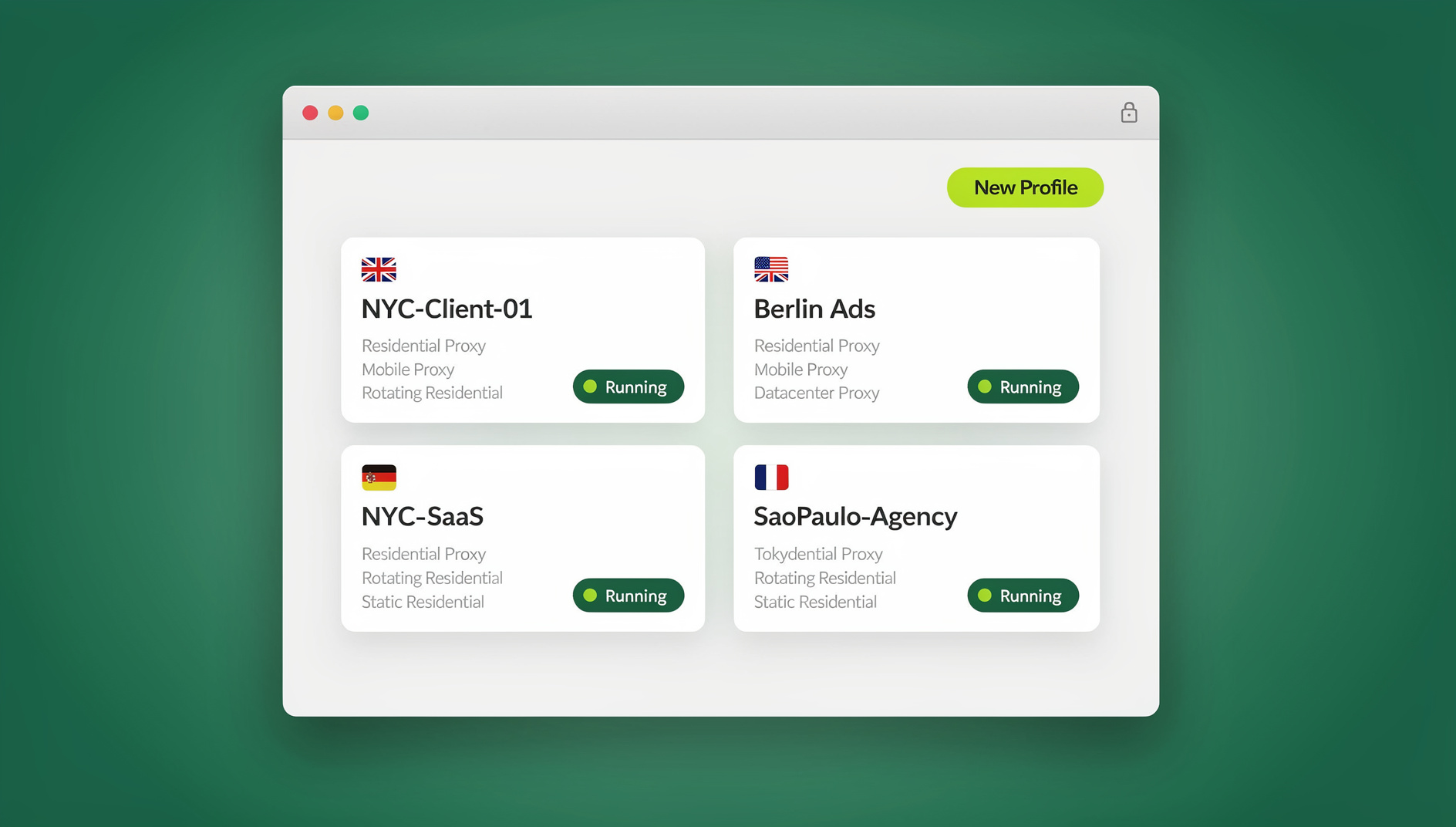
Send.win takes a different approach entirely: instead of trying to bolt privacy onto your existing browser, it gives each profile its own isolated environment with a distinct fingerprint, so accounts don’t bleed into each other the way they do across incognito windows or even browser containers. There are two ways to use it. The Sendwin Browser is a native desktop app for Windows, macOS, and Linux — it’s local-first, so your profiles live on your machine, with encrypted cloud sync keeping everything backed up and available across devices. Alternatively, cloud browser sessions run entirely on Send.win’s servers with zero local installation, metered by cloud browsing time, which is handy when you need an isolated session from a machine you don’t fully control.
Privacy Comparison: Incognito vs. VPN vs. Tor vs. Send.win
| Feature | Incognito | VPN | Tor Browser | Send.win |
|---|---|---|---|---|
| Hides local history | Yes | No | Yes | Yes |
| Masks IP address | No | Yes | Yes | Yes (via proxy support) |
| Changes browser fingerprint | No | No | Standardized across users | Distinct per profile |
| Hides traffic from ISP | No | Yes | Yes | Depends on proxy/VPN pairing |
| Safe multi-account use | One extra login, shared fingerprint | No isolation between accounts | Not built for this | Purpose-built, dedicated isolated profiles per account (up to hundreds per plan) |
| Speed | Full speed | Good | Noticeably slower | Good |
| Setup effort | Built in, zero setup | Simple | Moderate | Simple (download or launch in browser) |
| Cost | Free | Usually paid | Free | Paid plans from $19/mo; first card purchase covered by a 7-day money-back guarantee |
How to Open a Private Window in Every Major Browser
Chrome (Desktop)
- Open Chrome.
- Press Ctrl+Shift+N (Windows/Linux) or Cmd+Shift+N (Mac).
- Or click the three-dot menu and choose “New Incognito Window.”
Chrome (Mobile)
- Tap the three-dot menu.
- Select “New Incognito Tab.”
- Look for the dark theme and the incognito icon confirming you’re in private mode.
Firefox
- Press Ctrl+Shift+P.
- Or open the menu and choose “New Private Window.”
- The purple mask icon in the toolbar confirms private mode is active.
Safari
- Press Cmd+Shift+N.
- Or go to File → “New Private Window.”
- The address bar switches to a dark theme to indicate private mode.
Advanced Incognito Tips Worth Knowing
Extensions Are Disabled by Default
Most browsers disable extensions inside incognito windows unless you explicitly allow them. In Chrome, that means going to chrome://extensions, opening an extension’s details, and toggling “Allow in Incognito.” Be selective here — an extension that’s allowed to run in incognito can still track you across sessions, defeating the point of using private mode in the first place.
Launching Incognito by Default
You can force a browser shortcut to always open in private mode: on Windows, append --incognito to the shortcut’s target field; on Mac, an Automator script can pass the same flag; on Linux, edit the desktop entry to add the incognito parameter.
Stacking Incognito With a VPN
Pairing incognito mode with a VPN closes two separate gaps at once — the VPN masks your IP, and incognito skips local storage. It’s a reasonable “basic privacy” combination, but it still leaves your browser fingerprint completely exposed, which is the gap that actually links sessions together across sites.
Why Incognito Mode Isn’t Built for Business or Multi-Account Use
Incognito mode was designed for one person browsing privately on one device for a few minutes — not for running a business that depends on separating accounts cleanly. That mismatch shows up fast:
- Only one extra identity at a time — you can’t spin up ten isolated sessions the way an agency or seller managing multiple storefronts needs to.
- No persistent sessions — every incognito window starts from a clean slate, so you’re re-logging in constantly.
- Shared fingerprint — platforms that actively look for ban evasion or duplicate accounts can still connect your incognito activity to your regular profile.
- Nothing to share with a team — an incognito window lives and dies on your local device; there’s no way to hand a teammate access to that session.
What that kind of work actually needs is unique fingerprints per account, sessions that stay logged in, a way to bring proxies into the mix per profile, and — for teams — a way to share access without handing out passwords. That’s the gap tools built around private browsing concepts but designed for scale, like Send.win, are meant to close. Send.win gives each profile its own cookies, storage, sessions and fingerprint settings, so profiles don’t share one browser identity.
🏆 Send.win Verdict
Incognito mode is fine for hiding your history from someone else who shares your device — and that’s about the limit of it. It does nothing about your IP address or your browser fingerprint, which is exactly what actually identifies you online and links your accounts together. If you need anonymous browsing that holds up, or you’re managing more than one account on the same platform, you need a tool built for isolation, not a temporary window. Send.win gives every profile its own cookies, storage, sessions and fingerprint settings, works as either a native desktop app or a fully cloud-based session, and offers paid plans from $19/mo, with the first card purchase covered by a 7-day money-back guarantee — or you can try the free cloud demo at https://send.win/demo-browser/.
Try Send.win free today — see what real session isolation looks like compared to a private window.
Frequently Asked Questions
Does incognito mode hide my IP address?
No. Every website you visit in incognito mode sees the same IP address it would see in a regular window. To mask your IP, you need a VPN, a proxy, or a cloud browsing service that routes traffic through its own servers.
Can my employer see what I browse in incognito mode?
Yes, if you’re on a company network. Network-level monitoring logs traffic regardless of the browser mode you’re using — incognito only stops data from being saved locally on your device, not from being visible on the network.
Does incognito mode protect against viruses or phishing?
No. Incognito mode adds no security features at all. A malicious download or a phishing page is exactly as dangerous in a private window as it is in a normal one.
Can websites tell that I’m using incognito mode?
Direct detection methods that once relied on FileSystem API differences were patched years ago, but some indirect signals can still hint at it. Either way, detection of the mode itself is a separate issue from tracking — sites don’t need to know you’re incognito to fingerprint and track you.
Does incognito mode hide my location?
No. Your IP address, which reveals your approximate location, is visible to every site you visit in incognito mode just as it would be in a normal window. A VPN or a cloud browser is what actually changes the apparent location.
Can I manage two social media accounts safely using incognito mode?
You can log into a second account in an incognito window, but both sessions share the same browser fingerprint, which platforms increasingly use to detect linked accounts. For genuinely separate identities, each account needs its own fingerprint — which is what a tool like Send.win provides per profile.
What’s the practical difference between incognito mode and a VPN?
Incognito mode controls what gets saved on your device; a VPN controls what your IP address looks like to the outside world. They solve different problems, and neither one touches your browser fingerprint on its own.
Does using Send.win mean I don’t need incognito mode anymore?
For anything beyond quick local privacy on a shared device, yes — a Send.win profile already isolates cookies, storage, and fingerprint per session, which covers what incognito does and adds IP and fingerprint separation on top. Incognito mode still has its place for a fast, no-setup private tab; it’s just not a substitute for isolated profiles when accounts or privacy actually matter.