A virtual browser online is a browser that runs on a remote server instead of your own device, streaming the rendered page back to your screen while cookies, tabs, and history stay in the cloud. It gives you an isolated, disposable browsing environment reachable from any device with just a browser tab and an internet connection — no installs, no local traces, and a clean identity for every account you manage.
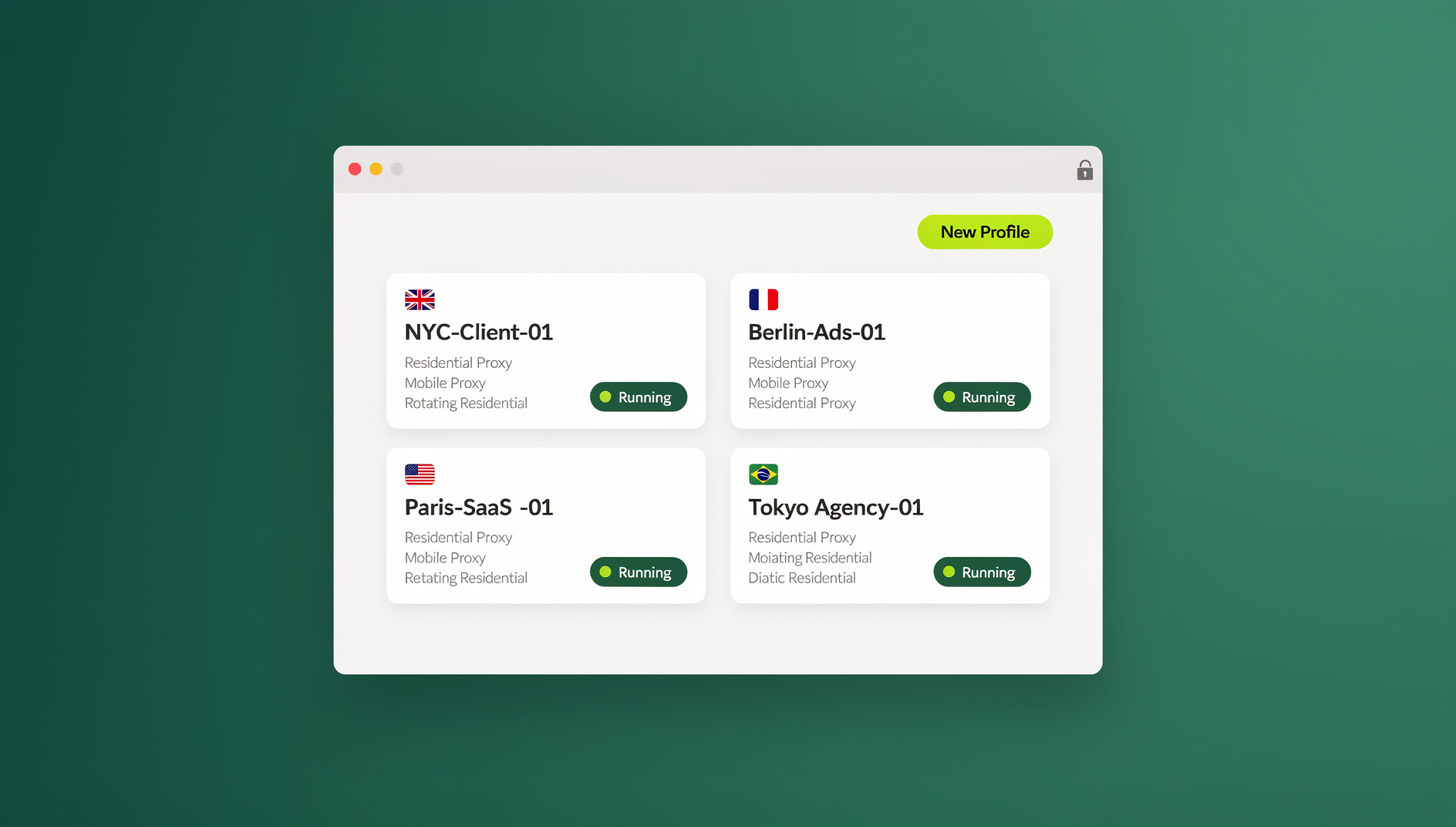
What Is a Virtual Browser Online?
Unlike a regular desktop browser, a virtual browser online does its rendering and processing on remote hardware. You just watch a video stream of the session and send it your clicks and keystrokes. Because the actual browsing engine never touches your computer, malware, tracking scripts, and fingerprinting attempts stay contained on the server — your local machine only ever sees pixels.
This model has become popular for two very different reasons. Security teams use it to open risky links and unknown attachments without exposing the corporate network. Multi-account operators — e-commerce sellers, social media managers, ad buyers — use it because every virtual session can carry its own distinct browser fingerprint, cookies, and IP address, which keeps accounts from getting linked or flagged.
How Virtual Browsers Online Work
The Architecture
- Instance spawn: A full browser engine (usually Chromium) starts inside an isolated container, either in the cloud or, in Send.win’s case, locally on your machine
- You connect: A URL or a native app window gives you access to the session
- Input relay: Your clicks, keystrokes, and scroll events are forwarded to the browsing engine
- Rendering: Pages render on the host — cloud hardware for cloud sessions, your own CPU/GPU for a local desktop app
- Output stream: For cloud sessions, the rendered output is encoded as video and streamed to your screen; a local app simply displays its own window
- State persistence: Cookies, tabs, and login sessions are saved so you can pick up exactly where you left off
Key Technologies
- WebSocket connections: Real-time bidirectional data transfer between client and session
- H.264/VP9 encoding: Low-latency video compression for smooth cloud streaming
- Container isolation: Each browser instance runs sandboxed, so nothing leaks between profiles
- Encrypted sync: Profile data and cookies sync to the cloud without ever sitting in plaintext
- Fingerprint randomization: Canvas, WebGL, audio, and font signatures are varied per profile so accounts don’t look related
The Two Ways to Run a Virtual Browser Online
Not every “virtual browser” works the same way, and the distinction matters more than most guides admit. Broadly, there are two legitimate models, and Send.win offers both:
- A native desktop app (Sendwin Browser): You download and install a real application for Windows, macOS, or Linux. It’s local-first — your profiles, sessions, and fingerprints live on your machine, encrypted and synced to the cloud so you can restore them on another device if needed. This is the better fit for daily driving dozens of accounts, since you’re using your own bandwidth and hardware rather than paying for streamed compute.
- Cloud browser sessions: The browser runs entirely on remote servers with zero local installation. You open a tab, and everything — rendering, storage, isolation — happens in the cloud, metered by cloud browsing time. This is the right call on a Chromebook, a locked-down work laptop, or any device where you can’t or don’t want to install software.
You either run the native app or launch a session in the cloud; both give you the same profile isolation and fingerprint management underneath, so the mode you pick comes down to the device and workflow in front of you rather than any difference in what you’re protected against.
Top Virtual Browser Online Services Compared
Send.win
Best for: multi-account management, privacy, and team collaboration
- Choice of a native desktop app or fully cloud-hosted sessions, depending on the device and workflow
- Unique canvas, WebGL, audio, and font fingerprints per profile
- Built-in proxy support so each profile can carry its own IP address
- Persistent sessions that resume exactly where you left off
- Team seats for sharing profiles without sharing passwords
- No automation interface — Send.win has no API, SDK, headless mode, or Selenium/Puppeteer/Playwright support on any plan
Ideal users: e-commerce sellers, social media managers, ad agencies, and privacy-focused individuals who need more than one clean identity.
Browserling
Best for: quick cross-browser testing
- Instant access to multiple browser versions
- Free tier with short, time-boxed sessions
- Windows-based virtual machines for compatibility checks
Limitations: very short sessions, no fingerprint management, no persistent profiles — built for QA, not account management.
Kasm Workspaces
Best for: self-hosted enterprise deployment
- Open-source container streaming platform
- Deploy on your own servers for full control over data residency
- Docker-based browser isolation
Limitations: requires server infrastructure and IT expertise to stand up and maintain.
Puffin Browser
Best for: mobile browsing performance
- Cloud rendering that speeds up page loads on weaker devices
- Data compression that reduces mobile bandwidth usage
Limitations: privacy-policy concerns, a single identity per account, and limited profile controls.
Mighty Browser
Best for: power users with heavy tab usage
- Chromium-based cloud browser tuned for workstation-level performance
- Handles large numbers of open tabs without local slowdown
Limitations: high subscription cost and a focus on raw performance rather than privacy or multi-account workflows.
Why Use a Virtual Browser Online?
Privacy and Anonymity
- IP masking: sites see the session’s IP address, not yours
- Fingerprint protection: your real device fingerprint never reaches the site you’re visiting
- No local traces: browsing history and cache stay off your device
- Cookie containment: tracking cookies never land on your own machine
Security Isolation
- Malware containment: anything malicious stays inside the sandboxed session
- Zero-day safety: browser exploits hit the isolated container, not your OS
- Phishing containment: credential-harvesting pages never touch your real system
- Public Wi-Fi safety: browse on untrusted networks without exposing local traffic
Multi-Account Management
Running several accounts on the same platform is the single biggest driver of virtual browser adoption. Solid browser fingerprinting protection means each profile presents a genuinely different hardware signature, so platforms see separate devices rather than one person juggling logins — which is exactly what keeps otherwise compliant multi-account use from tripping automated bans.
Device Independence
- Any device access: works on Chromebooks, tablets, phones, and older PCs
- Consistent environment: the same browser experience regardless of the hardware you’re on
- Low requirements: a cloud session only needs an internet connection and a modern browser
Virtual Browser Online vs. Local Solutions
| Feature | Virtual Browser Online | Local Incognito | VPN + Browser | Virtual Machine |
|---|---|---|---|---|
| IP Privacy | Cloud/proxy IP | Real IP | VPN IP | Real IP |
| Fingerprint Privacy | Unique per profile | Same as normal browsing | Same as normal browsing | Different per VM |
| Malware Isolation | Sandboxed container | None | None | VM sandbox |
| Multi-Account Support | Built-in | Limited | Not really | Heavy setup per account |
| Resource Usage | Minimal to moderate | Normal | Normal | Very heavy |
| Any Device | Yes | Per device | Per device | Desktop only |
| Cost | Subscription | Free | Subscription | Free (plus hardware) |
Real-World Use Cases
E-Commerce Sellers
Managing multiple seller accounts across platforms means keeping every store’s login, cookies, and fingerprint fully separate. A dedicated multi-account browser lets you run a distinct profile per Amazon, eBay, or Walmart store, each with its own proxy IP, so nothing links one storefront to another.
Social Media Managers
- Manage multiple client accounts without cross-contamination
- Each client gets an isolated profile with its own fingerprint
- Agency teams share profile access without ever handing over a password
Digital Advertisers
- Run multiple ad accounts on Meta, Google, and TikTok in parallel
- Preview creatives and landing pages from a clean, untracked profile
- Do competitive research without tipping off competitors to your identity
Security Researchers
- Investigate suspicious sites in a disposable, sandboxed session
- Do OSINT work without exposing a real IP or device fingerprint
- Keep evidence intact through session persistence rather than losing it on close
Remote Workers
Accessing work tools from a personal device is one of the more common reasons companies now specify remote browser isolation as a baseline requirement — no company data ever lands on the employee’s machine, the session works through a standard HTTPS connection, and the environment stays consistent no matter which device someone logs in from.
Automating a Virtual Browser Online
Plenty of workflows outgrow manual clicking — bulk listing updates, scheduled account checks, scraping, or QA across dozens of profiles. Send.win does not offer an automation interface: there is no API, SDK, headless mode, or Selenium/Puppeteer/Playwright support on any plan. What Send.win does provide is profile isolation and fingerprint consistency, so each profile keeps its own cookies, storage, and fingerprint settings.
A Puppeteer script, for example, connects to a running profile the same way it would connect to any remote Chromium debugging endpoint:
- Launch or attach to a Sendwin Browser profile
- Connect your automation script over the standard DevTools protocol
- Drive navigation, form fills, and scraping exactly as you would in a normal Puppeteer or Playwright session
- Let each profile keep its own cookies, proxy, and fingerprint between runs
Send.win has no automation interface on any plan, so teams that need to script repetitive account tasks will need a different tool for that. Send.win’s Pro plan does unlock 150 profiles and 5GB of proxy bandwidth.
Performance Considerations
What You Need
- Internet speed: 10+ Mbps recommended for a smooth cloud session experience
- Latency: under 50ms to the nearest server for the best responsiveness
- Device: any device with a modern browser — Chrome, Firefox, Safari, or Edge — for cloud sessions, or Windows/macOS/Linux for the native app
- Display: any resolution — a cloud session simply adapts to your screen
Performance Tips
- Choose a server region close to your location for cloud sessions
- Prefer a wired connection over Wi-Fi when streaming a session
- Close unused profiles to free up cloud browsing time and local resources
- Enable hardware video decoding in your local browser for smoother streaming
Pricing: What a Virtual Browser Online Costs
Send.win has no free trial. Paid plans start at Pro $19/mo or $83.88/yr, and the first card purchase is covered by a 7-day money-back guarantee. The only free option is the cloud demo at https://send.win/demo-browser/ — a 3-minute preview without signup, 10 minutes a day with a free account.
| Plan | Price | Profiles | Proxy Bandwidth | Automation API | Seats |
|---|---|---|---|---|---|
| Free Trial | $0 for 30 days | Limited | Limited | Not included | 1 |
| Pro | $19/mo ($6.99/mo billed annually — 63% off) | 150 | 5GB | Included | 1 |
| Team | $49/mo ($20.99/mo billed annually — 57% off) | 500 | 20GB | Included | 16 |
If you want to compare rates against other providers first, our roundup of best proxy browsers breaks down pricing across the field before you commit.
Getting Started
Quick Start with Send.win
- Try the free cloud demo: Visit https://send.win/demo-browser/ — a 3-minute preview without signup, 10 minutes a day with a free account
- Pick your mode: Download the native Sendwin Browser app for daily-driving profiles locally, or launch a cloud session if you’re on a shared or restricted device
- Create a profile: Set up your first isolated browser profile
- Configure a proxy: Attach a proxy for IP-level separation (optional but recommended for multi-account work)
- Start browsing: Your session is saved automatically so you can resume it later, on the same device or another
🏆 Send.win Verdict
A virtual browser online earns its keep the moment you need more than one clean identity, a sandboxed place to open risky links, or a way to work from a device you don’t fully control. Send.win covers both practical paths to get there — a local-first native app for people who live in their profiles all day, and metered cloud sessions for anyone who needs zero-install access on demand — backed by separate cookies, storage and fingerprint settings per profile, and proxy support.
Try the Send.win cloud demo — a 3-minute preview without signup, 10 minutes a day with a free account.
Frequently Asked Questions
Is a virtual browser online slow?
With a decent internet connection (10+ Mbps), cloud sessions feel close to local browsing speed. The extra 10-30ms of latency is imperceptible for typical tasks like account management, email, and social posting. Send.win’s native app avoids streaming latency entirely since it runs on your own hardware.
Do I need to install anything to use a virtual browser online?
Not necessarily. Send.win’s cloud sessions run entirely in the cloud with zero local install — you just open a browser tab. If you’d rather work locally with encrypted cloud sync, the Sendwin Browser native app installs on Windows, macOS, or Linux.
Is my data safe in a virtual browser?
Reputable providers encrypt connections and isolate sessions per profile. With Send.win, cloud-synced profile data is encrypted, and browsing itself happens either in an isolated cloud container or locally inside the native app — never mixed between profiles.
Can websites detect that I’m using a virtual browser?
Quality services like Send.win build profiles with realistic, internally consistent fingerprints — canvas, WebGL, audio, and fonts all line up the way they would on a genuine device, which is what lets profiles pass typical platform checks.
Do I need a VPN alongside a virtual browser?
Not usually. A virtual browser already masks your IP and fingerprint at the profile level. You can still attach a dedicated proxy to a Send.win profile if you need a specific geographic IP or additional routing control.
Can I automate a virtual browser with Selenium or Playwright?
No. Send.win has no automation interface: there is no API, SDK, headless mode, or Selenium/Puppeteer/Playwright support on any plan. Each profile does keep its own cookies, storage, fingerprint settings and proxy.
What’s the difference between the native app and a cloud session?
The Sendwin Browser native app installs locally and uses your own device’s compute and bandwidth, with profiles encrypted and synced to the cloud for backup or access elsewhere. Cloud sessions run entirely on remote servers with no install at all, billed by cloud browsing time — better suited to occasional use or restricted devices.
How much does a virtual browser online cost?
Send.win has no free trial. Paid plans: Pro $19/mo or $83.88/yr with 150 profiles and 5GB of proxy bandwidth, and Team $49/mo or $251.88/yr with 500 profiles, 20GB of bandwidth, and 16 seats. The first card purchase is covered by a 7-day money-back guarantee, and the only free option is the cloud demo at https://send.win/demo-browser/.
Conclusion
A virtual browser online delivers security, privacy, and multi-account capability that a normal local browser simply can’t match. Whether the workload calls for a locally installed app or a fully cloud-hosted session, moving the browsing environment off your primary device gives you real fingerprint isolation, containment from malware and phishing, and the freedom to work from any hardware you happen to have on hand.
For most people juggling more than one identity online, Send.win offers the more practical combination: a native desktop app when you want speed and control, metered cloud sessions when you need zero-install access, and separate cookies, storage and fingerprint settings per profile.