How to Manage Multiple Social Media Accounts Safely
To manage multiple social media accounts safely, you need three things: browser isolation so each account’s fingerprint and IP address can’t be linked to another, persistent login sessions so you’re not chasing 2FA codes every morning, and a way to delegate access to your team without ever handing over a password. Skip any one of these and you risk a cascading ban across your entire client portfolio.
What starts as a couple of extra browser tabs for a side client quickly turns into a logistics problem: dozens of passwords, endless two-factor prompts, and the constant low-grade fear of posting the wrong brand’s content to the wrong timeline. That’s an annoyance. The real danger is invisible — platforms track far more than your login credentials, and a single sloppy habit can flag every account you touch as part of the same suspicious network.
Why Standard Browsers Fail at Scale
Every browser, even in incognito mode, leaks a consistent fingerprint: screen resolution, installed fonts, GPU signature, timezone, and dozens of smaller signals that combine into something close to a unique ID. Pair that with a shared office IP address, and a platform’s trust-and-safety system doesn’t need to guess that 15 “different” accounts are being run by one person — it can prove it mathematically.
Agencies that log into client accounts one after another from the same laptop, same browser, same IP are effectively raising a flag with every session. The bigger the account portfolio, the higher the odds that one account trips a rule and drags its neighbors down with it.
The Three Pillars of Multi-Account Management
Successfully overseeing dozens of profiles rests on three separate systems working together: content scheduling, native engagement, and security infrastructure. Most agencies only solve the first one.
Pillar 1: Content Scheduling (the easy part)
Scheduling tools like Buffer, Later, or Sprout Social are genuinely good at planning a content grid, queuing a month of posts, and pulling basic performance reports through each platform’s official API. This is a solved problem — pick a scheduler, connect the accounts, and move on.
Pillar 2: Native Engagement (the hard part)
Scheduling APIs cannot reply to a DM thread, react to a Story, jump into a Twitter Space, or moderate a Facebook Group conversation. Any task that requires a human presence inside the platform means logging in natively through a real browser session — and that’s exactly where the fingerprinting risk described above kicks in.
Pillar 3: Security Infrastructure (the critical part)
This is the pillar agencies skip because it doesn’t show up on a client report. Every social network actively looks for accounts that behave like they’re part of a managed network, and the penalty for getting caught isn’t a warning to one account — it’s a review of everything connected to it.
Browser Isolation Is the Missing Piece
The fix isn’t a better password manager — it’s separating the browser environment itself. Real browser fingerprint protection means each client’s account runs inside its own sandboxed profile with a distinct, consistent fingerprint, so the platform sees what looks like a completely different device every time.
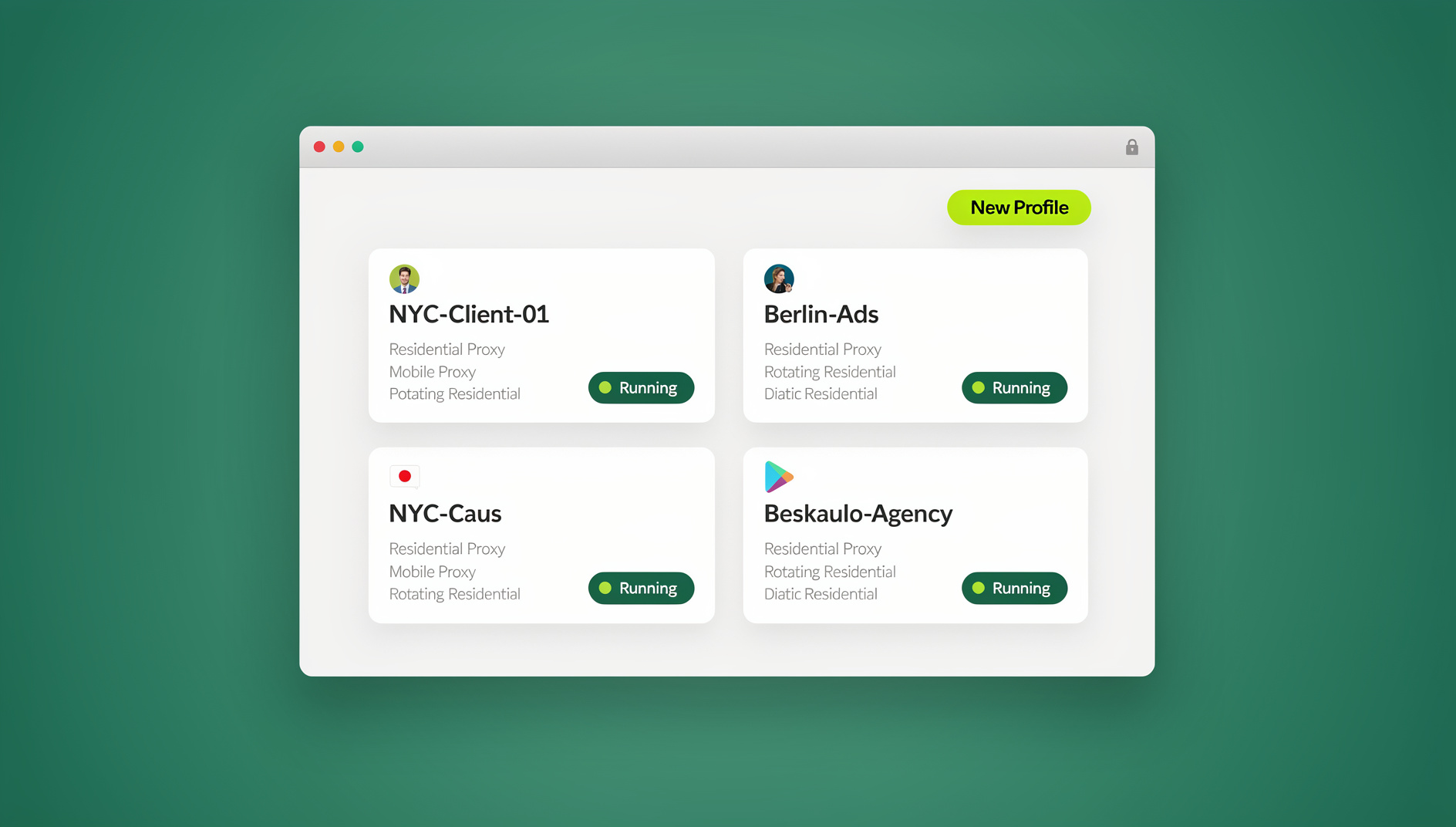
This is the core idea behind an isolated profile system: Client A’s Instagram lives in its own container with its own canvas/WebGL signature, its own cookie jar, and (ideally) its own proxy IP. Client B gets an entirely separate container. Nothing about the two overlaps, so nothing links them.
How Sendwin Browser Handles Isolation and Persistence
Sendwin Browser, the native desktop app, is built around exactly this workflow. Every profile you create gets its own isolated identity — a distinct fingerprint the platform can’t tie back to any other profile on the same machine. If your workflow doesn’t need a local install, cloud browser sessions give you the same isolated-profile model running entirely in the browser, with no desktop client to set up.
Two details matter most for agencies specifically:
- Persistent sessions — you authenticate once (2FA included), and the session stays live inside its own container. No re-entering codes every morning across a dozen client accounts.
- Per-profile proxy assignment — each profile can be tied to a residential proxy that geographically matches the client, so a Chicago-based client account isn’t logging in from an IP on the other side of the country.
For teams built around a multi-login browser workflow, this replaces a folder of shared spreadsheets and sticky-note passwords with one dashboard where every client lives in its own container.
A Standardized Agency Workflow
Here’s the blueprint top agencies actually run day to day.
Step 1: Profile Initialization
When onboarding a new client, don’t log into their accounts yet. Create a dedicated profile first — name it clearly (“Acme Corp – Socials”) — and assign a proxy that matches the client’s real-world location.
Step 2: The Initial Login and Warm-Up
Launch the isolated profile, log in with the client on standby for 2FA codes, and then do nothing dramatic for the first few days. Don’t change the bio, don’t post wildly different content, don’t mass-follow. Let the new “device” look normal before you start acting.
Step 3: Team Delegation Without Passwords
Freelancer turnover is a real operational risk — if someone with 50 saved passwords leaves on bad terms, resetting everything is a fire drill. Instead, use a workflow built to share accounts without passwords: hand a teammate the live, authenticated profile link, let them work inside it, and revoke access instantly when the contract ends. The base credentials never leave your vault.
Step 4: Daily Operations
A streamlined morning routine looks like this:
- Confirm the scheduler’s automated posts went out as planned.
- Open the profile dashboard.
- Launch “Client A,” spend 10-15 minutes on DMs, comments, and Stories natively.
- Close the profile — the session saves automatically.
- Repeat for the next client, one isolated profile at a time.
Common Mistakes That Get Multi-Account Managers Banned
Most account bans in agencies trace back to a small set of repeated mistakes rather than any single catastrophic error. Recognizing these patterns is often more useful than any single tool:
- Batch-logging-in from the same tab session. Opening Client A, logging out, then immediately logging into Client B in the same browser window leaves overlapping cache and storage artifacts even after logout.
- Reusing a phone number across accounts. Platforms increasingly tie phone verification directly to account trust scores — one number attached to five “unrelated” accounts is an immediate red flag.
- Skipping the warm-up period. A freshly logged-in profile that immediately mass-follows, mass-messages, or floods comments looks automated even when a human is doing the clicking.
- Using free or shared VPNs. Free VPN exit IPs are heavily blocklisted by every major platform’s trust-and-safety system; using one is often worse than using no proxy at all.
- Letting a departed freelancer’s session stay active. If access isn’t revoked immediately, a disgruntled ex-contractor (or a hijacked device) still has a live door into the account.
- Treating ad accounts the same as organic accounts. Ad platforms apply stricter linking rules than organic feeds — isolation that’s “good enough” for Instagram Stories may not be good enough for a Business Manager.
None of these require exotic tooling to fix. They require a consistent habit: one isolated profile per account, a dedicated proxy per client, and a documented process for onboarding and offboarding team access. Write the process down once, and every new hire follows the same checklist instead of improvising their own risky shortcuts.
Choosing the Right Proxy for Each Profile
Not all proxies carry the same risk. Residential proxies route traffic through real ISP-assigned IP addresses and are the safest option for social accounts, since they look identical to a normal home connection. Datacenter proxies are cheaper and faster but are widely fingerprinted and blocklisted by platforms that actively hunt for automation. Mobile proxies sit in between — useful for platforms that lean heavily on device-and-carrier signals, but usually overkill for standard content and community management.
The practical rule for agencies: pair every client profile with a residential proxy that matches their real-world location, reserve mobile proxies for accounts with unusually aggressive detection (certain e-commerce or dating platforms), and avoid datacenter proxies for anything customer-facing.
Ad Accounts Raise the Stakes
Organic bans sting. Ad account bans are worse, because Meta and TikTok’s ad platforms apply far heavier scrutiny to anything that touches Business Manager. One rogue client account tripping a policy violation is enough for the platform to trace the fingerprint back to the agency’s primary manager login and suspend the whole structure — every connected client, all at once.
Agencies that need to manage multiple ad accounts without passwords treat each Business Manager like its own quarantine zone: isolated profile, dedicated residential proxy, no shared login history with any other client’s ad account.
Comparing Your Options
| Method | Fingerprint Isolation | Persistent Login | Safe Team Delegation | Native Engagement |
|---|---|---|---|---|
| Standard browser tabs / Incognito | ❌ None | ❌ Re-auth constantly | ❌ Password sharing only | ✅ |
| Separate laptops per client | ⚠️ Partial (still same office IP) | ✅ | ❌ Physical hardware sharing | ✅ |
| Scheduling API tools only | N/A | N/A | ✅ Team seats | ❌ No native access |
| Sendwin Browser / cloud sessions | ✅ Per-profile | ✅ | ✅ Link-based, revocable | ✅ |
🏆 Send.win Verdict
If you manage more than a handful of client social accounts, browser isolation isn’t optional infrastructure — it’s the thing standing between your agency and a cascading ban. Sendwin Browser gives each account its own fingerprint and persistent, revocable session, whether you run it as the native desktop app or as a cloud browser session with no install at all.
Try Send.win free today — start your 30-day free trial, no credit card required.
Frequently Asked Questions
Is it against the rules to manage multiple social media accounts for clients?
No. Managing accounts on behalf of clients is standard agency work and explicitly allowed by every major platform. What gets flagged is behavior that looks like coordinated manipulation — mass following, identical posting patterns, or dozens of accounts sharing one obvious fingerprint and IP.
Do I need a proxy for every single account?
Not necessarily for low-risk organic accounts, but it’s strongly recommended for anything tied to ad spend or a client whose real-world location matters (local businesses, regional brands). A proxy that geographically matches the account reduces the odds of a location-mismatch flag.
What happens if I mix client accounts in the same browser profile?
The platform sees identical fingerprints and often identical cookies across accounts, which is one of the fastest ways to get accounts linked. If one account is later restricted, every account sharing that profile becomes suspect.
Can I still use my scheduling tool alongside browser isolation?
Yes — they solve different problems. Keep your scheduler (Buffer, Later, Sprout Social) for the broadcasting side, and use isolated profiles for anything that requires logging in natively: DMs, comments, Stories, and Spaces.
How do I hand off an account to a freelancer without giving them the password?
Share the live, authenticated profile itself rather than the credentials. The freelancer works inside an already-logged-in session; when the engagement ends, you revoke that specific share and the underlying password is never exposed.
Does isolating profiles slow down my team’s daily workflow?
Once profiles are set up, no — you open a named profile the same way you’d open a bookmarked tab, and the session is already authenticated. The setup cost is one-time per client; the daily cost is negligible.
What’s the difference between Sendwin Browser and cloud browser sessions?
Sendwin Browser is the native desktop app you install on Windows, macOS, or Linux — it’s the primary way most agencies run isolated profiles day to day. Cloud browser sessions run the same isolated-profile model entirely in the cloud, with no local install, which is useful for teams that need to work from a shared or locked-down machine.
Is browser isolation only useful for large agencies?
No — even a single freelancer running two or three client accounts benefits, since one careless login can flag every account connected to it. The risk scales with the number of accounts, not the size of the business running them.