How to use Send.win is one of the most common questions new users type into Google right after signing up — and for good reason. Send.win packs a lot into one dashboard: isolated browser profiles, built-in proxies, a desktop app, and team sharing. If you just created an account (or you’re still deciding whether to), this guide walks through the entire onboarding flow from a completely refreshed 2026 perspective — what to install, how to create your first profile, how proxies and sessions actually work, and how to get your whole team set up without ever sharing a password.
What Is Send.win? A Quick Refresher
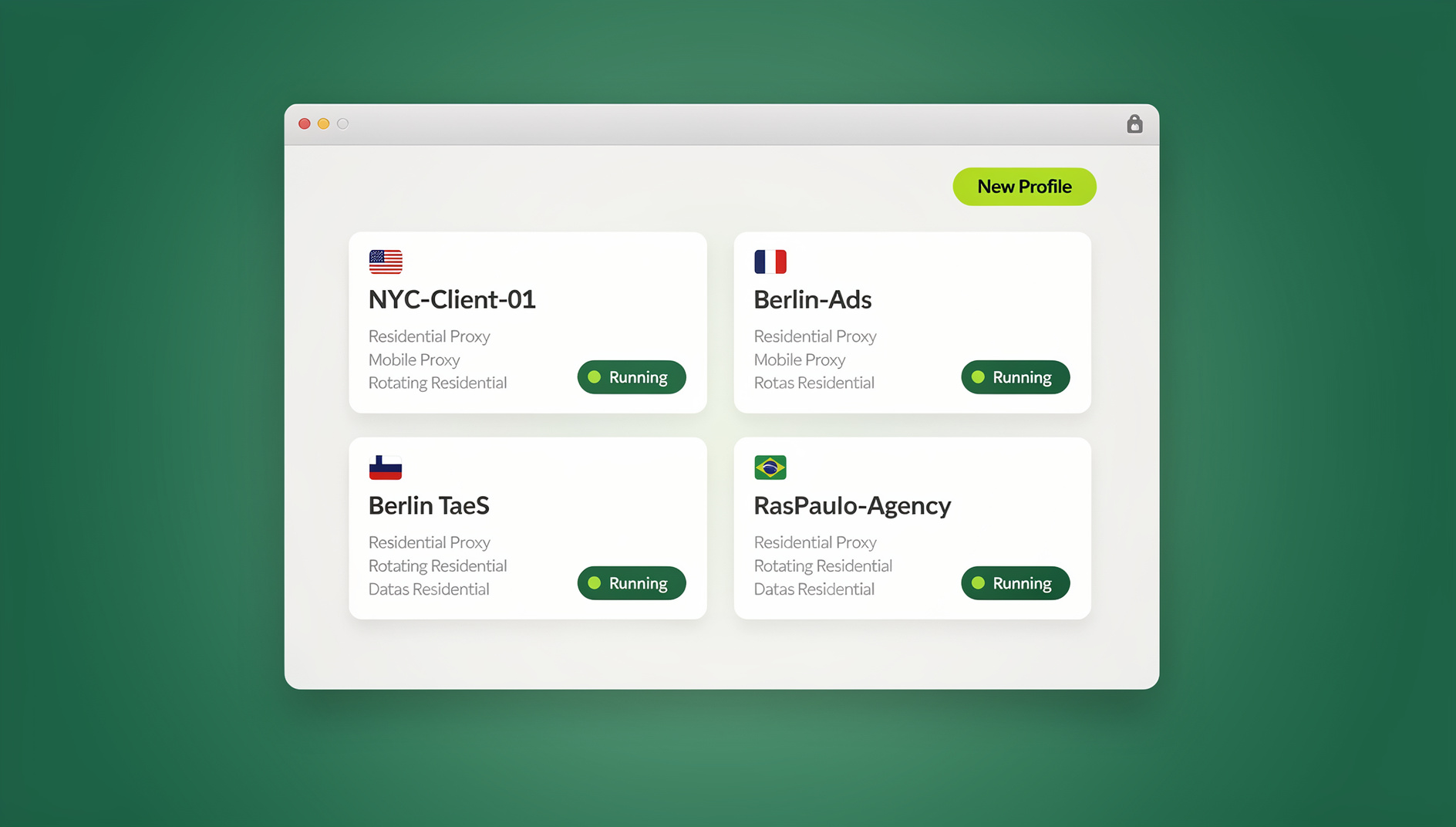
Send.win is a browser profile manager built for anyone who needs to run more than one account on the same website — think social media managers, e-commerce sellers, affiliate marketers, agencies, and remote teams. Instead of logging in and out of the same browser every time you switch accounts, Send.win gives every account its own isolated browser profile with its own consistent fingerprint, its own cookies and local storage, and — if you want it — its own dedicated proxy. Each profile keeps its own separate browser identity, so profiles do not share one browser identity.
If you’re comparing this approach to juggling Chrome profiles, incognito windows, or a stack of browser extensions, it helps to first understand what a multi-login browser actually does under the hood — it’s the foundation everything else in this guide builds on.
Before You Start: Desktop App vs. Cloud Browser Sessions
Send.win gives you two ways to access the platform, and it’s worth knowing the difference before you dive in. You can install the native Sendwin Browser desktop app for Windows, macOS, and Linux, or you can run a browsing session entirely in the cloud with nothing installed on your machine at all. Most of the workflow described below works from either one, but the desktop app is the recommended starting point for anyone doing more than occasional use.
The Send.win Desktop App
The desktop app is a standalone client you install directly on your machine rather than bolting onto an existing browser. It gives you:
- Faster profile launches — profiles open in dedicated windows instead of browser tabs competing for the same resources.
- Better isolation — since each profile runs as its own process, there’s less risk of cross-profile data leakage than with a setup confined to a single shared browser tab.
- Native proxy and fingerprint handling — proxy assignment, canvas/WebGL noise, timezone matching, and user-agent settings are all handled at the application level, so each profile keeps its own consistent fingerprint.
- Offline profile management — you can organize, tag, and configure profiles even before launching a browsing session.
You’ll find the download link as the first item in Send.win’s navigation menu when you sign up — it’s worth grabbing before you do anything else, since most of the workflow described below assumes you’re running it.
Cloud Browser Sessions
If you’d rather not install anything at all, Send.win also lets you run a browsing session entirely in the cloud, streamed straight to your existing browser. There’s no desktop client to download and no separate application to manage — it’s a solid option if you’re on a machine you don’t control, or you just need to spin up a profile quickly. The free cloud demo gives you a 3-minute preview without signup, or 10 minutes a day with a free account; the Pro plan raises that to unlimited cloud browsing time with 20 saved sessions (3 concurrent), and the Team plan allows more concurrent sessions across 16 team seats.
Step-by-Step: Setting Up Send.win From Scratch
Here’s the exact onboarding sequence, updated for the current version of the platform.
Step 1: Create Your Account
Head to Send.win and sign up with your email. There is no free trial, but the first card purchase is covered by a 7-day money-back guarantee, and you can preview the cloud browser for free at the demo before you commit to a plan.
Step 2: Install the Desktop App (or Start a Cloud Session)
Download and install the desktop client for your operating system. Log in with the account you just created. If you’d rather skip the install entirely, launch a cloud browsing session instead and sign in the same way — you can always install the desktop app later without losing any profiles, since everything syncs to your Send.win account, not to a specific device.
Step 3: Create Your First Profile
Inside the dashboard, click “New Profile” (or “New Session,” depending on which version of the UI you’re on). Give it a descriptive name — something like “Instagram — Brand A” rather than “Profile 1” — because this naming discipline is what saves you from confusion once you’re managing 20+ accounts. If you want a walkthrough of this exact screen with screenshots, our dedicated post on creating sessions in Send.win covers it step by step.
Each profile you create is generated with its own randomized-but-consistent browser fingerprint: a unique combination of user-agent string, screen resolution, WebGL renderer signature, canvas hash, font list, and timezone. That fingerprint doesn’t change between sessions, which is exactly what you want — websites see a stable, believable “device” every time you log in from that profile, rather than a fingerprint that changes every session (which is itself a red flag).
Step 4: Add a Proxy to Your Session
This is the step most new users skip — and shouldn’t. A unique fingerprint means nothing if every profile still connects from the same IP address; platforms cross-reference IP with device signals, and ten “different” accounts logging in from one home IP is a fast way to trigger a review or a ban. Send.win has proxies built in, so you don’t need a separate proxy subscription: you can generate one from Send.win’s own pool or plug in your own residential, datacenter, or mobile proxy. The full process — including how to match proxy geolocation and timezone to your profile automatically — is covered in our guide on adding a proxy to any session.
Step 5: Log Into Your Accounts
Launch the profile and log into the account you want tied to it, exactly as you would in a normal browser. From this point forward, that login is remembered by the profile — you won’t need to re-enter credentials unless you explicitly log out or clear the session.
Step 6: Organize Profiles Into Folders or Tags
Once you’re past three or four profiles, flat lists get unwieldy fast. Use folders, tags, or naming conventions (client name, platform, region) to keep things searchable. This matters more than it sounds like it should — the number one complaint from people who “can’t find” a profile is almost always a naming problem, not a Send.win problem.
Saved vs. Unsaved Sessions: What’s the Difference?
Send.win gives you two session types, and picking the right one for the right job matters:
| Session Type | What It Does | Best For |
|---|---|---|
| Saved Session | Stores cookies, local storage, and login state permanently against that profile’s fingerprint | Accounts you log into regularly — social media, ad platforms, marketplaces, email |
| Unsaved Session | Behaves like a temporary/incognito profile — fingerprint is generated but nothing is stored after you close it | One-off research, testing a site’s behavior, checking how a page renders in a different region, QA testing |
A common beginner mistake is creating a new unsaved session every time and wondering why they have to log in from scratch constantly. If you’re managing an account long-term, always use a saved session — that’s the entire point of the “no more re-entering credentials every time” workflow Send.win is built around.
Sharing Sessions With Your Team (Without Sharing Passwords)
If you’re onboarding as part of an agency or a team rather than a solo user, Send.win’s sharing feature is arguably more valuable than the multi-login functionality itself. Instead of typing a password into a shared spreadsheet (please don’t), you can share a specific profile with a teammate directly through Send.win. They get working access to log in and operate the account — without ever seeing the actual password, and without you having to trust a third-party password manager for every client account.
You control exactly who has access to which profile, and you can revoke that access instantly if a contractor’s engagement ends or a teammate leaves. For the exact steps, see our walkthrough on sharing sessions with your team. This is a Team-plan feature, and it’s one of the biggest reasons agencies upgrade from Pro.
Where Send.win Fits
This is a feature the original version of this guide predates entirely, and it’s worth calling out clearly: Send.win has no automation interface — no API, SDK, headless mode, or Selenium/Puppeteer/Playwright support on any plan. Profiles are operated manually through the desktop app or the cloud browser.
- Spin up a specific Send.win profile from a script, complete with its assigned proxy and fingerprint.
- Run automated QA checks across dozens of account states in parallel.
- Trigger scheduled tasks — posting, monitoring, data pulls — against isolated profiles without any manual browser interaction.
- Integrate profile launches into an existing CI/CD or internal tooling pipeline.
This matters because Send.win does not offer any automation interface, so there is no scripted browser to run through a profile. Each profile instead keeps its own consistent fingerprint and proxy routing for manually operated sessions, which keeps your accounts organised and separate.
Send.win Pricing in 2026
Pricing is simple and hasn’t ballooned into the confusing tiered mess some competitors run:
| Plan | Price | Profiles | Proxy Bandwidth | Key Features |
|---|---|---|---|---|
| Free Trial | $0 for 30 days | Limited | Included | No credit card required, full feature testing |
| Pro | $19/mo ($6.99/mo billed annually — 63% off) | 150 | 5GB | Desktop app, saved/unsaved sessions, proxy management |
| Team | $49/mo ($251.88/yr) | 500 | 20GB | Everything in Pro + 16 seats, session sharing |
Add-ons are available if you outgrow a plan’s limits: extra proxy bandwidth runs $6/GB, and additional profiles beyond your plan’s cap are $0.05 each. For most solo users and freelancers, Pro covers the entire onboarding flow described in this guide. Teams that need shared access or scripted automation should plan for Team from the start.
Send.win vs. Doing This Manually
It’s worth being explicit about what you’re actually replacing when you onboard onto Send.win, because the comparison is what makes the setup effort worthwhile:
| Task | Manual Method | With Send.win |
|---|---|---|
| Switching accounts | Log out, clear cookies, log back in | Click a different profile — both stay logged in |
| Hiding your IP per account | Manage a separate VPN or proxy subscription | Built-in proxy assignment per profile |
| Consistent device fingerprint | Not possible manually | Automatic, persistent per profile |
| Sharing an account with a teammate | Send the password directly | Share the profile, never expose the password |
| Automating logins/tasks | Build your own detection-evasion layer | No automation interface — profiles are operated manually through the app |
Common Onboarding Mistakes to Avoid
- Skipping the proxy step. A unique fingerprint without a unique IP still links your accounts together in the eyes of most platforms.
- Using unsaved sessions for accounts you log into daily. You’ll waste time re-authenticating every single visit.
- Naming profiles generically. “Profile 1,” “Profile 2,” etc. becomes unmanageable fast — name by client, platform, or purpose from day one.
- Sharing passwords instead of sessions. If you’re on a team, use Send.win’s native sharing rather than falling back to old habits.
- Ignoring the desktop app. If you’re only ever spinning up cloud sessions, you’re missing the more stable, better-isolated setup — and the offline profile management — the desktop client provides.
🏆 Send.win Verdict
Getting started with Send.win takes about ten minutes: create an account, install the desktop app, spin up your first profile, and attach a proxy. From there, the platform handles the hard part — keeping every account isolated, organised, and easy to switch between — whether you’re managing five personal accounts or five hundred client profiles across a team. The desktop app and cloud browser together make it a genuinely complete platform for anyone running more than one account.
Try the free Send.win cloud demo — a 3-minute preview without signup, and your first profile is live in minutes on a paid plan.
Frequently Asked Questions
Do I need to install anything to use Send.win?
Not necessarily. Send.win works two ways: install the native Sendwin Browser desktop app for Windows, macOS, or Linux for the full feature set — including stronger fingerprint isolation, proxy management, and native performance — or skip the install entirely and run a cloud browsing session right from your existing browser, with no local software required.
What’s the difference between a saved and an unsaved session?
A saved session stores your login credentials, cookies, and local storage permanently against that profile, so you stay logged in between visits. An unsaved session behaves like an incognito window tied to a unique fingerprint — nothing is retained once you close it. Use saved sessions for accounts you manage regularly and unsaved sessions for one-off browsing or testing.
Can I use Send.win without a proxy?
Technically yes, but it defeats much of the purpose. If every profile connects from your real IP address, platforms can still link accounts together by network signals even if the browser fingerprint differs. Attaching a proxy per profile — either from Send.win’s built-in pool or your own — is a core part of keeping accounts genuinely isolated.
How many accounts can I realistically manage on the Pro plan?
The Pro plan supports up to 150 profiles with 5GB of proxy bandwidth included, which comfortably covers most freelancers, solo sellers, and small agencies. If you need more profiles, more bandwidth, or team seats, the Team plan raises those limits significantly.
Is there an automation option for developers?
No. Send.win has no automation interface on any plan — no API, SDK, headless mode, or Selenium/Puppeteer/Playwright support. Profiles are operated manually through the desktop app or the cloud browser.
Can I share a logged-in account with a team member without giving them the password?
Yes. Send.win’s session sharing (available on the Team plan) lets you grant a teammate working access to a specific profile without ever exposing the underlying password. You can revoke access at any time.
Does Send.win work on Mac and Linux, or just Windows?
The desktop app is available natively for Windows, macOS, and Linux, so your onboarding flow is the same regardless of operating system.
Is there a free trial?
Yes — no credit card is required to start, and you get full access to test profile creation, proxy assignment, and (depending on the trial configuration) sharing features before deciding on a paid plan.