A virtual machine browser is a web browser run inside a fully isolated virtual machine, giving it a separate guest operating system, virtual hardware, and network stack that sit between the page you’re viewing and your real computer. It delivers the strongest isolation available for web browsing, but it also demands heavy RAM and CPU, slow setup, and a hard limit on how many instances you can realistically run — which is why most day-to-day multi-account and privacy browsing has shifted to lighter, cloud-based alternatives.
What Is a Virtual Machine Browser?
A virtual machine browser runs entirely inside a self-contained virtual environment that sits on top of your actual hardware. The hypervisor creates a hardware-level wall between the guest system (where the browser lives) and your host machine, so anything that happens inside the browser — malware, a compromised tab, a tracking script probing for hardware details — stays trapped inside the VM.
People reach for this setup when they’re researching suspicious websites, testing malware samples, or want the strongest possible separation between a browsing session and their real files, passwords, and personal data. It’s the gold-standard isolation model, but it’s also the heaviest one, both in terms of hardware and in terms of the time it takes to set up and maintain.
How Virtual Machine Browsers Work
The Isolation Stack
- Host OS: Your real operating system (Windows, macOS, Linux)
- Hypervisor: Software that creates and manages VMs (VirtualBox, VMware, Hyper-V)
- Guest OS: A separate operating system running inside the VM
- Browser: Chrome, Firefox, or any browser installed in the guest OS
The hypervisor is what makes the isolation real. Malware running inside the browser can compromise the guest OS, but under normal conditions it cannot reach out and touch the host system sitting underneath it.
Types of Hypervisors
| Type | Examples | Performance | Best For |
|---|---|---|---|
| Type 1 (Bare-metal) | Hyper-V, ESXi, KVM | Near-native | Servers, enterprise |
| Type 2 (Hosted) | VirtualBox, VMware Workstation | Good (overhead 5-15%) | Desktop users |
| Container-based | Docker, LXC | Excellent (minimal overhead) | Lightweight isolation |
How to Set Up a Virtual Machine Browser
Method 1: VirtualBox (Free)
- Download VirtualBox from virtualbox.org
- Download an OS image — Ubuntu Desktop ISO is recommended (free, lightweight)
- Create a new VM:
- Type: Linux, Version: Ubuntu 64-bit
- RAM: 4 GB minimum (8 GB recommended)
- Disk: 25 GB dynamically allocated
- Video memory: 128 MB with 3D acceleration
- Install the guest OS from the ISO
- Install Guest Additions for clipboard sharing and better graphics
- Install your browser (Firefox is pre-installed on Ubuntu; add Chrome if desired)
- Take a snapshot — you can revert to this clean state anytime
Method 2: Windows Sandbox (Windows 10/11 Pro)
- Open Turn Windows features on or off
- Enable Windows Sandbox
- Restart your computer
- Search for and launch Windows Sandbox
- A clean Windows desktop appears — open Edge and browse
- Closing the sandbox destroys everything — completely disposable
Windows Sandbox is perfect for one-off risky browsing — it boots in seconds and leaves no trace once you close it.
Method 3: Qubes OS (Maximum Security)
- A dedicated operating system that runs every application in its own VM
- The default browsing VM is isolated from personal, work, and banking VMs
- Disposable VMs handle single-use browsing and are destroyed after closing
- Used by journalists, security researchers, and privacy advocates
- Widely recommended by security professionals for high-risk workflows
Virtual Machine Browser Use Cases
Security Research
- Analyze malware samples safely — they can’t escape the VM under normal conditions
- Visit suspicious URLs without risking your real system
- Test phishing pages for security training
- Reverse engineer web-based threats
Multi-Account Management
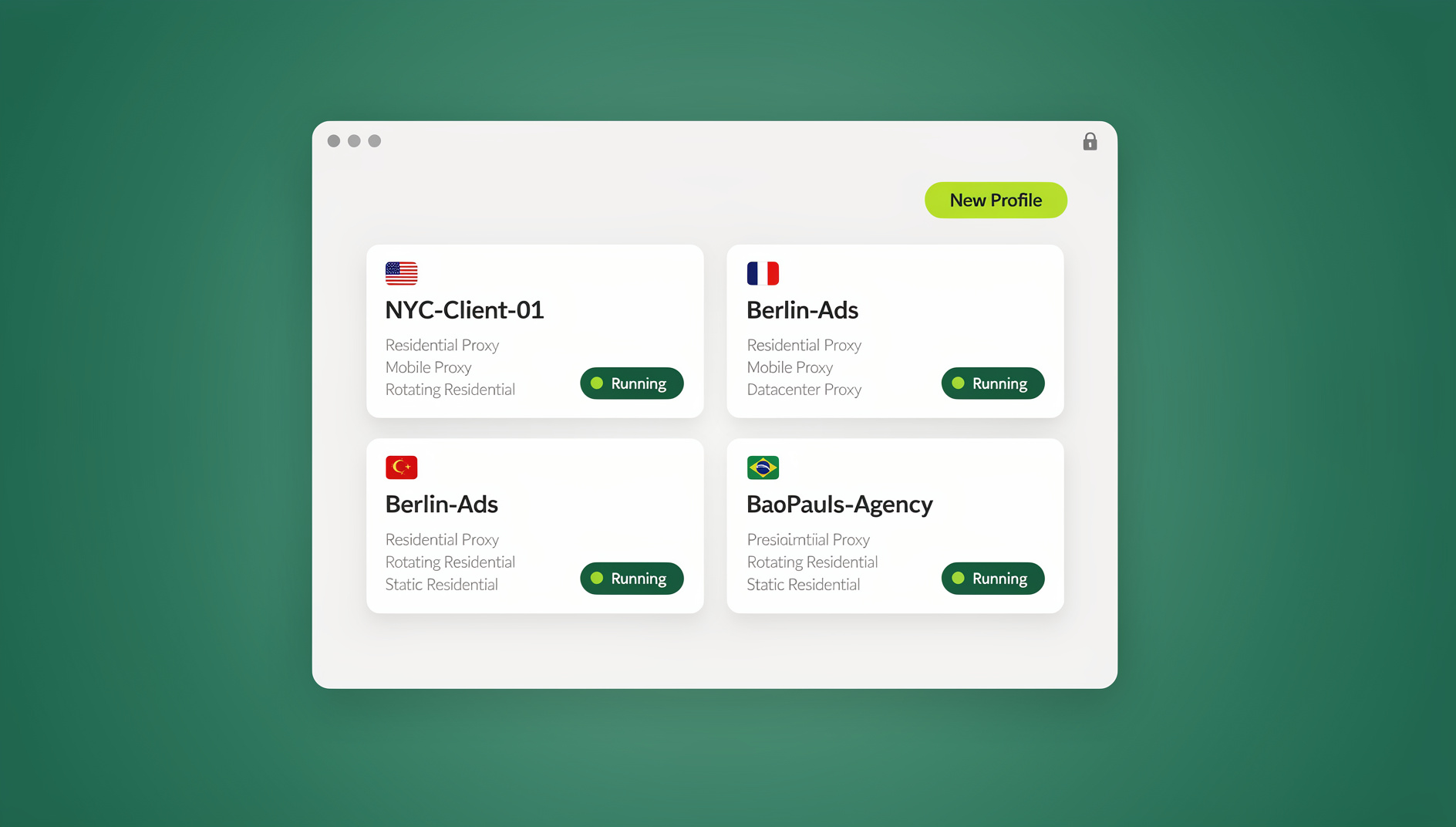
Each VM provides complete isolation for managing multiple accounts: a different IP (via VPN or proxy per VM), a different browser fingerprint (different OS, screen, hardware), separate cookies and storage, and no cross-contamination between accounts. The catch is that running several VMs at once for multi-account work is resource-heavy — most laptops choke past three or four. A more practical route for this specific use case is unlimited virtual profiles, which give each account its own isolated fingerprint, cookies, and storage without spinning up a full guest operating system for every login.
Privacy and Anonymous Browsing
- Browse without affecting your host system’s cookies or history
- Run Tor Browser inside a VM for an extra layer of anonymity
- Disposable VMs leave zero browsing artifacts behind
- The VM’s hardware fingerprint differs from your real machine
Software Testing
- Test web applications across different OS and browser combinations
- Verify cross-browser compatibility without polluting your main system
- Snapshot before testing, then revert to a clean state afterward
- Test on older OS versions without dedicated hardware
Virtual Machine Browser vs. Other Isolation Methods
On paper, a VM browser looks unbeatable — it isolates at the hardware level, which nothing else on this list does. In practice, the isolation you actually need for most work (a distinct fingerprint, cookies, and IP per account or task) doesn’t require full hardware virtualization at all. Here’s how the main options compare:
| Feature | VM Browser | Docker Browser | Browser Incognito | Send.win |
|---|---|---|---|---|
| Isolation level | Hardware-level | Kernel-level | Tab-level | Profile/session-level, encrypted |
| Performance overhead | High (5-15%) | Low (1-3%) | None | Minimal — lightweight desktop app, or none locally with cloud sessions |
| Setup complexity | Medium-High | Medium | None | None — download once, or open a cloud session with zero install |
| Resource usage | 4-8 GB RAM per VM | 200-500 MB per container | Same as browser | Runs locally (desktop app) or entirely server-side (cloud sessions) |
| Fingerprint isolation | Good (different OS) | Moderate | None | Excellent — unique fingerprint per profile |
| Persistence | Via snapshots | Via volumes | None | Automatic, encrypted cloud sync |
| Scalability | 3-5 VMs max (desktop) | 10-50 containers | 1 session | 150-500 profiles depending on plan |
| Team sharing | Export/import VM images | Docker images | Not possible | Built-in sharing, no passwords exchanged |
Send.win runs in exactly two modes: Sendwin Browser, a native, downloadable desktop app for Windows, macOS, and Linux that’s local-first with encrypted cloud sync, or a cloud browser session that runs entirely on remote servers with zero local install, billed by cloud browsing time. Neither one boots a guest operating system, which is why setup takes seconds instead of the hour-plus a fresh VM install usually costs you.
Optimizing VM Browser Performance
Hardware Requirements
- CPU: 4+ cores with virtualization extensions (Intel VT-x / AMD-V)
- RAM: 16 GB minimum (8 for host + 4-8 per VM)
- Storage: SSD strongly recommended — VMs on a spinning HDD are painfully slow
- GPU: GPU passthrough is available for graphics-intensive browsing
Performance Tips
- Enable hardware virtualization in BIOS (VT-x/AMD-V)
- Use a lightweight guest OS — Xubuntu, Linux Mint, or Alpine Linux
- Allocate enough RAM — too little causes excessive disk swapping
- Use fixed-size disks instead of dynamically allocated for better I/O
- Install guest additions/tools for better GPU and input performance
- Disable unnecessary services inside the guest OS
Security Considerations
VM Escape Vulnerabilities
VM escape exploits — where code breaks out of the guest and touches the host — are rare, but they do surface occasionally. Mitigate the risk by keeping your hypervisor (VirtualBox, VMware) patched, disabling shared folders, clipboard sharing, and drag-and-drop for maximum isolation, using NAT networking instead of bridged mode, and running the VM under a host account with minimal permissions.
Network Isolation
- NAT mode: the VM shares the host’s IP through translation — simplest setup
- Host-only mode: the VM can only talk to the host — no internet access, ideal for malware analysis
- Bridged mode: the VM gets its own IP on the network — useful when pairing a VM with its own VPN
- Internal network: multiple VMs can talk to each other but not to the host
When to Use a VM Browser vs. a Cloud Browser
Virtual machine browsers excel at deep, hardware-level isolation for security research and one-off high-risk browsing. But for the far more common job of managing several accounts every day, the overhead stops making sense. Use a VM browser when you’re analyzing malware, visiting genuinely high-risk sites, or need OS-level isolation for security research. Use a cloud browser when you’re managing multiple accounts, doing daily privacy-conscious browsing, collaborating on a team, or need to hand a teammate access without ever handing over a password — something sharing sessions without sharing passwords solves directly.
Send.win gives you the isolation properties that make a VM browser attractive — a separate fingerprint, cookies, and IP address per profile — without the resource overhead, the hour of setup, or the dedicated hardware. Every profile keeps its own session isolation, encrypted and synced, and it’s accessible from any device rather than tied to the one machine that happens to be running the hypervisor. For teams that need the same idea applied to whole browsing sessions rather than local VMs, remote browser isolation extends the same principle to cloud-hosted sessions that never touch a local disk at all.
If your workflow involves automated testing rather than manual browsing — running Selenium, Puppeteer, or Playwright scripts against isolated profiles — Send.win does not offer an automation interface, so you would need to script against a VM’s guest OS to automate a login flow or a scraping job.
🏆 Send.win Verdict
A virtual machine browser is still the right call for malware analysis, high-risk investigations, and anything that genuinely needs hardware-level isolation. For everything else — running multiple client accounts, keeping ad accounts separate, sharing access with a team, or just browsing privately — Send.win delivers the same practical isolation (unique fingerprint, cookies, and IP per profile) through a native desktop app or a cloud session, with no hypervisor, no guest OS installs, and no 8GB-per-VM RAM tax. Start with the free cloud demo at https://send.win/demo-browser/, then scale into Pro ($19/mo, or $83.88/yr) for 150 profiles, or Team ($49/mo, or $251.88/yr) for 500 profiles and 16 seats. The first card purchase is covered by a 7-day money-back guarantee.
Try Send.win free today — set up your first isolated profile in minutes, no VM required.
Frequently Asked Questions
Is a virtual machine browser really necessary for safe browsing?
For most everyday browsing, a modern browser with built-in protections (Safe Browsing, site isolation) is enough. VM browsers earn their overhead in high-risk scenarios — security research, visiting known-dangerous sites, or situations where you need maximum, hardware-level isolation and can’t accept any risk of leakage between sessions.
How many VM browsers can I run at the same time?
It depends on your hardware. With 16 GB of RAM you can comfortably run 2-3 VMs; with 32 GB, 4-6. Each VM needs at least 2-4 GB of RAM. Past roughly five simultaneous accounts, the RAM math stops working and a profile-based cloud browser becomes the more practical tool.
Can websites detect that I’m browsing from a virtual machine?
Some can. Detection methods include checking for VM-specific hardware identifiers (like the VirtualBox Graphics Adapter string), CPU manufacturer strings, MAC address prefixes, and characteristic mouse-driver behavior. None of these checks are foolproof, but a determined site can flag a VM with reasonable accuracy.
Is VirtualBox or VMware better for browser isolation?
VirtualBox is free and sufficient for most users. VMware Workstation offers somewhat better performance and more polished snapshot tooling, but it costs money. Windows users who just want disposable, one-off isolation should try the built-in Windows Sandbox first — it requires no extra software.
Can malware actually escape a virtual machine?
VM escape exploits exist, but they’re rare and get patched quickly once discovered. Keep your hypervisor current, disable shared folders and clipboard integration, and stick to NAT networking for stronger isolation. For genuinely high-risk malware analysis, an air-gapped physical machine is still the safest option.
Does Send.win use virtual machines under the hood?
No. Send.win isolates each profile at the session level rather than booting a full guest operating system for every account. That’s what keeps it lightweight enough to run 150-500 profiles on ordinary hardware, or entirely in the cloud with no local footprint at all, instead of the 3-5 VMs a typical desktop can handle.
What’s the practical difference between a VM browser and a cloud browser like Send.win?
A VM browser isolates by virtualizing an entire computer underneath the browser, which is powerful but heavy. A cloud browser isolates at the session or profile level — separate cookies, storage, and fingerprint per profile — either on your own machine via a lightweight desktop app or entirely on remote servers. You get comparable practical isolation for multi-account work with a fraction of the setup time and resource cost.
Do I need coding skills to automate tasks inside an isolated browser?
No, not for regular use. Send.win has no automation interface — no API, SDK, headless mode or Selenium/Puppeteer/Playwright support on any plan — so automating logins, scraping, or repetitive workflows would require scripting against a VM’s guest OS.
Conclusion
A virtual machine browser buys you the strongest isolation on the market by putting an entire virtualized computer between the page and your real system. That makes it the right tool for malware analysis, high-risk research, and situations where nothing less than hardware-level separation will do. For daily multi-account management, ad account separation, or team collaboration, that same isolation is available in a far lighter package. Send.win delivers a distinct fingerprint, cookie jar, and IP per profile through a native desktop app or a fully remote cloud session — turning what used to require a beefy workstation and an hour of VM setup into something you can start using in the time it takes to read this sentence.