The most reliable way to manage multiple GitHub accounts in VSCode is to stop relying on VSCode’s single sign-in and instead pair SSH host aliases for authentication with conditional Git configs for identity — that combination lets Git automatically pick the right SSH key and commit email for each repository, so a push never gets attributed to the wrong account. Below is the complete setup, plus where VSCode’s own GitHub sign-in fits into the picture.
Why This Is Harder Than It Should Be
Developers frequently need separate GitHub identities — keeping personal projects apart from work, contributing to open source under a pseudonym, or juggling several client repositories as a freelancer. The friction is that Git and GitHub weren’t designed with multi-account workflows in mind, and VSCode’s built-in GitHub integration only signs in as one account at a time.
By default, Git uses a single global username and email:
git config --global user.name "Your Name"
git config --global user.email "[email protected]"
That config applies to every repository on the machine. Push commits with it while working in a repo tied to a different GitHub account, and those commits get attributed to the wrong identity — or rejected outright if the wrong token tries to authenticate.
Common Symptoms
- Push rejected with a “permission denied” error because Git used the wrong account’s credentials
- Commits showing up under the wrong GitHub profile
- A contribution graph that mixes personal and work activity together
- Having to manually reset credentials every time you switch accounts
Solution 1: SSH Keys (Recommended)
The most dependable fix is a separate SSH key per account, with SSH configured to use the right key for the right repository.
Step 1: Generate SSH Keys
# For your personal account
ssh-keygen -t ed25519 -C "[email protected]" -f ~/.ssh/id_personal

# For your work account
ssh-keygen -t ed25519 -C "[email protected]" -f ~/.ssh/id_work
Step 2: Add Keys to the SSH Agent
eval "$(ssh-agent -s)"
ssh-add ~/.ssh/id_personal
ssh-add ~/.ssh/id_work
Step 3: Add Public Keys to GitHub
For each account, go to Settings → SSH and GPG keys → New SSH key and paste the matching public key.
Step 4: Configure the SSH Config File
Edit ~/.ssh/config and define a host alias for each account:
# Personal GitHub
Host github-personal
    HostName github.com
    User git
    IdentityFile ~/.ssh/id_personal
    IdentitiesOnly yes

# Work GitHub
Host github-work
    HostName github.com
    User git
    IdentityFile ~/.ssh/id_work
    IdentitiesOnly yes
Step 5: Clone Using Host Aliases
# Clone using the personal account
git clone git@github-personal:personal-user/my-project.git

# Clone using the work account
git clone git@github-work:company/work-project.git
Step 6: Update Existing Repository Remotes
git remote set-url origin git@github-work:company/existing-project.gitSolution 2: Conditional Git Configs
SSH keys handle authentication, but you still need the correct name and email attached to every commit. Conditional Git configs automate that identity switch based on which directory a repository lives in.
Directory Structure
~/projects/
├── personal/       # Personal GitHub repos
├── work/           # Work GitHub repos
└── freelance/      # Freelance GitHub repos
Global Git Config (~/.gitconfig)
[user]
    name = Personal Name
    email = [email protected]

[includeIf "gitdir:~/projects/work/"]
    path = ~/.gitconfig-work

[includeIf "gitdir:~/projects/freelance/"]
    path = ~/.gitconfig-freelance
Account-Specific Configs
Create ~/.gitconfig-work:
[user]
    name = Work Name
    email = [email protected]
Now any repository under ~/projects/work/ automatically commits under your work identity, with zero manual switching.
Alternative: HTTPS with Personal Access Tokens
Some corporate networks block outbound SSH entirely, so SSH host aliases aren’t always an option. In that case, use HTTPS remotes with a personal access token (PAT) per account, stored through Git’s credential manager.
Step 1: Generate a Token per Account
On each GitHub account, go to Settings → Developer settings → Personal access tokens and generate a fine-grained token scoped to only the repositories you need.
Step 2: Store Credentials Separately per Host Alias
Git’s credential helper normally keys credentials by hostname, which breaks down when both accounts use github.com. Work around it with a per-account .netrc entry or, more reliably, by cloning through custom HTTPS host mappings in ~/.ssh/config-style tooling such as git-credential-manager with its multi-account mode:
git config --global credential.https://github.com.useHttpPath trueWith that flag set, Git includes the full repository path when looking up credentials, letting the credential manager store a different token per repository path rather than one token per host.
SSH vs HTTPS: Which Should You Use?
| Factor | SSH Host Aliases | HTTPS + Tokens |
|---|---|---|
| Works behind corporate firewalls | Sometimes blocked | Usually allowed (port 443) |
| Setup complexity | Medium, one-time | Medium, needs credential manager config |
| Token/key rotation | Manual key regeneration | Tokens can expire automatically |
| Multi-account support | Native via host aliases | Requires extra credential-manager config |
Solution 3: The VSCode-Specific Setup
With SSH keys and conditional configs handling the Git side, VSCode itself needs only a couple of adjustments.
How VSCode’s GitHub Sign-In Fits In
VSCode’s built-in GitHub integration authenticates via OAuth and only supports one signed-in account at a time. The practical workaround:
- Use SSH for all Git operations — push, pull, clone — since that path is entirely account-independent.
- Keep OAuth signed in for editor features like Copilot and pull-request reviews.
- Let the SSH config quietly handle which account authenticates each repository.
Useful VSCode Extensions
| Extension | Purpose |
|---|---|
| GitHub Pull Requests | Manage PRs from multiple repos without leaving VSCode |
| GitLens | Rich Git history, blame annotations, per-line commit details |
| Git Graph | Visual branch and commit history across repos |
| Project Manager | Quick-switch between projects organized by account |
Comparing the Three Approaches
| Approach | Solves Authentication? | Solves Commit Identity? | Setup Effort |
|---|---|---|---|
| SSH host aliases | Yes | No | Medium (one-time) |
| Conditional Git configs | No | Yes | Low |
| VSCode OAuth sign-in alone | Partial (one account only) | No | None |
| SSH aliases + conditional configs (recommended) | Yes | Yes | Medium (one-time) |
Notice that no single method covers both authentication and commit identity on its own — that’s the core reason so many developers get partway through a multi-account setup, hit a confusing edge case, and give up. Doing the SSH step and the conditional-config step together, in that order, is what actually closes the gap.
Advanced: GPG Commit Signing Per Account
If you sign commits with GPG, you’ll need a separate signing key per account. Add it to the relevant account-specific gitconfig:
[user]
    signingkey = WORK_GPG_KEY_ID
[commit]
    gpgsign = true
Managing Multiple Accounts Beyond GitHub
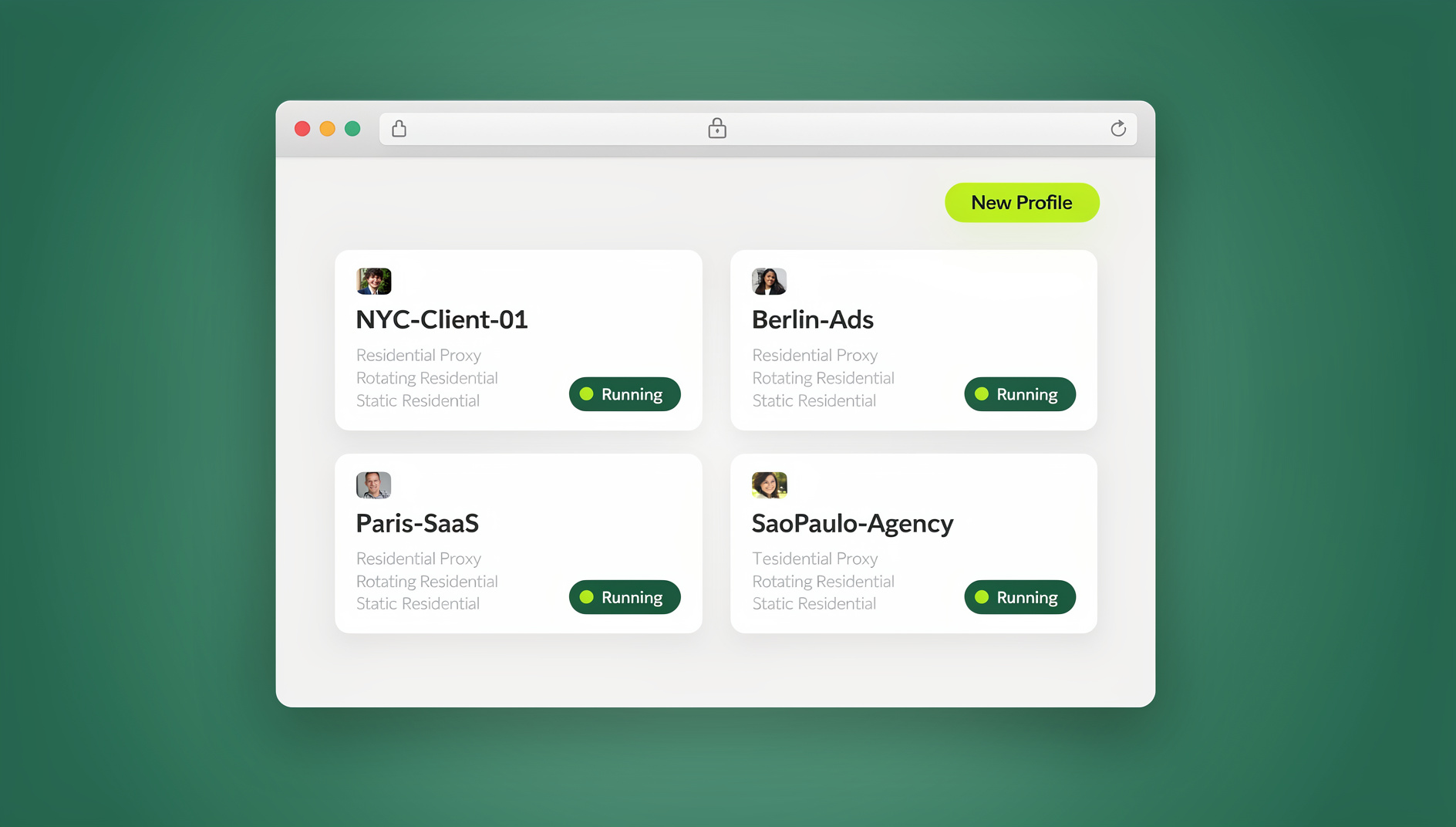
If you also work across GitLab or Bitbucket, the same SSH host-alias approach works identically — just add more aliases. The broader problem, though, usually extends past Git: freelancers and agency developers are typically juggling a client’s GitHub, their AWS console, and a project-management tool all at once, each needing its own isolated login. That’s a browser-session problem rather than a Git problem, and it’s where isolated browser sessions complement your SSH setup rather than compete with it.
A multi-login browser like Send.win lets you keep a separate, fingerprint-isolated session for each client’s GitHub organization, cloud console, and dashboard logins — running either through the Sendwin Browser desktop app or a cloud browser session that needs no local install — similar in spirit to how separate SSH keys isolate your Git authentication. It’s a natural fit for exactly the kind of workflow described in our piece on the tool freelancers use to juggle clients without mixing up credentials between them.
Real-World Example: A Freelance Developer’s Setup
Consider a freelance developer juggling a personal open-source project, one long-term client, and a handful of short-term contracts. A workable structure looks like this:
~/.ssh/id_personalandgithub-personalalias for the open-source account~/.ssh/id_clientAandgithub-clientAalias for the long-term client’s organization~/.ssh/id_freelanceandgithub-freelancealias shared across short-term contracts, since those rarely overlap in time
Each key maps to a directory under ~/projects/, each directory has its own includeIf block in ~/.gitconfig, and VSCode simply opens whichever project folder is relevant that day — Git quietly handles the rest. The only manual step left is signing in and out of the VSCode OAuth account when switching which client’s Copilot seat is active, which takes a few seconds and never touches the Git side at all.
Troubleshooting Common Issues
Permission Denied (publickey)
ssh -T git@github-personal
# Should respond: "Hi personal-username! You've successfully authenticated"
Wrong Email Showing on Commits
cd ~/projects/work/my-project
git config user.email
# Should show: [email protected]
SSH Agent Not Persisting Between Sessions
Add this to your shell profile (~/.bashrc or ~/.zshrc):
eval "$(ssh-agent -s)" > /dev/null
ssh-add ~/.ssh/id_personal 2>/dev/null
ssh-add ~/.ssh/id_work 2>/dev/null
VSCode Still Shows the Wrong GitHub Account
This is normal and harmless for Git operations — VSCode’s account badge reflects only the OAuth sign-in used for Copilot and PR reviews, not which SSH key Git uses to push. Ignore it, or sign out and back in with the account you want active for those specific features.
🏆 Send.win Verdict
SSH host aliases and conditional Git configs solve the GitHub side of multi-account development, but they don’t touch the rest of a freelancer’s or agency developer’s stack — client dashboards, cloud consoles, and project trackers all still need separate, isolated logins. Send.win extends that same isolation principle to the browser: a dedicated session per client, each with its own cookies, fingerprint, and optional proxy.
Try the free Send.win cloud demo — no signup needed for a 3-minute preview, with Pro plans from $19/month or $83.88/year.
Frequently Asked Questions
Can I use VSCode with two GitHub accounts at the same time?
Yes. Use SSH for Git operations and OAuth sign-in for editor features like Copilot. Your SSH config ensures each repository authenticates with the correct account automatically, and you can have repos from different accounts open in the same multi-root workspace.
Will this setup break GitHub Copilot?
No. Copilot uses whichever account is signed in via OAuth, which is entirely separate from your Git credentials. You can have Copilot running under your work account while pushing code to a personal repository through a different SSH key without any conflict.
How do I switch the default GitHub account VSCode shows?
Click Accounts in the bottom-left corner, sign out, then sign in with the other account. If you’re using SSH keys for Git operations, this OAuth switch is cosmetic — it doesn’t affect which account your pushes authenticate as.
Is there a single VSCode extension that manages multiple GitHub accounts?
Not a single one that handles everything, but pairing Project Manager for workspace switching with the SSH key setup above gives you seamless multi-account management. GitLens also shows which identity is active for the repository you’re viewing.
Do I need a different SSH key for every single repository?
No — one SSH key per GitHub account is enough. Every repository that belongs to the same account can reuse that account’s host alias.
What happens if I forget to use the host alias when cloning?
Git will authenticate using whichever key the SSH agent tries first, which is often the wrong one for that repository. Always clone with the account-specific alias (git@github-work:...) rather than the plain [email protected]:... form to avoid this.
Can this same approach work for GitLab or Bitbucket accounts too?
Yes. Generate a separate key pair, add a new Host block in ~/.ssh/config pointing at gitlab.com or bitbucket.org, and clone using that alias. The pattern is identical regardless of the Git host.
My company blocks SSH on port 22 — what should I do?
Try SSH over port 443 first (GitHub supports this via the ssh.github.com hostname); if that’s also blocked, fall back to the HTTPS-with-tokens approach described above, using useHttpPath so each repository path can store its own token.
Complete Setup Checklist
- Generate a separate SSH key for each GitHub account
- Add each public key to its matching GitHub account
- Configure
~/.ssh/configwith a host alias per account - Test each connection with
ssh -T - Set up conditional Git configs for automatic identity switching
- Organize projects into account-specific directories
- Update existing repository remotes to use the new host aliases
- Install GitLens and Project Manager for day-to-day account visibility
Conclusion
Managing multiple GitHub accounts in VSCode doesn’t have to be painful once you stop expecting the editor’s single OAuth sign-in to do all the work. SSH host aliases handle authentication, conditional Git configs handle identity, and VSCode’s own sign-in just needs to stay out of the way for Copilot and PR reviews. Set it up once, and you’ll never accidentally push under the wrong account again — and if your multi-account problem extends beyond Git into client dashboards and cloud consoles, the same isolation principle applies there too.