WebGL fingerprinting is a browser tracking method that identifies you by how your specific GPU, graphics driver, and operating system render 3D content through the WebGL API. Because every hardware and software combination produces microscopically different pixel output, sites can hash that output into a stable identifier that keeps working even after you clear cookies or switch to incognito mode.
WebGL (Web Graphics Library) exists to let browsers render fast 2D and 3D graphics — it’s what powers Google Maps’ terrain view, browser-based games, and data visualizations. But the same low-level access to your graphics hardware that makes those experiences possible also leaks enough detail about your machine to make you identifiable, which is exactly what tracking scripts and anti-fraud systems exploit.
What Is WebGL Fingerprinting?
WebGL fingerprinting works by querying and testing your graphics stack rather than reading a stored value like a cookie. There’s nothing to delete, because nothing is stored on your device — the fingerprint is recalculated fresh every time a script runs it, and it comes out the same because your hardware and drivers haven’t changed. That’s what makes it so much harder to escape than traditional tracking: you can block cookies, use a VPN, and browse in private mode, and your WebGL fingerprint stays exactly the same.
This makes WebGL one of the more persistent pieces of a broader browser fingerprint — the overall collection of signals (screen size, fonts, timezone, canvas output, and more) that together can identify a device with remarkable precision even without a single cookie involved.
How WebGL Fingerprinting Works
The Technical Process
- JavaScript execution: A website runs WebGL code the moment you land on the page.
- GPU information query: The script requests renderer and vendor details directly from the API.
- Rendering test: Specific 3D scenes — shapes, lighting, shaders — are drawn off-screen, invisibly to you.
- Output capture: The rendered image is pulled out as raw pixel data.
- Hash creation: That pixel data, plus the hardware details, is compressed into a single fingerprint hash.
- Database lookup: The hash is compared against previously seen fingerprints to recognize you across visits.
What Information WebGL Reveals
Direct information, pulled straight from API queries:
- GPU vendor: NVIDIA, AMD, Intel, Apple, or Qualcomm.
- GPU renderer: The exact model, e.g. “NVIDIA GeForce RTX 4080” or “Apple M3 Pro.”
- WebGL version: Whether the browser supports WebGL 1.0, 2.0, or both.
- Supported extensions: The specific list of WebGL extensions your setup exposes.
- Maximum parameters: Texture size limits, viewport dimensions, vertex attribute counts.
- Shader precision: Which floating-point precision formats your GPU supports.
Indirect information, pulled from the rendered image itself:
- Rendering output: Pixel-level differences in how the same 3D scene comes out.
- Anti-aliasing behavior: Edge-smoothing techniques differ subtly between GPUs.
- Color processing: Small variations in how color space is handled.
- Driver quirks: Specific rendering behaviors tied to particular driver versions.
Why the Same GPU Model Can Still Render Differently
Two people with the identical graphics card don’t always produce identical fingerprints, because rendering output is also shaped by:
- Driver version — different driver releases handle rendering paths slightly differently.
- Operating system — Windows, macOS, and Linux each run a different graphics stack under the hood.
- Hardware revision — small manufacturing variations affect GPU behavior in ways scripts can pick up.
- Compiler differences — shader compilation produces GPU-specific machine code.
- User configuration — custom graphics settings can change which rendering path gets used.
The Four Main WebGL Fingerprinting Techniques
1. WebGL Report Fingerprinting
The simplest and oldest method. It queries the WebGL API directly for hardware information — calling getParameter() to retrieve GPU vendor and renderer, pulling the list of supported extensions, and reading maximum parameter values like texture size. All of it gets combined into a hash. Effectiveness: moderate — it reveals your hardware category, but plenty of users share the exact same GPU and driver combination.
2. WebGL Image Fingerprinting
The more advanced technique, and the one that does most of the heavy lifting. It creates an off-screen WebGL canvas, draws specific 3D geometry with particular shaders and lighting, reads the resulting pixel data with readPixels() or toDataURL(), and hashes that output. Effectiveness: high — the rendering differences it captures are extremely subtle and difficult to fake convincingly.
3. Shader Precision Fingerprinting
This technique tests how the GPU handles floating-point math in vertex and fragment shaders, checking for highp, mediump, and lowp support and noting the precision range values, which vary between GPU architectures.
4. Extension Fingerprinting
This catalogs exactly which WebGL extensions your browser exposes. Extension availability varies by GPU and driver, some extensions are vendor-specific, and the full combination of what’s supported and what isn’t turns out to be surprisingly identifying on its own.
How Unique Is a WebGL Fingerprint, Really?
What the Research Shows
- A WebGL fingerprint alone uniquely identifies roughly 50–60% of users.
- Combined with a canvas fingerprint, that identification rate climbs to around 85%.
- Combined with a full fingerprinting suite (fonts, screen, audio, timezone), rates exceed 95%.
- Desktop users tend to be more unique than mobile users, simply because there’s far more GPU diversity on desktop.
What Makes a Fingerprint More or Less Unique
More unique (easier to single out):
- Dedicated gaming GPUs from NVIDIA or AMD.
- Uncommon GPU models.
- Non-standard or beta driver versions.
- Custom graphics settings.
Less unique (blends in more):
- Integrated Intel or Apple GPUs, which huge numbers of users share.
- Mobile GPUs, which come in far fewer variants.
- Standard, auto-updated driver versions.
- Default graphics settings out of the box.
Who Actually Uses WebGL Fingerprinting?
Advertising Networks
Cross-site tracking without cookies, user identification for targeted ads, and audience segmentation all lean on fingerprinting as cookies get phased out and blocked by default in more browsers.
Security and Fraud Prevention
Platforms use it for account takeover detection, spotting multiple accounts run from one device, bot identification, and payment fraud prevention — which is also exactly why running several legitimate accounts from one ordinary browser tends to trigger suspicion.
Analytics Companies
Some analytics tools use fingerprinting for unique visitor counting without cookies, session stitching across visits, and as a workaround to reduce dependence on cookie consent banners.
Testing Your Own WebGL Fingerprint
A few free tools let you see exactly what websites can learn from your setup:
- BrowserLeaks.com/webgl — shows a complete WebGL report, your GPU vendor and renderer, the full extension list, and the rendered fingerprint image itself.
- AmIUnique.org — compares your WebGL fingerprint against its database to show how unusual (or common) your configuration is.
- CreepJS — a more advanced fingerprint analyzer that’s also good at detecting spoofing attempts, which is useful for stress-testing any anti-fingerprint tool you’re considering.
How to Protect Against WebGL Fingerprinting
Method 1: Disable WebGL Entirely
In Firefox, you can go to about:config and set webgl.disabled to true. In Chrome, disabling WebGL-related flags at chrome://flags has a similar effect. The drawback is significant: a lot of modern websites require WebGL to function at all — Google Maps, data dashboards, and browser games simply break — and having WebGL disabled is itself an unusual, identifying signal, which is a bit of a privacy paradox.
Method 2: Anti-Fingerprint Browser Extensions
Tools that add noise to WebGL output or randomize it per session can maintain WebGL functionality while making the fingerprint less consistent. The drawback here is that these extensions are themselves detectable, and the noise patterns they inject can be recognized as spoofing rather than genuine hardware variation — which sometimes makes you look more suspicious, not less.
Method 3: Privacy-Focused Browsers
Brave randomizes WebGL output per session as a built-in feature, without breaking website compatibility. Tor Browser asks for permission before allowing WebGL at all and standardizes many other fingerprint vectors, at the cost of being noticeably slower to browse with. Firefox in strict mode, with privacy.resistFingerprinting enabled, standardizes a lot of fingerprint output across all Firefox users so you blend into a large crowd.
These options are solid for personal, single-identity privacy. For a deeper look at combining several of these techniques, see this guide to browser fingerprinting protection. But none of them solve a different, harder problem: running multiple separate accounts or identities where each one needs its own believable, consistent fingerprint over time.
Method 4: A Dedicated Multi-Profile Browser (Best for Multi-Account Work)
This is where general privacy browsers stop being the right tool. Randomizing your fingerprint every session is great if your only goal is to be harder to track as one anonymous person — but if you’re managing five client ad accounts, ten social profiles, or several marketplace storefronts, you need each profile to look like a stable, real device every single time you log in, not a different disguise every session. Constantly shifting fingerprints inside the same account is itself a red flag to fraud-detection systems.
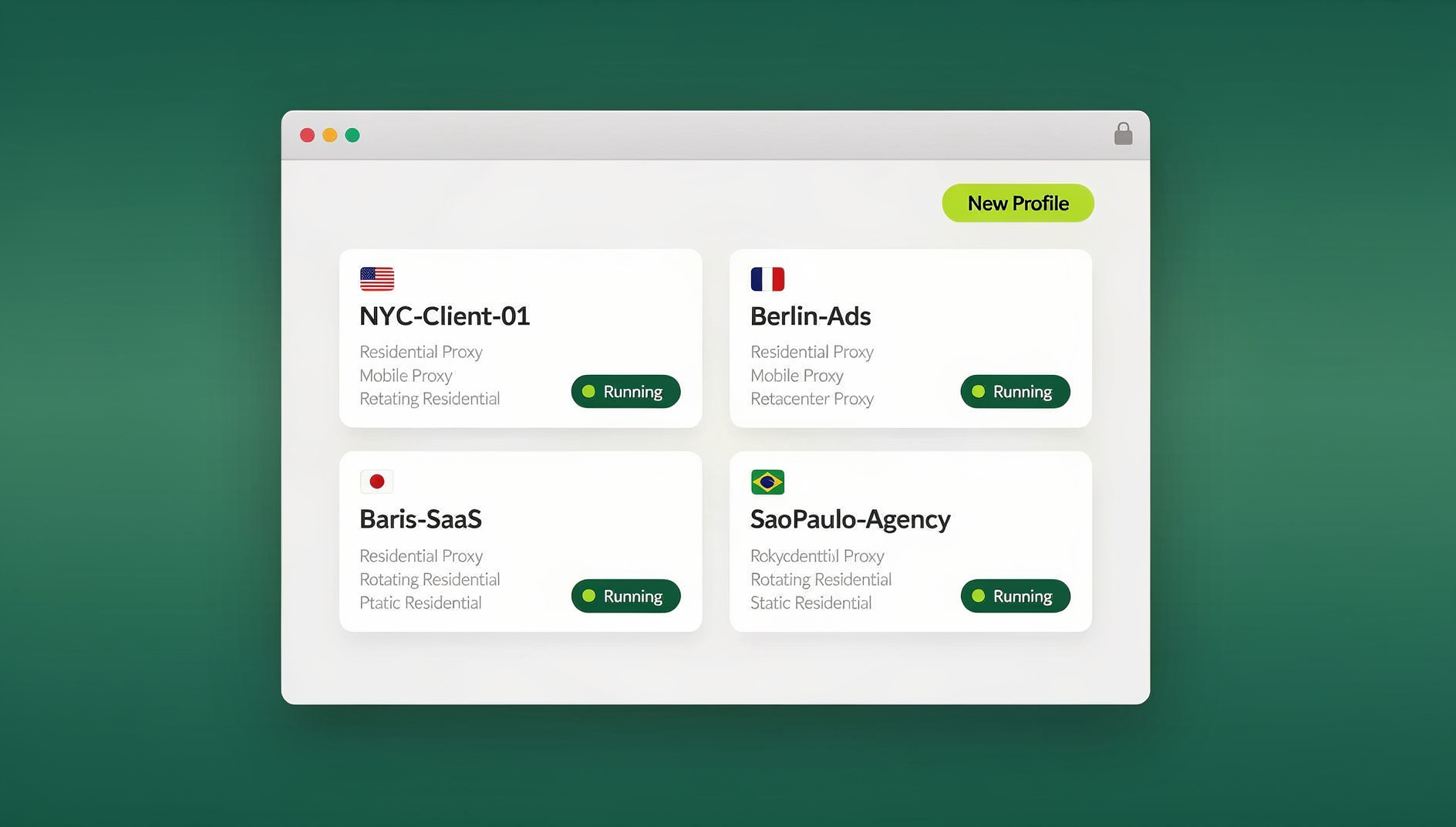
Send.win takes the opposite approach: it generates a distinct, internally consistent WebGL and canvas fingerprint per profile, and keeps that fingerprint stable across every session for that profile, while making sure different profiles never look related to each other. It runs in one of two modes — the Sendwin Browser, a native downloadable desktop app for Windows, macOS, and Linux that’s local-first with encrypted cloud sync, or fully cloud browser sessions that run entirely on Send.win’s servers with zero local install, billed by cloud browsing time. Either way, each profile’s GPU vendor, renderer, and rendering behavior stay matched to its claimed OS and browser, so nothing about the fingerprint looks spoofed or inconsistent to detection scripts.
WebGL Fingerprinting vs. Other Tracking Techniques
| Technique | Uniqueness | Persistence | Easy to Block? |
|---|---|---|---|
| Cookies | Perfect (until deleted) | Until deleted | Yes |
| Canvas fingerprint | High | Until system change | Moderate |
| WebGL fingerprint | High | Until driver/GPU change | Difficult |
| Audio fingerprint | Medium-high | Until system change | Difficult |
| Font fingerprint | Medium | Until fonts change | Moderate |
| IP address | Low (often shared) | Dynamic | Yes, with VPN/proxy |
WebGL 2.0 — and What Comes After It
WebGL 2.0 actually expands the fingerprinting surface rather than shrinking it: more extensions and capabilities to enumerate, new texture formats that reveal additional GPU detail, transform feedback that exposes shader compilation differences, and more parameters to query overall. Its eventual successor, WebGPU, gives even lower-level access to graphics hardware, which means the fingerprinting techniques described here are likely to evolve rather than disappear.
Testing and Automating Without Breaking Your Fingerprint
Anyone running automated browser testing or repetitive account workflows faces a related problem: a Selenium browser fingerprint looks nothing like a real user’s, and detection systems specifically look for those tells — headless-browser markers, missing WebGL renderer strings, and automation-specific timing patterns. Send.win is a browser profile manager: each profile keeps its own cookies, storage, sessions, fingerprint settings and proxy, so profiles do not share one browser identity. Send.win has no automation interface — no API, SDK, headless mode or Selenium/Puppeteer/Playwright support on any plan.
🏆 Send.win Verdict
WebGL fingerprinting is one of the hardest tracking signals to escape, because it comes from your actual hardware rather than anything stored on disk. For personal browsing, a privacy browser like Brave or hardened Firefox is a solid, free option. But for professional multi-account work — where each profile needs a stable, believable fingerprint that holds up over weeks and months, not a fresh disguise every session — Send.win is built for exactly that job, whether through the native Sendwin Browser desktop app or cloud-hosted sessions, with each profile keeping its own cookies, storage, sessions, fingerprint settings and proxy.
Try Send.win today — plans start at $19/month, and your first card purchase is covered by a 7-day money-back guarantee.
Frequently Asked Questions
Can I be tracked by my WebGL fingerprint alone?
A WebGL fingerprint alone achieves roughly 50–60% unique identification. Combined with other fingerprint vectors — canvas, fonts, screen resolution — identification rates climb past 95%. It’s rarely used in isolation but is a powerful piece of comprehensive fingerprinting systems.
Does using a VPN protect against WebGL fingerprinting?
No. A VPN changes your IP address, but it has no effect on how your GPU renders WebGL content. Your fingerprint stays identical regardless of which network you’re connecting through.
Does WebGL fingerprinting work on mobile devices?
Yes, though mobile fingerprints tend to be less unique on their own, since far fewer GPU models exist across phones compared to desktops. Combined with other mobile-specific signals, identification is still effective.
Can websites detect that my WebGL fingerprint has been spoofed?
Sophisticated anti-fingerprint detection can absolutely spot inconsistencies — for example, a user agent claiming Windows paired with a WebGL renderer reporting an Apple GPU is an immediate red flag. This is exactly why fingerprint consistency, not just randomization, matters for tools meant to hold up under scrutiny.
Will future browsers eliminate WebGL fingerprinting?
Browser vendors keep working to reduce fingerprinting surface, but WebGL’s fundamental design exposes real hardware differences by nature. WebGPU, its eventual successor, may introduce new fingerprinting vectors even as some older ones get closed off.
Is WebGL fingerprinting legal?
In most jurisdictions, yes — it isn’t illegal on its own, though regulations like GDPR and CCPA increasingly treat fingerprints as personal data requiring disclosure and, in some cases, consent. The legal risk usually sits with how the data is used, not with the technique itself.
How is WebGL fingerprinting different from canvas fingerprinting?
Canvas fingerprinting renders 2D text and shapes and hashes the resulting image; WebGL fingerprinting does the same thing with 3D scenes rendered through your GPU. They expose overlapping but distinct hardware and driver details, which is why trackers frequently run both together.
Do I need a different browser for every account I manage?
Not literally — you need each account to have its own isolated, consistent fingerprint and, ideally, its own IP. A multi-profile browser like Send.win handles that inside a single app or cloud dashboard, so you’re not juggling separate physical machines or browser installs for every account.
Conclusion
WebGL fingerprinting exploits an unavoidable fact: every GPU, driver, and OS combination renders graphics just a little bit differently, and that difference is enough to identify you without a single cookie. It’s persistent, hard to block without breaking the sites you actually want to use, and devastatingly effective once it’s combined with other fingerprint vectors.
For everyday personal privacy, a hardened browser like Brave or Firefox with strict settings is a reasonable, free starting point. For professional multi-account management — where each profile needs a stable, believable identity that survives repeated logins over months, not a randomized disguise that resets every session — Send.win’s native desktop app and cloud browser sessions give every profile its own consistent, realistic fingerprint. Test your current exposure at BrowserLeaks.com first, then choose your protection strategy based on whether you need anonymity for yourself or genuine separation between accounts.