The fastest way to manage multiple Gmail accounts without constant confusion is to stop running every login through one shared browser session. Google’s native account switcher, separate Chrome profiles, delegation, and forwarding rules each solve part of the problem for two or three inboxes — but once you’re juggling five, ten, or fifty accounts for clients, teams, or side projects, Google’s security systems start treating the overlap as suspicious. Below are five methods, ranked from casual to professional-scale, so you can pick the lightest option that still keeps every account safe.
Most guides stop at “click Add Another Account” and call it done. That’s fine if you have two personal inboxes. It falls apart fast for freelancers managing client email, marketers running outreach from several addresses, or agencies with a dozen Google Workspace logins to keep straight — which is where the last two methods on this list start to matter a lot more than the first three.
Why Google Flags Multi-Account Activity in the First Place
Google doesn’t ban you for simply owning several Gmail accounts. What it watches for is the pattern around them: the same device fingerprint, the same IP address, and the same browser signing into a dozen unrelated accounts within a short window. Individually, none of that is against the rules. Together, it looks identical to the behavior Google’s abuse systems are built to catch — bot networks, ban evasion, and fake account farms — so legitimate multi-account users occasionally get caught in the same net.
- Security holds. Rapid switching between many accounts can trigger a “verify it’s you” challenge, sometimes requiring phone verification you didn’t expect.
- Shared-device linking. Google can associate accounts that share a consistent fingerprint, which matters if one of those accounts later gets reported or flagged.
- Session bleed. Notifications, deep links, and cached sessions can open in the wrong account, especially on mobile, causing embarrassing cross-posting or misdirected replies.
Mobile makes this worse. Android’s built-in account layer and Gmail’s app-switcher share the same device identifiers across every signed-in account, and a single push notification tapped from the wrong account can trigger a reply or a share action before you’ve noticed you were in the wrong inbox. None of that is a Google bug — it’s the same underlying signal (one device, many accounts) that shows up differently on desktop and mobile.
With that context, here’s how the five real options stack up.
Method 1: Gmail’s Native Multi-Account Switcher
This is the option baked into every Google account by default, and it’s the right starting point for two or three personal inboxes.
- Open Gmail and click your profile picture in the top-right corner.
- Select “Add another account.”
- Sign in with the second account’s credentials.
- Switch between accounts anytime by clicking the profile icon and picking the one you need.
Pros
- Free, built directly into every Google account.
- Works across Gmail, Drive, Calendar, and every other Google service at once.
- Zero setup — no extra software.
Cons
- The tiny profile badge makes it easy to lose track of which account is active.
- Drive, Docs, and Calendar can behave unpredictably with several accounts signed in — sharing a file from the wrong account is a common, avoidable mistake.
- All accounts still share one browser fingerprint and one IP address, which is exactly the pattern Google’s abuse systems watch for.
Method 2: Separate Chrome Profiles
A meaningfully cleaner separation is creating dedicated Chrome User Profiles — each with its own cookies, extensions, bookmarks, and signed-in account.
- Click your profile icon near Chrome’s minimize button.
- Select “Add” to create a new profile.
- Name it something specific, like “Work Email” or “Client — Acme Corp.”
- Sign into that one Gmail account inside the new profile.
Pros
- Genuine cookie separation between profiles — no accidental cross-account clicks.
- Each Chrome window gets its own colored title bar, so it’s visually obvious which one you’re in.
- You can install different extensions per profile (a CRM tool only in your work profile, for example).
Cons
- Every profile is a full browser instance — ten profiles running at once will eat significant RAM.
- All profiles still share your home or office IP address, so Google can still link them if one gets flagged.
- The underlying browser fingerprint — canvas, WebGL, fonts, hardware signals — stays essentially identical across every profile on the same machine, so Google’s detection systems can still tell they came from one device.
Method 3: Gmail Delegation for Teams
If you want an assistant to handle your inbox, or a small team sharing one account, Gmail Delegation is Google’s own sanctioned answer.
- Go to Gmail Settings → Accounts and Import.
- Under “Grant access to your account,” click “Add another account.”
- Enter the delegate’s Gmail address.
- Once they accept the invite, they can read, send, and delete mail on your behalf.
Pros
- An official Google feature, not a workaround.
- Delegates never see or need your password.
- Sent mail is clearly labeled “Sent by [delegate] on behalf of [owner].”
Cons
- Capped at 10 delegates per account.
- Not built for dozens of unrelated client accounts — it’s a single-account tool.
- The delegate needs their own Google account to accept the invite.
Method 4: Forwarding Into a Unified Inbox
A popular fix for personal sprawl is forwarding every secondary Gmail account into one primary inbox.
- In each secondary account, go to Settings → Forwarding and POP/IMAP.
- Add your primary address as the forwarding destination.
- Confirm the verification email Google sends.
- In your primary account, enable “Send mail as” for each secondary address so replies go out under the correct identity.
Pros
- Everything lands in one place — a real time-saver for casual consolidation.
- You can reply as any connected address from a single inbox.
- Great for personal + side-project + newsletter setups.
Cons
- Gets overwhelming fast past three or four accounts.
- Requires careful filter rules to keep incoming mail sorted by source.
- Useless for client accounts that need native login access to Drive, Ads, or Calendar — forwarding only moves email, not the account itself.
Method 5: Isolated Browser Profiles for Real Scale
None of the four methods above hold up once you’re managing ten or more Gmail accounts tied to client Workspace environments, Google Ads, or Google Business Profile logins. At that scale, the fix isn’t a better Gmail setting — it’s separating the browser environment itself, account by account.
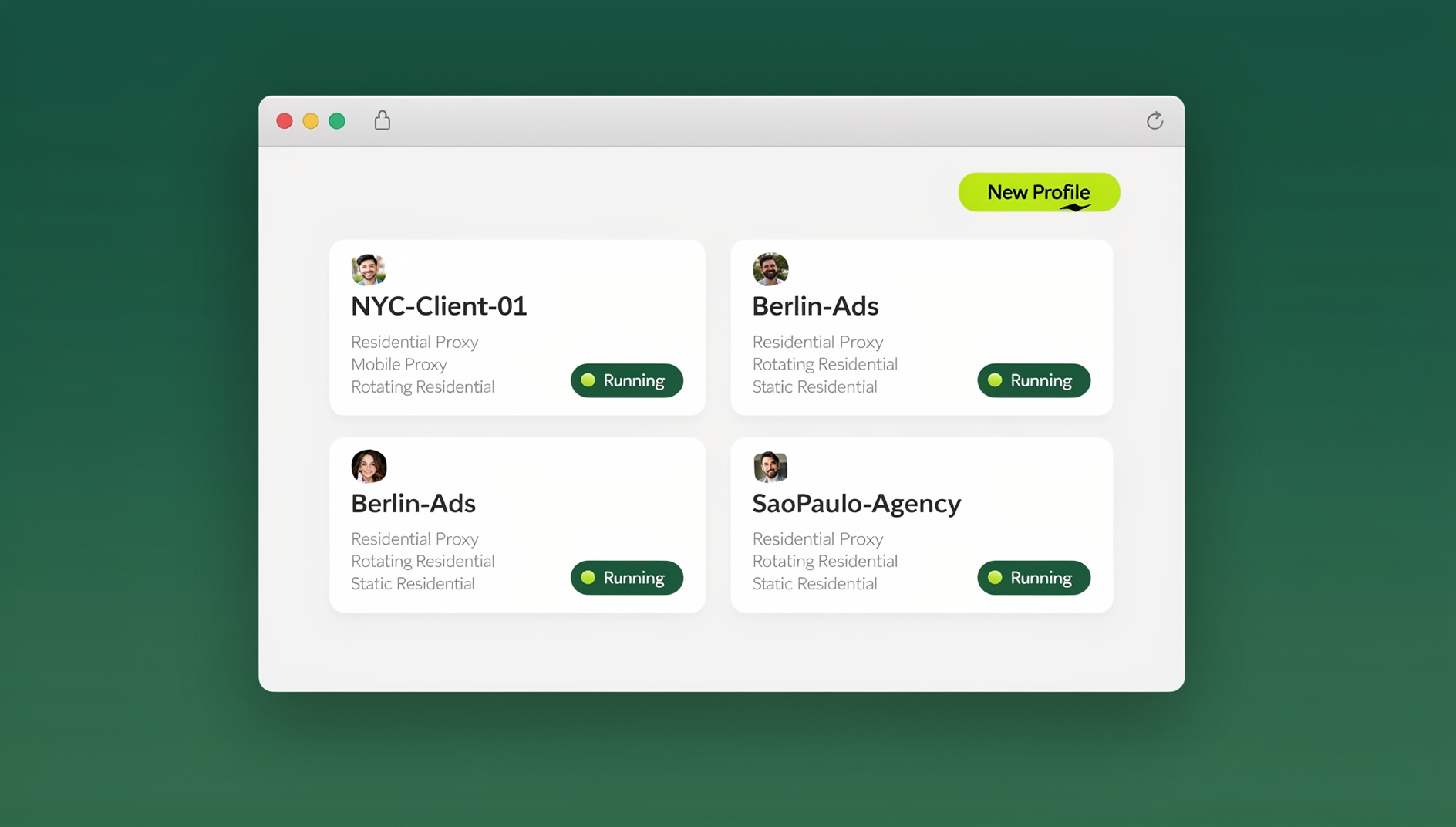
This is what a multi-login browser like Send.win is built for. Instead of one shared browser identity, each Gmail account gets its own isolated profile:
- A unique fingerprint per profile. Cookies, cache, and local storage never cross between accounts, so there’s no overlap for Google to flag.
- Persistent sessions. Log into an account once inside its profile and the session stays signed in securely — no repeated 2FA prompts every morning.
- Optional dedicated proxies per profile. Assign each Gmail account a consistent, matching IP so it always appears to log in from the same location, which matters for agencies managing client accounts from one office.
- Password-free handoffs. If a VA or teammate needs to run one specific client’s inbox, you can share that session securely without ever revealing the underlying credentials.
Send.win runs this two ways: as Sendwin Browser, a native desktop app for Windows, macOS, and Linux where each profile lives locally, or as a cloud browser session that opens the same isolated profile in the cloud with nothing to install — useful if you’re checking a client’s Gmail from a machine that isn’t your own. Both give every account its own fingerprint and cookie jar; the difference is purely where the browser session actually runs.
Moving From Chrome Profiles to Isolated Browser Profiles
If you’re already using separate Chrome profiles per Gmail account, switching to isolated browser profiles doesn’t mean starting over — it means adding the layer Chrome profiles were always missing.
- Try the free cloud demo. Send.win has no free trial, but you can preview it in the cloud demo at https://send.win/demo-browser/ before deciding anything.
- Create one profile per Gmail account. Name each profile clearly — “ClientA-Gmail,” “Personal,” “Newsletter” — so there’s no ambiguity about which one you’re in.
- Sign in once per profile. Each session persists, so you’re not repeating 2FA every time you switch.
- Assign a proxy where it matters. Client or agency accounts benefit most from a consistent, matched IP; personal accounts often don’t need one.
- Move client accounts over first. These are the ones most exposed to cascade flags if something goes wrong, so they benefit most from isolation immediately.
Which Method Fits Your Situation
| Scenario | Recommended Method |
|---|---|
| 2-3 personal accounts | Gmail’s native account switcher |
| Work and personal separation on one laptop | Separate Chrome profiles |
| Executive with an assistant | Gmail delegation |
| Consolidating a few personal addresses | Forwarding into a unified inbox |
| Agency or freelancer managing 10+ client accounts | Isolated browser profiles (Send.win) |
Best Practices Once You’re Managing Several Accounts
1. Give every account a distinct profile picture
A visually loud, high-contrast photo on each account makes the tiny switcher icon actually useful for identifying which one you’re in before you hit send.
2. Turn on 2FA everywhere, no exceptions
The more accounts you run, the more attractive a single weak password becomes to an attacker looking for a way into all of them. Use an authenticator app or security key on every address.
3. Never reuse passwords across accounts
A password manager generating unique credentials per account is non-negotiable once you’re past two or three inboxes.
4. Filter and label aggressively
If you’re forwarding accounts into one inbox, color-coded labels and filters keyed to the “To” address stop everything from blurring together.
5. Batch your inbox checking
Set fixed 20-30 minute windows to process each account’s queue rather than living inside all of them all day — it cuts context-switching fatigue and keeps every account from getting equally neglected.
Agencies handling both Gmail logins and other flagged platforms often extend the same isolated-profile approach with an antidetect browser setup, since the underlying fingerprinting problem — and the fix — is identical across Google, social platforms, and marketplaces.
🏆 Send.win Verdict
Google’s native switcher, Chrome profiles, delegation, and forwarding all work fine at small scale — but every one of them still shares a fingerprint or an IP address across your accounts, which is exactly what Google’s abuse systems watch for. Send.win gives each Gmail account its own isolated profile, its own fingerprint, and an optional dedicated proxy, whether you run it through the native Sendwin Browser desktop app or a no-install cloud session.
Try the Send.win cloud demo — a 3-minute preview without signup, and give every Gmail account its own clean profile.
Frequently Asked Questions
Can I have more than one Gmail account?
Yes. Google places no stated limit on how many Gmail accounts one person can create, though creating several in quick succession from the same IP can trigger phone verification requirements.
Will Google ban me for having multiple Gmail accounts?
No, not for simply having them. Google’s Terms of Service target abuse — things like fake review manipulation or engagement farming across accounts — not the act of owning more than one address.
What’s the difference between Chrome profiles and a multi-login browser for Gmail?
Chrome profiles separate cookies and bookmarks but leave your browser fingerprint and IP address the same across every profile. A multi-login browser like Send.win gives each profile its own unique fingerprint and, optionally, its own proxy, which is a meaningfully deeper separation.
Is Gmail delegation the same as sharing your password?
No. Delegation lets someone else send and manage mail on your behalf without ever seeing your password, and every message they send is labeled as sent by them on your behalf.
How many Gmail accounts can I safely manage from one browser?
There’s no official cap, but the more accounts you run through one shared browser identity, the higher the chance Google links them by fingerprint or IP. Past roughly five to ten accounts, isolated profiles become worth the switch.
Do I need to install software to isolate Gmail accounts this way?
Not necessarily. Send.win’s Sendwin Browser is a native desktop app for Windows, macOS, and Linux, but you can also run isolated profiles through a cloud browser session with nothing installed locally — useful for quick access from a shared or unfamiliar machine.
What’s the safest way to manage client Gmail accounts as an agency?
Give every client account its own isolated browser profile with a matching, consistent proxy rather than logging into all of them from the same browser and office IP — that separation is what prevents one flagged client account from putting the others at risk.
How much does Send.win cost?
Send.win has no free trial; the first card purchase is covered by a 7-day money-back guarantee. The Pro plan is $19/month or $83.88/year, and the Team plan is $49/month or $251.88/year and adds more seats and shared profiles for larger groups. Send.win has no automation interface: no API, SDK, headless mode or Selenium/Puppeteer/Playwright support on any plan.