How to Manage Multiple Gmail Accounts Without the Mess
To manage multiple Gmail accounts without missed messages or crossed wires, match the method to your account count: Gmail’s built-in account switching and delegation work fine for 2-3 accounts, desktop clients or Chrome profiles handle 4-10 accounts with simultaneous access, and cloud browser isolation is the only option that keeps accounts fully separate for business, client, or privacy-sensitive use cases. This guide walks through every method, including where each one quietly falls short.
Why People End Up With Multiple Gmail Accounts
Professional Separation
Most professionals maintain at least two accounts: a company Google Workspace account and a personal Gmail. Freelancers and consultants often add a third for business correspondence, and some keep additional accounts around purely for testing or side projects.
Privacy and Identity Management
Plenty of people create separate accounts for online shopping, newsletter sign-ups, and social media registrations specifically to keep their primary inbox clean and reduce spam exposure on the account that actually matters.
Running Multiple Businesses
Entrepreneurs operating several businesses or brands often maintain dedicated Gmail or Google Workspace accounts per entity, each with its own Drive, Calendar, and connected services that shouldn’t cross-contaminate.
Method 1: Gmail’s Built-In Account Switching
Google lets you add multiple accounts and switch between them inside a single browser session.
Setup
- Open Gmail and click your profile icon in the top right
- Click “Add another account”
- Sign in with your additional Gmail credentials
- Switch accounts anytime via the profile icon
| Pros | Cons |
|---|---|
| Free, no extra tools needed | Easy to send from the wrong account by mistake |
| All accounts reachable in one browser | Notifications only fire for the “active” account in the tab |
| Quick switching via the profile icon | Google links all switched accounts together internally |
| Works on mobile and desktop | Can’t view multiple inboxes side by side |
Method 2: Gmail Delegation
Delegation grants another person — or yourself, from a second account — permission to read, send, and manage email on your behalf.
- Go to Gmail Settings → “Accounts and Import”
- Under “Grant access to your account,” click “Add another account”
- Enter the email address that should have access
- The delegate can then open the mailbox from their own Gmail
Best for: Executive assistants, team members managing a shared inbox, or accessing one secondary account from your primary login without juggling separate sign-ins.
Method 3: Forwarding and Consolidation
Forward every secondary account into one primary inbox:
- In each secondary account: Settings → Forwarding → Add forwarding address
- Verify the forwarding address
- Choose to forward all incoming mail to your primary account
- In the primary account, set up filters to label forwarded messages by source
- Add secondary accounts as “Send mail as” addresses so you can reply from them
Best for: Users with 2-3 low-volume secondary accounts who want everything funneled into one place.
Method 4: Desktop Email Clients
Desktop clients consolidate multiple Gmail accounts into a single application window.
| Client | Platform | Gmail Support | Key Feature | Price |
|---|---|---|---|---|
| Thunderbird | Windows/Mac/Linux | Unlimited accounts | Open source, highly customizable | Free |
| Outlook | Windows/Mac | Unlimited accounts | Deep Microsoft 365 integration | Part of M365 subscription |
| Spark | Mac/iOS/Android | Unlimited accounts | Smart inbox, team features | Free / paid tier |
| Mailspring | Windows/Mac/Linux | Unlimited accounts | Clean UI, read tracking | Free / paid tier |
Method 5: Chrome Profile Separation
Create a separate Chrome profile for each Gmail account. Every profile keeps its own cookies, bookmarks, and login sessions independent of the others.
- Click your Chrome profile icon in the top right of the browser
- Click “Add” to create a new profile
- Sign into Gmail with the account for that profile
- Repeat for each additional account
Advantages: each profile stays permanently signed into its own Gmail, every Google service (Drive, Calendar, YouTube) stays account-specific, and you can run several profiles side by side in separate windows, syncing across devices via Chrome Sync.
Limitations: every profile still shares the same IP address and device fingerprint, so Google can link them together anyway, and managing more than a handful of profiles gets cluttered fast.
Method 6: Cloud Browser Isolation
For anyone who needs genuinely separate Gmail accounts — managing client accounts, running businesses that must remain legally distinct, or simply not wanting Google to correlate your identities — cloud browser isolation is the only method built for that level of separation.
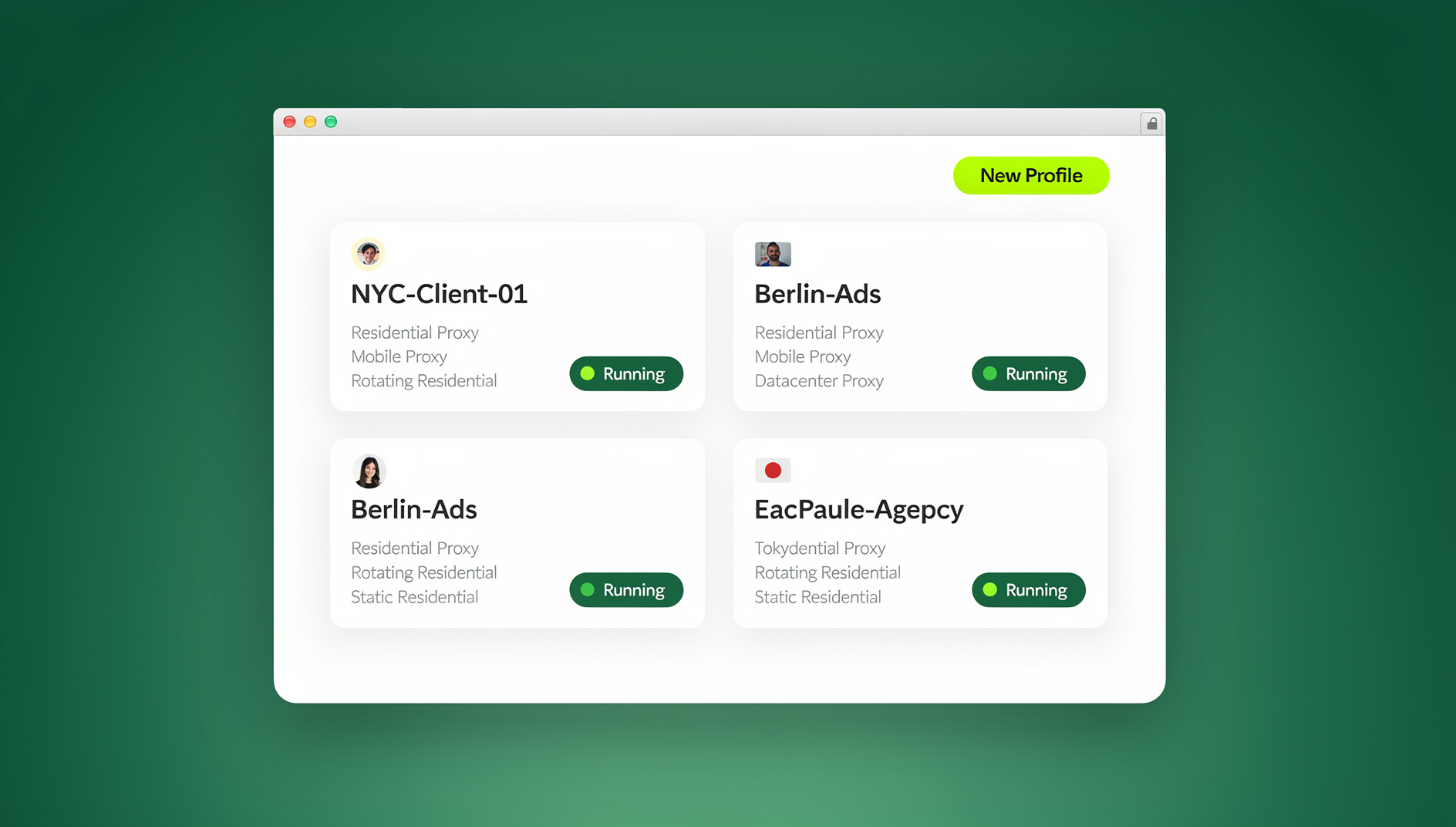
Send.win runs each account in its own isolated cloud browser session, with a distinct browser fingerprint, IP address, and cookie storage — no local install required, since these sessions run in the cloud rather than on your machine. For people who prefer a native client instead, Sendwin Browser (the desktop app) creates the same kind of isolated profile locally. Either way, each Gmail account behaves as if it’s sitting on a completely separate computer, so Google has nothing to correlate across accounts.
Best for: managing client accounts, running business accounts that must stay legally separate, or privacy-conscious users who don’t want their accounts linked by Google’s identity graph.
Comparing All Six Methods
| Method | Max Practical Accounts | Simultaneous View | Account Isolation | Cost |
|---|---|---|---|---|
| Gmail Switching | ~10 | No | None — Google links all | Free |
| Delegation | ~10 delegates | Partial (inbox only) | None | Free |
| Forwarding | Unlimited | Yes (via labels) | None | Free |
| Desktop Client | Unlimited | Yes (unified inbox) | None | Free-paid |
| Chrome Profiles | Unlimited | Yes (separate windows) | Partial | Free |
| Cloud Browser Isolation | Unlimited | Yes (separate sessions) | Full | Subscription |
Productivity Tips for Running Several Gmail Accounts
Keyboard Shortcuts
Turn on Gmail keyboard shortcuts in every account (Settings → General → Keyboard shortcuts ON). The ones worth memorizing:
- c — Compose a new email
- e — Archive the selected message
- r — Reply
- # — Delete
- / — Jump to the search bar
- g then i — Go to inbox
A Consistent Labels and Filters System
Build the same labeling system across every account so context-switching doesn’t cost you extra thinking:
- Use color-coded labels for priority levels
- Set up automatic filters to categorize incoming mail as it arrives
- Create matching “Action Required,” “Waiting On,” and “Reference” labels in every account
- Use the multiple inbox feature (Settings → Inbox → Multiple inboxes) to display filtered views side by side
Signature Management
Set a distinct signature per account that matches its purpose — a professional signature for work, something simpler for personal use, and a branded signature for each business account.
Security Across Multiple Gmail Accounts
- Enable two-factor authentication on every account using an authenticator app, not SMS
- Use unique, strong passwords (16+ characters) per account — never reuse one across accounts
- Review connected apps and third-party access quarterly across every account
- Check recent security events monthly (Google Account → Security)
- Set up recovery options (phone plus backup email) that don’t cross-reference your other Gmail accounts
- For sensitive or client-facing accounts, layer in general secure browsing practices alongside account-level security, and consider browser isolation if a compromised session on one account should never be able to touch another
🏆 Send.win Verdict
Gmail switching, delegation, and Chrome profiles all solve convenience — they don’t solve isolation. Google can still fingerprint and link every account you touch from the same browser or device. Send.win’s cloud browser sessions give each Gmail account its own IP, fingerprint, and cookie jar with no install required, while Sendwin Browser (the desktop app) offers the same isolation locally for anyone who prefers a native client. Either way, your accounts stay genuinely separate instead of just visually separate.
Try Send.win free today — 30 days, no credit card required.
Mobile-Specific Considerations
The Gmail App’s Account Switcher
The Gmail mobile app supports the same account-switching model as desktop — tap your profile photo to jump between accounts — but notifications behave differently per platform. On Android, each added account can push notifications independently. On iOS, only accounts you’ve explicitly enabled notifications for in Settings will alert you, so it’s worth auditing this per account after adding a new one, since the default often silences new accounts.
Separate Apps Instead of One
Some users sidestep the switching problem entirely by installing the Gmail app multiple times through work profiles (Android Work Profile, or a secondary user account on the device) or by using a dedicated app per account via iOS’s multi-app-instance features on newer devices. This trades a bit of home-screen clutter for zero risk of sending from the wrong account, since each app instance only ever shows one inbox.
Widgets for At-a-Glance Monitoring
Both Android and iOS support Gmail widgets scoped to a single account. Running a widget per business account on your home screen gives you inbox-count visibility without opening the app or switching accounts — useful for accounts you check for status rather than active management.
When Multiple Gmail Accounts Signal a Bigger Problem
If you’re managing four or more Gmail accounts purely to keep client work, personal life, and side projects from colliding, it’s worth asking whether the accounts themselves are the right unit of separation. For agencies and freelancers managing several clients’ actual Google Workspace accounts — not just personal inboxes — account isolation becomes a client-trust issue, not just a personal-organization one. A client whose Workspace account gets flagged for unusual sign-in activity because it shares a browser fingerprint with your other five clients’ accounts is a support ticket you don’t want to explain.
This is the point where the calculus shifts from “which Gmail trick saves me clicks” to “which setup keeps my clients’ accounts contractually and technically separate.” Cloud browser isolation earns its subscription cost specifically at this scale — the free methods above scale fine for personal convenience, but not for professional liability.
Frequently Asked Questions
How many Gmail accounts can one person have?
Google doesn’t publish a hard limit on the number of Gmail accounts you can create, but you can only stay signed into around 10 accounts simultaneously in a single browser. Chrome profiles or cloud browser sessions remove that ceiling entirely.
Can Google detect that I own multiple Gmail accounts?
Yes. Google uses device fingerprinting, IP addresses, phone numbers, and recovery email addresses to link accounts together. If genuine separation between accounts matters, use isolated browser environments with separate IPs and fingerprints rather than relying on switching within one browser.
What’s the best free method for managing multiple Gmail accounts?
For most casual users, Chrome profiles combined with Gmail’s forwarding and “Send mail as” features give the best free experience — simultaneous access plus the ability to reply from any address.
Should I use POP or IMAP when consolidating Gmail accounts?
Always IMAP. POP downloads (and can delete) emails from the server, while IMAP keeps everything synced across devices. Gmail’s built-in forwarding is simpler than setting up IMAP for most consolidation needs anyway.
How do I make sure I send from the correct account?
In Gmail’s “Send mail as” settings (Settings → Accounts and Import), add every email address you use. When composing, click the “From” field to pick the right sender, and set reply behavior to “Reply from the same address the message was sent to” so you don’t accidentally cross accounts.
Is it against Gmail’s terms to run multiple accounts?
No. Google explicitly supports multiple accounts and even builds account-switching into the product. What violates policy is using multiple accounts to evade a suspension or manipulate systems like ad clicks or reviews — normal personal, business, or client account separation is fine.
Do Chrome profiles actually stop Google from linking my accounts?
Only partially. Chrome profiles separate cookies and login state, but every profile on the same machine still shares the same IP address and device fingerprint, which Google can and does use to connect accounts behind the scenes. True isolation needs separate IPs and fingerprints per account, which is where cloud browser sessions come in.
Conclusion
The best way to manage multiple Gmail accounts depends on what you’re actually protecting against. For casual users juggling 2-3 accounts, Gmail’s built-in switching and forwarding work fine. Power users benefit from Chrome profiles or a dedicated desktop client. And for anyone who needs real separation — client accounts, distinct businesses, or privacy from Google’s own identity graph — cloud browser isolation is the only method that delivers it.
Start with the simplest setup that covers your actual risk, and upgrade only when a specific problem — a wrongly-sent email, a linked account, a compromised session — forces the issue. The goal is spending less time on email logistics and more time on the work the inbox is supposed to support.