What Is Browser Virtualization?
Browser virtualization means running your browser inside an isolated environment — a virtual machine, a container, or a remote cloud session — so that each browsing identity is walled off from your main device and from every other identity you run. In 2026 there are five real ways to do this: full VMs, Docker containers, Firefox’s built-in containers, cloud browsers, and desktop antidetect browsers. Only two of the five isolate the actual browser fingerprint rather than just cookies, and that distinction decides whether multi-account work is actually safe.
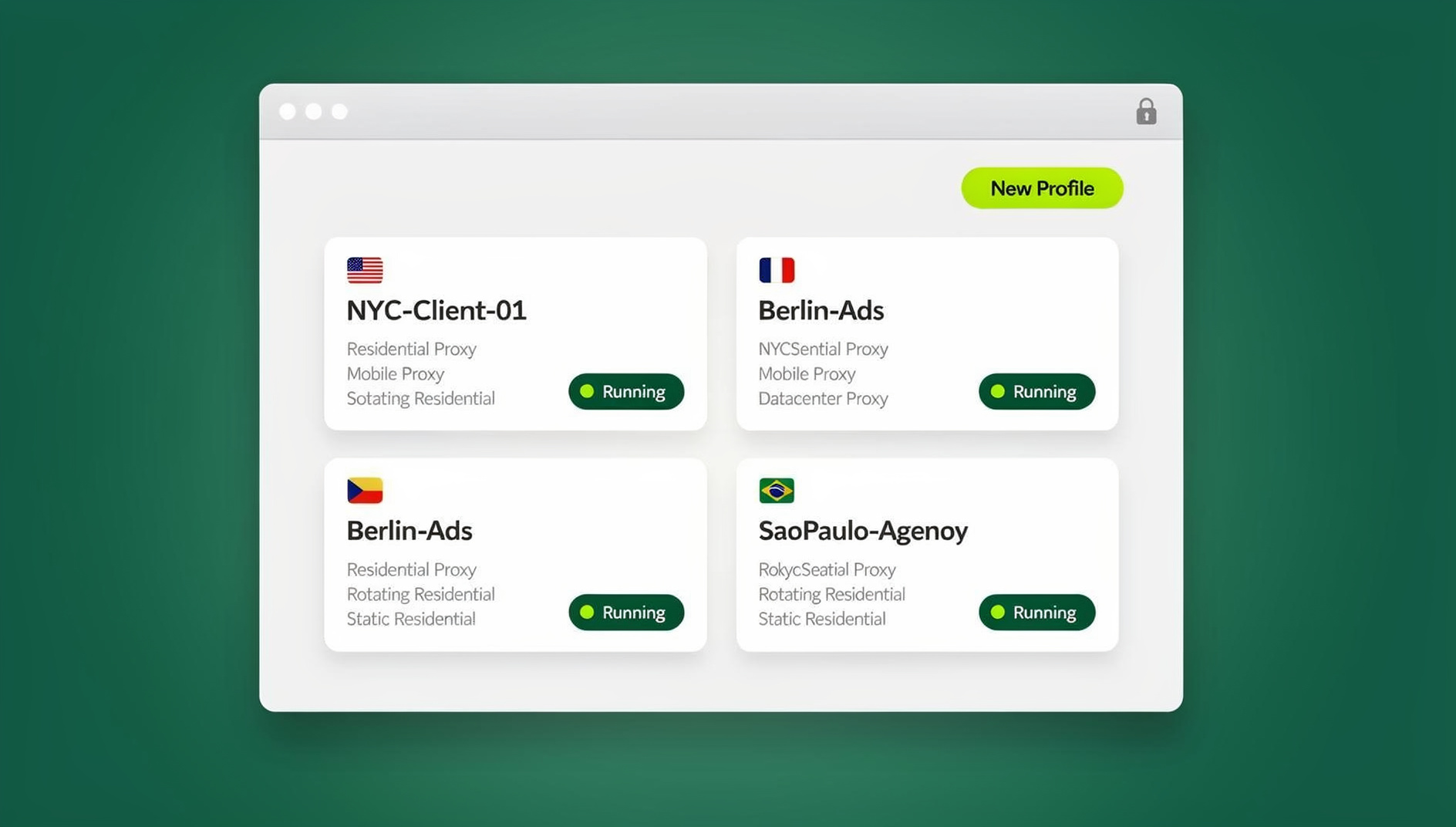
Ten years ago, virtualizing a browser meant spinning up a full Windows or Linux VM and eating 2-4GB of RAM per instance. That’s no longer the default. Lightweight containers, purpose-built cloud services, and specialized antidetect browsers now do the same job faster, cheaper, and with far less hassle. The hard part isn’t finding an option — it’s picking the one that actually solves your problem instead of just feeling like it does.
The 5 Real Ways to Virtualize a Browser in 2026
1. Full Virtual Machines (VMs)
A hypervisor — VirtualBox, VMware, Hyper-V — creates a complete virtual computer, complete with its own OS (Windows, Linux, whatever you choose), and you run a normal browser inside it. This is the oldest and heaviest approach.
Pros:
- Complete isolation from the host system, down to the kernel
- Different OS per VM if you need it
- Malware stays contained inside the VM
- Snapshot and restore make it easy to roll back a broken state
Cons:
- Heavy: 2-4GB RAM per running VM
- Slow to boot and slow to switch between instances
- Some sites can detect you’re running inside a VM
- Same network IP across all VMs unless you add proxies yourself
- Managing more than 3-4 VMs by hand gets unwieldy fast
2. Docker/Container-Based Browsers
Containers share the host’s kernel but give each browser instance its own isolated filesystem — think of it as a much lighter VM. Tools like selenium/standalone-chrome spin up in seconds instead of minutes.
Pros:
- Hundreds of MB instead of gigabytes per instance
- Fast to create and destroy — good for scripted/automated workflows
- Solid filesystem isolation between containers
Cons:
- Shares the host kernel, so isolation is weaker than a true VM
- The browser fingerprint can still reveal it’s running in a container
- Requires real Docker/DevOps knowledge to set up correctly
- Network isolation needs extra configuration to actually separate IPs
3. Firefox Multi-Account Containers
Mozilla’s free, built-in tab-level isolation gives each color-coded container tab its own cookies and local storage. It’s genuinely useful for the basics: keeping a work Gmail separate from a personal one, or stopping a shopping site’s cookies from following you into a research tab.
Pros:
- Free and built into Firefox — zero technical setup
- Clean cookie separation between containers
- Great for everyday context-switching
Cons:
- Every container shares the exact same browser fingerprint
- Every container shares the same IP address
- Sites that fingerprint (most major platforms in 2026) can still link your “separate” containers together
- Not suitable for multi-account management on any platform that fingerprints
4. Cloud Browsers
A cloud browser runs entirely on remote infrastructure — the video output streams to your device, but the actual browsing happens on a server. Each profile gets its own isolated environment and its own generated fingerprint, and nothing touches your local machine.
Pros:
- Complete isolation between profiles, including the fingerprint itself
- No local CPU or RAM consumed — you just need bandwidth for the stream
- Accessible from any device, since the session lives in the cloud, not on your laptop
- Proxy assignment built in, per profile
Cons:
- Requires a stable internet connection
- Recurring subscription cost
- A small amount of streaming latency compared to local browsing
5. Desktop Antidetect Browsers
These are modified Chromium-based browsers that generate a distinct, consistent fingerprint per profile and run locally on your machine rather than in the cloud. Send.win’s own desktop client, Sendwin Browser, works this way — it’s a native Windows/macOS/Linux app, not a cloud stream, and it’s the primary way most Send.win users run their profiles day to day. Independent roundups of the best antidetect browser options in 2026 consistently rank this category above VMs and containers specifically because fingerprint generation is a first-class feature rather than an afterthought.
Pros:
- Purpose-built for multi-account and multi-profile work
- Real Chromium engine underneath — nothing emulated
- Deep fingerprint customization per profile
- API access for automation on qualifying plans
Cons:
- Requires installing the desktop app
- Profile data lives on the machine it’s installed on, unless synced
Send.win actually covers both category 4 and category 5: run profiles through the installed Sendwin Browser desktop app for local speed, or spin up a cloud browser session (no install at all) when you need to work from a device that doesn’t have the app, or want a session that lives entirely off your local hardware. They’re two distinct, separately billed modes — not the same thing wearing different names.
Comparison Table: Which Virtualization Method Wins?
| Feature | Full VM | Container | FF Containers | Cloud Browser | Antidetect (Desktop) |
|---|---|---|---|---|---|
| Cookie Isolation | ✅ Full | ✅ Full | ✅ Full | ✅ Full | ✅ Full |
| Fingerprint Isolation | ✅ Full | ⚠️ Partial | ❌ None | ✅ Full | ✅ Full |
| IP Isolation | ⚠️ Needs proxy | ⚠️ Needs proxy | ❌ None | ✅ Built-in | ⚠️ Needs proxy |
| Resource Usage | ❌ Very High | ⚠️ Moderate | ✅ Minimal | ✅ Minimal (local) | ⚠️ Moderate |
| Setup Complexity | ❌ Complex | ⚠️ Technical | ✅ Simple | ✅ Simple | ⚠️ Moderate |
| Multi-Account Safe | ✅ Yes | ⚠️ Partial | ❌ No | ✅ Yes | ✅ Yes |
Fingerprint Isolation vs. Cookie Isolation: Why It Matters
Cookie isolation stops a site from reading your login state across tabs. That’s useful, but it’s not what stops platforms from linking your accounts. Fingerprinting — canvas, WebGL, audio, fonts, screen properties — creates a near-unique signature for your browser that persists even when cookies are cleared or containers are separate. If two “isolated” profiles produce the same fingerprint from the same IP, a platform can connect them in seconds. Real browser fingerprinting protection requires generating a genuinely different fingerprint per profile — not just separating cookies and hoping nobody looks closer.
Choosing the Right Approach for Your Use Case
- Basic privacy, one person, low-risk sites: Firefox containers are free and sufficient
- Development and QA testing: Docker containers or VMs, since fingerprint linking isn’t the concern
- Multi-account e-commerce, social, or ad management: a multi-login browser with true fingerprint and IP isolation per profile
- Agencies and teams: a cloud/desktop antidetect setup with shared profile access and audit trails
- Enterprise security: dedicated browser isolation platforms with centralized policy control
Setting Up Cloud Browser Virtualization Step by Step
- Sign up for a cloud browser or antidetect browser service
- Create one profile per identity or account you need to keep separate
- Attach a proxy to each profile so no two share an IP
- Match the timezone and locale to the proxy’s location
- Start browsing — each profile is isolated the moment it launches
Setup time: roughly 5-10 minutes for a cloud or desktop antidetect profile, versus 1-2 hours per VM or 30-60 minutes per Docker container for anyone comfortable with the command line.
Common Mistakes to Avoid
- Using Firefox containers for multi-account work: the shared fingerprint links them anyway
- Reusing the same proxy across profiles: IP linking defeats the entire point of isolation
- Ignoring fingerprints entirely: cookie isolation alone is not enough on any platform that fingerprints
- Running more VMs than the host can handle: resource starvation crashes everything at once
- No naming convention: losing track of which profile maps to which account causes cross-logins
- Skipping a post-setup isolation check: verify fingerprint and IP differ between profiles before relying on them
Browser Virtualization for Teams and Agencies
Agencies managing client accounts need more than personal isolation — they need controlled handoff. A profile-sharing setup lets one team member configure a client’s proxy, timezone, and fingerprint once, then share access without ever sharing the underlying password. When someone leaves the team, access revokes cleanly instead of requiring a password reset across every platform the client touches. Enterprises get a version of the same benefit at scale: centralized policy, corporate-network isolation, and BYOD support without exposing the corporate network to whatever an employee’s personal device picks up.
In practice, agency teams tend to standardize around a shared naming convention — client name, platform, account type — so any team member can pick up a profile mid-project without guessing which login belongs where. Audit trails matter here too: knowing which team member accessed which profile and when turns a vague “something went wrong with the client’s ad account” into a five-minute investigation instead of a day of guesswork.
Security Benefits Beyond Multi-Account Management
Isolation isn’t only useful for running parallel accounts — it’s also a security boundary. A virtualized browser contains malware to the environment it was opened in, so a bad download or a compromised ad script can’t reach your host machine’s files or credentials. That makes virtual browsers a practical way to open suspicious links, test unfamiliar downloads, or do sensitive banking in a clean environment that gets wiped or reset between sessions.
- Malware containment: threats stay inside the isolated environment
- Safer testing: open unfamiliar files or links without risking the host device
- Clean banking sessions: financial logins happen away from tracking cookies picked up elsewhere
- Cross-browser QA: test the same site under different browser/OS combinations without provisioning physical machines
Performance Trade-offs: What You’re Actually Paying For
Every virtualization method trades one resource for another. Full VMs spend heavily on local RAM and disk in exchange for the strongest isolation. Containers cut that cost by roughly 80-90% but weaken the isolation boundary since they share a kernel. Firefox containers cost almost nothing in resources but only isolate cookies. Cloud browsers shift the resource cost off your device entirely and onto the provider’s infrastructure — your local machine just decodes a video stream, which is why a cloud profile runs identically well on a five-year-old laptop and a brand-new workstation. Desktop antidetect browsers sit in the middle: a real local Chromium process per profile, moderate RAM use, but full fingerprint control without any streaming latency.
🏆 Send.win Verdict
If you need cookie separation for casual browsing, Firefox containers are free and fine. But for anything involving multiple accounts on platforms that fingerprint — e-commerce, ads, social, affiliate work — you need real fingerprint and IP isolation, not just cookie jars. Send.win covers both browser virtualization modes that actually deliver this: the native Sendwin Browser desktop app for local profile speed, and cloud browser sessions when you need zero-install access from any device. Paid plans start at $19/mo, and your first card purchase is covered by a 7-day money-back guarantee. You can also try the free cloud demo at https://send.win/demo-browser/ before signing up.
Try Send.win free today — set up your first isolated profile in under 10 minutes.
Frequently Asked Questions
Is browser virtualization legal?
Yes. Browser virtualization is widely used in enterprise security, QA testing, and personal privacy. Its legality depends entirely on how it’s used, not on the technology itself.
What’s the cheapest way to virtualize a browser?
Firefox containers are free but give you no fingerprint isolation. VirtualBox VMs are also free but demand serious local hardware. For anyone who needs real fingerprint separation without a hardware upgrade, a cloud or desktop antidetect browser typically ends up cheaper once you count the hardware and time cost of running VMs yourself.
Can I run 10+ virtualized browsers at once?
With VMs you’d need 20-40GB of RAM to do it comfortably. With a cloud browser, there’s no local resource ceiling to hit — you just need enough bandwidth for the video stream. Cloud-based approaches scale far better once profile counts climb into double digits.
Does virtual browsing slow down my computer?
VMs and containers consume real local resources and can noticeably slow a machine. Cloud browsers process everything remotely, so your device only handles the video stream — CPU and RAM stay largely untouched.
Do Firefox containers stop platforms from linking my accounts?
Not on platforms that fingerprint. Containers isolate cookies, but every container shares the same canvas, WebGL, and audio fingerprint plus the same IP — which is exactly what fingerprinting platforms use to connect “separate” accounts.
What’s the difference between a container and a VM for browsing?
A VM virtualizes an entire operating system, giving near-total isolation at a high resource cost. A container shares the host’s kernel, which is much lighter but weaker on isolation — the browser’s fingerprint can still expose that it’s containerized.
Do I need a proxy if I’m already using browser virtualization?
Yes, unless the tool includes one. VMs, Docker containers, and desktop antidetect browsers all still share your real IP by default — you need to attach a proxy per profile to get true IP isolation, which is why cloud browsers with built-in proxy assignment save a setup step.
Conclusion
Browser virtualization in 2026 comes down to five real choices, and the right one depends entirely on what you’re protecting against. Firefox containers handle basic privacy for free. Docker and VMs suit development and testing where fingerprint linking isn’t the risk. For anyone managing multiple accounts on platforms that fingerprint — which is most major platforms today — only cloud browsers and desktop antidetect browsers actually isolate what matters: the fingerprint and the IP, not just the cookies.
Start by naming your actual requirement — casual privacy, dev testing, or serious multi-account safety — then match it to the approach built for that job. Guessing wrong here doesn’t just waste setup time; it risks the accounts you’re trying to protect.