A web based browser is a browser that runs on a remote server and streams its display to you inside an ordinary browser tab, so nothing installs on your device and every site you visit only ever touches the remote machine. This “browser-in-browser” model masks your real IP address and hardware fingerprint by default, and it’s what lets tools like Send.win run dozens of separate, cloud-hosted browser sessions from a single tab without touching your local machine at all.
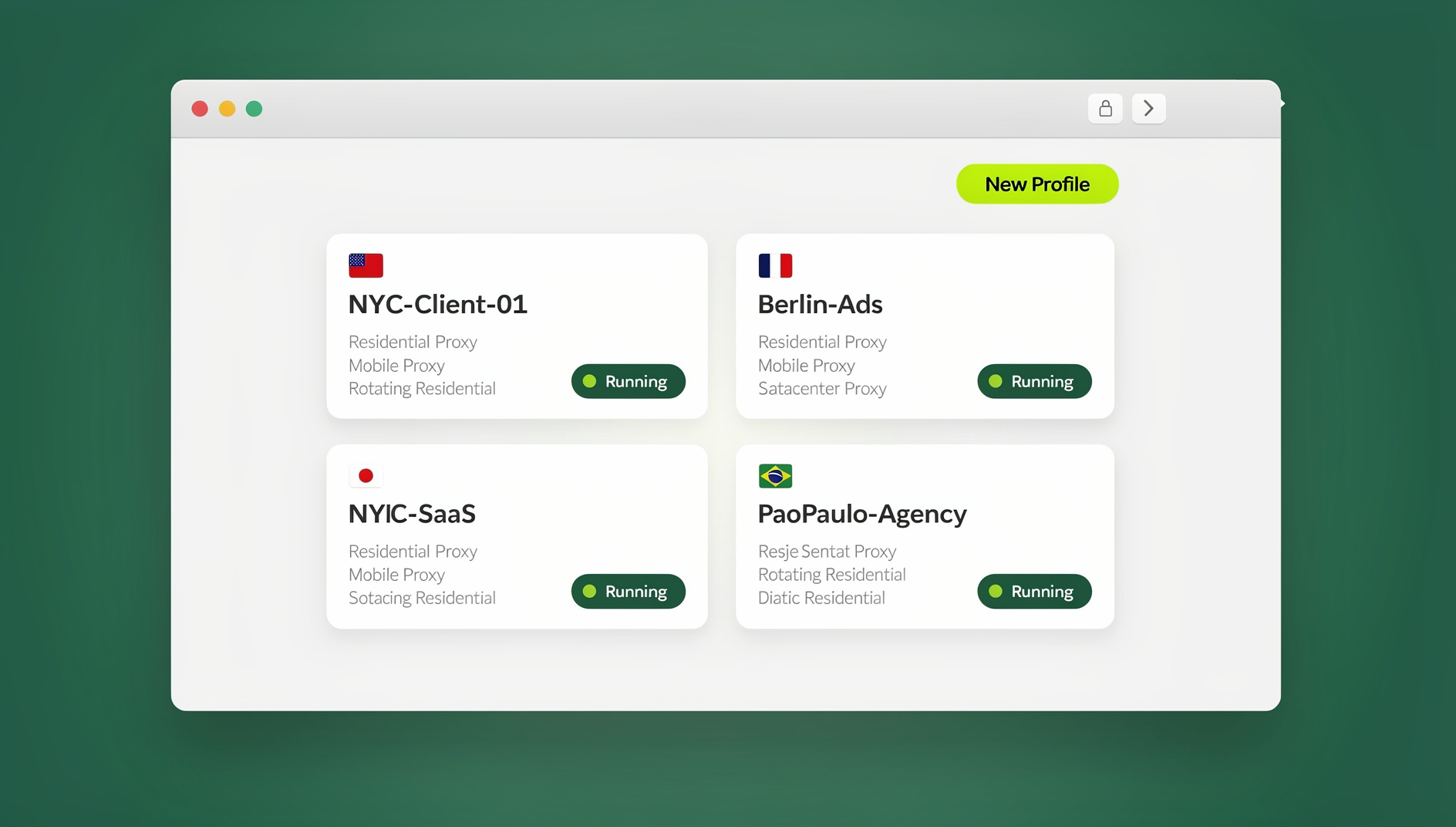
What Is a Web Based Browser?
Instead of installing Chrome, Firefox, or Edge on your computer, a web based browser puts the actual browsing engine on a server somewhere else. You open a web page, log in, and from that point on you’re looking at a live video feed of a browser that’s running in a data center — your clicks, keystrokes, and scrolls get sent to the server, and the rendered result gets sent back to you as a stream of pixels.
Because the real browsing happens remotely, the websites you visit never talk to your device directly. They see the remote server’s IP address, the remote server’s hardware fingerprint, and the remote server’s operating environment. Your actual laptop or phone stays completely out of the loop, which is the whole reason this category exists: it turns “browsing the web” into something that happens somewhere else, on your behalf.
How Web Based Browsers Work
The Technology Stack
- Remote browser instance: A full Chromium or Firefox process runs on a cloud server, not on your device.
- Rendering pipeline: Web pages render using the server’s own GPU and CPU resources.
- Video encoding: Rendered frames get encoded as H.264 or VP9 video, frame by frame.
- Delivery channel: Encoded frames stream to your browser in real time over WebSocket or WebRTC.
- Input capture: Your clicks, keystrokes, and scroll events get captured locally and sent back to the server.
- Session state: Cookies, browsing history, and saved preferences live on the server, not on your hard drive.
Key Underlying Technologies
- KasmVNC / noVNC: VNC protocol adapted specifically for delivery through a web browser.
- WebRTC streaming: Low-latency, near real-time video delivery designed for interactive use.
- Canvas rendering: Direct pixel manipulation inside an HTML5 canvas element.
- WebSocket: A persistent, bidirectional channel that keeps input and video frames in sync.
- Containerization: Isolated runtime environments (commonly Docker or Kubernetes-managed) so each session stays sandboxed from every other.
Send.win: A Web Based Browser Built for Multi-Account Work
Most web based browsers on the market are built for one narrow job — testing, screen sharing, or squeezing more performance out of a weak device. Send.win is built specifically around the problem of running many separate identities at once without any of them bleeding into each other. It gives you two distinct ways to do that, and it’s worth understanding both before you assume “web based browser” only means one thing.
The first is Sendwin Browser, a native, downloadable desktop app for Windows, macOS, and Linux. It’s local-first — your profiles and session data live on your own machine — with encrypted cloud sync keeping everything backed up and available if you switch devices. The second is cloud browser sessions, which run entirely on Send.win’s servers with zero local install required. Those sessions are metered by cloud browsing time rather than a flat per-seat fee, which makes them a genuinely web-based option in the strictest sense: open a tab, and the browser itself lives in the cloud.
- Each profile — whether run locally through Sendwin Browser or as a cloud session — gets its own coherent, realistic fingerprint, not just a randomized value bolted onto a shared browser
- Integrated proxy management assigns a different IP address to each profile
- Persistent sessions resume exactly where you left off, including logins
- Team collaboration lets you share profile access without ever handing over a password
If account-level tracking is your bigger concern than raw streaming performance, our guide to browser fingerprinting protection covers exactly what a fingerprint is made of and why simply changing your IP address doesn’t stop it. Ideal users for Send.win specifically: e-commerce sellers running multiple storefronts, social media managers juggling client accounts, ad agencies splitting ad accounts by client, and anyone who needs several logged-in identities on the same platform without triggering a ban.
Other Web Based Browser Solutions to Consider
Send.win isn’t the only option, and it isn’t trying to be the right fit for every job. If you’re comparing the field before picking one, our roundup of the best cloud browser options for 2026 lines up more of them side by side. Here’s how the other major names typically stack up.
Browserling
Category: Cross-browser testing. Best for: Web developers and QA testers.
- Instant access to multiple browser versions — Chrome, Firefox, Edge, Safari, Opera
- Multiple operating systems available, including Windows and Android
- Nothing to install — the browser runs entirely inside your browser
- Free sessions are capped at a few minutes, aimed at quick spot checks
- Built-in screenshot and screen recording tools
Limitations: Short session windows, no fingerprint management, and not designed for persistent day-to-day browsing.
Puffin Web Browser
Category: Performance cloud browser. Best for: Mobile users and bandwidth-limited connections.
- Cloud rendering speeds up page loads on slow or older devices
- Data compression cuts down on bandwidth usage
- Available both as a web app and a native mobile app
Limitations: A single shared identity, limited privacy controls, and fewer features than dedicated multi-account tools.
Hyperbeam
Category: Collaborative cloud browser. Best for: Screen sharing and co-browsing.
- Shared browser sessions where multiple people browse the same tab together
- An API for embedding a cloud browser directly inside your own application
- Admin controls for managing who can interact with a session
- A natural fit for customer support walkthroughs and live presentations
Mighty Browser
Category: Performance cloud browser. Best for: Power users running heavy tab loads.
- Chromium running on cloud hardware with generous RAM per instance
- Handles 100+ open tabs without any local performance hit
- High-resolution streaming from cloud to local device
- Frees up local CPU and memory for everything else you’re running
Benefits of Web Based Browsers
Security Isolation
This is the strongest security argument for the category as a whole:
- Malware containment: Viruses and exploits can’t escape the remote environment to reach your device
- Zero-day protection: A browser vulnerability compromises the server, not your laptop
- Phishing safety: Credential-harvesting pages stay contained inside the remote session
- Drive-by download protection: Malicious files land in cloud storage, never on your local disk
- Cryptojacking prevention: Mining scripts burn cloud CPU cycles, not yours
Privacy Protection
- IP masking: Sites see the remote server’s IP address, never your real one
- Fingerprint protection: Your actual hardware fingerprint is never exposed to the sites you visit
- No local traces: History, cookies, and downloads stay off your device entirely
- ISP blindness: Your ISP only sees encrypted traffic to the cloud service, not individual site visits
- Network monitoring bypass: Corporate or school network monitors can’t inspect the content you’re viewing
Device Independence
- Any device: Works on a Chromebook, tablet, phone, or aging PC just as well as a new laptop
- No installation: Just open a URL and log in
- Consistent experience: The same browser environment follows you across every device
- Always current: The cloud browser is maintained centrally, so you’re never behind on updates
Multi-Account Capability
- Complete isolation: Each profile is a genuinely separate browser instance, not a tweaked copy of one
- Unique fingerprints: A distinct, internally consistent hardware identity per profile with a purpose-built multi-account browser like Send.win
- Proxy per profile: A different IP address assigned to each account
- Persistent sessions: Accounts stay logged in between visits instead of requiring a fresh login every time
- Team access: Share a profile with a colleague without ever sharing the underlying password
Web Based Browser Performance
Latency Expectations
| Connection Type | Expected Latency | Experience |
|---|---|---|
| Fiber (same region as server) | 10-20ms | Nearly indistinguishable from local browsing |
| Cable broadband | 20-40ms | Smooth for essentially all tasks |
| WiFi (good signal) | 30-60ms | Good for general browsing and account work |
| 4G mobile | 50-100ms | Acceptable, with minor input delay |
| Cross-continent connection | 80-150ms | Noticeable lag, but still usable |
Bandwidth Requirements
- Minimum: 5 Mbps for basic browsing
- Recommended: 10-25 Mbps for a smooth day-to-day experience
- HD video streaming inside the session: 25+ Mbps
- 4K content: 50+ Mbps
Tasks Well Suited to Web Based Browsers
- Account management and social media work
- Email and day-to-day communication
- Research, reading, and reference work
- Form filling and repetitive data entry
- Shopping and online transactions
- Video calls — workable, but sensitive to your connection’s latency
- Rich media editing — possible on a fast connection, sluggish on a slow one
- Competitive gaming — not a good fit; input latency is too noticeable
How Much Does a Web Based Browser Cost?
Pricing varies a lot depending on whether you’re paying for testing minutes, streaming compute, or full multi-account infrastructure. Send.win has no free trial: plans start at $19/mo for Pro or $49/mo for Team, and your first card purchase is covered by a 7-day money-back guarantee. If you want to try it first, there’s a free cloud demo you can preview without signing up.
| Plan | Price | Profiles | Proxy Bandwidth | Automation API | Seats |
|---|---|---|---|---|---|
| Pro | $19/mo ($6.99/mo billed annually — 63% off) | 150 | 5GB | Included | 1 |
| Team | $49/mo ($20.99/mo billed annually — 57% off) | 500 | 20GB | Included | 16 |
Send.win has no automation interface — no API, SDK, headless mode or Selenium/Puppeteer/Playwright support on any plan. The Team plan mainly buys you more profiles, more bandwidth, and 16 seats for actual collaborators.
Implementing a Web Based Browser
For Individual Users
- Choose a service: Send.win for multi-account work, Browserling for one-off cross-browser testing.
- Create an account and choose a plan: Sign up on the platform — Send.win has no free trial, but your first card purchase is covered by a 7-day money-back guarantee, and there’s a free cloud demo if you want a preview first.
- Create profiles: One per identity, client, or use case. Our walkthrough on creating sessions in Send.win’s cloud browser covers the exact steps.
- Configure settings: Set timezone, language, and proxy on a per-profile basis.
- Start using it: Open a profile and browse exactly as you normally would.
For Organizations
- Assess the actual need: Security isolation, remote-work enablement, or multi-account management are three very different problems.
- Choose a deployment model: A managed cloud service versus a self-hosted option like Kasm Workspaces.
- Configure policies: URL filtering, data controls, and per-user access rules.
- Roll it out: Deploy to users with a short training pass so nobody’s confused by the streaming interface.
- Monitor ongoing use: Track usage patterns, security events, and streaming performance over time.
For Developers (Self-Hosted)
If you’d rather build your own, several open-source building blocks handle the hard parts:
- neko: A browser-based virtual browser built on WebRTC
- Kasm Workspaces: Enterprise-grade container streaming, self-hostable
- noVNC + Docker: A VNC-based browser running inside a container
- Custom WebSocket proxy: Built on top of Puppeteer or Playwright for full control over behavior
Web Based Browser vs. Alternatives
vs. VPN
- VPN: Changes your IP address only; your browser fingerprint stays exactly the same
- Web based browser: Changes IP address and fingerprint, plus adds malware isolation on top
- Winner: Web based browser, for anyone who needs more than IP masking alone
vs. Incognito Mode
- Incognito: Doesn’t save local history, but your fingerprint and IP address are unchanged
- Web based browser: Complete separation from your local device, fingerprint included
- Winner: Web based browser, for anything resembling real privacy or account isolation
vs. Virtual Machine
- VM: Heavy local resource use (commonly 2-4GB RAM per instance), full local isolation
- Web based browser: No local resource cost at all — everything runs on someone else’s hardware
- Winner: Web based browser for convenience; a VM if you need it to keep working offline
vs. Desktop Antidetect Browser
- Desktop app: Runs locally, requires installation, tied to a specific device unless you sync
- Cloud-based: Runs entirely remotely, nothing to install, accessible from any device
- Winner: Depends on your workflow — which is exactly why Send.win offers both the native Sendwin Browser desktop app and cloud browser sessions rather than forcing a choice
Security Considerations
Trust Model
Using a web based browser means trusting the service provider with your browsing data. Before committing to one, it’s worth checking:
- The provider’s privacy policy and actual data handling practices
- Whether data is encrypted both in transit and at rest
- How thoroughly sessions are isolated between different users
- Where servers are physically located, and under what jurisdiction
- The company’s track record and reputation over time
Self-Hosted Alternative
For maximum control over your own data, self-hosting with Kasm Workspaces or a similar stack gives you:
- Complete data sovereignty — nothing leaves infrastructure you control
- No third-party access to your browsing data whatsoever
- Fully custom security configurations
- A meaningfully higher setup and ongoing maintenance cost
🏆 Send.win Verdict
A web based browser earns its keep whenever you need security isolation, separate cookies and storage per profile, or the ability to run several accounts with their own fingerprint settings. For pure cross-browser testing, Browserling is faster to reach for. But for anyone managing multiple client, store, or ad accounts, Send.win is built specifically for that job — choose the native Sendwin Browser desktop app for a local-first setup with encrypted cloud sync, or spin up a cloud browser session when you need zero-install access from a device that isn’t yours.
Try the Send.win cloud demo — a 3-minute preview without signup, 10 minutes a day with a free account.
Frequently Asked Questions
Is a web based browser slow?
Modern web based browsers are surprisingly responsive. On a decent connection — 10+ Mbps with under 50ms of latency — most people can’t tell the difference from local browsing for everyday tasks like account management, email, and social media.
Can I use extensions in a web based browser?
Most Chromium-based cloud browsers support standard Chrome extensions, so you can install ad blockers, password managers, and similar tools much like you would in a local install of Chrome.
Do web based browsers work on mobile?
Yes. Since all you need is a browser to reach a web based browser, it works fine on iOS, Android, and effectively any device with a modern browser installed.
How is my data protected in a web based browser?
The connection between your device and the remote browser typically runs over encrypted WebSocket or HTTPS. Reputable providers also encrypt stored data at rest and isolate each user’s session from every other.
Can I download files from a web based browser?
Yes. Most services let you transfer files from the remote session down to your local device, or keep them in cloud storage for later access without ever touching your machine.
Do I need to install anything to use Send.win?
It depends on which mode you pick. Sendwin Browser is a native desktop app you download for Windows, macOS, or Linux, so there’s a quick install step there. Cloud browser sessions need nothing installed at all — you open a tab, log in, and the browser itself runs on Send.win’s servers.
Does Send.win have an Automation API?
No — Send.win has no automation interface: no API, SDK, headless mode or Selenium/Puppeteer/Playwright support on any plan, including Pro and Team.
What’s the difference between Sendwin Browser and a cloud browser session?
Sendwin Browser is a native app you install locally; your profiles live on your machine with encrypted cloud sync for backup and cross-device access. A cloud browser session runs entirely on Send.win’s servers with nothing installed locally, billed by cloud browsing time — better for quick access from a device you don’t want to install anything on.
The Future of Web Based Browsers
- WebGPU: Hardware-accelerated graphics arriving inside cloud browsers
- Edge computing: Browser instances placed at the network edge to cut latency further
- AI-assisted browsing: Integrated automation and assistance layered on top of remote sessions
- 5G enablement: Mobile cloud browsing approaching desktop-quality latency
- Zero-trust integration: The browser itself becoming the secure access point for internal resources
Conclusion
Web based browsers shift where the actual browsing happens — off your device and onto someone else’s server — and that single change is what unlocks security isolation, real privacy protection, device independence, and genuine multi-account capability all at once. None of that is available to the same degree from a local browser, however carefully configured.
A few starting points depending on your situation: for multi-account management, Send.win offers unique per-profile fingerprints, integrated proxy support, and a choice between a native desktop app and true cloud sessions. For quick cross-browser testing, Browserling gets you in and out fast. For enterprise-grade self-hosted isolation, Kasm Workspaces is the standard reference point. And for raw performance on heavy tab loads, Mighty Browser is built for exactly that.
The real question isn’t whether a web based browser fits your workflow — it’s which flavor of it does. Start from your actual use case, not the marketing copy, and the right pick tends to become obvious fast.