The Fastest Way to Manage Multiple Instagram Accounts
The fastest way to manage multiple Instagram accounts without tripping Meta’s spam detection is to stop logging every account into the same app or browser. Instagram’s own multi-account switcher caps you at 5 accounts and shares one device ID and IP address across all of them, which is fine for a personal side account but risky for agencies, e-commerce brands, or creators running several niche pages. Isolated browser profiles — each with its own fingerprint, cookies, and proxy — remove that shared-identity risk entirely, and that’s the approach this guide walks through alongside Instagram’s native options.
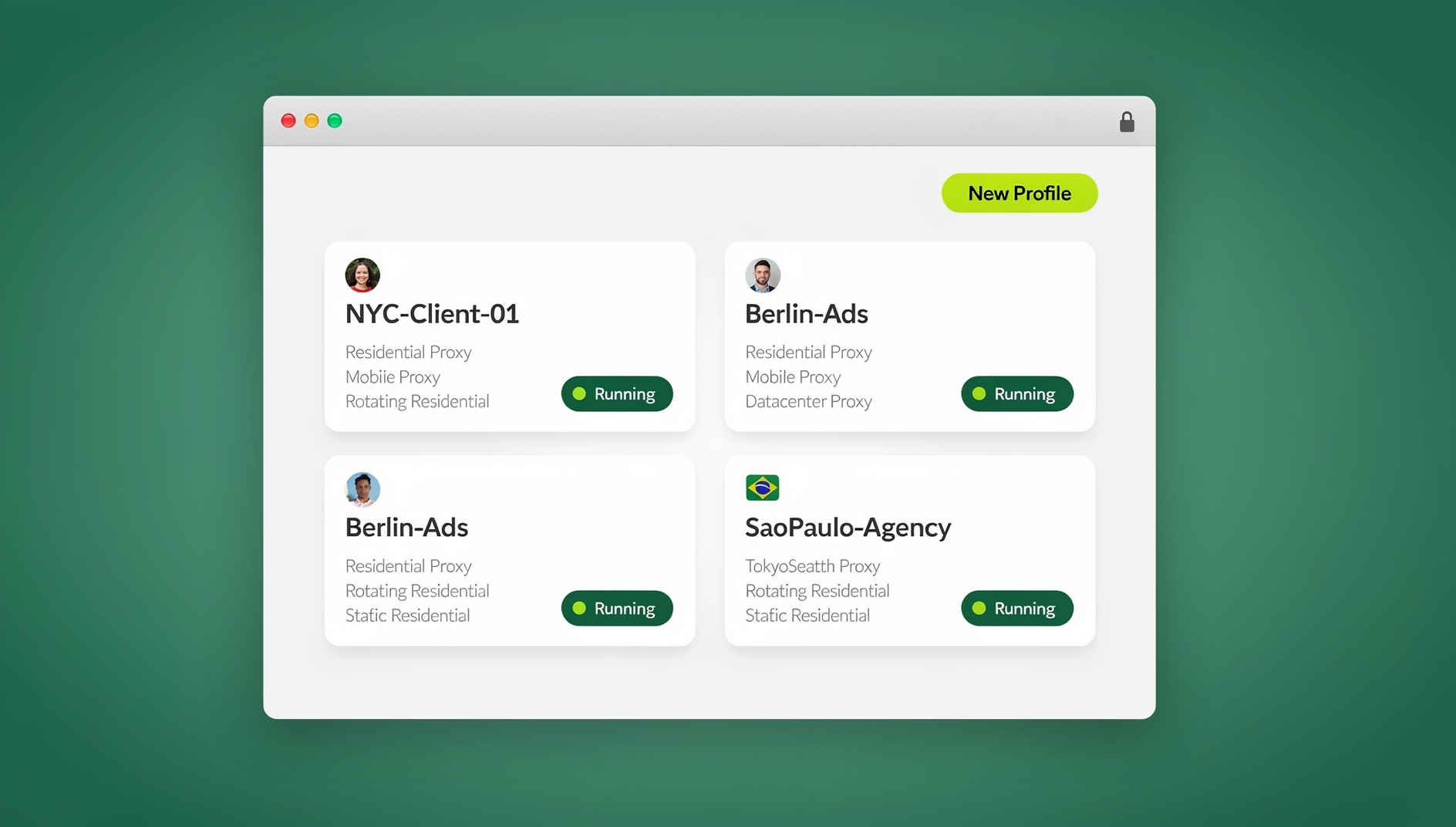
Below you’ll find every method for adding and running multiple Instagram accounts, from the built-in mobile switcher to Meta Business Suite to professional-grade browser isolation, so you can match the method to how many accounts you actually run.
Method 1: Instagram’s Built-In Mobile Account Switcher
Step-by-Step (iOS and Android)
- Open Instagram and tap your profile icon (bottom-right).
- Tap the hamburger menu (☰) in the top-right corner.
- Tap Settings and privacy.
- Scroll to the Login section and tap Add account.
- Choose Log into existing account or Create new account.
- Enter the credentials for the second account.
- Long-press your profile photo at the bottom of the screen to switch between accounts.
Why It Has a Ceiling
- Instagram allows a maximum of 5 accounts logged in on one device at a time.
- All 5 accounts share the same device ID, IP address, and mobile advertising identifier.
- Meta’s backend permanently links accounts that have ever shared a device, even after you log one out.
For two personal accounts, this is harmless. For a client or brand portfolio, shared-device linking is exactly what triggers coordinated-behavior flags if one account gets reported.
Method 2: Switching Accounts on Instagram Desktop
Step-by-Step
- Go to instagram.com in your browser.
- Log into your first account.
- Click your profile picture in the top-right corner.
- Select Switch accounts from the dropdown.
- Click Log into an existing account and enter the second account’s credentials.
Desktop Limitations
- Every account switched into the same browser tab shares one browser fingerprint and cookie session.
- All accounts share the same IP address, since they’re all leaving the browser through the same network connection.
- Stories, Reels creation, and some engagement features are limited on desktop compared to mobile.
Method 3: Meta Business Suite for Professional Accounts
If your Instagram accounts are set to Professional (Business or Creator), Meta Business Suite adds a scheduling and inbox layer on top of the native switcher:
- Go to business.facebook.com.
- Connect each Instagram Professional account through Business Settings > Instagram Accounts.
- Manage the connected accounts from the Business Suite dashboard.
What It Handles Well
- Scheduling posts, Stories, and Reels across multiple accounts.
- A unified inbox for comments and DMs.
- Cross-account analytics in one dashboard.
- Running and managing ads through Ads Manager.
What It Can’t Do
- Browse the Explore page or engage with other users’ content.
- Participate in Instagram Live.
- Fully manage Instagram Shopping.
- Create collaborative posts or branded content tags.
- Provide account isolation — every connected account is visibly tied together inside the Business Manager.
Method 4: Isolated Browser Profiles for Scale
Once you’re managing more than 5 Instagram accounts, or account isolation genuinely matters — agencies, e-commerce brands, affiliate operations — the built-in switcher stops being the right tool. This is where a dedicated multi-login browser setup takes over.
With Sendwin Browser, the native desktop app, you create one profile per Instagram account. Each profile gets its own browser fingerprint, cookie jar, and residential proxy, so nothing links “Brand A – Instagram” to “Brand B – Instagram” at the network or device level:
- Create a profile per account. Each profile is isolated the way session isolation is meant to work — no shared cookies, no shared canvas/WebGL fingerprint.
- Log in once and complete any security verification. The session persists, so you’re not re-authenticating daily.
- Manage natively, with full access to feed browsing, Stories, DMs, Reels engagement, and Shopping — everything the desktop switcher restricts.
- No hard account limit. Five, twenty-five, or a hundred Instagram accounts, each in its own environment.
- Delegate to teammates by sharing sessions instead of handing out passwords.
If you need to check in on accounts from a laptop that doesn’t have the desktop app installed, cloud browser sessions cover that case — you open the same isolated profile inside a browser tab with no local install, at the cost of metered cloud-browsing time on your plan rather than the always-on desktop client.
Choosing the Right Method
| Method | Account Limit | Isolation | Best For |
|---|---|---|---|
| Instagram App | 5 | None | Personal use, 2-3 accounts |
| Desktop Browser Switcher | ~3 practical | None | Quick switching between a couple of accounts |
| Meta Business Suite | Unlimited pages | None | Scheduling and inbox management |
| Sendwin Browser Profiles | Unlimited | Full | Agencies, e-commerce, professional scale |
As a rule of thumb: if you’re the only person touching 2-3 accounts, the native switcher is simpler and free. The moment a second person needs access, or the account count crosses 5, isolated profiles stop being a nice-to-have and start being the only option that doesn’t create shared-identity risk.
Signs Your Instagram Accounts Are Already Linked
If you’ve been switching accounts in the same app or browser for a while, some warning signs suggest Meta has already connected them internally:
- Suggested-follows overlap. Account B starts recommending the same people Account A follows, even with no shared contacts imported.
- Simultaneous action limits. Hitting a follow/like rate limit on one account seems to reduce the ceiling on another account logged into the same device shortly after.
- Shared security checkpoints. Verifying one account’s login sometimes triggers a “suspicious activity” prompt on a second account tied to the same device or IP.
None of these guarantee a ban, but they confirm the accounts are no longer independent from Meta’s perspective — which matters if you ever need one account’s history to stay separate from another’s, such as during a client handoff or an account sale.
Migrating Existing Accounts Into Isolated Profiles
If your accounts already share a device, moving them into isolated profiles doesn’t undo the existing link in Meta’s backend, but it stops new activity from reinforcing it:
- Create one profile per account and assign each a residential proxy matched to the account’s stated location and timezone.
- Log into each account inside its own profile and complete any security checks that come up — expect at least one, since the fingerprint is new to Meta.
- Stop using the old shared device or browser for any of the migrated accounts going forward.
- Give each account 1-2 weeks of normal activity inside its isolated profile before resuming aggressive engagement or bulk actions.
Setting Up Notifications Per Account
Inside the Instagram app, notifications can be tuned per account:
- Switch to the target account.
- Go to Settings > Notifications.
- Choose which alerts you want — likes, comments, DMs, Live videos.
- Repeat for each account.
Pro tip: Mute secondary accounts during focus hours and leave only DM alerts on for client accounts that need urgent responses.
Planning Content Across Multiple Accounts
A Shared Calendar Prevents Collisions
- Use a project tool (Notion, Asana, ClickUp) with one board or calendar view per account.
- Batch-plan weekly. Dedicate Monday mornings to planning every account’s week.
- Mix content types. Aim for 3-4 feed posts, daily Stories, and 2-3 Reels per account per week.
- Never cross-post identical content between accounts — Instagram’s spam systems can flag duplicate posts even across audiences that don’t overlap.
Hashtag Libraries Per Account
- Save 90-120 hashtags per account, organized by content pillar, in a spreadsheet or database.
- Rotate sets between posts — reusing the exact same tags every time reads as automated.
- Refresh libraries monthly based on what’s actually performing in each account’s niche.
Engagement Strategies That Scale
The 20-Minute Engagement Block
- Minutes 1-7: Answer every new comment and DM.
- Minutes 7-14: Engage with 10 posts from target hashtags, with genuine comments of at least 4 words — no emoji-only replies.
- Minutes 14-20: View and react to Stories from relevant accounts in the niche, which drives reciprocal views on your own Stories.
Cross-Account Safety Rules
- Never let managed accounts interact with each other — no follows, likes, comments, or Story views between accounts you control.
- Stagger engagement times. Five accounts run back-to-back from the same device or IP looks coordinated; isolated profiles with unique proxies avoid that pattern.
- Vary the sequence. Don’t run DMs → comments → Stories in the identical order at the identical time on every account every day.
Security Best Practices
Two-Factor Authentication
Enable 2FA on every account using an authenticator app (Google Authenticator, Authy) rather than SMS. If one account is compromised, you don’t want that access chaining into the rest of your portfolio.
Password Management
- Use a unique, strong password per account.
- Store credentials in a password manager (1Password, Bitwarden) — never in plain text docs or shared chat threads.
- When a teammate needs access to a client account, share the session rather than the password.
Send.win Verdict
Instagram’s own switcher works fine for 2-3 personal accounts, but past 5 accounts — or the moment isolation actually matters for a client — the shared device ID becomes the risk, not the login process. Sendwin Browser gives every Instagram account its own fingerprint, proxy, and persistent session with no cap on how many you run, and paid plans start at $19/mo with the first card purchase covered by a 7-day money-back guarantee, so you can test it on your real account list before committing.
Try Send.win free today — set up your first isolated Instagram profile in minutes.
Frequently Asked Questions
Can I have two Instagram accounts with the same email?
No. Each Instagram account needs a unique email or phone number. Email aliases ([email protected]) let you register multiple accounts off one inbox, though Meta may still associate them internally.
Will Instagram ban me for having multiple accounts?
No — multiple accounts are allowed. Bans come from spam behavior, coordinated inauthentic activity, or policy violations, not from the account count itself. Sound content and engagement practices avoid this entirely.
How do I remove an account from the Instagram app?
Go to Settings > Login > Multi-account login, then deselect the account you want removed. This logs the device out of that account without deleting it.
Can I manage more than 5 Instagram accounts?
Not through the Instagram app — that’s a hard cap. Isolated browser profiles remove the limit entirely, since each account runs in its own environment rather than sharing the app’s device slot.
Do isolated browser profiles work with Instagram’s mobile-only features like Reels creation?
Reels creation and a few camera-dependent features remain mobile-only regardless of method. Isolated desktop profiles cover feed browsing, Stories viewing, DMs, Shopping, and posting from pre-recorded media, but the Instagram app is still needed for shooting Reels directly in-app.
Is Meta Business Suite enough for managing client Instagram accounts?
It’s enough for scheduling and inbox management, but it doesn’t isolate accounts from each other — every connected account is visibly linked in one Business Manager. For agencies that need real separation between clients, isolated browser profiles solve a problem Business Suite doesn’t attempt to.
What’s the difference between using a proxy and using isolated browser profiles?
A proxy alone changes your IP but leaves your device fingerprint, cookies, and canvas/WebGL signals identical across accounts. Isolated profiles change the fingerprint and cookie store too, which is the piece a proxy by itself doesn’t touch. For serious multi-account work, pair a residential proxy matched to each account’s stated location with its own isolated profile rather than relying on either one alone.
Conclusion
Choosing how to manage multiple Instagram accounts comes down to scale. Individual users and small businesses can rely on Instagram’s native switcher for up to 5 accounts. Meta Business Suite adds scheduling and a unified inbox for Professional accounts. Once you’re past 5 accounts, or isolation and team delegation genuinely matter, Sendwin Browser’s isolated profiles remove the account cap and the shared-device risk in one move.