Managing multiple accounts on the same website — whether it’s five Gmail inboxes, a dozen client social profiles, or fifty marketplace stores — used to mean a messy rotation of incognito windows, secondary browsers, and constant logouts. In 2026, that workaround is officially obsolete. A new category of tool called the browser profile manager now lets you run unlimited accounts on the same site, at the same time, from the same device, with each profile keeping its own cookies, storage and fingerprint settings.
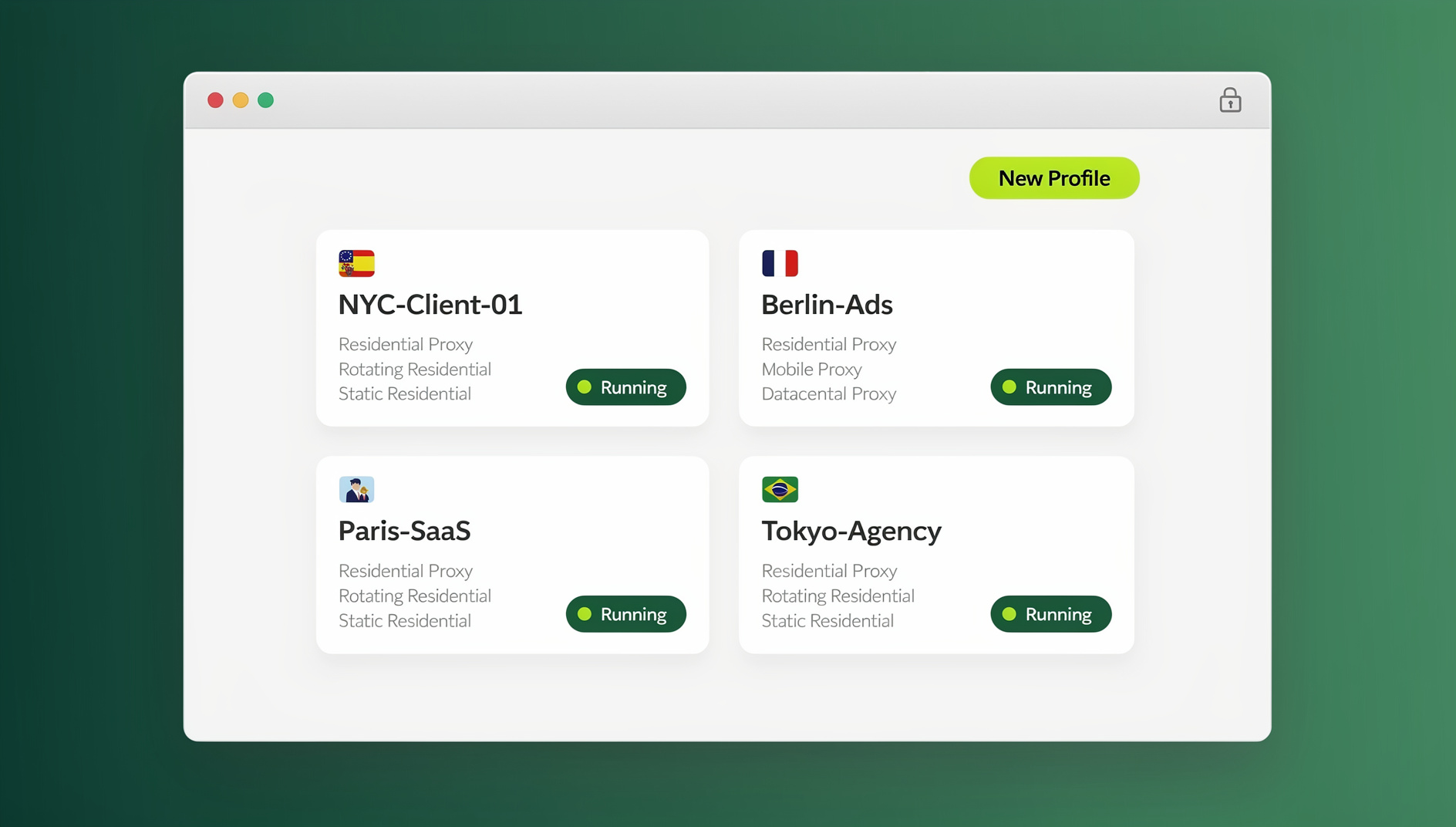
This guide walks through exactly how to manage multiple accounts easily using Send.win — what the platform actually does under the hood, a full step-by-step setup (the desktop app and cloud browser sessions), the features that keep your accounts organized with separate cookies, storage and fingerprints, and how teams and developers can go further with proxies. If you’ve outgrown incognito tabs and separate browser profiles, this is the practical, no-fluff walkthrough you need.
Why Juggling Multiple Accounts the Old Way Fails
Before looking at the fix, it’s worth understanding why the common workarounds break down once you’re managing more than two or three accounts.
- Tab-switching wastes time and causes mistakes. Constantly logging out of one account to log into another isn’t multitasking — it’s friction. Every switch is a chance to post from the wrong profile, message the wrong client, or accidentally merge data between accounts.
- Incognito/private mode isn’t built for this. Private browsing clears cookies and history the moment you close the tab, so there’s nothing to “come back to.” You re-enter credentials every single time, and most platforms can still see it’s the same browser fingerprint, IP address, and device behind the private window.
- Separate browser profiles don’t stop platform detection. Chrome and Edge profiles keep bookmarks and history apart, but they usually share the same underlying device fingerprint (fonts, GPU renderer, screen resolution, timezone, canvas hash) and the same IP address. Sites that actively hunt for duplicate accounts — think Amazon, eBay, Facebook Ads, or Airbnb — can still connect the dots.
- Multiple physical browsers get unmanageable fast. Running Chrome, Firefox, Edge, Brave, and Opera side-by-side just to keep five accounts apart eats RAM, clutters your taskbar, and still doesn’t solve the fingerprint or IP problem.
The result: people either give up and risk a ban, or they burn hours a week babysitting logins. Neither is sustainable once you’re managing more than a handful of profiles.
What Is Send.win?
Send.win is a browser profile manager built specifically to let one person or one team run dozens (or hundreds) of accounts on the same platform with each account kept separate. It does this through browser isolation — every account you create lives inside its own “session” (sometimes called a profile), each with its own isolated cookies, local storage, cache, and — critically — its own consistent browser fingerprint.
Instead of one browser identity shared across every tab, Send.win generates a distinct, consistent digital fingerprint per session: unique canvas and WebGL signatures, font sets, hardware parameters, and timezone/locale data. Pair that with a dedicated proxy per session (residential, datacenter, or mobile), and each account looks — to the website you’re logging into — like it’s being accessed from a completely different person, device, and location. That’s the core mechanism that lets you manage multiple accounts on a single site without the platform linking them together.
On top of that isolation layer, Send.win adds the parts that make it usable day-to-day: a native Sendwin Browser desktop app for Windows, macOS, and Linux, cloud browser sessions you can run entirely online with zero local install, and one-click session sharing for teams.
How Send.win Solves the Multiple-Account Problem
Three mechanisms work together to make multi-account management both convenient and safe:
1. Session Isolation on Every Tab
Every session you create in Send.win is sandboxed. Cookies, cache, and local storage from Session A never bleed into Session B, so you can be logged into two, five, or fifty accounts on the exact same website simultaneously, in the exact same browser window, with zero cross-contamination. For a deeper technical breakdown of how this isolation model actually protects your data, see our dedicated session isolation guide.
2. Unique Fingerprints Per Profile
Each session gets its own consistent fingerprint rather than reusing your real machine’s signature across every account. This is the piece that plain browser profiles and incognito mode simply don’t have, and it’s the reason Send.win qualifies as a genuine multi-login browser rather than just a tab organizer.
3. Built-In Proxies Per Session
Fingerprint isolation alone isn’t enough if every account still connects from the same IP address. Send.win lets you attach a residential, datacenter, or mobile proxy to each individual session, so accounts also appear to originate from different networks and locations — matching timezone and locale to the proxy for consistency.
Step-by-Step: How to Manage Multiple Accounts With Send.win
Here’s the full setup, whether you’re using the native Desktop app or a cloud browser session.
Step 1: Choose Your Setup — Cloud Session or Desktop App
Send.win works two ways. A cloud browser session runs entirely online with zero local install — the fastest way to get started, since you launch it straight from your dashboard in any browser tab. The native Desktop app (Sendwin Browser, for Windows, macOS, and Linux) is a standalone application that runs sessions locally, outside your regular browser entirely — useful if you want a completely separate, local-first workspace for account management, or if you’re running enough sessions that you’d rather not depend on your cloud browsing time. Most users start with a cloud session and move to the Desktop app once they’re managing accounts at scale.
Step 2: Install Send.win
Sign up for a Send.win account, then either launch a cloud browser session straight from your dashboard — no install needed — or download the Sendwin Browser desktop app for your operating system from the Send.win site. Pin the app to your taskbar or dock so it’s always one click away.
Step 3: Create a New Session
Open the Send.win panel and create a new session. You’ll be asked whether it’s a Saved or Unsaved session — Saved sessions store your login credentials and cookies so you can jump back in with one click later; Unsaved sessions are temporary and won’t persist after you close them, which is handy for one-off logins or testing.
Step 4: Assign a Proxy (Recommended)
For any account where you want geographic or network separation — a second Amazon seller account, a client’s ad account, a second Instagram profile — attach a proxy to the session. Send.win supports residential, datacenter, and mobile proxy types, and can auto-match the session’s timezone and locale to the proxy’s location for consistency.
Step 5: Name and Organize the Session
Give the session a clear name (e.g., “Client A — Facebook Ads”) and, if you’re managing several accounts for the same platform, group them so they’re easy to find later. This matters more than it sounds like once you’re past ten or fifteen active sessions.
Step 6: Log In Inside the Session
With the session active, navigate to the site you want (Facebook, Gmail, Amazon, TikTok, whatever it is) and log in normally. The Send.win icon should show it’s active — this session now has its own isolated fingerprint, cookies, and (if assigned) proxy.
Step 7: Switch Between Accounts Instantly
Repeat Steps 3–6 for every account you need. From then on, switching accounts is a single click in the Send.win panel — no logging out, no clearing cookies, no relaunching a browser. All your saved sessions stay logged in and ready.
Key Features That Make Multi-Account Management Safe
| Feature | What It Does | Why It Matters |
|---|---|---|
| Session isolation | Separates cookies, cache, and local storage per session | Accounts never leak data into each other |
| Unique fingerprints | Distinct canvas, WebGL, font, and hardware signature per session | Platforms can’t match accounts to your real device |
| Built-in proxies | Residential, datacenter, or mobile IP per session | Prevents IP-based account linking |
| One-click session sharing | Share a live session with a teammate without sharing the password | No more handing out shared logins |
| Session timer | Set a time limit per shared session | Auto-expires access for temporary collaborators |
| Page/tab blur | Blur sensitive tabs or fields on demand | Protects billing/account info during screen shares |
| AES-256 encryption | Symmetric encryption for stored session data, RSA-2048 for key exchange | Session credentials stay protected at rest and in transit |
| Desktop app | Native Windows/macOS/Linux client | Run sessions outside your everyday browser |
| Automation API | No | Send.win has no API, SDK or headless automation |
Send.win Desktop App: Managing Accounts Beyond the Browser
While cloud browser sessions cover most day-to-day needs with no install required, Send.win also ships a native Desktop app called Sendwin Browser, for Windows, macOS, and Linux. This isn’t a stripped-down companion to the cloud sessions — it’s a standalone, local-first client that runs your isolated sessions independently of whatever browser you use for personal browsing, with encrypted cloud sync layered on top. That separation matters for two practical reasons: it keeps your account-management workflow from ever mixing with your regular browsing history, and it gives you a dedicated workspace when you’re running enough sessions (dozens, sometimes hundreds for agencies) that a cloud session alone starts to feel limiting. If you manage accounts across several devices, the Desktop app is generally the more stable long-term setup, with sessions syncing across your devices so you can pick up exactly where you left off.
Scaling Multi-Account Workflows
Send.win vs. Common Alternatives
| Method | Unique Fingerprint? | Separate IP per Account? | One-Click Switching? | Team Sharing? |
|---|---|---|---|---|
| Incognito/private mode | No | No | No — re-login every time | No |
| Separate browser profiles | No | No | Partial | No |
| Multiple physical browsers | No | No | No | No |
| Send.win | Yes | Yes (with proxy) | Yes | Yes |
If you’re comparing dedicated tools rather than manual workarounds, our roundup of the best browser for multiple accounts breaks down how Send.win stacks up against other multi-login options on the market.
Best Practices for Managing Multiple Accounts Safely
- Assign a dedicated proxy per account that needs geographic separation — don’t reuse the same IP across accounts you want to keep distinct.
- Name and group sessions consistently so you’re not guessing which login belongs to which client or account once you pass ten-plus sessions.
- Use Saved sessions for recurring logins and Unsaved sessions for anything temporary or one-off, like testing a new signup flow.
- Share sessions, not passwords, when teammates or clients need access — this avoids the risk of shared credentials being reused elsewhere or leaked.
- Set session timers for any temporary or contractor access so it expires automatically instead of relying on someone remembering to revoke it.
- Match timezone and locale to your proxy location for accounts where geographic consistency matters (e.g., local marketplace or ads accounts).
These same principles apply broadly whether you’re an individual juggling personal and work accounts, or a larger team — our guide to managing multiple accounts covers the workflow side in more depth if you want a broader operational playbook.
Pricing: What Does Send.win Cost?
Send.win offers paid plans with a 7-day money-back guarantee on your first card purchase, so you can test session isolation, proxy assignment, and team sharing before committing. Paid tiers scale with how many profiles and how much proxy bandwidth you need:
- Pro — $19/mo (or $6.99/mo billed annually): 150 profiles, 5GB of proxy bandwidth.
- Team — $49/mo (or $251.88/yr): 500 profiles, 20GB of proxy bandwidth, and 16 seats.
Additional proxy bandwidth and extra profiles can be added on both plans as needed, so you don’t have to jump a full tier just to cover a temporary spike in accounts.
🏆 Send.win Verdict
If you’re still relying on incognito windows or separate browser profiles to manage multiple accounts, you’re losing hours every week to manual logins. Send.win solves that: isolated sessions with separate cookies, storage and fingerprints, plus dedicated proxies, keep your accounts organized, while one-click switching, the native Desktop app, and cloud browser sessions let you actually scale past a handful of profiles without the busywork.
Try the free Send.win cloud demo — a 3-minute preview without signup, and see how many accounts you can manage from one browser.
Frequently Asked Questions
Is it safe to manage multiple accounts on the same site with Send.win?
Yes. Each session in Send.win has its own isolated fingerprint, cookies, and (optionally) proxy, so accounts don’t share the identifying signals that platforms use to detect and link duplicate accounts on the same device.
Do I need a proxy for every account?
Not necessarily. For accounts where you don’t need geographic separation, fingerprint isolation alone is often enough. For accounts on platforms that actively police duplicate logins from the same IP — marketplaces, ad platforms, and social networks — attaching a dedicated proxy per session adds an important extra layer of separation.
What’s the difference between a Saved and an Unsaved session?
Saved sessions store your login credentials and cookies so you can return to that account with one click. Unsaved sessions are temporary and don’t persist once closed, so you’ll need to re-enter credentials next time — useful for one-off logins or quick tests.
Can I use Send.win instead of running multiple physical browsers?
Yes, that’s the main use case. Instead of running Chrome, Firefox, and Edge side by side to keep accounts apart, you create separate isolated sessions inside Send.win, all accessible from one place, with no shared fingerprint or IP between them.
Does Send.win have a Desktop app, or does it run only in the cloud?
Send.win offers both, but there’s no browser extension. Sendwin Browser is a native desktop app for Windows, macOS, and Linux, and cloud browser sessions let you work entirely online with zero local install for quick, on-the-go access.
Can developers automate account management with Send.win?
No. Send.win has no automation interface — no API, SDK, headless mode or Selenium/Puppeteer/Playwright support on any plan.
How many accounts can I manage at once with Send.win?
It depends on your plan. Pro supports up to 150 profiles and Team supports up to 500 profiles, with additional profiles available as an add-on if you need to scale further.
Is there a free way to try Send.win before paying?
No, Send.win has no free trial. Paid plans start at $19/mo (Pro) or $49/mo (Team), and your first card purchase is covered by a 7-day money-back guarantee. The only free option is the cloud demo at https://send.win/demo-browser/ — a 3-minute preview without signup, 10 minutes a day with a free account.