Running multiple Snapchat accounts has moved well past the “one phone, one login” era. Creators keep a personal profile separate from a public one, agencies juggle a dozen client Snaps at once, and small businesses split a storefront account from a founder’s personal Story. The problem is that Snapchat was built around a single logged-in session per app install, so anyone managing more than one profile has to choose between clunky workarounds and purpose-built tools. This guide walks through every realistic option — from the built-in switcher to Android work profiles to browser-based session isolation — so you can pick the setup that fits how you actually work, whether that’s personal use or running a full business or agency operation across dozens of accounts.
Why People Run Multiple Snapchat Accounts
Before picking a method, it helps to be clear on the “why,” because the right setup for a teenager keeping a finsta-style second account is not the right setup for a social media agency. The most common reasons people search for how to manage more than one Snapchat login include:
- Personal vs. public identity: keeping close-friend content separate from a more curated public profile.
- Creator business accounts: a Public Profile for Snap Star or Spotlight content, distinct from a private account.
- Agency and freelance work: social media managers running Snapchat for multiple clients from one workstation.
- Brand and franchise accounts: regional or store-level Snapchat presences that need consistent oversight from HQ.
- Testing and QA: marketers who need a clean, second account to preview ads, filters, or Public Profile changes before they go live.
- Backup accounts: a safety net in case a primary account is locked or a device is lost.
Each of these has a different tolerance for risk, a different need for simultaneous access, and a different budget — which is exactly why there isn’t one single “correct” answer to running multiple Snapchat accounts.
Before You Start: What Snapchat’s Rules Actually Allow
Snapchat doesn’t publish a hard cap on the number of accounts a person can have, but its Community Guidelines and Terms of Service do prohibit things like ban evasion, spam behavior, and the use of unauthorized automation or reverse-engineered clients. In practice this means:
- Owning a personal account and a separate Public Profile / business account is completely normal and expected.
- Using Snapchat’s own account-switching feature or Snapchat for Web to manage several logins is fully compliant.
- Third-party “modded” APKs and unofficial plugins that alter Snapchat’s client violate the terms and are the single most common cause of account locks.
- Automating actual posting, messaging, or engagement (bots that auto-add friends, auto-view Stories, or auto-DM) is against policy and risks every account tied to the behavior — not just one.
- Rapidly creating many new accounts on one device or IP, especially in a short window, is a pattern that trust-and-safety systems are specifically built to catch.
The safest path — and the one this guide focuses on — is to keep every account logged in through a legitimate method (native switching, OS-level profiles, or isolated browser sessions) rather than through unofficial clones or scripts, and to keep usage patterns human and paced.
Your Options at a Glance
There’s no single best way to run multiple Snapchat accounts — it depends on whether you need mobile or desktop access, whether accounts need to be open at the same time, and whether you’re managing this solo or as a team. Here’s how the main approaches compare:
| Method | Best For | Simultaneous Access | Setup Effort | Risk Level |
|---|---|---|---|---|
| Built-in account switching | Personal use, 2-3 accounts | No (one active at a time) | Low | Low |
| Android Work Profile / Island / Shelter | Two accounts, one device | Partial (background notifications) | Medium | Low |
| Samsung Dual Messenger / Xiaomi Dual Apps | Samsung/Xiaomi users wanting 2 apps | Partial | Low | Low |
| Third-party cloner apps | Nobody, really | Yes | Low | High |
| Snapchat for Web + Sendwin cloud browser sessions | Business, creators, agencies | Yes, fully parallel | Low | Low |
Method 1: Built-In Account Switching (Personal & Creator Use)
Snapchat’s own app supports saving multiple logins and switching between them with a tap, which covers the majority of personal use cases where you don’t need two accounts open at the exact same moment.
Steps
- Open Snapchat and tap your Bitmoji/avatar in the top-left corner to open your profile.
- Tap the account name or the small arrow next to it to open the account switcher.
- Select Add Account and log in with your second set of credentials.
- Once both are saved, switch between them from the same menu — no full logout/login cycle required.
- Repeat for a third or fourth account if needed; there’s no officially published limit on saved logins.
Limitations
Only one account is “live” for notifications and camera access at a time on most devices, so you’ll miss real-time Snaps on the account you’re not currently viewing. It also doesn’t help if you need two accounts open side by side for comparison, moderation, or client work — for that, you need one of the parallel-access methods below.
Method 2: Android Work Profiles and Dual-App Features
Android offers a genuinely useful native tool for running two instances of the same app: a Work Profile (via apps like Shelter or Samsung/Xiaomi’s own dual-app features). This creates a sandboxed, second copy of Android’s user space, so Snapchat can be installed twice with independent notifications, storage, and login state.
Android Work Profile (Shelter / Island)
- Install a work-profile manager app such as Shelter (open source) or Island from the Play Store.
- Grant it Device Admin permissions when prompted — this is required to create the isolated profile.
- Inside the app, tap “Clone Apps” or “Freeze/Unfreeze” and select Snapchat to install a cloned instance inside the work profile.
- Open the cloned Snapchat icon (it will have a small badge overlay) and log in with your second account.
- Both apps now run independently, each with its own notifications and storage sandbox.
Samsung Dual Messenger
Samsung devices include Dual Messenger natively under Settings > Advanced Features > Dual Messenger. Toggle Snapchat on, and a second app icon appears that you can log into separately — no third-party app required.
Xiaomi Dual Apps (MIUI/HyperOS)
Xiaomi’s equivalent lives under Settings > Apps > Dual Apps. Enable it for Snapchat and a cloned icon appears in the app drawer, functioning the same way as Samsung’s version.
These OEM features are the safest mobile-native option because they don’t touch Snapchat’s actual code — they duplicate the OS-level container the app runs in, which is a legitimate Android feature rather than a workaround.
Method 3: Third-Party Cloner Apps (Proceed With Caution)
Generic app-cloning tools that repackage or “parallel-space” an app outside of a manufacturer’s own dual-app feature come with real risk. Because they inject code into or around the original APK, they can trigger Snapchat’s integrity checks, leak session data to the cloner’s own servers, or simply stop working after a Snapchat update. If you don’t have access to a manufacturer’s built-in dual-app tool or a reputable work-profile manager, it’s safer to fall back to browser-based access (covered next) than to install an unfamiliar cloner from outside the Play Store.
Snapchat for Web + Sendwin: Parallel Access for Business and Teams
Snapchat offers an official web client at web.snapchat.com for chats and calls without needing your phone in hand. On its own, though, a normal browser can only hold one logged-in Snapchat session at a time — opening a second tab just shows you the same account. The fix is to give each login its own fully isolated browser environment, which is exactly what Sendwin is built for.
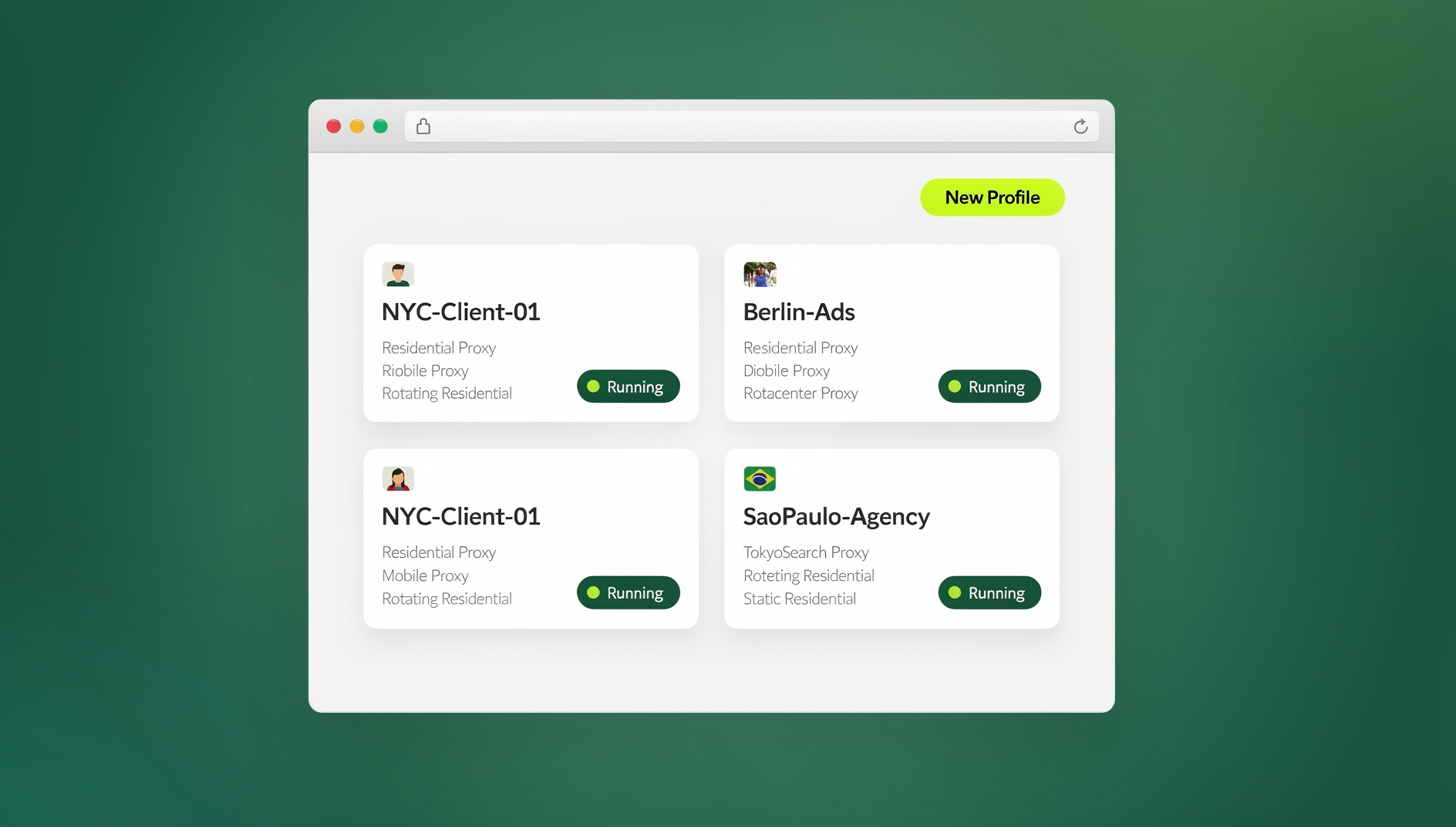
Sendwin is a browser profile manager built around running many separate profiles — each with its own cookies, local storage, and its own consistent browser fingerprint — without them ever bleeding into each other. For Snapchat specifically, that means Account A and Account B can both be logged into Snapchat for Web at the same time, in adjacent tabs, with each session kept separate from the other.
Why This Beats Phone-Switching for Business Use
If you’re managing Snapchat for more than one brand, client, or creator, a multi-login browser approach solves the two biggest pain points of phone-based switching: you can view and act on multiple accounts simultaneously, and you can hand off access to a teammate without ever sharing a password.
- True parallel sessions: every Snapchat Web login lives in its own isolated tab — no shared cookies, no cross-contamination.
- Unique fingerprint per profile: each session presents its own distinct browser fingerprint rather than one machine’s fingerprint reused across every account.
- Built-in proxy support: attach a residential or datacenter proxy per profile so each account’s traffic looks like it’s coming from a consistent, separate connection.
- Share access, not credentials: hand a saved session to a teammate or client for a set duration, then revoke it with one click — the password never changes hands.
- Team seats: agencies can add teammates to a workspace and assign specific sessions rather than distributing raw logins over Slack or a spreadsheet.
Step-by-Step: Running Multiple Snapchat Web Accounts in Parallel
- Sign up for Sendwin — plans start at $19/mo, and your first card purchase is covered by a 7-day money-back guarantee.
- Create your first profile and open web.snapchat.com; log in to Account #1.
- Create a second profile (Sendwin keeps its cookies, storage, and fingerprint completely separate from Profile #1) and log in to Account #2 at web.snapchat.com.
- Repeat for every client, brand, or creator account you manage — each lives in its own tab, all open at once.
- Optionally attach a proxy to each profile if you want a distinct, stable IP per account.
- When a teammate needs temporary access, share the specific session instead of the password, and revoke it the moment the job is done.
Desktop App vs. Cloud Browser Sessions: Which Should You Use for Snapchat?
Sendwin actually gives you two separate ways to run these isolated Snapchat sessions, and it’s worth knowing the difference before you commit to one:
| Mode | How It Works | Best For |
|---|---|---|
| Desktop app | A native Windows, macOS, or Linux client you install once; profiles run locally on your machine with their own fingerprint and storage. | Anyone managing Snapchat daily from a dedicated work computer. |
| Cloud browser sessions | Profiles run entirely in the cloud — no desktop install at all. Access any session from any device with just a browser, metered by monthly cloud browsing time. | Managing accounts from a laptop, tablet, or shared computer, or when a client needs to log in from wherever they are without installing anything. |
If you’re the type of social media manager who bounces between a work laptop and a home computer, or an agency owner who wants clients to be able to check in on their own Snapchat sessions without installing software, cloud browser sessions are the better fit — they’re included on paid plans alongside cloud sync and profile sharing, and there’s genuinely nothing to download. If you run Snapchat management as your daily job from one dedicated machine, the desktop app gives you the same isolation with no monthly time meter to watch.
Sharing Profiles with Your Team (Team Plan)
Agencies running Snapchat at real scale — think dozens of client Public Profiles — often want to keep routine checks organised rather than click through them manually: verifying every saved session is still authenticated, confirming a proxy is still live, or capturing a screenshot of each Public Profile for a weekly client report. Sendwin’s Team plan gives you 500 profiles and 16 seats so your team can share access to the profiles they need. It’s meant for organising and sharing sessions, not for automating actual posting or engagement on Snapchat — that would violate Snapchat’s own policies regardless of what tool you use.
Creator & Agency Workflow: Business vs. Personal, Public Profiles, and Roles
Create a Public Profile for Business
Snapchat’s Public Profiles are the correct format for a brand or creator business presence — they’re discoverable, support Spotlight submissions, and separate business content cleanly from a personal account. Set one up from the app’s Business Profile settings, keeping your personal account entirely separate.
Assign Roles and Permissions
For agencies, Snapchat’s Business Manager (where available) lets you assign specific roles — admin, editor, analyst — so team members get exactly the access they need rather than a shared master login. Combine this with session-based sharing in your browser tool of choice so even non-admin roles never see the raw password.
Snap Pixel and Attribution
If you’re running ads across multiple Public Profiles, keep Snap Pixel implementations and attribution windows consistent across accounts so cross-account reporting stays comparable — a common gap when different team members set up different client accounts independently.
Daily Ops: A Practical Playbook for Multiple Snapchat Profiles
Creator Workflow
Batch-create Story and Spotlight content on a set schedule, keep a lightweight content calendar per account, and log in through isolated sessions so you never accidentally post personal content to a public account (or vice versa) — a surprisingly common and embarrassing mistake when switching quickly on one device.
Agency Social Media Management
Standardize a naming convention for every saved session (client name + platform + account type), keep a shared tracker of who has access to which account, and use shared sessions instead of shared passwords so offboarding a contractor is a single click, not a company-wide password reset.
Notifications and Focus
If you’re personally managing 2-3 accounts on a phone, mute non-priority accounts’ notifications so the account you’re actively working from doesn’t get buried; on desktop, isolated browser tabs solve this automatically since each session’s notifications stay contained to its own tab.
Analytics and Reporting
Pull engagement snapshots on a consistent day/time each week per account so trend comparisons are apples-to-apples, especially important when several team members are each responsible for a different subset of accounts.
Security and Privacy: Avoiding Bans While Running Multiple Accounts
The number one cause of account locks isn’t having multiple accounts — it’s how those accounts are accessed and behave. A few practices meaningfully reduce risk:
- Use genuine isolation, not shared storage. Session isolation keeps each account’s cookies and cache from ever touching another account’s, which avoids the cross-contamination signals that automated systems look for.
- Pace new logins. Don’t log into five new accounts back-to-back on one device or IP in a short window.
- Match proxy geography to the account’s real usage location rather than routing every account through the same IP, which can look like one operator running a bot farm.
- Keep behavior human. No auto-adding friends, no scripted mass-viewing of Stories, no third-party engagement bots.
- Avoid unofficial cloner apps and modded clients — they’re the single most common cause of unexpected account locks reported by creators and agencies alike.
- Use strong, unique credentials and 2FA on every account, since credential stuffing (not multi-account use itself) is the more common cause of account takeovers.
Troubleshooting Common Multi-Account Headaches
| Problem | Likely Cause | Fix |
|---|---|---|
| Notifications only arrive for one account | Only one account is “active” in the switcher | Use Web + isolated browser sessions for true parallel notifications, or a work-profile clone |
| Account temporarily locked after adding a second login | Rapid login pattern or cloner app flagged as suspicious | Switch to native switching, OS work profiles, or Web + Sendwin; avoid third-party cloners |
| Can’t tell which account is currently active | Similar Bitmoji/usernames across accounts | Use distinct display names and label saved sessions clearly (e.g., in Sendwin’s dashboard) |
| Cloned app stops working after a Snapchat update | Cloner app hasn’t caught up to the new client version | Prefer Snapchat for Web sessions, which always run the current official web client |
| Teammate access needs to be revoked quickly | Shared raw password instead of a shareable session | Use session-sharing with one-click revoke instead of distributing credentials |
How to Use Two Snapchat Accounts on One Phone (By Platform)
iOS (iPhone/iPad)
Save both logins in the native account switcher for quick single-session switching; for genuinely side-by-side access, use Snapchat for Web through isolated browser sessions from an iPad or Mac browser instead.
Android (Any Brand)
Use a Work Profile app like Shelter or Island for a fully sandboxed second Snapchat instance, or check Settings for a manufacturer-native Dual Apps feature first — Samsung and Xiaomi both ship one out of the box.
Desktop/Laptop (Windows/Mac/Linux/Chromebook)
This is where parallel access is easiest: open Snapchat for Web in separate isolated browser profiles (or Sendwin’s cloud browser sessions if you’re on a shared or borrowed machine) and log into as many accounts as you need, all visible at once.
Content and Collaboration Best Practices Across Multiple Profiles
Keep a shared content calendar that’s tagged by account, use consistent caption and Bitmoji/branding templates per profile so switching between client accounts doesn’t cause an off-brand slip, and document a clear handover process (which sessions, which proxies, which Public Profile roles) for whenever a client account changes hands between team members. Agencies managing accounts across other platforms too will recognize this pattern — it’s the same discipline covered in guides on managing Snapchat accounts in a single browser, just extended to a full multi-client operation.
Sendwin Plans for Snapchat Multi-Account Management
Sendwin’s current pricing (2026) is straightforward: Pro is $19/mo or $83.88/yr, and Team is $49/mo or $251.88/yr. Your first card purchase is covered by a 7-day money-back guarantee.
| Plan | Price | Good For |
|---|---|---|
| Pro | $19/mo ($6.99/mo billed annually — 63% off) — 150 profiles, 5GB proxy bandwidth | Solo creators or small businesses running a handful of Snapchat accounts |
| Team | $49/mo ($251.88/yr) — 500 profiles, 20GB bandwidth, 16 seats | Agencies managing many client Snapchat accounts with shared access |
Both plans include cloud sync, profile sharing, and the browser isolation, unique fingerprints, and built-in proxy support that make parallel Snapchat sessions safe to run in the first place. Extra profiles and proxy bandwidth are available as pay-as-you-go add-ons if you outgrow a plan’s included allowance mid-cycle.
🏆 Send.win Verdict
For occasional personal use, Snapchat’s own account switcher or an Android work profile is enough. But the moment you’re managing Snapchat for a business, a creator brand, or multiple clients, you need true parallel access, session isolation, and a safe way to share logins with teammates — and that’s exactly what Sendwin’s cloud browser sessions and desktop app deliver, with Team-plan seats for agencies that need to share profiles across a team.
Try Send.win today — plans start at $19/mo with a 7-day money-back guarantee on your first card purchase, and run every Snapchat account you manage in its own isolated session.
Frequently Asked Questions
Can you have multiple Snapchat accounts?
Yes. Snapchat doesn’t publish a hard limit on the number of accounts one person can hold. You can save multiple logins in the app and switch between them, or use Snapchat for Web with isolated browser sessions for accounts you need open at the same time. Just keep the way you access and use those accounts within Snapchat’s community guidelines.
How do I switch between two Snapchat accounts on one phone?
Tap your Bitmoji/avatar in the top-left corner, tap your account name, and choose “Add Account” to save a second login. From then on, you can switch between saved accounts from that same menu without a full logout and login each time.
Is it safe to use app cloners for Snapchat?
Generic third-party cloner apps carry real risk — they can inject code around Snapchat’s client, leak session data, or trigger integrity checks that lead to a lock. Manufacturer-native features like Samsung Dual Messenger or Xiaomi Dual Apps, or a reputable Android work-profile manager, are much safer because they duplicate the OS container rather than modifying Snapchat itself.
Will Snapchat ban me for running multiple accounts?
There’s no official rule against owning multiple accounts. Bans and locks typically come from suspicious behavior patterns — rapid account creation on one device, automated engagement, or unofficial modded clients — not from the mere fact of having more than one account.
What’s the difference between Sendwin’s Desktop app and cloud browser sessions for Snapchat?
The Desktop app is a native Windows/macOS/Linux client you install once, with profiles running locally on your machine. Cloud browser sessions run entirely in the cloud with no install at all — you access them from any device through a browser, metered by monthly cloud browsing time. Use the Desktop app if you manage Snapchat daily from one dedicated computer; use cloud browser sessions if you need access from multiple devices or want to hand a client a session without asking them to install anything.
Can agencies automate Snapchat account management with Sendwin?
The Team plan includes 500 profiles and 16 seats, so agencies can share access to the profiles they need — keeping each client’s Snapchat session separate and organised. It is not meant for automating actual posting, messaging, or engagement on Snapchat, which would violate the platform’s own policies.
Do I need a proxy for each Snapchat account?
It’s not strictly required for personal use, but for business and agency accounts it’s good practice to give each profile a consistent, matched proxy rather than routing everything through the same IP — this avoids the appearance of one operator running many accounts from a single connection.
What happens if I exceed my cloud browsing time on Sendwin?
Cloud browsing time is metered monthly on paid plans, similar to proxy bandwidth. If you’re regularly running close to your allowance, you can add more cloud browsing time as an add-on, upgrade your plan, or switch some of your day-to-day session use over to the Desktop app, which doesn’t draw from that same monthly meter.