Connecting Puppeteer to an Antidetect Browser — Full Tutorial
This Puppeteer antidetect browser tutorial shows you how to launch an antidetect browser profile, connect Puppeteer via the Chrome DevTools Protocol (CDP), navigate pages with masked fingerprints, and verify that your setup passes detection tests. You’ll have a working Node.js script by the end — no guesswork, no placeholder code.
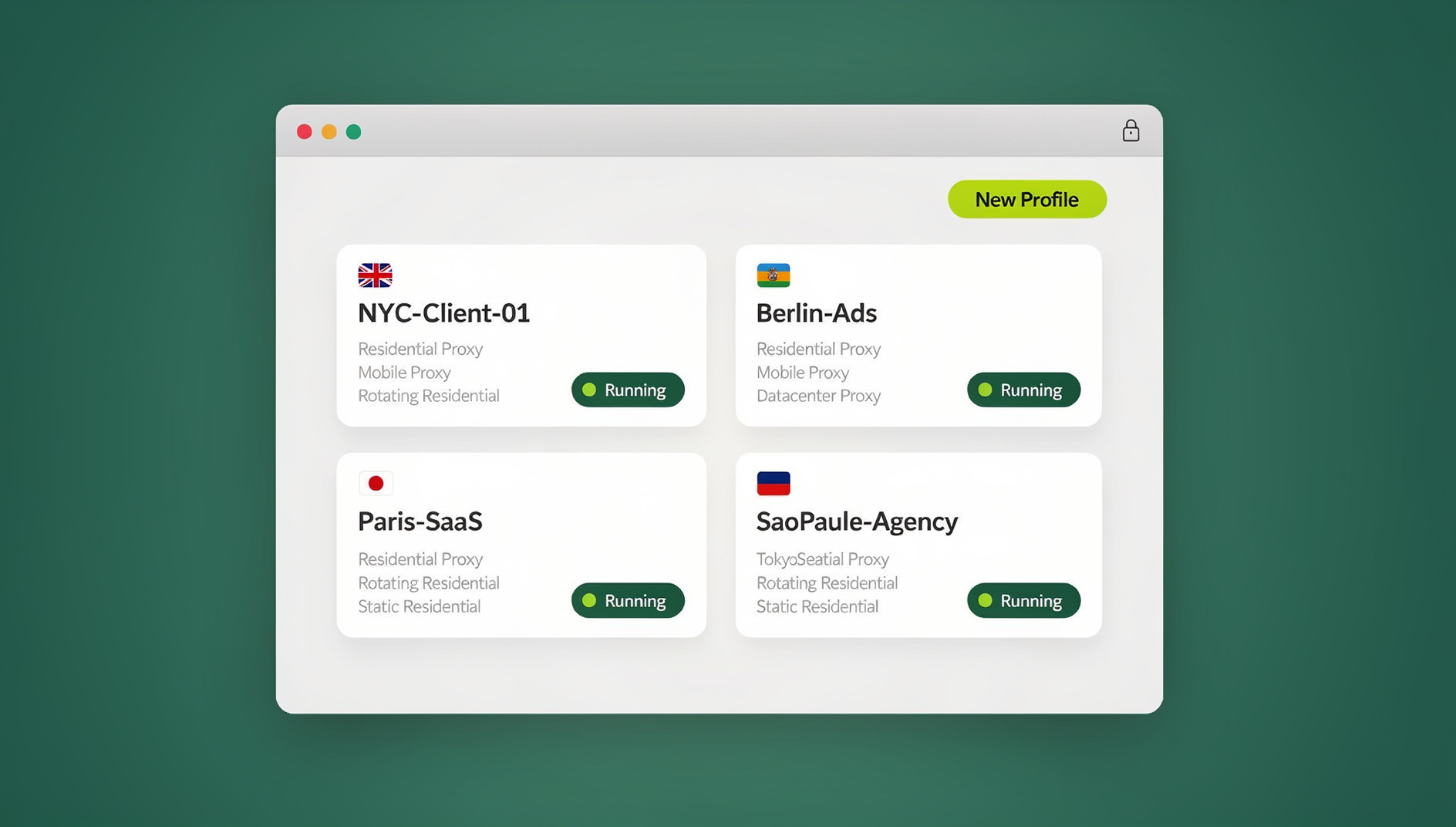
Standard Puppeteer launches a vanilla Chromium instance that every anti-bot system on the planet recognizes instantly. Connecting Puppeteer to an antidetect browser instead gives you the automation power of Puppeteer combined with the fingerprint masking of a dedicated anti-detection engine. The result: automated browser sessions that look like real human users.
Prerequisites
Before writing any code, make sure you have the following installed and configured:
Software Requirements
- Node.js 18+ — download from nodejs.org. Verify with
node --version - npm or yarn — comes with Node.js. Verify with
npm --version - A browser with automation API support — Multilogin, GoLogin, or any browser that exposes a CDP-compatible endpoint
- A configured browser profile — created inside your antidetect browser with desired fingerprint settings, proxy, timezone, and language
Why You Need an Antidetect Browser (Not Just Puppeteer-Extra)
You might be thinking: “Can’t I just use puppeteer-extra with the stealth plugin?” You can — and it handles basic bot detection. But it fails against advanced fingerprinting systems for several reasons:
- JavaScript-level patching is detectable. Stealth plugins modify browser APIs through JavaScript injection. Advanced anti-bot systems (DataDome, PerimeterX, Akamai) check for injection artifacts
- No persistent identity. Each Puppeteer launch creates a fresh browser context. Antidetect browsers maintain persistent profiles with cookies, local storage, and consistent fingerprints across sessions
- Limited fingerprint coverage. Stealth plugins primarily mask navigator properties and WebGL vendor strings. Antidetect browsers handle canvas noise, AudioContext, font enumeration, WebRTC, hardware concurrency, and dozens of other vectors
For a deeper understanding of how fingerprinting works and why basic masking fails, read our guide on WebGL fingerprinting.
Step 1 — Set Up Your Project
Create a new Node.js project and install Puppeteer Core. We use puppeteer-core instead of puppeteer because we don’t need Puppeteer to download its own Chromium — the antidetect browser provides the browser engine.
mkdir puppeteer-antidetect
cd puppeteer-antidetect
npm init -y
npm install puppeteer-core
Your package.json should now list puppeteer-core as a dependency:
{
  "name": "puppeteer-antidetect",
  "version": "1.0.0",
  "dependencies": {
    "puppeteer-core": "^23.0.0"
  }
}
Step 2 — Understand the Connection Architecture
Antidetect browsers with automation support expose a Chrome DevTools Protocol (CDP) WebSocket endpoint when you launch a profile. The workflow looks like this:
- Start your antidetect browser (desktop app or cloud instance)
- Launch a profile via the API — the browser starts a Chromium instance with your configured fingerprint
- Retrieve the CDP WebSocket URL — typically returned by the profile launch API response
- Connect Puppeteer to that WebSocket URL using
puppeteer.connect() - Automate — use standard Puppeteer commands (navigate, click, type, screenshot)
- Disconnect and close — disconnect Puppeteer and optionally close the profile via the API
This architecture means Puppeteer never launches its own browser. It connects to an already-running browser instance managed by the antidetect tool, inheriting all fingerprint masking, proxy routing, and session data automatically.
Step 3 — Launch a Profile and Get the CDP Endpoint
Every antidetect browser handles profile launching slightly differently through their API. The general pattern is:
- Make an HTTP request to the antidetect browser’s local or cloud API to start a profile
- The API returns a response containing the WebSocket debugger URL (the CDP endpoint)
Here’s a generic function that launches a profile and retrieves the CDP WebSocket URL. You’ll need to replace the API URL and parameters with your specific antidetect browser’s documentation:
// launch-profile.js
const http = require('http');

/**
 * Launch an antidetect browser profile and retrieve the CDP WebSocket URL.
 *
 * Most antidetect browsers expose a local REST API (usually on localhost)
 * that accepts a profile ID and returns connection details.
 *
 * @param {string} profileId - The profile ID from your antidetect browser
 * @param {string} apiBaseUrl - Base URL of the antidetect browser's API
 * @returns {Promise<string>} - The WebSocket debugger URL for Puppeteer
 */
async function launchProfile(profileId, apiBaseUrl) {
  return new Promise((resolve, reject) => {
    const url = `${apiBaseUrl}/api/v1/profile/start?profile_id=${profileId}`;

    http.get(url, (res) => {
      let data = '';
      res.on('data', (chunk) => { data += chunk; });
      res.on('end', () => {
        try {
          const response = JSON.parse(data);

          if (response.success && response.data && response.data.ws_endpoint) {
            console.log('Profile launched successfully');
            console.log('WebSocket URL:', response.data.ws_endpoint);
            resolve(response.data.ws_endpoint);
          } else {
            reject(new Error(`Failed to launch profile: ${data}`));
          }
        } catch (err) {
          reject(new Error(`Invalid API response: ${err.message}`));
        }
      });
    }).on('error', (err) => {
      reject(new Error(`API request failed: ${err.message}`));
    });
  });
}

module.exports = { launchProfile };
Important: The API endpoint URL, request format, and response structure vary by antidetect browser. Consult the official documentation for exact endpoint paths and authentication headers. The principle remains the same across all browsers: call an API, get back a WebSocket URL.
Step 4 — Connect Puppeteer via CDP
Once you have the WebSocket URL, connecting Puppeteer is straightforward:
// connect.js
const puppeteer = require('puppeteer-core');

/**
 * Connect Puppeteer to a running antidetect browser profile via CDP.
 *
 * @param {string} wsEndpoint - The WebSocket debugger URL from the profile launch
 * @returns {Promise<{browser: Browser, page: Page}>}
 */
async function connectToProfile(wsEndpoint) {
  // Connect to the running browser instance
  const browser = await puppeteer.connect({
    browserWSEndpoint: wsEndpoint,
    defaultViewport: null, // Use the viewport configured in the antidetect profile
  });

  // Get existing pages or create a new one
  const pages = await browser.pages();
  const page = pages.length > 0 ? pages[0] : await browser.newPage();

  // Set reasonable defaults
  await page.setDefaultNavigationTimeout(60000); // 60 second timeout
  await page.setDefaultTimeout(30000); // 30 second timeout for other operations

  console.log('Puppeteer connected to antidetect browser profile');
  return { browser, page };
}

module.exports = { connectToProfile };
Key details about the connection:
defaultViewport: nulltells Puppeteer not to override the viewport size configured in your antidetect profile. This is critical — mismatched viewport dimensions are a common detection vector- We grab existing pages first because the antidetect browser may have already opened a tab when launching the profile
- Generous timeouts account for proxy latency that’s common with residential proxies
Step 5 — Navigate and Interact
With Puppeteer connected, you can use the full Puppeteer API. Here’s an example that navigates to a page, waits for content to load, and extracts data:
// navigate.js

/**
 * Example navigation and interaction with an antidetect browser profile.
 *
 * @param {import('puppeteer-core').Page} page - The Puppeteer page object
 */
async function navigateAndInteract(page) {
  // Navigate to a target page
  console.log('Navigating to target page...');
  await page.goto('https://example.com', {
    waitUntil: 'networkidle2', // Wait until network is idle
    timeout: 60000,
  });

  // Wait for a specific element to appear
  await page.waitForSelector('h1', { timeout: 10000 });

  // Extract page title
  const title = await page.title();
  console.log('Page title:', title);

  // Extract text content from an element
  const heading = await page.$eval('h1', (el) => el.textContent.trim());
  console.log('H1 text:', heading);

  // Simulate human-like behavior: random delay before clicking
  await randomDelay(1000, 3000);

  // Click a link (if it exists)
  const linkExists = await page.$('a[href]');
  if (linkExists) {
    await page.click('a[href]');
    await page.waitForNavigation({ waitUntil: 'networkidle2', timeout: 60000 });
    console.log('Clicked first link, new URL:', page.url());
  }

  // Take a screenshot for verification
  await page.screenshot({ path: 'screenshot.png', fullPage: false });
  console.log('Screenshot saved to screenshot.png');
}

/**
 * Random delay to simulate human behavior.
 * Anti-bot systems flag perfectly timed interactions.
 */
function randomDelay(min, max) {
  const delay = Math.floor(Math.random() * (max - min + 1)) + min;
  return new Promise((resolve) => setTimeout(resolve, delay));
}

module.exports = { navigateAndInteract, randomDelay };
Human-Like Interaction Tips
Anti-bot systems don’t just check fingerprints — they analyze behavior patterns. Here are practices that make your automated sessions look more human:
- Random delays between actions: Use
randomDelay()instead of fixedsetTimeout()values - Mouse movement: Move the cursor to elements before clicking instead of using direct
.click() - Scroll behavior: Scroll the page gradually rather than jumping to elements
- Typing speed: Use
page.type(selector, text, { delay: 50-150 })to simulate natural typing - Session duration: Don’t complete all actions in 2 seconds. Real users take time to read and think
These behavioral techniques complement the fingerprint masking provided by your antidetect browser. For more on how anti-bot systems work and how to handle them, see our guide on bypass anti-bot detection.
Step 6 — Verify Fingerprint Masking
Before running your automation against real targets, verify that the antidetect browser’s fingerprint masking is working correctly through Puppeteer. Here’s a script that runs common detection checks:
// fingerprint-check.js
const puppeteer = require('puppeteer-core');

/**
 * Run fingerprint verification tests on the connected antidetect profile.
 * Tests canvas, WebGL, WebRTC, and navigator properties.
 *
 * @param {import('puppeteer-core').Page} page - The Puppeteer page object
 * @returns {Promise<object>} - Test results
 */
async function verifyFingerprint(page) {
  const results = {};

  // Test 1: Navigator properties
  results.navigator = await page.evaluate(() => ({
    userAgent: navigator.userAgent,
    platform: navigator.platform,
    hardwareConcurrency: navigator.hardwareConcurrency,
    deviceMemory: navigator.deviceMemory,
    languages: navigator.languages,
    maxTouchPoints: navigator.maxTouchPoints,
    webdriver: navigator.webdriver, // Should be false or undefined
  }));

  // Test 2: WebGL renderer and vendor
  results.webgl = await page.evaluate(() => {
    const canvas = document.createElement('canvas');
    const gl = canvas.getContext('webgl');
    if (!gl) return { supported: false };

    const debugInfo = gl.getExtension('WEBGL_debug_renderer_info');
    return {
      supported: true,
      vendor: debugInfo ? gl.getParameter(debugInfo.UNMASKED_VENDOR_WEBGL) : 'N/A',
      renderer: debugInfo ? gl.getParameter(debugInfo.UNMASKED_RENDERER_WEBGL) : 'N/A',
    };
  });

  // Test 3: Canvas fingerprint (check that it generates a hash)
  results.canvas = await page.evaluate(() => {
    const canvas = document.createElement('canvas');
    canvas.width = 200;
    canvas.height = 50;
    const ctx = canvas.getContext('2d');
    ctx.textBaseline = 'top';
    ctx.font = '14px Arial';
    ctx.fillStyle = '#f60';
    ctx.fillRect(0, 0, 200, 50);
    ctx.fillStyle = '#069';
    ctx.fillText('Fingerprint test', 2, 2);
    return canvas.toDataURL().substring(0, 100) + '...';
  });

  // Test 4: WebRTC leak check
  results.webrtc = await page.evaluate(() => {
    return new Promise((resolve) => {
      try {
        const pc = new RTCPeerConnection({
          iceServers: [{ urls: 'stun:stun.l.google.com:19302' }],
        });
        const ips = [];

        pc.createDataChannel('');
        pc.createOffer().then((offer) => pc.setLocalDescription(offer));

        pc.onicecandidate = (event) => {
          if (!event.candidate) {
            pc.close();
            resolve({ leakedIPs: ips });
            return;
          }
          const candidate = event.candidate.candidate;
          const ipMatch = candidate.match(/(\d{1,3}\.){3}\d{1,3}/);
          if (ipMatch && !ips.includes(ipMatch[0])) {
            ips.push(ipMatch[0]);
          }
        };

        // Timeout after 5 seconds
        setTimeout(() => {
          pc.close();
          resolve({ leakedIPs: ips });
        }, 5000);
      } catch (e) {
        resolve({ leakedIPs: [], error: e.message });
      }
    });
  });

  // Test 5: Automation detection flags
  results.automationFlags = await page.evaluate(() => ({
    webdriver: navigator.webdriver,
    chrome: !!window.chrome,
    permissions: typeof navigator.permissions !== 'undefined',
    plugins: navigator.plugins.length,
    hasChromeCDP: !!window.chrome?.csi,
  }));

  return results;
}

/**
 * Print fingerprint results in a readable format.
 */
function printResults(results) {
  console.log('\n=== FINGERPRINT VERIFICATION RESULTS ===\n');

  console.log('--- Navigator ---');
  console.log('User Agent:', results.navigator.userAgent);
  console.log('Platform:', results.navigator.platform);
  console.log('Hardware Concurrency:', results.navigator.hardwareConcurrency);
  console.log('Device Memory:', results.navigator.deviceMemory, 'GB');
  console.log('Languages:', results.navigator.languages.join(', '));
  console.log('WebDriver flag:', results.navigator.webdriver);

  console.log('\n--- WebGL ---');
  if (results.webgl.supported) {
    console.log('Vendor:', results.webgl.vendor);
    console.log('Renderer:', results.webgl.renderer);
  } else {
    console.log('WebGL not supported');
  }

  console.log('\n--- Canvas ---');
  console.log('Data URL sample:', results.canvas);

  console.log('\n--- WebRTC ---');
  if (results.webrtc.leakedIPs.length > 0) {
    console.log('⚠️  Leaked IPs:', results.webrtc.leakedIPs.join(', '));
  } else {
    console.log('✅ No WebRTC IP leaks detected');
  }

  console.log('\n--- Automation Flags ---');
  console.log('navigator.webdriver:', results.automationFlags.webdriver);
  console.log('window.chrome exists:', results.automationFlags.chrome);
  console.log('Plugins count:', results.automationFlags.plugins);

  // Key warnings
  console.log('\n--- WARNINGS ---');
  if (results.navigator.webdriver === true) {
    console.log('⚠️  navigator.webdriver is TRUE — this flags your session as automated');
  }
  if (results.webrtc.leakedIPs.length > 0) {
    console.log('⚠️  WebRTC is leaking local IPs — enable WebRTC masking in your profile');
  }
  if (results.automationFlags.plugins === 0) {
    console.log('⚠️  No browser plugins detected — real browsers typically have 3-5 plugins');
  }
}

module.exports = { verifyFingerprint, printResults };
Run this check every time you set up a new profile or update your antidetect browser. Even small configuration changes can expose fingerprint inconsistencies. Understanding how browser fingerprinting works at a technical level helps you interpret these results — our Selenium browser fingerprint guide covers the detection vectors in detail.
Step 7 — Handle Profile Lifecycle
Proper cleanup is critical. If you don’t close profiles after automation runs, you’ll hit resource limits and potentially corrupt session data. Here’s how to handle the full lifecycle:
// lifecycle.js
const http = require('http');

/**
 * Stop an antidetect browser profile via the API.
 *
 * @param {string} profileId - The profile ID to stop
 * @param {string} apiBaseUrl - Base URL of the antidetect browser's API
 * @returns {Promise<boolean>} - True if stopped successfully
 */
async function stopProfile(profileId, apiBaseUrl) {
  return new Promise((resolve, reject) => {
    const url = `${apiBaseUrl}/api/v1/profile/stop?profile_id=${profileId}`;

    http.get(url, (res) => {
      let data = '';
      res.on('data', (chunk) => { data += chunk; });
      res.on('end', () => {
        try {
          const response = JSON.parse(data);
          if (response.success) {
            console.log('Profile stopped successfully');
            resolve(true);
          } else {
            console.error('Failed to stop profile:', data);
            resolve(false);
          }
        } catch (err) {
          reject(new Error(`Invalid API response: ${err.message}`));
        }
      });
    }).on('error', (err) => {
      reject(new Error(`API request failed: ${err.message}`));
    });
  });
}

/**
 * Graceful cleanup: disconnect Puppeteer and stop the profile.
 */
async function cleanup(browser, profileId, apiBaseUrl) {
  try {
    // Disconnect Puppeteer (doesn't close the browser)
    if (browser) {
      await browser.disconnect();
      console.log('Puppeteer disconnected');
    }
  } catch (err) {
    console.error('Error disconnecting Puppeteer:', err.message);
  }

  try {
    // Stop the profile via the antidetect browser API
    if (profileId && apiBaseUrl) {
      await stopProfile(profileId, apiBaseUrl);
    }
  } catch (err) {
    console.error('Error stopping profile:', err.message);
  }
}

module.exports = { stopProfile, cleanup };
Critical distinction: Use browser.disconnect(), not browser.close(). The close() method terminates the browser process entirely, which can corrupt the antidetect profile’s session data. disconnect() releases Puppeteer’s connection while leaving the browser running, so the antidetect browser’s own shutdown process can save cookies, local storage, and session state properly.
Step 8 — Complete Working Script
Here’s the full script combining all previous steps into a single, runnable file:
// index.js — Complete Puppeteer + Antidetect Browser Script
const puppeteer = require('puppeteer-core');
const http = require('http');

// ============================================================
// CONFIGURATION — Update these values for your setup
// ============================================================
const CONFIG = {
  profileId: 'YOUR_PROFILE_ID',              // Profile ID from your antidetect browser
  apiBaseUrl: 'http://localhost:3001',         // Local API endpoint (check your browser's docs)
  targetUrl: 'https://browserleaks.com/canvas', // URL to navigate to for testing
};

// ============================================================
// PROFILE MANAGEMENT
// ============================================================

async function launchProfile(profileId, apiBaseUrl) {
  return new Promise((resolve, reject) => {
    const url = `${apiBaseUrl}/api/v1/profile/start?profile_id=${profileId}`;

    http.get(url, (res) => {
      let data = '';
      res.on('data', (chunk) => { data += chunk; });
      res.on('end', () => {
        try {
          const response = JSON.parse(data);
          if (response.success && response.data && response.data.ws_endpoint) {
            console.log('[+] Profile launched');
            resolve(response.data.ws_endpoint);
          } else {
            reject(new Error(`Launch failed: ${data}`));
          }
        } catch (err) {
          reject(new Error(`Bad response: ${err.message}`));
        }
      });
    }).on('error', reject);
  });
}

async function stopProfile(profileId, apiBaseUrl) {
  return new Promise((resolve) => {
    const url = `${apiBaseUrl}/api/v1/profile/stop?profile_id=${profileId}`;
    http.get(url, (res) => {
      let data = '';
      res.on('data', (chunk) => { data += chunk; });
      res.on('end', () => {
        console.log('[+] Profile stopped');
        resolve(true);
      });
    }).on('error', () => resolve(false));
  });
}

// ============================================================
// PUPPETEER CONNECTION
// ============================================================

async function connectPuppeteer(wsEndpoint) {
  const browser = await puppeteer.connect({
    browserWSEndpoint: wsEndpoint,
    defaultViewport: null,
  });

  const pages = await browser.pages();
  const page = pages.length > 0 ? pages[0] : await browser.newPage();

  await page.setDefaultNavigationTimeout(60000);
  await page.setDefaultTimeout(30000);

  console.log('[+] Puppeteer connected');
  return { browser, page };
}

// ============================================================
// FINGERPRINT VERIFICATION
// ============================================================

async function checkFingerprint(page) {
  console.log('\n[*] Running fingerprint checks...\n');

  const results = await page.evaluate(() => {
    // Navigator
    const nav = {
      userAgent: navigator.userAgent,
      platform: navigator.platform,
      hardwareConcurrency: navigator.hardwareConcurrency,
      deviceMemory: navigator.deviceMemory,
      languages: [...navigator.languages],
      webdriver: navigator.webdriver,
      plugins: navigator.plugins.length,
    };

    // WebGL
    let webgl = { supported: false };
    try {
      const canvas = document.createElement('canvas');
      const gl = canvas.getContext('webgl');
      if (gl) {
        const info = gl.getExtension('WEBGL_debug_renderer_info');
        webgl = {
          supported: true,
          vendor: info ? gl.getParameter(info.UNMASKED_VENDOR_WEBGL) : 'N/A',
          renderer: info ? gl.getParameter(info.UNMASKED_RENDERER_WEBGL) : 'N/A',
        };
      }
    } catch (e) {
      webgl = { supported: false, error: e.message };
    }

    // Canvas hash
    const cvs = document.createElement('canvas');
    cvs.width = 200;
    cvs.height = 50;
    const ctx = cvs.getContext('2d');
    ctx.textBaseline = 'top';
    ctx.font = '14px Arial';
    ctx.fillStyle = '#f60';
    ctx.fillRect(0, 0, 200, 50);
    ctx.fillStyle = '#069';
    ctx.fillText('FP Test', 2, 2);
    const canvasHash = cvs.toDataURL().length;

    return { nav, webgl, canvasHash };
  });

  console.log('User Agent:', results.nav.userAgent);
  console.log('Platform:', results.nav.platform);
  console.log('Cores:', results.nav.hardwareConcurrency);
  console.log('Memory:', results.nav.deviceMemory, 'GB');
  console.log('Languages:', results.nav.languages.join(', '));
  console.log('WebDriver:', results.nav.webdriver);
  console.log('Plugins:', results.nav.plugins);
  console.log('WebGL Vendor:', results.webgl.vendor);
  console.log('WebGL Renderer:', results.webgl.renderer);
  console.log('Canvas data length:', results.canvasHash);

  // Warnings
  const warnings = [];
  if (results.nav.webdriver === true) {
    warnings.push('navigator.webdriver is TRUE — automation detected');
  }
  if (results.nav.plugins === 0) {
    warnings.push('No plugins — real browsers show 3-5 plugins');
  }

  if (warnings.length > 0) {
    console.log('\n⚠️  WARNINGS:');
    warnings.forEach((w) => console.log(`   - ${w}`));
  } else {
    console.log('\n✅ All fingerprint checks passed');
  }

  return results;
}

// ============================================================
// HUMAN-LIKE HELPERS
// ============================================================

function randomDelay(min, max) {
  const ms = Math.floor(Math.random() * (max - min + 1)) + min;
  return new Promise((resolve) => setTimeout(resolve, ms));
}

async function humanScroll(page) {
  await page.evaluate(async () => {
    const totalHeight = document.body.scrollHeight;
    const viewportHeight = window.innerHeight;
    let scrolled = 0;

    while (scrolled < totalHeight) {
      const scrollStep = Math.floor(Math.random() * 200) + 100;
      window.scrollBy(0, scrollStep);
      scrolled += scrollStep;
      await new Promise((r) => setTimeout(r, Math.random() * 300 + 100));
    }
  });
}

// ============================================================
// MAIN EXECUTION
// ============================================================

async function main() {
  let browser = null;

  try {
    // Step 1: Launch profile
    console.log('[*] Launching antidetect profile...');
    const wsEndpoint = await launchProfile(CONFIG.profileId, CONFIG.apiBaseUrl);

    // Step 2: Connect Puppeteer
    const connection = await connectPuppeteer(wsEndpoint);
    browser = connection.browser;
    const page = connection.page;

    // Step 3: Navigate to target
    console.log(`[*] Navigating to ${CONFIG.targetUrl}...`);
    await page.goto(CONFIG.targetUrl, { waitUntil: 'networkidle2' });
    console.log('[+] Page loaded:', await page.title());

    // Step 4: Run fingerprint checks
    await checkFingerprint(page);

    // Step 5: Simulate human behavior
    await randomDelay(2000, 4000);
    await humanScroll(page);

    // Step 6: Take screenshot
    await page.screenshot({ path: 'result.png', fullPage: true });
    console.log('\n[+] Screenshot saved to result.png');

    // Step 7: Disconnect Puppeteer (NOT browser.close())
    await browser.disconnect();
    browser = null;
    console.log('[+] Puppeteer disconnected');

    // Step 8: Stop profile via API
    await stopProfile(CONFIG.profileId, CONFIG.apiBaseUrl);

    console.log('\n[+] Automation complete!');

  } catch (error) {
    console.error('\n[!] Error:', error.message);

    // Cleanup on error
    if (browser) {
      try {
        await browser.disconnect();
      } catch (e) {
        // Ignore disconnect errors
      }
    }

    // Try to stop the profile even if Puppeteer fails
    try {
      await stopProfile(CONFIG.profileId, CONFIG.apiBaseUrl);
    } catch (e) {
      // Ignore stop errors
    }

    process.exit(1);
  }
}

main();
To run the script:
node index.js
Common Errors and Fixes
Here are the most frequent issues you’ll encounter when connecting Puppeteer to an antidetect browser, along with solutions:
Error: “WebSocket connection failed” or “ECONNREFUSED”
Cause: The antidetect browser’s API is not running, or the WebSocket URL has expired.
Fix:
- Make sure the antidetect browser’s desktop app is running before executing your script
- Check that the API port matches your configuration (common ports: 3001, 50325, 36912)
- Some browsers require enabling the API in settings before it accepts connections
- If using cloud sessions, verify your API key and network connectivity
Automate Puppeteer Antidetect Browser Tutorial
Send.win pairs isolated, fingerprint-managed browser profiles with a cloud browser that runs on Send.win’s servers in the EU, so your work stays in profiles that keep their own separate cookies, storage and fingerprint:
- Selenium, Puppeteer & Playwright support – drive any profile programmatically (Team plan)
- Isolated profiles – each with its own fingerprint, cookies, and storage
- Built-in residential proxies – with automatic timezone, locale, and WebRTC matching
- Desktop app for Windows, macOS & Linux – plus cloud sessions when you don’t want a local install
Try the instant cloud browser demo — no install, straight from your browser. Then compare plans: paid plans from $19/month, and the first card purchase is covered by a 7-day money-back guarantee.
Error: “Target closed” or “Session closed”
Cause: The antidetect browser closed the profile while Puppeteer was still connected.
Fix:
- Don’t manually close profile tabs while automation is running
- Increase timeout values for slow-loading pages
- Wrap navigation calls in try-catch blocks and reconnect if the session drops
- Check for profile auto-close settings in your antidetect browser
Error: “navigator.webdriver is true”
Cause: The antidetect browser isn’t masking the WebDriver flag, or Puppeteer is overriding it.
Fix:
- Verify that your antidetect profile has “WebDriver masking” or “automation flag hiding” enabled
- Don’t pass
args: ['--enable-automation']when connecting (not applicable topuppeteer.connect(), but worth checking launch configs) - Test in the antidetect browser manually first to confirm the flag is hidden before automating
Error: “Protocol error: Page not found”
Cause: Puppeteer is trying to access a page or frame that no longer exists.
Fix:
- Always check if the page is still open before interacting:
if (!page.isClosed()) - Handle popup windows and new tabs explicitly — they create new page objects
- After navigation, re-query page references instead of caching them
Error: “Timeout exceeded waiting for selector”
Cause: The page structure changed, the element didn’t load, or proxy latency is too high.
Fix:
- Increase timeout values when using residential or mobile proxies (they’re slower)
- Use
waitForSelectorwith a longer timeout before interacting with elements - Verify the selector still matches the page structure using the antidetect browser manually
- Consider using
waitForNetworkIdleinstead of fixed timeouts
Fingerprint Mismatch After Browser Update
Cause: The antidetect browser updated its Chromium engine, changing default fingerprint values.
Fix:
- Re-run the fingerprint verification script after any antidetect browser update
- Check that WebGL vendor/renderer strings still match a plausible hardware configuration
- Update user agent strings in your profiles to match the new Chromium version
- Test on BrowserLeaks and CreepJS after updates
Advanced: Running Multiple Profiles in Parallel
For scaling automation across multiple antidetect profiles, launch profiles concurrently with controlled parallelism:
// parallel.js — Run multiple profiles concurrently
const puppeteer = require('puppeteer-core');
const http = require('http');

const CONFIG = {
  apiBaseUrl: 'http://localhost:3001',
  maxConcurrent: 5, // Limit parallel profiles to avoid resource exhaustion
  profileIds: [
    'profile_1',
    'profile_2',
    'profile_3',
    'profile_4',
    'profile_5',
  ],
};

async function launchAndConnect(profileId) {
  return new Promise((resolve, reject) => {
    const url = `${CONFIG.apiBaseUrl}/api/v1/profile/start?profile_id=${profileId}`;
    http.get(url, (res) => {
      let data = '';
      res.on('data', (chunk) => { data += chunk; });
      res.on('end', async () => {
        try {
          const response = JSON.parse(data);
          if (response.success && response.data?.ws_endpoint) {
            const browser = await puppeteer.connect({
              browserWSEndpoint: response.data.ws_endpoint,
              defaultViewport: null,
            });
            resolve({ profileId, browser });
          } else {
            reject(new Error(`Failed: ${profileId}`));
          }
        } catch (err) {
          reject(err);
        }
      });
    }).on('error', reject);
  });
}

async function processProfile({ profileId, browser }) {
  try {
    const pages = await browser.pages();
    const page = pages[0] || await browser.newPage();

    console.log(`[${profileId}] Navigating...`);
    await page.goto('https://example.com', { waitUntil: 'networkidle2' });

    const title = await page.title();
    console.log(`[${profileId}] Title: ${title}`);

    // Add your automation logic here

    await browser.disconnect();
    console.log(`[${profileId}] Done`);
    return { profileId, status: 'success', title };

  } catch (err) {
    console.error(`[${profileId}] Error: ${err.message}`);
    try { await browser.disconnect(); } catch (e) {}
    return { profileId, status: 'error', error: err.message };
  }
}

async function runParallel() {
  const results = [];

  // Process in batches to respect maxConcurrent limit
  for (let i = 0; i < CONFIG.profileIds.length; i += CONFIG.maxConcurrent) {
    const batch = CONFIG.profileIds.slice(i, i + CONFIG.maxConcurrent);
    console.log(`\n[*] Processing batch: ${batch.join(', ')}`);

    const connections = await Promise.allSettled(
      batch.map((id) => launchAndConnect(id))
    );

    const active = connections
      .filter((c) => c.status === 'fulfilled')
      .map((c) => c.value);

    const batchResults = await Promise.allSettled(
      active.map((conn) => processProfile(conn))
    );

    results.push(...batchResults.map((r) => r.value || r.reason));

    // Brief pause between batches
    if (i + CONFIG.maxConcurrent < CONFIG.profileIds.length) {
      await new Promise((r) => setTimeout(r, 2000));
    }
  }

  console.log('\n[+] All profiles processed');
  console.log('Results:', JSON.stringify(results, null, 2));
}

runParallel().catch(console.error);
Resource management tips for parallel execution:
- Limit concurrent profiles to 5-10 depending on your machine’s RAM (each Chromium instance uses 200-500 MB)
- Add delays between batch launches to avoid overwhelming the antidetect browser’s API
- Monitor system memory and CPU usage — antidetect browsers with cloud sessions handle resource management for you
- Always disconnect Puppeteer and stop profiles in finally blocks to prevent resource leaks
Proper session isolation between these parallel profiles is what makes antidetect browsers essential for this workflow. Learn more in our guide on session isolation.
Connecting Puppeteer to an Antidetect Browser
Send.win is a browser profile manager for professionals and teams, with paid plans starting at $19/month (Pro) or $49/month (Team). It does not offer an automation interface — no API, SDK, headless mode or Selenium/Puppeteer/Playwright support on any plan.
The general workflow with Send.win follows the same pattern described in this tutorial:
- Create and configure a browser profile in the Send.win desktop app or cloud interface
- Launch the profile manually, then connect Puppeteer to its CDP endpoint
- Retrieve the CDP WebSocket endpoint from the API response
- Connect Puppeteer (or Selenium or Playwright) to that endpoint
- Run your automation
- Disconnect and stop the profile via the API
Send.win also offers a cloud browser that runs on Send.win’s servers in the EU, so profiles can run without keeping your local machine on. Note that Send.win does not provide an automation interface, so Puppeteer cannot be connected to its profiles.
Refer to your antidetect browser’s official documentation for the specific API endpoints, authentication headers, and response formats — they follow the REST patterns shown in this tutorial but with browser-specific paths and parameters.
🏆 Send.win Verdict
For Puppeteer automation with browser profiles, choose a browser that exposes a CDP-compatible endpoint. Send.win is a browser profile manager without an automation interface, so it cannot be scripted with Puppeteer, Selenium or Playwright.
Try the Send.win cloud demo — a 3-minute preview without signup, or 10 minutes a day with a free account.
Frequently Asked Questions
Do I need puppeteer or puppeteer-core for antidetect browsers?
Use puppeteer-core. The standard puppeteer package downloads and bundles its own Chromium binary, which you don’t need — the antidetect browser provides the browser engine. puppeteer-core is a lightweight version that only includes the Puppeteer API for connecting to existing browser instances via CDP.
Can I use Puppeteer with any antidetect browser?
Most modern browsers with automation API support work with Puppeteer. The browser needs to expose a Chrome DevTools Protocol (CDP) WebSocket endpoint when launching profiles. Multilogin, GoLogin, AdsPower, Dolphin Anty, and Incogniton all support this. Check your specific browser’s documentation for API availability — some restrict it to higher-tier plans.
Why does my antidetect profile still get detected when using Puppeteer?
Common causes include: the navigator.webdriver flag not being masked (enable it in your profile settings), viewport mismatches between Puppeteer and profile configuration (use defaultViewport: null), bot-like behavior patterns (no delays, instant clicks, no scrolling), and outdated Chromium engine versions. Run the fingerprint verification script from this tutorial to identify specific issues.
What’s the difference between puppeteer.launch() and puppeteer.connect()?
puppeteer.launch() starts a new Chromium process from scratch — it has no fingerprint masking, no persistent cookies, and is easily detected. puppeteer.connect() attaches to an already-running browser instance (launched by the antidetect browser) that has fingerprint masking, session data, and proxy configuration already applied. Always use connect() with antidetect browsers.
Should I use browser.close() or browser.disconnect() with antidetect profiles?
Always use browser.disconnect(). The close() method kills the browser process, which can corrupt the antidetect profile’s session data (cookies, local storage, IndexedDB). disconnect() releases Puppeteer’s connection while letting the antidetect browser handle shutdown gracefully, preserving all session state for future use.
How many profiles can I run in parallel with Puppeteer?
It depends on your system resources and the antidetect browser’s limits. Each Chromium instance uses 200-500 MB of RAM. On a machine with 16 GB RAM, running 10-15 profiles concurrently is realistic. Send.win’s cloud browser sessions remove this limitation by running profiles on remote servers, allowing higher parallelism without local resource constraints. Start with 5 concurrent profiles and scale up while monitoring memory usage.
Can I use Playwright instead of Puppeteer with an antidetect browser?
Yes, if the antidetect browser supports it. Playwright also uses CDP for Chromium-based connections. Currently, Multilogin is among the antidetect browsers that officially support Playwright alongside Puppeteer and Selenium. The connection code is similar — use chromium.connectOverCDP(wsEndpoint) in Playwright instead of puppeteer.connect().
Is it legal to use Puppeteer with an antidetect browser?
The tools themselves are legal. Antidetect browsers and Puppeteer are legitimate software used for privacy protection, multi-account management, QA testing, and web scraping. However, what you do with them matters — violating a website’s terms of service, committing fraud, or engaging in illegal activity is illegal regardless of the tools used. Use these tools responsibly and in compliance with applicable laws and platform policies.