A proxy browser setup means routing your browser’s traffic through an intermediary server so websites see the proxy’s IP address instead of yours, and doing it per-profile so separate accounts never share a network fingerprint. You can configure this manually in Chrome or Firefox, through an extension, or with a purpose-built tool like Send.win that assigns a dedicated proxy to every browser profile automatically. This guide covers every method, in order of effort versus reliability.
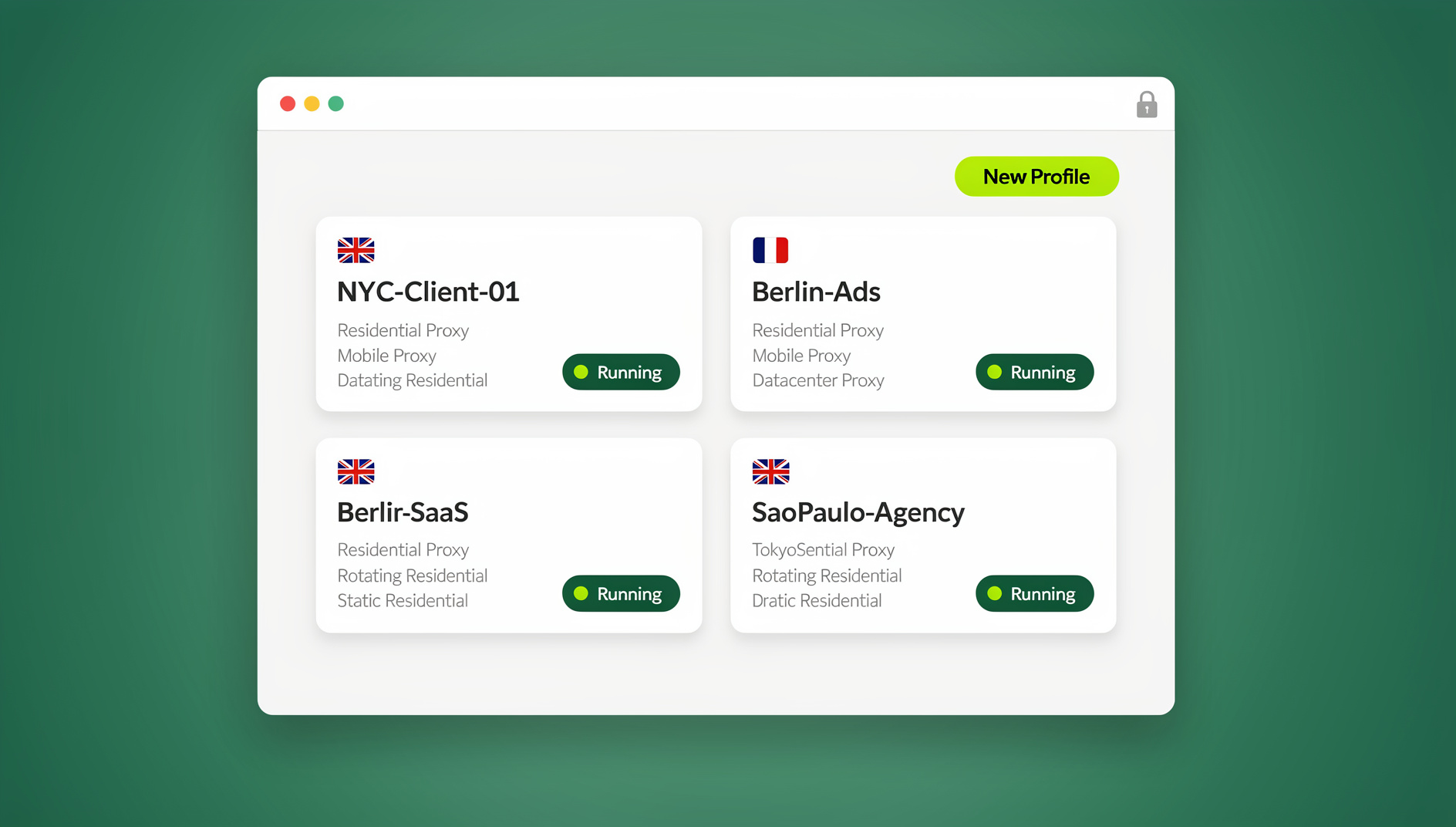
How a Proxy Server Works Inside Your Browser
What Is a Browser Proxy?
A proxy server sits between your browser and the internet. When you request a page:
- Your browser sends the request to the proxy server instead of directly to the website
- The proxy forwards the request to the target site using its own IP address
- The website sends its response back to the proxy
- The proxy relays that response to your browser
The target website only ever sees the proxy’s IP — your real IP address and, ideally, your real location stay hidden throughout the exchange.
Types of Proxies Compared
| Proxy Type | Protocol | Best For | Speed | Security |
|---|---|---|---|---|
| HTTP Proxy | HTTP | General web browsing | Fast | Low (unencrypted) |
| HTTPS Proxy | HTTPS | Secure browsing, logins | Fast | High (encrypted) |
| SOCKS4 | SOCKS | Basic IP masking | Fast | Low |
| SOCKS5 | SOCKS | All traffic types, UDP support | Medium | Medium |
| Residential | HTTP/SOCKS5 | Account management, scraping | Variable | High (real ISP IPs) |
| Datacenter | HTTP/SOCKS5 | Speed-critical tasks | Very Fast | Medium (detectable) |
If you’re deciding between address formats, it’s worth understanding the practical differences covered in this IPv6 vs IPv4 proxy comparison before you buy bandwidth from a provider — the wrong choice can mean paying for IPs that get blocked more often.
Method 1: Manual Proxy Setup in Chrome
Windows
- Open Chrome and go to Settings → System → Open your computer’s proxy settings
- Under “Manual proxy setup,” toggle Use a proxy server to On
- Enter the proxy Address (IP) and Port
- Click Save
Important: Chrome reads the operating system’s proxy settings. That means every browser and most applications on the machine will route through the same proxy — there’s no native per-profile separation. For that, see Method 4 below.
macOS
- Open Chrome → Settings → System → Open your computer’s proxy settings
- Select the proxy protocol (Web Proxy HTTP, Secure Web Proxy HTTPS, or SOCKS)
- Enter the proxy server address and port
- Click OK and Apply
Chrome Command-Line Flags (Per-Instance)
# Launch Chrome with a specific proxy (doesn't touch system settings)
google-chrome --proxy-server="http://proxy-ip:port"

# SOCKS5 proxy
google-chrome --proxy-server="socks5://proxy-ip:port"

# With a separate profile directory for isolation
google-chrome --proxy-server="socks5://proxy-ip:port" --user-data-dir="/tmp/chrome-proxy1"
This is the closest a stock browser gets to per-profile proxies without a dedicated tool — you’re manually pairing a proxy flag with a separate user-data directory for every account you run.
Method 2: Proxy Setup in Firefox
Firefox keeps its own proxy settings independent of the operating system, which is a real advantage if you want one browser proxied and another left alone:
- Open Firefox → Settings → General → scroll to Network Settings
- Click Settings…
- Select Manual proxy configuration
- Enter your HTTP Proxy, SSL Proxy, or SOCKS Host and Port
- Check Proxy DNS when using SOCKS v5 to prevent DNS leaks
- Click OK
Firefox’s independent settings make it a reasonable option for basic setups, and pairing it with good habits goes a long way — see this breakdown of how a proxy can protect your privacy for the fundamentals before you scale up to multiple accounts.
Method 3: Browser Extensions for Proxy Switching
Common Proxy-Switching Extensions
| Extension | Browser | Key Feature | Free Tier |
|---|---|---|---|
| FoxyProxy | Chrome, Firefox | URL-based proxy rules | Yes |
| Proxy SwitchyOmega | Chrome | Quick switching, auto-detect | Yes |
| SmartProxy | Firefox | Whitelist-based proxy rules | Yes |
Setting Up FoxyProxy
- Install FoxyProxy from the Chrome Web Store or Firefox Add-ons
- Click the FoxyProxy icon → Options
- Click Add to create a new proxy configuration
- Enter proxy type (HTTP/SOCKS5), host, and port
- Add username/password if the proxy requires authentication
- Create URL patterns to use this proxy only for specific sites
- Save and activate by clicking the icon and selecting the profile
Extensions like these are fine for a single browser running a single identity. The moment you need five or fifty separate identities, each with its own proxy, cookies, and fingerprint, an extension switching proxies inside one browser window stops being enough — the cookies, cache, and canvas fingerprint are still shared across every “profile” you switch between.
Method 4: Per-Profile Proxies with Send.win
Professional multi-account management needs a different proxy assigned to each browser profile — not just a different proxy for the whole browser. Send.win handles this two ways. Sendwin Browser is a native desktop app for Windows, macOS, and Linux that runs each profile locally, with encrypted cloud sync keeping your sessions backed up and portable across machines. Alternatively, you can run profiles as cloud browser sessions that execute entirely on remote infrastructure with zero local install, billed by cloud browsing time — useful when you’re working from a machine you don’t want to install anything on.
How Send.win Handles Per-Profile Proxies
- One proxy per profile: paste the proxy details directly into a profile’s settings and it takes effect immediately — no extra tools or setup steps required
- Automatic proxy rotation: proxies can rotate on a schedule if your provider supports it
- No DNS leaks: DNS queries route through the assigned proxy by default
- WebRTC protection: the real IP is blocked from leaking through WebRTC requests
- Proxy health checks: you’re alerted when a proxy stops responding
Setting this up takes a few minutes per profile — the full walkthrough is in this guide on how to assign a proxy to each session in Sendwin, which covers authenticated proxies, rotation, and troubleshooting a profile that won’t connect.
Why Per-Profile Proxies Matter
Platforms like Facebook, Amazon, and eBay track users by IP address alongside device and browser fingerprint. If two accounts share the same IP, they get linked and often flagged or banned together. A correct proxy browser setup assigns a unique IP to each profile so every account looks like it belongs to a genuinely different person, not a shared login switching identities.
Advanced Proxy Configuration
Proxy Authentication
Most quality proxy providers require authentication before they’ll route your traffic:
- Username/password: entered in browser settings, an extension, or a profile’s proxy field
- IP whitelisting: your home or office IP is authorized on the provider’s dashboard
- API keys: used to pull rotating residential proxies programmatically
Proxy Chaining
Some setups route traffic through more than one proxy for extra separation between your identity and the destination:
Your Browser → Proxy 1 (US) → Proxy 2 (Germany) → Target WebsiteEach hop only knows the proxy before and after it — no single point in the chain can see both your real IP and the site you’re visiting.
DNS Leak Prevention
Browsers sometimes resolve DNS outside the proxy tunnel, which quietly reveals your real location even while the rest of your traffic is proxied:
- Firefox: enable “Proxy DNS when using SOCKS v5” in network settings
- Chrome: use
--host-resolver-rules="MAP * ~NOTFOUND, EXCLUDE proxy-ip" - Send.win profiles: DNS is routed through the assigned proxy automatically, whether you’re running the desktop app or a cloud session
WebRTC Leak Prevention
WebRTC can expose your real IP through STUN requests even behind a working proxy:
- Install a dedicated WebRTC-blocking extension if you’re running a plain browser
- Firefox: set
media.peerconnection.enabledtofalseinabout:config - Isolated profiles in Send.win block WebRTC leaks per profile without extra configuration
Best Proxy Providers for Browser Use
| Provider | Type | Starting Price | Best For |
|---|---|---|---|
| Bright Data | Residential, Datacenter | $10.50/GB | Enterprise scraping, large-scale |
| Smartproxy | Residential | $8.50/GB | Multi-account management |
| IPRoyal | Residential, ISP | $7/GB | Budget-friendly residential |
| Oxylabs | Residential, Datacenter | $10/GB | Enterprise with compliance needs |
| ProxyEmpire | Residential | $9/GB | Rotating residential, API access |
Picking a provider is only half the job — see this rundown of the best proxy server services for a closer look at reliability, IP pool size, and how each one holds up for account management specifically rather than general scraping.
Common Proxy Browser Issues and Fixes
| Issue | Likely Cause | Fix |
|---|---|---|
| Authentication popup loops | Wrong credentials or wrong proxy protocol | Verify credentials; try SOCKS5 instead of HTTP |
| Websites detect proxy use | Datacenter IP or leaked proxy headers | Switch to a residential proxy; use an elite/anonymous proxy |
| Slow browsing through the proxy | Distant or overloaded proxy server | Choose a geographically closer proxy; switch providers |
| IP leaking despite the proxy | WebRTC or DNS leak | Route DNS through the proxy; disable WebRTC |
| CAPTCHA on nearly every site | Poor IP reputation | Move to a higher-quality residential proxy pool |
Manual Setup vs. a Purpose-Built Proxy Browser
Manual proxy configuration works, but it has real limits once you’re managing more than one or two accounts. Getting proxies, fingerprint separation, and cookie isolation right at the same time is the actual hard part — Send.win bundles all three instead of leaving you to stitch them together with flags and extensions.
| Requirement | Manual / Extension Setup | Send.win |
|---|---|---|
| Proxy per account | Possible with separate user-data directories per browser instance | Built into each profile by default |
| Fingerprint isolation | Not handled — same browser engine fingerprint across profiles | Each profile gets its own isolated fingerprint |
| Cookie/session separation | Manual, easy to mix up between accounts | Automatic per profile |
| DNS/WebRTC leak handling | Requires separate configuration and extensions | Handled automatically per profile |
| Setup time per account | 10-20 minutes, repeated for every account | Under a minute once the proxy is pasted in |
Automating a Proxy Browser Setup
Once your profiles and proxies are in place, the next step for many teams is automation — logging in, checking status, or running repetitive tasks across dozens of proxied profiles without clicking through each one by hand. Send.win does not offer an automation interface: there is no API, SDK, headless mode, or Selenium/Puppeteer/Playwright support on any plan. Each profile still keeps its own proxy, cookies, storage, and fingerprint, so you can work with isolated profiles manually.
What a Proper Proxy Browser Setup Costs
Send.win has no free trial, but the first card purchase is covered by a 7-day money-back guarantee, which is enough time to configure a handful of profiles and confirm your proxies are working correctly. You can also preview it with the free cloud demo at https://send.win/demo-browser/. After that:
| Plan | Monthly Price | Annual Price | Profiles | Proxy Bandwidth | Automation API | Seats |
|---|---|---|---|---|---|---|
| Pro | $19/mo | $6.99/mo billed annually | 150 | 5GB | Included | 1 |
| Team | $49/mo | $20.99/mo billed annually | 500 | 20GB | Included | 16 |
Neither plan includes an automation interface, so the choice between them mostly comes down to how many profiles and how much proxy bandwidth you actually need, and whether you’re working solo or need seats for a team.
🏆 Send.win Verdict
Manual proxy configuration and switcher extensions are fine for a single browser with a single identity, but they don’t solve fingerprint isolation or cookie separation — the two things that actually get multi-account setups flagged. If you’re managing more than a couple of proxied profiles, Send.win’s native desktop app or cloud browser sessions handle the proxy, the fingerprint, and the cookie jar together per profile, which is what a real proxy browser setup needs to hold up over time.
Try the Send.win cloud demo — a 3-minute preview without signup, 10 minutes a day with a free account.
Frequently Asked Questions
Is it legal to use a proxy browser?
Yes, in most countries. Proxies are a networking tool used legitimately by businesses and individuals every day for privacy, testing, and account management. What matters legally is what you do through the proxy, not the fact that you’re using one.
Will a proxy slow down my browsing?
Slightly. All traffic routes through an extra server, which adds latency — typically 20-50ms for a quality proxy, which is barely noticeable. Residential proxies tend to run slower than datacenter proxies because they route through real consumer connections.
Can websites detect that I’m using a proxy?
Datacenter proxies are often detectable because their IP ranges are publicly documented. Residential proxies use real ISP-assigned addresses and are much harder to flag. Elite/anonymous proxies also avoid sending headers that would reveal proxy use in the first place.
How many proxies do I need for multi-account management?
One unique proxy per account is the safe rule. Reusing the same proxy across multiple accounts on the same platform defeats the purpose — the accounts will still appear connected through the shared IP, even if everything else about the setup is isolated correctly.
Should I use free proxies?
No. Free proxies are typically slow, unreliable, heavily flagged by major websites, and some log your traffic or inject ads into pages you load. For anything beyond casual testing, a reputable paid provider is worth the cost.
Does a proxy browser setup replace a VPN?
Not exactly — they solve overlapping but different problems. A proxy is usually configured per-app or per-profile and is better suited to running many distinct identities side by side, while a VPN typically encrypts and reroutes all traffic from a device. Teams doing account management generally want proxies scoped per profile rather than one VPN tunnel for the whole machine.
Do I need the desktop app, or can I just use a cloud browser session?
Either works — it depends on the machine you’re on. The Sendwin Browser desktop app makes sense if you want profiles stored locally with encrypted cloud sync across your own devices. Cloud browser sessions make more sense on a shared or restricted machine, since nothing installs locally and usage is simply metered by cloud browsing time.
Can I automate logins across my proxied profiles?
No. Send.win has no automation interface on any plan: no API, SDK, headless mode, or Selenium/Puppeteer/Playwright support. Each profile keeps its own proxy, cookies, storage, and fingerprint, so you work with isolated profiles manually rather than scripting them.