What Is a Cloud Browser Online and Why Would You Use One?
A cloud browser online is a web browser that runs entirely on a remote server, streaming the rendered page back to your device — meaning you never install software, never expose your local machine, and can browse from any device with an internet connection. Whether you need throwaway sessions for quick link checks or persistent, fingerprint-isolated profiles for managing dozens of accounts, cloud browsers solve problems that local browsers simply cannot. Below, we break down the five best options available right now, how each one works, and which is worth your time depending on what you actually need to do.
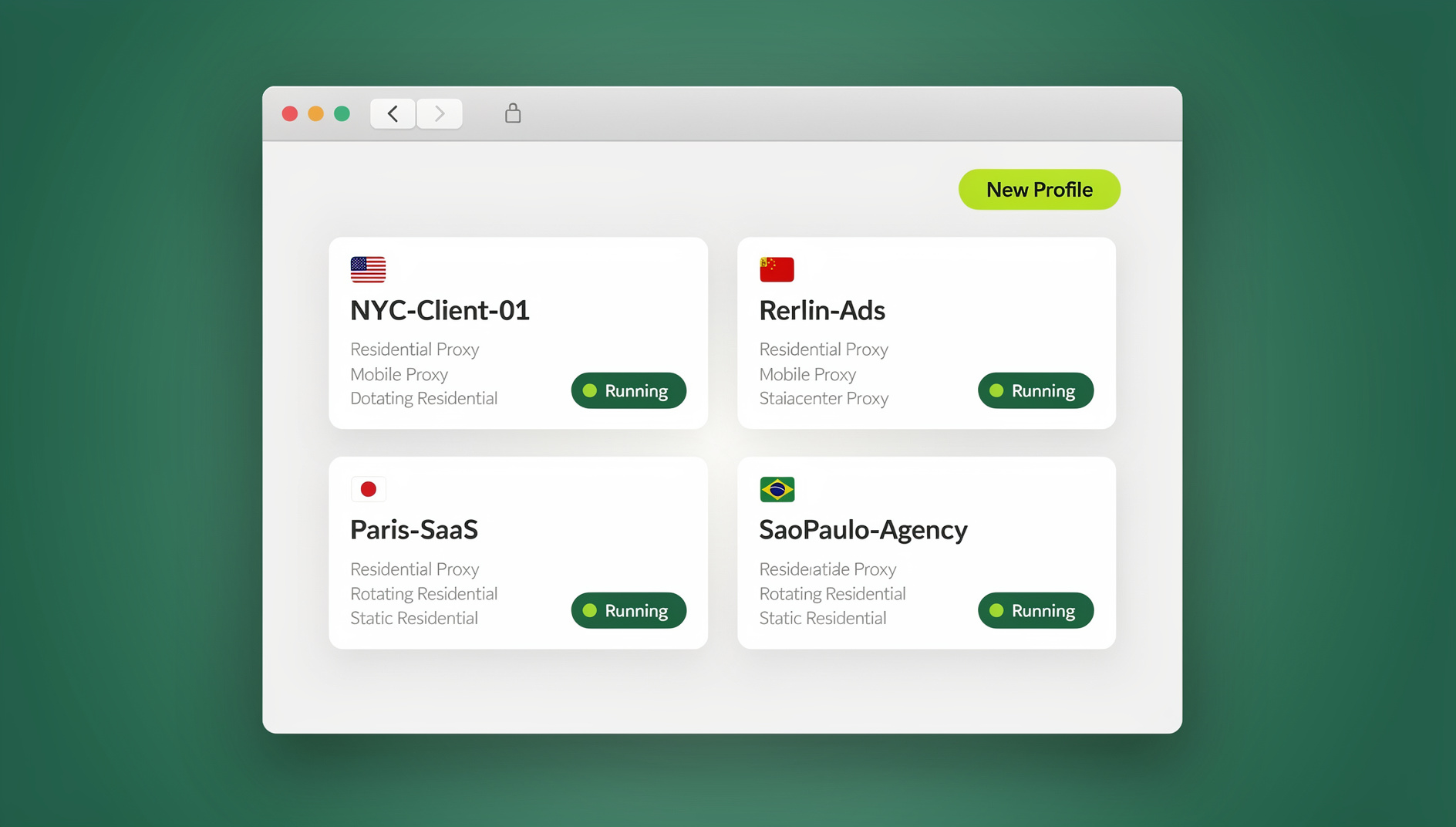
How Cloud Browsers Actually Work
Traditional browsing happens locally: your computer downloads HTML, CSS, JavaScript, and media, then your CPU and GPU render the page. A cloud browser flips this. A remote server does all the heavy lifting — fetching content, executing scripts, rendering pixels — and streams the visual output back to you as a video feed or series of screenshots.
This architecture creates several advantages that matter in practice:
- No local install required — open a URL in your existing browser and you are already using the cloud browser.
- Device-agnostic access — use a Chromebook, tablet, old laptop, or even a phone to get a full desktop browsing experience.
- Isolation from threats — malicious scripts, drive-by downloads, and browser exploits run on the remote server, not your machine. If you are testing suspicious links or navigating risky sites, this is a significant safety net.
- IP and fingerprint separation — because the session originates from the server’s network, websites see the server’s IP and browser fingerprint, not yours.
For a deeper dive into the isolation model, read our cloud browser guide that covers the technical architecture in detail.
Who Actually Needs a Cloud Browser?
Cloud browsers are not just a novelty. They solve real problems for specific groups of users:
Privacy-Conscious Individuals
If you want to visit a website without it collecting your real browser fingerprint, cookies, or IP address, a cloud browser creates a clean, disposable environment. No history, no tracking pixels following you home.
Remote Workers and Travelers
Working from a hotel business center or a shared computer? A cloud browser lets you access your tools without logging into anything on the local machine. When you close the session, nothing remains on the device.
QA Testers and Developers
Testing how a website looks in different browsers, operating systems, or screen resolutions without maintaining a lab of devices is a classic cloud-browser use case. Cross-browser testing platforms like Browserling and BrowserStack are built on this concept.
Multi-Account Managers
Running multiple social media accounts, e-commerce stores, or advertising profiles from the same machine is a fast track to getting flagged. Platforms link accounts through fingerprinting, cookies, and IP addresses. A cloud browser with proper isolation eliminates those connections — each session is a genuinely separate browser environment.
Users Behind Restrictive Networks
Corporate firewalls, school networks, and regional censorship can all be sidestepped with a cloud browser because the actual web requests originate from the cloud server, not your local network.
The 5 Best Cloud Browsers Online in 2026
Below is an honest breakdown of the most relevant cloud browser options available right now. Each one targets a slightly different use case, and none is perfect for everything.
1. Send.win Cloud Sessions — Best for Multi-Account Management
Send.win is a browser profile manager with two modes: the Sendwin Browser desktop app and cloud browser sessions that need no local install. The cloud sessions are what matter here — they let you launch full browser profiles in the cloud, each with its own fingerprint, cookies, proxy, and persistent storage.
How It Works
You log into your Send.win dashboard from any browser, select (or create) a profile, and launch it as a cloud session. The profile opens in a remote browser environment with a unique canvas fingerprint, WebGL hash, user agent, timezone, language, and screen resolution. You can assign a proxy to each profile so the IP matches the identity you are building.
Sessions are metered by monthly cloud browsing time, included on paid plans. Unlike throwaway cloud browsers, these profiles are persistent — cookies, local storage, and login states survive between sessions. Close a profile on your laptop and reopen it from your phone next week; everything is exactly where you left it.
Pricing
| Plan | Monthly | Annual (per month) | Profiles | Proxy Bandwidth | Key Features |
|---|---|---|---|---|---|
| Free Trial | $0 (30 days) | — | Limited | — | No credit card required |
| Pro | $19 | $6.99 | 150 | 5 GB | Cloud sessions |
| Team | $49 | $20.99 | 500 | 20 GB | 16 seats, cloud sessions |
Pros
- Real fingerprint isolation per profile — not just a fresh browser tab
- Persistent profiles that retain cookies and login states
- Built-in proxy integration per profile
- No local install needed for cloud sessions
- Paid plans start at $19/month, with a 7-day money-back guarantee on your first card purchase
Cons
- Cloud browsing time is metered — heavy users may need to monitor usage
- Overkill if you just need a quick one-off browser session with no persistence
Best For
Affiliate marketers, social media managers, e-commerce sellers, and anyone who needs to maintain multiple persistent online identities without getting accounts linked or banned.
2. Browserling — Best for Quick Cross-Browser Testing
Browserling is one of the oldest cloud browsers still actively maintained. It lets you type a URL and instantly load it in a remote browser — Chrome, Firefox, Safari, Opera, or Edge — running on a real Windows or macOS machine in the cloud.
How It Works
You visit browserling.com, enter a URL, pick a browser and OS combination, and hit “Test.” Within seconds you are looking at a live browser session. You can interact with the page, take screenshots, and test responsiveness. Free sessions are limited to 3 minutes on older browser versions.
Pricing
| Plan | Price | Session Limit | Features |
|---|---|---|---|
| Free | $0 | 3 min, old browser versions only | Basic testing |
| Developer | $19/mo | Unlimited | All browsers, SSH tunnels, responsive testing |
| Team | $49/mo | Unlimited | 5 users, parallel sessions |
Pros
- Instant access — no signup required for free tier
- Wide range of browser and OS combinations
- SSH tunnels for testing localhost sites
Cons
- Free tier severely limited (3-minute sessions, outdated browsers)
- No fingerprint isolation — sessions share a common environment
- No persistent profiles, cookies, or login states
- Not designed for multi-account management
Best For
Web developers and QA testers who need to quickly verify a site works across different browsers without setting up a local testing environment. For more on alternatives in this space, check our comparison of virtual browser online solutions.
3. browser.lol — Best for Free Throwaway Sessions
browser.lol is a minimalist cloud browser that lets you browse the web through a remote session for free. The appeal is simplicity: paste a URL, get a browser, use it, close it.
How It Works
You visit browser.lol, and a cloud-hosted browser session starts. You can navigate the web within this session. Sessions are temporary — when you close the tab, everything disappears. There are no accounts, no saved profiles, no persistence.
Pricing
Free. browser.lol is ad-supported and does not currently offer paid plans.
Pros
- Completely free
- No signup or registration
- Good for quick, one-off browsing tasks
Run Cloud Browser Online in the Cloud With Send.win
Send.win’s cloud browser runs your isolated profiles on remote infrastructure — open a clean, fingerprint-isolated session from any device without installing anything:
- Instant cloud sessions – launch an isolated browser in seconds, no local install
- Isolated profiles – separate fingerprint, cookies, and storage per session
- Cloud sync & profile sharing – pick up the same profiles on the desktop app (Windows, macOS, Linux) or share them with your team
- Built-in residential proxies – with automatic timezone and locale matching
You can try it right now: the Send.win demo browser opens an isolated cloud session directly in this browser tab. There is no free trial; paid plans start at $19/month (or $83.88/year), and the first card purchase is covered by a 7-day money-back guarantee — see pricing.
Cons
- No persistent sessions — cookies, history, and logins vanish
- No fingerprint isolation or customization
- Session quality and speed can be inconsistent
- Ad-supported interface
- No proxy integration
Best For
Users who need a quick, disposable browser session for checking a link, testing a page, or browsing anonymously without any commitment. Not suitable for ongoing work.
4. Maxthon Cloud Browser — Best for Cross-Device Sync
Maxthon has been around since 2002 and positions itself as a “cloud-powered” browser. Unlike the others on this list, Maxthon is primarily a downloadable browser with cloud sync features rather than a purely remote-rendered cloud browser.
How It Works
You install the Maxthon browser on your devices (Windows, macOS, Android, iOS). It syncs bookmarks, tabs, passwords, and browsing history across all your devices through Maxthon’s cloud servers. The browsing itself happens locally — the “cloud” part is the synchronization layer.
Pricing
Free with optional premium features.
Pros
- Seamless sync across desktop and mobile
- Built-in ad blocker and resource sniffer
- Passkeeper (built-in password manager)
- Free to use
Cons
- Requires local installation — not a true “no install” cloud browser
- Browsing is rendered locally, not in the cloud
- No fingerprint isolation
- No multi-account management features
- Smaller user base means fewer extensions and community resources
Best For
Users who want a free browser with solid cross-device sync. Not a replacement for a genuine cloud browser that renders remotely. Learn more about how true online browser services differ from synced desktop browsers.
5. Puffin Browser — Best for Mobile Cloud Browsing
Puffin was once the go-to cloud browser on mobile, rendering pages server-side and streaming compressed output to phones and tablets. It gained popularity for making Flash content work on iOS back when Apple blocked Flash. Today, Puffin has pivoted to enterprise security.
How It Works
Puffin Cloud Isolation redirects all web traffic through CloudMosa’s servers, where pages are rendered and streamed back. The browser runs as either a mobile app or a managed enterprise solution. Content is compressed for faster loading on slow connections.
Pricing
| Plan | Price | Target |
|---|---|---|
| Personal (legacy) | ~$2/year (where available) | Individual users |
| Enterprise | Custom pricing | Businesses |
Pros
- True server-side rendering — genuine cloud browsing architecture
- Data compression for bandwidth savings on mobile
- Isolation protects local devices from web threats
Cons
- Consumer version discontinued in many regions
- Enterprise focus means less relevant for individual users
- No fingerprint isolation or multi-account features
- No profile persistence beyond basic sync
Best For
Enterprise users looking for browser isolation as a security measure. Individual users will find better free options elsewhere. For more on how browser isolation works as a security model, see our guide to remote browser isolation.
Cloud Browser Comparison Table
| Feature | Send.win | Browserling | browser.lol | Maxthon | Puffin |
|---|---|---|---|---|---|
| No Install Required | ✅ (cloud sessions) | ✅ | ✅ | ❌ | ❌ (app needed) |
| Fingerprint Isolation | ✅ | ❌ | ❌ | ❌ | ❌ |
| Persistent Profiles | ✅ | ❌ | ❌ | Sync only | ❌ |
| Proxy Integration | ✅ (per profile) | ❌ | ❌ | ❌ | ❌ |
| Multi-Account Safe | ✅ | ❌ | ❌ | ❌ | ❌ |
| Automation API | ❌ | ❌ | ❌ | ❌ | ❌ |
| Free Tier | Free cloud demo | 3-min sessions | Free | Free | Enterprise pricing |
| Best For | Multi-account work | Cross-browser testing | Quick browsing | Device sync | Enterprise security |
Why Most Cloud Browsers Fall Short for Serious Work
The fundamental problem with most cloud browsers online is that they are designed for disposability. You get a temporary session, do your thing, and everything vanishes. For quick link checks and one-off testing, that is fine. But for anyone running multiple accounts — whether for social media management, e-commerce, affiliate marketing, or ad verification — disposable sessions create more problems than they solve.
Here is why:
- No cookie persistence — You have to log in every single time. For accounts with two-factor authentication, this means entering codes constantly, which looks suspicious to platforms.
- Shared fingerprints — Multiple users share the same browser fingerprint and IP range. Platforms detect this and flag accounts.
- No proxy control — You cannot assign specific proxies to specific sessions. Your accounts might appear from different locations each time, triggering security checks.
- No isolation between sessions — Even if you open two tabs, the sessions can share cookies and storage, linking your accounts together.
This is where the gap between a “cloud browser” and a “cloud-based antidetect browser” becomes critical. Send.win’s cloud sessions are the latter — each profile is a completely isolated environment with its own fingerprint, its own cookies, its own proxy, and its own persistent state.
Setting Up Send.win Cloud Sessions for Multi-Account Work
Getting started takes about five minutes:
- Sign up — Create a Send.win account. Paid plans start at $19/month, and your first card purchase is covered by a 7-day money-back guarantee.
- Create a profile — Each profile represents a separate browser identity. Give it a name (e.g., “Instagram Account 3”) and Send.win auto-generates a unique fingerprint.
- Assign a proxy — Add your own proxy or use Send.win’s built-in bandwidth. Match the proxy location to the identity’s supposed location.
- Launch as cloud session — Click the cloud session button. The profile opens in a remote browser window. Log into your account — cookies are saved for next time.
- Scale — Repeat for each account. Pro plan supports up to 150 profiles; Team plan supports 500.
The key difference from services like browser.lol or Browserling is that when you come back tomorrow, your profiles are still there with all their cookies, login states, and fingerprints intact. Each profile is its own isolated browser environment — websites cannot detect any connection between them.
Cloud Browser Security: What Actually Protects You
Not all cloud browsers provide the same level of security. Here is what to look for:
Server-Side Rendering
The minimum bar. All cloud browsers should render pages on their servers, so malicious code never executes on your device. Browserling, browser.lol, Puffin, and Send.win all do this.
Fingerprint Randomization
Advanced cloud browsers generate unique browser fingerprints for each session — canvas fingerprint, WebGL renderer, audio context, timezone, screen resolution, installed fonts, and more. Among the options reviewed here, only Send.win provides this.
Network Isolation
Each session should use its own IP address. Without this, multiple sessions share an IP, and platforms connect them. Send.win handles this through per-profile proxy assignment.
Data Isolation
Cookies, local storage, and IndexedDB from one session should never leak into another. Send.win’s profiles are sandboxed at the storage level — each profile has its own completely separate data store.
🏆 Send.win Verdict
If you just need to check a link or test a page quickly, browser.lol or Browserling will do the job for free. But if you need a cloud browser online for real work — managing multiple accounts, maintaining persistent sessions, or keeping profiles organised — Send.win’s cloud sessions are the only option on this list that provides separate cookies, storage and fingerprint per profile, persistent profiles, and per-profile proxy integration, all without any local install. Cloud browsing time is metered on paid plans starting at $19/month, with a 7-day money-back guarantee on your first card purchase.
Try Send.win today — paid plans start at $19/month, with a 7-day money-back guarantee on your first card purchase, and no local install needed.
Frequently Asked Questions
What is a cloud browser online?
A cloud browser online is a web browser that runs on a remote server instead of your local device. Pages are rendered in the cloud and streamed back to your screen. This means you do not need to install any software — you access the browser through your existing web browser. Cloud browsers provide benefits like device-agnostic access, protection from web-based threats, and privacy from local tracking.
Are cloud browsers safe to use?
Cloud browsers are generally safer than local browsers for risky browsing because malicious scripts execute on the remote server, not your device. However, the level of safety varies. Basic cloud browsers like browser.lol provide throwaway sessions with no fingerprint protection, while advanced options like Send.win add fingerprint isolation, proxy integration, and data separation between sessions. For maximum safety, choose a cloud browser that isolates each session completely.
Can I use a cloud browser for free?
Yes. browser.lol offers free cloud browsing with no signup. Browserling provides free 3-minute sessions on older browser versions. Maxthon is a free downloadable browser with cloud sync. Send.win offers a free cloud demo at send.win/demo-browser/ — a 3-minute preview without signup, or 10 minutes a day with a free account. For ongoing free use, browser.lol is the most accessible, but it lacks persistence and fingerprint protection.
What is the difference between a cloud browser and a VPN?
A VPN encrypts your internet traffic and routes it through a server in another location, but your local browser still renders pages and can be fingerprinted. A cloud browser renders everything remotely — websites interact with the cloud server’s browser, not yours. A cloud browser hides both your IP and your browser fingerprint, while a VPN only hides your IP. For multi-account management, a VPN alone is insufficient because platforms use fingerprinting beyond just IP addresses.
Can cloud browsers help with multi-account management?
Basic cloud browsers (Browserling, browser.lol) do not — they offer no fingerprint isolation or persistent profiles, so platforms can still link your accounts. Send.win’s cloud sessions are specifically designed for this: each profile gets a unique fingerprint, its own proxy, and persistent cookies. This lets you run dozens of accounts from the same device without platforms detecting any connection between them.
Do cloud browsers work on mobile devices?
Most cloud browsers work on any device with a web browser, including phones and tablets. browser.lol and Browserling can be accessed from mobile browsers. Send.win’s cloud sessions also work from any device with a browser. Puffin historically had strong mobile support but has shifted to enterprise-only. The experience may vary depending on screen size — cloud browsers designed for desktop workflows can feel cramped on small screens.
How much bandwidth does a cloud browser use?
Cloud browsers use more bandwidth than traditional browsing because they stream rendered visuals rather than raw HTML. A typical session uses roughly 1-3 Mbps for standard browsing and more for video content. Services like Puffin compress the stream to reduce bandwidth on mobile. Send.win meters cloud browsing time rather than bandwidth for sessions, while proxy bandwidth is tracked separately for data passing through assigned proxies.
Can I run browser automation through a cloud browser?
Most cloud browsers do not support automation, and Send.win is no exception — it has no API, SDK, headless mode or Selenium/Puppeteer/Playwright support on any plan. Other cloud browsers like Browserling and browser.lol are interactive-only with no API access for automation.