How Universities Manage Multiple Accounts Across Departments
Universities manage multiple accounts across departments by centralizing governance while delegating day-to-day operations: a central IT or communications office sets naming conventions, security baselines, and offboarding rules, then each department appoints a primary and backup administrator. Identity providers like Okta or Azure AD enforce single sign-on, session-isolation tools stop credential conflicts on shared lab computers, and quarterly audits catch orphaned accounts before they become security risks. The framework below is drawn from how large institutions actually run it.
A mid-size university can easily run 50-100 departments, and each one operates its own social profiles, SaaS subscriptions, cloud storage, and research-platform logins. Multiply that across every department, student organization, and research lab, and the account count climbs into four figures fast. Below is the governance and tooling framework institutions use to keep that sprawl organized, secure, and productive — and the parts of it that translate directly to any multi-team organization.
The Scale of the Problem
Consider a university running 60 academic and administrative departments. Each one typically manages:
- 2-4 social media accounts (X, Instagram, Facebook, LinkedIn)
- A departmental email account and shared inbox
- Cloud storage (Google Drive, OneDrive, Box)
- SaaS subscriptions (Canva, Zoom, Slack, scheduling tools)
- Website CMS access (WordPress, Drupal)
- Research platform accounts (ResearchGate, grant portals, lab equipment logins)
Multiply that list across 60 departments and the university is already responsible for 500+ accounts that need creation, security oversight, and clean transfer whenever staff change roles. Add student organizations and part-time research assistants, and the total routinely passes 1,000 — most of it invisible to any single office until an audit forces the count.
The Three Pillars of University Account Management
Pillar 1: Centralized Governance
A central IT or communications office sets the rules that every department has to follow, regardless of size or budget:
- Account creation policy — who can create a new account and what approval is required before it goes live.
- Naming conventions — standardized handles (for example, @UniName_Chemistry) so accounts are identifiable at a glance.
- Brand guidelines — approved logos, colors, and tone of voice across every departmental channel.
- Security baseline — mandatory two-factor authentication and minimum password complexity, non-negotiable.
- Offboarding protocol — a documented procedure for what happens to access the moment an employee leaves or a department restructures.
Pillar 2: Delegated Operations
Day-to-day account operations are delegated down to the department level. Each department names a primary administrator, a backup administrator, and a short list of approved content contributors. This structure gives departments the autonomy to post, respond, and iterate quickly, while central IT retains control over the things that actually matter for security and brand consistency.
Pillar 3: Technology-Enabled Automation
None of this scales if it depends on manual tracking in a spreadsheet. Universities lean on a specific stack of tool categories to keep it running:
| Function | Common Tools | What It Solves |
|---|---|---|
| Identity management | Azure AD, Okta, Shibboleth | Single sign-on across every linked account |
| Social media publishing | Sprinklr, Hootsuite Enterprise | Centralized scheduling and approval workflow |
| Password sharing | 1Password Teams, LastPass | Secure credential storage without emailing passwords |
| Websites | WordPress Multisite | One CMS instance covering every department site |
| Browser session isolation | Multi-login browsers, cloud browser sessions | Multiple staff accessing the same accounts from shared PCs without session conflicts |
Social Media Account Management at Scale
Social media is the most visible — and often the most chaotic — corner of university account management, since almost any staff member can spin up a new profile with a personal email address. Institutions that keep this under control run it through a formal social media management governance framework:
- Every new account must be registered with central communications before it goes live.
- At least two admins are assigned per account, and one must be full-time staff (not a student worker or intern).
- Annual audits review every registered account for dormancy or, worse, accounts nobody in central IT knew existed.
- Content standards enforce FERPA compliance and a documented crisis-communication protocol.
- An emergency takeover procedure exists on paper before it’s ever needed for a compromised account.
Multi-Login Browsers for Shared Workstations
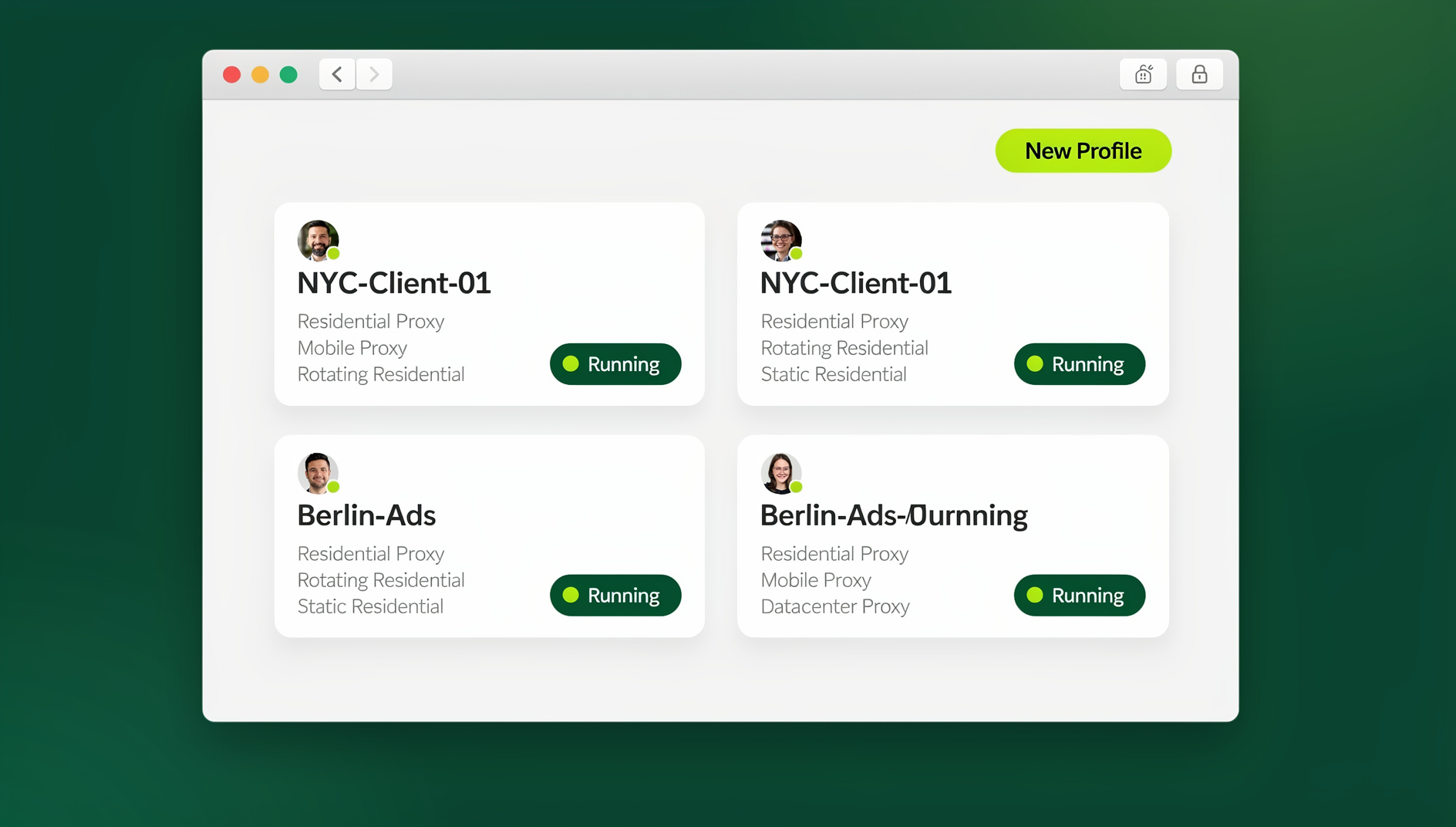
In many departments, several staff members need to log into the same social accounts from the same shared office computer — a front-desk PC, a lab machine, a communications-team laptop passed between shifts. A multi-login browser solves this cleanly: each account gets its own isolated browser profile, so there are no shared passwords typed into a public machine, no session conflicts when two staff members are logged in at once, and no accidental cross-posting from the wrong account.
Send.win offers two ways for university staff to work this way. On a shared office desktop, IT can install the Sendwin Browser — the native desktop app — so each profile stays isolated locally with its own cookies and fingerprint. For staff who need to reach a departmental session from somewhere other than that desktop (a laptop at home, a tablet during a campus event), Send.win’s cloud browser sessions run the same isolated profile in the cloud with no local install required. For departments running several admins on a shared login, a Team plan ($49/month or $251.88/year) covers multiple seats. Send.win does not offer an automation interface — there is no API, SDK, headless mode or Selenium/Puppeteer/Playwright support on any plan.
Software Subscription Management
Beyond social media, universities manage hundreds of SaaS subscriptions, and the ones that keep costs and shadow IT under control use a centralized approach:
- Software catalog — IT maintains an approved list negotiated at enterprise pricing.
- Volume licensing — one enterprise agreement replaces fifteen separate departmental purchases of the same tool.
- SSO integration — approved tools connect to the university identity provider for seamless access and instant de-provisioning.
- Shadow IT detection — periodic monitoring flags unauthorized purchases and unregistered accounts before they turn into renewal surprises.
Account Lifecycle: Provision → Operate → Transfer → Decommission
| Phase | Key Actions | Common Pitfalls |
|---|---|---|
| Provision | Create account, assign admin, configure SSO | Staff registers with a personal email instead of the department address |
| Operate | Regular use, content creation, routine updates | Password written on a sticky note or shared over chat |
| Transfer | Staff transition, update admin access | Outgoing staff member retains access for months |
| Decommission | Archive data, remove access, delete if unneeded | Orphaned accounts with stale, outdated content still live online |
Security Challenges and Solutions
High Staff Turnover
Universities face enormous turnover every semester as student workers and adjunct faculty cycle through departments. Solution: SSO tied to enrollment and employment status, with automatic de-provisioning — when a term ends, every linked account access is revoked at once instead of relying on someone remembering to do it manually.
Shared Workstations
Labs, front desks, and shared department offices often run on one computer used by several people across a shift. One person’s cookies and login state can silently interfere with the next person’s session. Solution: session isolation tools sandbox each login separately, even on the same shared hardware, so nobody accidentally posts from — or logs out of — the wrong account.
FERPA and Data Privacy
Accidentally exposing student data through a poorly secured social account or an unregistered spreadsheet carries real legal exposure. Solution: content approval workflows, mandatory privacy training for anyone with posting access, and role-based access controls that limit who can see student-identifiable information in the first place.
Cross-Department Credential Sharing
When two or three departments collaborate on a joint campaign or event, sharing a password over email or chat is the default fallback — and it’s the single most dangerous habit in this whole framework. Solution: secure session sharing grants a collaborator access to the account without ever revealing the underlying password, and access can be revoked the moment the joint project ends.
Case Study: A 100-Department University Migration
Before Migration
- Each department managed its own accounts independently, with no central registry anywhere.
- 12% of accounts had no identifiable administrator when audited.
- 34% of audited accounts showed password reuse across multiple services.
- Three accounts were compromised in the prior twelve months.
After Migration (Six Months Later)
- 100% of accounts registered with a verified administrator on file.
- Orphaned-account rate dropped from 12% to 0%.
- Zero security incidents in the six months following migration.
- 30% reduction in SaaS spending through consolidation and volume licensing.
Lessons for Non-University Organizations
None of this framework is university-specific — it’s just what happens when any organization is forced to solve multi-account sprawl at scale before it becomes a security incident. Universities simply hit the problem earlier than most companies because of how fast student workers, adjunct faculty, and research assistants cycle through, which forced the governance model to mature years before most private-sector IT teams had to think about it. The same six moves apply to an agency, a franchise network, or a fast-growing startup:
- Centralize governance, delegate operations. Set the rules centrally; let each team execute day-to-day without waiting on approvals for routine work.
- Mandate SSO wherever it’s technically possible. It resolves the majority of access-management headaches on its own.
- Require admin redundancy on every account. No account should have a single point of failure sitting with one person.
- Use session isolation for any shared environment. Whether that’s a lab computer or a shared team laptop, isolated profiles — through a team browser that shares access instead of credentials — prevent cross-contamination between users.
- Audit on a fixed schedule. Quarterly reviews catch orphaned or unregistered accounts before they become liabilities, not after.
- Automate offboarding. Access should be revoked within hours of a departure, not weeks.
🏆 Send.win Verdict
For any department juggling shared logins on a handful of computers, isolated browser profiles solve most of the problems this guide covers — no shared passwords, no session conflicts, and no cross-posting mistakes. Send.win gives IT teams the Sendwin Browser for local, on-desktop isolation plus cloud browser sessions for staff who need departmental access from anywhere. There is no free trial; paid plans start at $19/month (Pro) or $49/month (Team), and the first card purchase is covered by a 7-day money-back guarantee. The only free option is the cloud demo at https://send.win/demo-browser/.
Try Send.win free today — set up your first isolated department session in minutes.
Frequently Asked Questions
How do universities prevent unauthorized social media accounts?
Through a mandatory registration policy: any new account must be approved by the central communications office before it launches, and annual audits are run specifically to catch accounts that were created without going through that process.
What happens when a department administrator leaves?
Access is revoked immediately through SSO, and responsibility transitions to the pre-designated backup administrator. Password resets on any shared credential typically happen within 24 hours of the departure being reported.
Can small colleges with only 10 departments use these strategies?
Yes, the principles scale down without losing effectiveness. Centralizing governance, requiring SSO, and using session isolation on shared machines prevents the most common account-management failures regardless of institution size.
Is it safe for universities to use multi-login browsers on shared computers?
Yes. Multi-login browsers isolate sessions at the browser level, which actually improves security on shared workstations by preventing one person’s login state or cookies from leaking into another person’s session.
What is the single biggest mistake universities make with account management?
Letting departments create accounts without any central oversight. That single gap is what produces orphaned accounts, unpatched security gaps, inconsistent branding, and duplicated software spend across departments that don’t know about each other’s subscriptions.
Does Send.win require installing a browser extension?
No. Send.win does not offer a browser extension. It works either as the Sendwin Browser, a native desktop app for Windows, macOS, and Linux, or through cloud browser sessions that run entirely in the cloud with no local installation at all.
What’s the fastest way for a department to get started with session isolation?
Start with the handful of shared accounts — the main social profiles and the shared department email — and move just those into isolated browser profiles first. Expanding to the rest of the department’s SaaS logins is much easier once that initial habit is in place.
Who should own the account registry — IT, communications, or each department?
Central IT or communications should own the registry itself, since departments come and go with reorganizations while the registry needs to persist. Departments still nominate their own administrators and day-to-day contributors; the central office’s job is verifying that every account on the list actually has one, not running each account directly.