Introduction
Secure session sharing has quietly become one of the most important skills a distributed team can learn. As organizations embrace flexible work models, remote teams have moved from the exception to the norm — and with that shift comes a daily, unglamorous problem: how do you let a teammate, contractor, or agency partner into a live application session without handing over a password, spinning up a VPN, or opening a support ticket that takes three days to resolve?
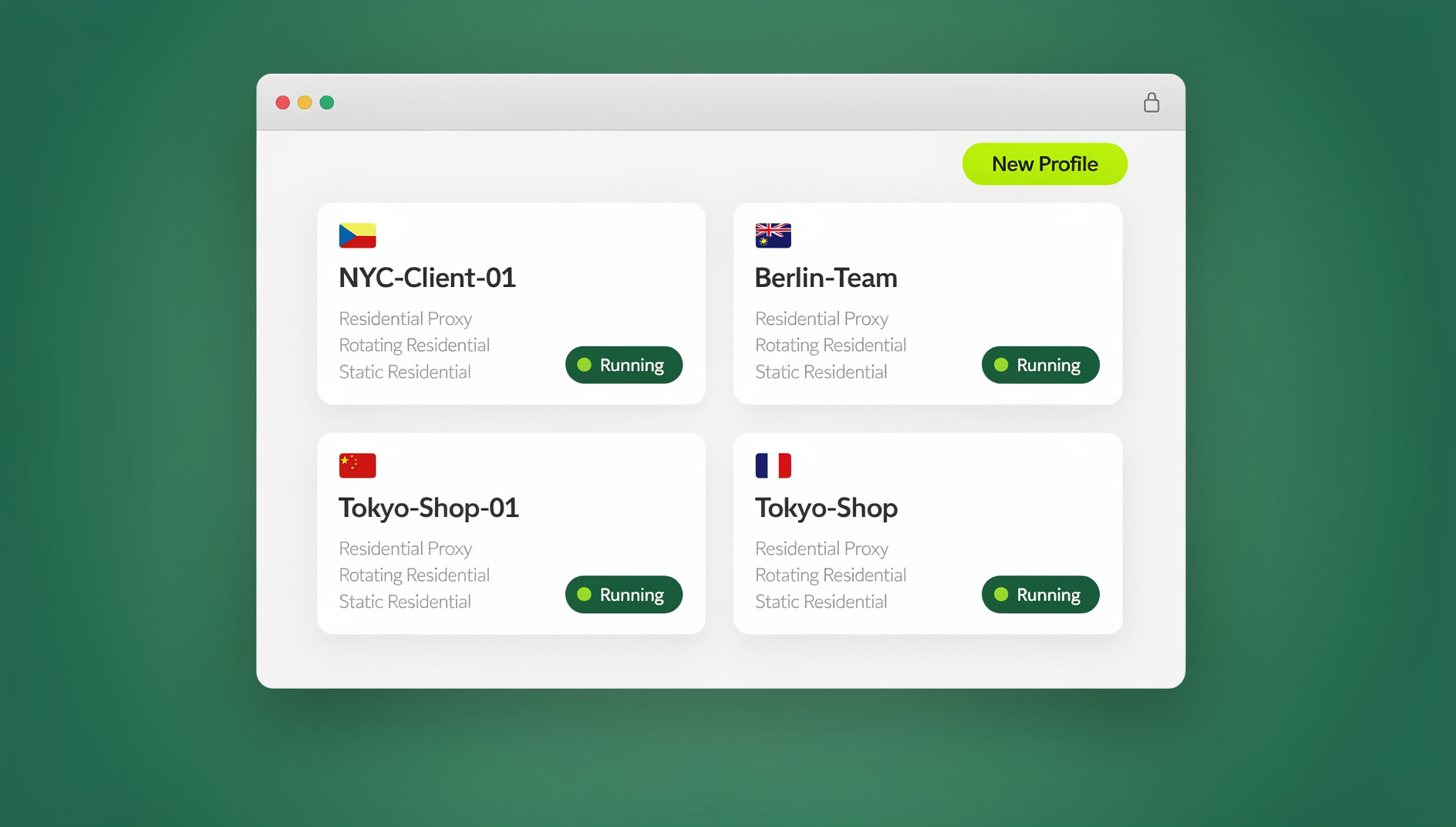
Traditional answers — shared logins in a password manager, screen-share-and-dictate sessions, or full VPN access to internal systems — all trade security for speed, or speed for security. None of them solve for both. Secure session sharing, done properly, grants time-limited, encrypted access to an isolated browser session without ever revealing the underlying credentials. The recipient works inside the session as if logged in themselves; the account owner keeps full control, a complete audit trail, and the ability to cut access instantly.
This guide breaks down the technology behind secure session sharing — encryption standards, timed access, access controls, and GDPR-relevant audit trails — and then walks through exactly how to implement it for a remote team using Send.win, including which of Send.win’s two delivery modes (Desktop app or Cloud browser sessions) actually fits a given collaboration scenario.
The Rise of Remote Collaboration and the Privacy Imperative
Distributed Workflows in Modern Organizations
Remote collaboration has evolved well beyond email threads and conference calls. Today’s distributed workflows run on a dense stack of cloud tools — project management boards, CRM dashboards, analytics portals, ad accounts, staging environments — often a dozen or more per team. People spread across time zones need to troubleshoot live issues, review work in progress, and hand off access quickly, sometimes outside normal business hours.
The problem is that managing access across that many applications multiplies risk with every new tool added. Employees reuse passwords across services, paste credentials into Slack DMs, or leave sessions logged in indefinitely on shared machines. Every one of those habits collides directly with zero-trust security principles and makes a clean audit trail nearly impossible to reconstruct after the fact.
Balancing Speed and Security
Speed matters for remote support and agile delivery. A marketing lead may need to show a live campaign dashboard to an outside agency in the next ten minutes. A developer might need temporary access to a staging portal to debug a production issue right now, not after a credential reset request clears IT’s queue. Any friction here doesn’t just slow the team down — it actively pushes people toward insecure workarounds like emailing passwords or disabling two-factor authentication “just this once.”
Secure session sharing resolves this tension by offering:
- Instant access to an isolated session, generated in seconds
- No password exposure for the shared account, ever
- Granular control over exactly what the collaborator can see or do
That combination — fast to grant, hard to abuse — is what makes secure session sharing viable for teams that used to treat “secure” and “convenient” as opposites.
What Is Secure Session Sharing?
Secure session sharing lets an account owner generate a link that grants another person limited, time-boxed access to a live browser session. The recipient clicks the link and interacts with the application exactly as if they were logged in — without ever seeing, copying, or storing the underlying credentials. Three properties define a genuinely secure implementation:
- Session isolation: each shared session runs in its own sandboxed container, so cookies, cache, and local storage never leak between sessions or users.
- Encrypted sessions: data is encrypted both in transit and at rest, so intercepting network traffic or accessing storage yields nothing usable.
- Timed access: links expire automatically after a set duration, so nobody has to remember to manually revoke access after the task is done.
This is meaningfully different from a shared password vault entry or a full VPN grant. A password vault still exposes the credential — the recipient could log in independently at any time, from anywhere, forever. A VPN grant typically exposes far more of the internal network than the one dashboard someone actually needs. Secure session sharing narrows the blast radius down to exactly one session, for exactly as long as it’s needed, with a full record of what happened inside it.
The Technology Behind Secure Session Sharing
Core Encryption Standards
Protecting session data in transit and at rest requires real cryptography, not obfuscation. A credible implementation uses:
- AES-256 encryption for symmetric operations, keeping session streams and any cached data confidential.
- RSA-2048 encryption for the asymmetric handshake, protecting key exchange at the moment a session link is created and opened.
Together, these standards protect both the live session stream and any session artifacts stored afterward against interception or tampering — the same baseline expected of any enterprise SaaS handling sensitive customer or financial data.
Timed Access and Revocation Controls
Permanent access links are a long-term liability sitting quietly in someone’s chat history. Timed access fixes this by enforcing expiry rules up front. Typical configurations include a short window for quick troubleshooting, a longer window for a full walkthrough or demo, and an extended window for multi-day review cycles. Whatever the duration, the link simply stops working once it lapses — no follow-up needed.
Timed expiry should always be paired with manual revocation. A robust system lets the account owner kill an active link immediately if a task finishes early, a contractor relationship ends, or something looks off — and it should notify the owner when a session starts, ends, or gets revoked, so there’s never ambiguity about who had access and when.
Access Controls and Role-Based Permissions
Not every collaborator needs the same level of interaction. A well-built platform lets the account owner assign a specific role to each shared link:
| Role | What They Can Do | Typical Use Case |
|---|---|---|
| Viewer | See the screen, no input capability | Auditor reviewing a dashboard, client sign-off |
| Interactor | Click and type within allowed pages | Support agent troubleshooting a customer account |
| Administrator | Full control within defined boundaries | Developer debugging a staging environment |
Aligning the role with the actual need — rather than defaulting everyone to full access — is the practical expression of least-privilege security for remote teams.
GDPR Compliance and Audit Trails
Organizations subject to GDPR or comparable regional privacy regulation need to demonstrate accountability for how data is accessed, not just that access is technically restricted. Secure session sharing supports this by logging every session creation event, every access time, and every user action taken inside the session. That log has to be retrievable on demand — for an internal security review, a customer’s data-processing question, or a regulator’s audit — with minimal personal data exposure baked into how the session was scoped in the first place. When a session is properly isolated and time-boxed, the audit trail practically writes itself.
Proxy Integration and IP Anonymity
Some collaboration scenarios need more than access control — they need the session’s network footprint to look right too. Testing a geo-restricted feature, reviewing localized ad creative, or simply keeping a team’s real IP out of a client-facing session all call for integrated proxy support: bring-your-own-proxy routing through a chosen endpoint, IP rotation for continued anonymity, and geo-targeted endpoints in the regions that matter to the business. This turns a shared session from “technically secure” into “operationally indistinguishable from local, native access” — which matters a great deal for agencies and e-commerce teams working across markets.
Desktop App vs Cloud Browser Sessions: Choosing the Right Mode
This is where a lot of teams get tripped up, because “secure session sharing” sounds like a single feature — it isn’t. Send.win actually ships three distinct ways to run and share a browser profile, and picking the wrong one for a given scenario either adds friction or leaves capability on the table.
| Mode | Install Required? | Best For | Who Typically Uses It |
|---|---|---|---|
| Desktop app (Windows/macOS/Linux) | Yes — native client installed locally | Day-to-day profile management by the account owner; the primary way most people run Send.win | Individual operators, agency owners managing their own profile library |
| Cloud browser sessions | No — runs entirely in the cloud, accessed from any browser | Sharing a live session with a remote teammate, client, or contractor who has nothing installed and shouldn’t need to | Remote teams, support handoffs, cross-timezone collaboration, BYOD contractors |
| Automation API (Team plan) | No automation interface — no API, SDK, headless mode or Selenium/Puppeteer/Playwright support on any plan | Scripted, repeatable workflows — QA regression suites, scheduled data pulls, scraping pipelines | Engineering and QA teams building automated test or scraping infrastructure |
For the specific problem this guide is about — letting a remote team member into a live, isolated session without installing anything and without ever seeing a password — cloud browser sessions are the correct feature, not the desktop app. Cloud browsing time is metered monthly, similar to how proxy bandwidth is metered, and it’s included on paid plans alongside cloud sync, profile sharing, and team seats. The desktop app remains the right tool for an individual’s own day-to-day profile work; it’s just not the mechanism you’d use to hand a session to someone else in another city with zero setup on their end.
How Send.win Powers Secure Remote Collaboration
Send.win’s cloud browser was built specifically around this problem: giving distributed teams a way to collaborate on live sessions without installing anything locally and without exposing a single credential. Core capabilities include:
- Multiple logins made easy — open any number of accounts in parallel, side by side, without juggling separate browser windows.
- Session isolation on every tab — each tab behaves like a distinct browser; cookies, cache, and storage never overlap between profiles.
- Built-in proxies — route sessions through residential or datacenter endpoints across regions for consistent, authentic-looking access.
- Unique fingerprints per profile — each profile presents its own canvas, WebGL, and device fingerprint, preventing cross-linking between accounts.
- Protect every session page — blur or block specific pages (billing, account settings, private dashboards) before generating a share link.
- Share account, not password — generate time-limited, encrypted links that grant collaborators session access without ever exposing credentials.
- Session timer for every session — enforce automatic logout after a set duration to prevent stale, forgotten access.
- Rock-solid encryption — AES-256 for symmetric encryption and RSA-2048 for asymmetric key exchange protect every session end to end.
- Browser isolation by design — sessions stream from secure cloud infrastructure rather than executing locally, keeping malicious code away from the endpoint device.
- Team sharing and seats — invite teammates onto a shared workspace with role-based access rather than distributing individual logins.
For teams that specifically want a remote browser isolation approach to keep untrusted content off local machines entirely, the same cloud infrastructure that powers session sharing also isolates ordinary browsing — the underlying technology is the same, just applied to a different use case.
Step-by-Step: Setting Up Secure Session Sharing in Send.win
Here’s how to roll secure session sharing out to a remote team in practice:
- Sign up and pick a plan. Create a Send.win account and choose a paid plan — the first card purchase is covered by a 7-day money-back guarantee. Pro runs $19/month and covers solo operators and small teams; Team runs $49/month and adds more seats and higher storage/bandwidth allowances for organizations sharing sessions at scale. You can also preview the cloud browser for free at the demo.
- Launch a cloud browser session. No extension or local install is needed for the recipient’s side — cloud browser sessions run entirely server-side and are reachable from any modern desktop or mobile browser.
- Create isolated sessions per application. Open a separate profile for each tool — CRM, analytics dashboard, ad account, staging portal — so session isolation keeps cookies and cache from crossing between them.
- Confirm encryption is active. Verify each session is using AES-256 for stored data and RSA-2048 for key exchange — this is on by default, but worth confirming for compliance documentation.
- Set a session timer. Define the link duration that fits the task — short for quick troubleshooting, longer for a full walkthrough or multi-day review.
- Blur or block sensitive pages. Before sharing, hide billing pages, payroll data, or anything else the recipient doesn’t need to see.
- Assign a role and generate the link. Choose viewer, interactor, or administrator based on what the collaborator actually needs to do, then create the secure link.
- Distribute the link through your existing tools. Paste it into Slack, Teams, or email — no credentials travel with it, so there’s nothing sensitive to intercept in the message itself. Full walkthroughs of this exact flow are covered in the Send.win tutorial on sharing sessions to a team.
- Rotate proxies if geo-testing is involved. Assign a proxy per session and pick the regional endpoint that matches the scenario.
- Monitor the audit log. Review who accessed which session, when, and under which role from the dashboard.
- Revoke or let it expire. Manually cut access early if the task wraps up ahead of schedule, or let the timer handle it automatically.
Teams that want the underlying mechanics before touching a live account can start with the walkthrough on how to create sessions in Send.win’s cloud browser — it covers the same profile-creation step this guide assumes in step three.
Best Practices for Distributed Workflows
- Default to least-privilege access. Assign the minimum role — viewer, interactor, or admin — that lets the collaborator finish the task, and nothing more.
- Keep timed access short by default. Reserve longer durations for cases that genuinely need them, rather than making 24-hour links the norm out of convenience.
- Review audit logs on a schedule, not just after an incident. A quarterly pass through session logs catches stale sharing habits before they become a real problem.
- Rotate proxy endpoints deliberately. Match the endpoint region to the actual scenario rather than leaving a single default in place indefinitely.
- Standardize on sharing accounts without passwords as the default, not the exception. Once a team gets used to the workflow, password-sharing habits fade out on their own because the secure path is faster, not just safer.
- Document which mode is right for which task. Cloud browser sessions for ad-hoc human collaboration, the desktop app for an individual’s daily profile work.
🏆 Send.win Verdict
For remote teams that need to hand off live sessions without ever sharing a password, Send.win’s cloud browser is purpose-built for exactly this problem: no local install for the recipient, AES-256/RSA-2048 encryption end to end, session isolation per tab, timed access with instant revocation, and a full audit trail for GDPR-relevant compliance.
Try Send.win’s cloud demo — a 3-minute preview without signup, and your first secure session link is ready in minutes.
Frequently Asked Questions
What is secure session sharing?
Secure session sharing is a method of granting another person time-limited, encrypted access to a live browser session without ever exposing the account’s underlying password. The recipient interacts with the application as if logged in, while the owner retains full control over duration, permissions, and revocation.
How does Send.win enforce encryption standards?
Send.win uses AES-256 encryption for symmetric operations — protecting live session streams and any stored session data — and RSA-2048 encryption for the asymmetric handshake that secures key exchange when a session link is created and opened.
What is timed access, and why does it matter?
Timed access means a shared session link automatically expires after a set duration — commonly ranging from a short troubleshooting window up to a full day for extended reviews. It matters because it removes the need to remember to manually revoke access once a task is finished, closing the most common gap in ad-hoc credential sharing.
Do I need to install anything to use Send.win’s cloud browser?
No. Cloud browser sessions run entirely on Send.win’s infrastructure and are reachable from any modern desktop or mobile browser — nothing is installed locally for either the account owner or the person receiving a shared link. This is different from the Send.win desktop app, which is a native Windows/macOS/Linux client installed for day-to-day profile management; cloud sessions exist specifically so a remote collaborator doesn’t need that install.
How does session isolation work?
Each shared session runs in its own sandboxed container. Cookies, cache, and local storage never cross between sessions, so one collaborator’s activity in a session cannot leak into another session or expose data from an unrelated account.
Can I limit what a collaborator sees or does inside a shared session?
Yes. Send.win supports role-based access — viewer (see only), interactor (click and type on allowed pages), and administrator (full control within defined boundaries) — plus the ability to blur or block specific pages like billing or payroll before generating the link.
How does secure session sharing help with GDPR compliance?
It creates a built-in audit trail: every session creation, access time, and user action is logged and retrievable. Combined with scoped, time-limited access, this makes it straightforward to demonstrate to auditors or regulators exactly who accessed what data, when, and for how long.
What’s the difference between the Desktop app and Cloud browser sessions?
The Desktop app is a native local client for running and managing profiles day to day. Cloud browser sessions run profiles entirely in the cloud with no local install, ideal for sharing live access with remote collaborators.
How much does Send.win cost for a remote team?
Send.win has no free trial; the only free option is the cloud demo. The Pro plan is $19/month and suits individuals and small teams; the Team plan is $49/month and adds more seats and higher storage and bandwidth for teams sharing sessions and collaborating at scale. The first card purchase is covered by a 7-day money-back guarantee.
Conclusion
Remote collaboration doesn’t have to force a choice between speed and privacy. The combination of session isolation, real encryption standards, timed access with instant revocation, and role-based permissions gives distributed teams a way to hand off live application access in seconds — without a single password ever changing hands. For teams evaluating how this fits alongside other account-sharing needs, it’s worth comparing this approach against a broader multi-login browser setup for teams running parallel sessions across many accounts, since the two problems — sharing one session securely and managing many accounts cleanly — usually get solved by the same underlying platform. Get the mode right — cloud browser sessions for human handoffs, the desktop app for individual daily use — and secure session sharing becomes a default habit rather than an occasional workaround.