Introduction
If you have ever juggled three Gmail inboxes, five client social accounts, and a personal profile you keep accidentally posting from, you already know the real tax on your day isn’t the work itself — it’s the switching. Logging out of one Gmail account to log into another. Opening a fresh incognito window because Chrome flagged your ad account as “suspicious.” Keeping a sticky note of which browser profile belongs to which client. None of it is productive, and all of it adds up.
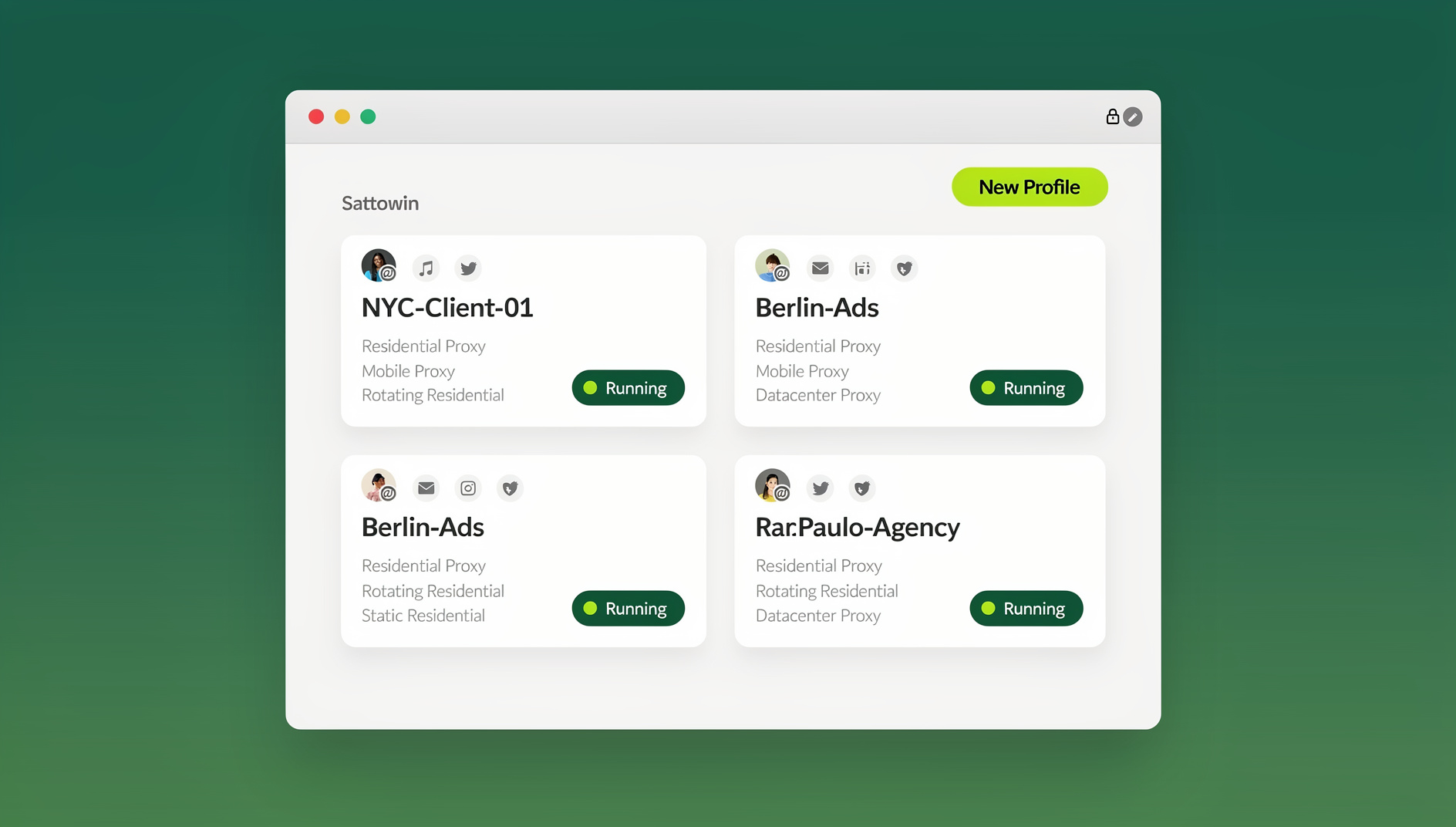
This guide breaks down exactly why managing multiple Gmail and social accounts in a normal browser is so painful, and walks through the specific productivity hacks — one-click profile switching, isolated fingerprints, cloud-based access, and safe team sharing — that let you run 5, 20, or 100+ accounts without the constant login dance or the risk of a platform banning your accounts for “suspicious” behavior.
The Real Cost of Juggling Multiple Gmail and Social Accounts
Most people underestimate how much time and mental energy multi-account management actually consumes until they measure it. Here’s what it typically looks like in practice.
The Hidden Time Cost of Constant Account Switching
Every time you log out of one Gmail account and into another, you lose more than the 20-30 seconds it takes to type credentials. You lose your place — the tab you had open, the draft you were writing, the two-factor code you now have to fetch from your phone. Multiply that by 10-15 switches a day across a marketing team managing multiple ad accounts, and you’re easily looking at 45-60 minutes of pure friction, not counting the time spent re-orienting after each switch.
The Cognitive Switching Tax
Psychologists call it “attention residue” — part of your brain stays stuck on the previous task even after you’ve moved to the next one. Constant account switching multiplies this effect because you’re not just changing tasks, you’re changing identity context: which client, which brand voice, which inbox rules apply now. That residue is why an afternoon of account-hopping can leave you feeling exhausted despite not having produced much.
The Security Risk of DIY Workarounds
To avoid the friction, most people improvise: multiple browsers (Chrome for personal, Firefox for work), incognito windows, or clearing cookies between logins. These workarounds don’t actually solve the problem — they just hide the symptoms while leaving the underlying risk in place. Platforms like Google, Meta, and LinkedIn use device and browser fingerprinting to detect when multiple accounts are being run from what looks like the same “identity,” and clumsy workarounds often trigger exactly the suspicious-activity flags they were meant to avoid.
Why Chrome Profiles and Incognito Mode Fall Short
Chrome’s built-in multiple profiles feature and incognito mode are the first things most people try, and they help — briefly. Here’s where they break down at scale.
- Shared fingerprint: Chrome profiles still share the same underlying device fingerprint (canvas, WebGL, fonts, screen resolution), so platforms can still link them to one machine.
- No proxy per profile: Every Chrome profile browses from the same IP address unless you manually configure per-profile proxies, which Chrome doesn’t support natively.
- Slow switching: Switching profiles means closing one window and opening another — not a true one-click toggle between active sessions.
- No team sharing: You can’t hand a Chrome profile to a teammate without literally handing over the device or exporting a full user data folder.
- Incognito loses everything on close: Every incognito session starts from zero — no saved logins, no cookies, no session state — which is the opposite of what you want for accounts you use daily.
This is the exact gap that a dedicated multi-login browser is built to close, and it’s why so many marketers, sellers, and remote teams eventually move to a purpose-built tool instead of stacking more browser tabs.
How Send.win Solves Multi-Account Management
Send.win is a browser profile manager built specifically for people who need to run many accounts — Gmail, Facebook, Instagram, LinkedIn, TikTok, and more — with each profile keeping its own cookies, storage and fingerprint so profiles stay separate. It does this through three core mechanisms working together.
Isolated Browser Profiles with Unique Fingerprints
Every profile you create in Send.win gets its own separate cookie jar, local storage, and — critically — its own browser fingerprint (canvas, WebGL, user agent, timezone, fonts, screen resolution). To each platform you log into, every profile looks like a genuinely different device and browser, not five accounts crammed into one Chrome window. This is the foundation that makes running multiple Gmail or social accounts safe rather than something you’re constantly worried will get flagged.
One-Click Profile Switching
Instead of logging out and back in, each Gmail or social account lives in its own persistent profile. You click the profile, and it opens already logged in — session, cookies, and saved state intact. Switching between ten client accounts becomes ten clicks instead of ten full login sequences.
Built-in Proxy Support
Send.win lets you attach a residential, datacenter, or mobile proxy to each profile individually, so every account also gets its own consistent IP and geographic footprint. This matters enormously for anyone running multiple Facebook accounts for ad management or client work, where IP consistency is one of the biggest factors platforms weigh when deciding whether accounts look related.
Productivity Hack #1: Run Every Account in Its Own Isolated Profile (Desktop App)
The most common way to use Send.win day-to-day is the native desktop app for Windows, macOS, and Linux. This is where most users manage their profiles locally, and it’s the fastest option for daily driving because there’s no browser tab overhead or cloud latency — profiles open like local apps.
- Install the Send.win desktop app and sign in to your account.
- Create a new profile for each Gmail or social account you manage — name them clearly (e.g., “Client A – Gmail,” “Client A – Instagram”).
- Log into the relevant account inside that profile once. Send.win saves the session so you won’t need to log in again.
- Optionally attach a proxy to the profile so it has a consistent, isolated IP.
- Pin your most-used profiles to the top of your dashboard for one-click access.
Once set up, opening any of your multiple Gmail accounts is a single click from the dashboard — no logging out, no clearing cookies, no incognito windows.
Productivity Hack #2: Access Any Profile from Anywhere with Cloud Browser Sessions
Not everyone wants to install a desktop app on every machine they use — and you shouldn’t have to. On paid Send.win plans, you also get cloud browser sessions: your profiles run entirely in the cloud, streamed to whatever device you’re on, with zero local installation required. This is a genuinely separate mode from the desktop app, metered by monthly “cloud browsing time” (similar to how proxy bandwidth is metered), and it’s the right feature when your workflow is about accessing accounts from anywhere rather than running them on one dedicated machine.
This matters if you:
- Work across a laptop, a shared office computer, and a tablet, and want the exact same logged-in profiles on all of them.
- Need to hand a client or teammate access to a specific Instagram or Facebook profile without installing anything on their machine.
- Want to check on a social account from a device you don’t fully trust, without ever exposing local cookies or credentials on that machine.
Getting started is straightforward — Send.win even has a dedicated walkthrough for how to create multiple sessions in Sendwin’s cloud browser, which is worth following if you plan to run most of your accounts this way instead of through the desktop client. Cloud sync also means changes you make to a profile on the desktop app show up when you access that same profile through the cloud browser later — you’re never stuck re-doing setup on a second device.
Productivity Hack #3: Keep Repetitive Account Tasks Organized Across Profiles
For agencies and teams managing dozens of accounts, manual switching — even one-click switching — eventually hits a ceiling. This is where Send.win’s isolated, fingerprinted profiles become the real productivity unlock: each profile keeps its own cookies, storage and fingerprint, so you can organize routine actions — posting scheduled content, checking inbox status, running QA passes across accounts — with each profile keeping its own separate browser identity instead of sharing one.
Practical examples where teams work through their isolated profiles instead of clicking through profiles manually:
- Scheduled social posting across a dozen brand or client accounts without a human clicking “post” on each one.
- Automated login health checks that flag which Gmail or social accounts have hit a captcha or verification wall overnight.
- QA and testing workflows where developers need to simulate real, differentiated browser sessions rather than a single automated bot fingerprint.
If your team is still doing this manually, this is usually the single highest-leverage change you can make — it turns “an hour of clicking through accounts every morning” into a script that runs while you’re asleep.
Productivity Hack #4: Share Access Without Sharing Passwords
Multi-account management usually isn’t a solo activity — it’s a team activity. Marketing agencies, social media managers, and e-commerce operators regularly need to hand off account access to teammates, contractors, or clients. The traditional way — sharing the actual password — is a security liability: you lose control of who has access, when, and for how long, and revoking it means resetting the password (and disrupting everyone else).
Send.win’s team sharing feature lets you share a specific profile with a teammate without ever revealing the underlying credentials. They get working access to the session; you keep full control and can revoke it instantly whenever they leave the project or the engagement ends. Combined with session isolation — each shared profile is walled off from every other — this is a much safer way to hand off multiple Instagram accounts to a social media team than emailing around a shared password document.
Step-by-Step: Building Your Multi-Account Workflow in Send.win
Here’s a practical setup sequence for someone starting from scratch with, say, four Gmail accounts and six social profiles.
- Sign up for a paid plan at send.win — the first card purchase is covered by a 7-day money-back guarantee, or try the free cloud demo first.
- Create one profile per account — resist the temptation to reuse a profile for “just one more” account. Isolation only works if it’s actually one account per profile.
- Name profiles by client or purpose (e.g., “Acme Co — Gmail,” “Acme Co — Facebook Ads”) so switching stays intuitive as your list grows past 10-15 profiles.
- Attach proxies to profiles where geographic consistency matters — especially ad accounts and e-commerce storefronts.
- Decide desktop vs. cloud per use case: daily-driver accounts on the desktop app, anywhere-access or shared-with-others accounts on cloud browser sessions.
- Share selected profiles with teammates who need access, using team sharing rather than shared passwords.
- Organize the repetitive parts — keep each account in its own isolated profile so recurring daily tasks across many accounts stay separated and easy to find.
Manual Methods vs. Send.win: A Side-by-Side Comparison
| Factor | Chrome Profiles / Incognito | Multiple Physical Devices | Send.win |
|---|---|---|---|
| Unique browser fingerprint per account | No | Partial | Yes |
| Per-account proxy/IP | No (manual only) | Depends on network | Yes, built-in |
| One-click switching | Slow (re-login) | Requires switching devices | Instant |
| Team sharing without passwords | No | No | Yes |
| Access from any device, no install | No | No | Yes (cloud browser sessions) |
| Scriptable automation (Selenium/Playwright) | No | No | No |
| Cost to scale to 20+ accounts | Free but high risk | Very high (hardware) | Predictable subscription |
Who Benefits Most from This Kind of Setup
Marketers and Social Media Managers
Running ad accounts and organic social for multiple clients means constant switching between brand voices, ad managers, and analytics dashboards. Isolated profiles with dedicated proxies keep client accounts from ever looking connected to each other.
E-commerce Sellers
Multi-store operators on Amazon, Etsy, or Shopify need each storefront to look independent — shared fingerprints across “separate” stores are one of the fastest ways to trigger a platform’s related-account detection and risk a ban wave across all of them.
Freelancers and Agencies
Freelancers juggling client logins benefit most from team sharing — handing a client’s Instagram or Gmail profile to a contractor without ever typing the password into a Slack message.
Remote Teams
Distributed teams that need consistent access to shared accounts across different laptops and locations get the most value from cloud browser sessions, since the profile — and its exact fingerprint and login state — travels with the team, not the device.
Best Practices for Staying Safe and Efficient
- Never reuse a profile across unrelated accounts — one account, one profile, always.
- Match proxy geography to the account’s real-world location — a US-based business account browsing through a European IP is a red flag to most platforms.
- Rotate proxies thoughtfully, not constantly — accounts benefit from IP consistency over time, not from IPs that change every session.
- Use session timers and blur-on-idle features if you work in shared or public spaces, so sensitive tabs aren’t visible when you step away.
- Audit team access regularly — revoke shared profile access the moment a contractor or teammate’s engagement ends.
🏆 Send.win Verdict
If your day is being eaten by logging in and out of Gmail and social accounts, the fix isn’t more browser tabs or a second laptop — it’s giving each account its own isolated, fingerprinted profile with one-click access. Send.win covers every version of this workflow: the desktop app for daily driving, and cloud browser sessions for access from any device with zero install.
Try Send.win today — pick a paid plan, covered by a 7-day money-back guarantee on your first card purchase, and get your first ten accounts organized before lunch.
Frequently Asked Questions
What’s the fastest way to manage multiple Gmail accounts without constant logins?
Create a separate isolated profile for each Gmail account in a multi-login browser like Send.win. Each profile stays logged in permanently, so switching between accounts is a single click instead of a full logout-and-login cycle.
Is it against Google’s or social platforms’ rules to run multiple accounts?
Most platforms allow multiple accounts for legitimate purposes like separate businesses, clients, or brands, but they actively look for signals — shared devices, shared fingerprints, shared IPs — that suggest accounts are being coordinated in ways that violate their policies. Isolating each account’s fingerprint and IP reduces the chance of accounts being incorrectly linked and flagged.
Do I need the desktop app, or can I just use the cloud browser?
Both are real, separate options and you can use either or both. The desktop app installs locally and is fastest for daily use on one main computer. Cloud browser sessions run your profiles entirely online with no install, which is better if you need to access the same profiles from multiple devices or hand access to someone without giving them anything to install.
Can I share a social media account with a teammate without giving them the password?
Yes. Send.win’s team sharing feature lets you grant a teammate or contractor access to a specific profile’s active session without ever exposing the account’s actual password, and you can revoke that access instantly whenever needed.
What’s the difference between working through isolated profiles and just clicking through profiles manually?
Manual switching still requires a human to click into each profile and perform the action. With Send.win, each profile keeps its own cookies, storage and fingerprint, so you can work through your accounts one profile at a time with each one staying separate.
How many accounts can I realistically manage with this kind of setup?
There’s no hard technical ceiling — users manage anywhere from a handful of personal and business accounts to 100+ client or storefront accounts. The practical limit is usually your plan’s profile allowance and proxy bandwidth, both of which scale with the Pro and Team plans.
Do I still need a VPN if I’m using Send.win?
Not typically. Send.win includes built-in proxy support per profile, which handles IP masking and geo-matching directly, so a separate VPN is usually redundant and can even cause conflicts if it changes your IP mid-session.
What does Send.win cost?
Send.win has no free trial. The Pro plan is $19/month or $83.88/year, and the Team plan is $49/month or $251.88/year. The first card purchase is covered by a 7-day money-back guarantee, and the only free option is the cloud demo at https://send.win/demo-browser/.
Conclusion
Managing multiple Gmail and social accounts doesn’t have to mean a browser full of half-logged-in tabs or a spreadsheet of which incognito window belongs to which client. The productivity hacks that actually move the needle — isolated profiles with their own fingerprints, one-click switching, cloud access from anywhere, and safe team sharing — are exactly what a purpose-built browser profile manager like Send.win is designed to deliver. Set it up once, and the hours you were losing to account-switching go back to actual work.