Threat isolation is a security strategy that runs untrusted web content, email links, and file attachments inside a disposable, sandboxed environment instead of on your actual device — so malware, exploits, and zero-day attacks never touch your real system. Rather than trying to detect every threat in advance, it assumes everything external is dangerous and simply contains it.
What Is Threat Isolation?
Traditional security tools try to spot malicious content before it reaches you: scan a file, check a URL against a blocklist, inspect a script for known signatures. That approach works fine against threats someone has already catalogued. It fails against the ones nobody has seen yet — zero-day exploits, polymorphic malware, and freshly registered phishing domains slip past signature-based scanners every day.
Threat isolation solves this by changing the question. Instead of asking “is this safe?” it asks “what happens if this isn’t?” Every external page, download, or attachment executes inside a disposable container — a remote browser session, a virtual machine, or a sandboxed process — where only harmless visual output (or a sanitized copy of a document) ever reaches the user. When the session ends, the container and anything malicious inside it are destroyed together. Nothing executable ever lands on the endpoint.
How Threat Isolation Works
The Isolation Principle
Detect-and-block security follows three steps: scan incoming content, compare it against a threat database, then allow or block. The problem is the middle step — a database can only flag what it already knows about. Threat isolation replaces that model entirely:
- All external content runs inside a disposable container, never directly on the device
- Only safe output — rendered pixels, or a scrubbed file copy — reaches the user
- No executable code, script, or active download touches the endpoint directly
- The container is wiped after the session, taking any hidden threat with it
Isolation Architecture
| Layer | What Gets Isolated | Common Technology |
|---|---|---|
| Browser Isolation | Web pages, JavaScript, downloads | Remote browser isolation, cloud browsers, local sandboxes |
| Email Isolation | Attachments, embedded links | Content disarm and reconstruction, link rewriting |
| File Isolation | Documents, PDFs, spreadsheets, media | CDR (Content Disarm & Reconstruction) |
| Network Isolation | Untrusted network segments | Microsegmentation, DMZs |
| Application Isolation | Individual apps or processes | Containers, app sandboxing |
Types of Threat Isolation
1. Remote Browser Isolation (RBI)
This is the form most people actually encounter, and the one with the biggest practical impact. All web browsing happens on a remote server inside a disposable container; the user only receives a visual stream or reconstructed DOM of the page. No local code execution, no drive-by downloads reaching disk, no browser exploit that can jump to the host machine. Downloads can be scanned and sanitized before they’re released, and the session container disappears the moment the tab closes.
2. Email Threat Isolation
- Link isolation: Clicking a link inside an email opens it in an isolated browser instead of the user’s default one
- Attachment sandboxing: Files open in an isolated viewer rather than the native application
- Content Disarm & Reconstruction: Active content (macros, embedded objects) is stripped while visual layout is preserved
- URL rewriting: Every link is routed through an isolation gateway at click-time, catching threats that weren’t malicious when the email was first scanned
3. Document Isolation
- PDFs, Word files, and spreadsheets render inside an isolated container rather than the user’s native reader
- Macros and embedded scripts are neutralized before the file is ever opened locally
- A clean, visually identical copy reaches the user; the original is quarantined for analysis
4. Network Microsegmentation
- The network is divided into isolated zones based on trust level
- Lateral movement is contained — a breach in one segment can’t spread to the next
- Every request between segments is authenticated and authorized under a zero-trust model
Threat Isolation vs. Traditional Security
| Aspect | Traditional Security | Threat Isolation |
|---|---|---|
| Approach | Detect and block | Isolate and contain |
| Zero-day protection | No — needs a signature first | Yes — contained by default |
| False positives | Frequent, blocks legitimate content | Rare, everything is treated equally |
| User experience | Interrupted by alerts and blocks | Mostly seamless |
| Maintenance | Constant signature updates | Set-and-forget policies |
| Endpoint load | Heavy — local scanning agents | Light — processing happens remotely |
| Coverage | Known threats only | Known and unknown threats |
Enterprise Threat Isolation Solutions
Large organizations typically buy dedicated isolation platforms rather than piecing one together. A few of the established names:
| Vendor | Product | Isolation Method | Deployment |
|---|---|---|---|
| Zscaler | Cloud Browser Isolation | Pixel streaming + DOM mirroring | Cloud |
| Menlo Security | Secure Cloud Browser | Elastic Isolation Core | Cloud |
| Broadcom / Symantec | Web Isolation | Remote rendering | Cloud / on-prem |
| Cloudflare | Browser Isolation | Network Vector Rendering | Cloud (edge) |
| Microsoft | Application Guard | Hyper-V container | Local |
| Ericom | Shield | Remote rendering + CDR | Cloud |
These platforms are built for security operations centers with dedicated budgets and IT teams. Most individuals, freelancers, and small teams need something lighter — which is where cloud browser tools fit into the picture, covered further down.
Implementing Threat Isolation
For Individuals
- Basic: Use your browser’s built-in sandboxing (Chrome Site Isolation, Edge Application Guard)
- Moderate: Run a browser inside Windows Sandbox or a Docker container for anything unfamiliar
- Practical: Use isolated cloud browser profiles with proper session isolation for daily accounts, especially ones you log into from shared or public devices
- Maximum: Qubes OS with disposable VMs for every piece of external content
For Organizations
- Assess risk: Identify the highest-risk activities — unknown sites, email links, BYOD devices
- Start with high-risk users: Roll out isolation for executives, finance, and anyone handling sensitive data first
- Expand to email: Isolate links and attachments across the whole mail flow
- Add document isolation: Apply CDR to files arriving from external sources
- Segment the network: Group systems by sensitivity level so a breach can’t spread freely
- Go organization-wide: Extend isolation to all web traffic, not just the riskiest slice
Threat Isolation for Multi-Account Security
Isolation isn’t only a defense against malware — it’s also how teams that juggle many accounts limit the blast radius when one of them is compromised. Applied to multi-account work, the same principle looks like this:
- Account isolation: Each login runs in its own separate profile or container, so a compromised account can’t cascade into the others
- Credential protection: Passwords are entered inside an isolated session rather than a shared, general-purpose browser where a keylogger or malicious extension could grab them
- Password-free handoffs: When a teammate needs access to an account, sharing the session instead of the password means the credential itself never has to travel over chat, email, or a spreadsheet
- Proxy isolation: Giving each profile its own IP prevents platforms from correlating accounts, which matters even when isolation has already stopped a direct compromise
This is also where remote browser isolation and everyday multi-account management start to overlap: both rely on giving each context — each account, each risky link — its own disposable space instead of trusting one shared browser with everything.
How Send.win Fits Into a Threat Isolation Strategy
Send.win isn’t an enterprise RBI platform built for a security operations center, but it applies the same core idea — separate, disposable contexts instead of one shared browsing environment — to everyday multi-account work. It runs in two distinct modes:
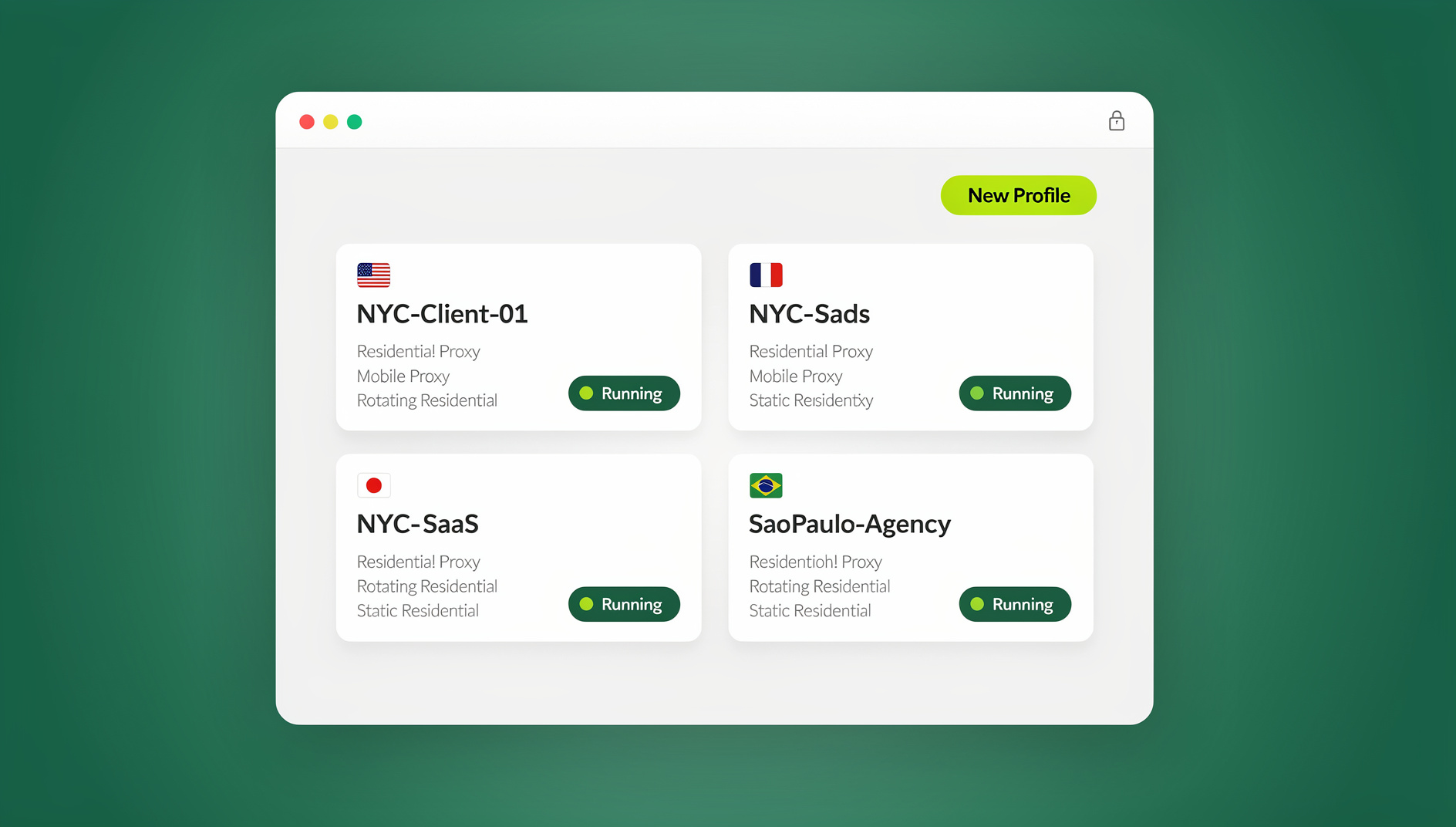
- Sendwin Browser — a native desktop app for Windows, macOS, and Linux. It’s local-first, so your profiles live on your machine, with encrypted cloud sync to back them up and carry them between devices.
- Cloud browser sessions — browsing that runs entirely on Send.win’s servers with zero local install. Nothing executes on your device at all; you’re only ever looking at a remote session, which is the same underlying principle enterprise browser isolation vendors sell at a much higher price point. This mode is metered by cloud browsing time rather than a flat subscription line item.
Each profile — whether local or cloud — keeps its own cookies, storage, and, if you want, its own dedicated proxy per session, so accounts stay cleanly separated instead of bleeding into one browser’s shared state. For teams that also need to test against real sites, Send.win has no automation interface — no API, SDK, headless mode or Selenium/Puppeteer/Playwright support on any plan.
Send.win has no free trial. Pro runs $19/month or $83.88/year, and Team runs $49/month or $251.88/year. The first card purchase is covered by a 7-day money-back guarantee, and the only free option is the cloud demo at https://send.win/demo-browser/.
Choosing the Right Approach for Your Situation
| Who You Are | What You Actually Need | Reasonable Option |
|---|---|---|
| Casual home user | Occasional protection for one risky link or download | Browser sandboxing, Windows Sandbox |
| Freelancer / solo operator | Clean separation across several client or personal accounts | Send.win desktop app with per-profile isolation |
| Small team / agency | Shared account access without shared passwords, proxy per profile | Send.win Team plan, cloud or local sessions |
| QA / automation team | Scripted browsing against unfamiliar or untrusted pages | No |
| Enterprise SOC | Org-wide policy enforcement, CDR, network segmentation | Zscaler, Menlo Security, Cloudflare, or similar |
Measuring Threat Isolation Effectiveness
Key Metrics
- Threats contained: Malicious payloads isolated and destroyed rather than reaching an endpoint
- Zero-day events: Novel threats caught that would have slipped past signature-based detection
- User experience impact: Page load times and responsiveness under isolation versus direct browsing
- False positive reduction: Fewer legitimate pages or files getting blocked outright
- Incident response time: Faster response because threats are already contained when discovered
- Endpoint infection rate: Drop in malware incidents on protected devices over time
🏆 Send.win Verdict
Threat isolation is genuinely one of the more effective security ideas available today, but full enterprise RBI platforms are overkill for most individuals and small teams. Send.win takes the same “separate context, disposable session” principle and packages it around real multi-account work — a native desktop app with encrypted sync for everyday use, plus zero-install cloud sessions when you want nothing touching your local machine at all. If your threat model is mixing risky links, shared team logins, or dozens of client accounts rather than defending a corporate network, it’s a far more practical starting point than an enterprise isolation vendor.
Try the Send.win cloud demo — a 3-minute preview without signup, 10 minutes a day with a free account.
Frequently Asked Questions
Does threat isolation replace antivirus?
No. Threat isolation is a complementary layer, not a replacement. Antivirus still handles threats arriving through USB drives, local files, and non-browser software. Isolation covers the web-based attack surface — the two together give you defense in depth.
Is threat isolation expensive?
Enterprise RBI platforms typically run $3-15 per user per month, which adds up quickly across a large workforce. For individuals and small teams, lighter options exist: Windows Sandbox and Docker containers are free, and cloud browser tools like Send.win start at $19/month with a 7-day money-back guarantee on the first card purchase. The cost of a single breach usually dwarfs a year of isolation tooling either way.
Does threat isolation slow down browsing?
Modern implementations add only 10-50ms of latency in most cases. Cloud-based isolation running at edge locations processes traffic close to the user, and most people can’t reliably tell isolated browsing apart from direct browsing during normal use.
What threats can’t isolation stop?
Isolation won’t stop you from voluntarily typing your password into a convincing phishing page, though it can block known phishing domains outright. It also doesn’t address social engineering that never involves malicious code — a scam phone call, for instance. Awareness training still matters alongside the technical controls.
Can I use threat isolation at home?
Yes. Windows Sandbox, VirtualBox, and cloud browser tools like Send.win all apply isolation principles for home use. For most people, routing sensitive activities — banking, account recovery, anything involving a suspicious link — through an isolated session gives solid protection without much technical overhead.
Is Send.win the same thing as an enterprise browser isolation product?
Not exactly. Enterprise RBI platforms are built for company-wide policy enforcement, compliance, and SOC-level monitoring. Send.win is built around isolated, separately managed browser profiles — as a native desktop app or as zero-install cloud sessions — aimed at people and teams managing multiple accounts, proxies, and logins rather than a full corporate security stack.
Does Send.win support automated testing inside an isolated session?
No. Send.win has no automation interface — no API, SDK, headless mode or Selenium/Puppeteer/Playwright support on any plan.
What’s the difference between the two Send.win modes?
The Sendwin Browser is a downloadable native app for Windows, macOS, and Linux — your profiles are stored locally first, with encrypted cloud sync layered on top. Cloud browser sessions run entirely on Send.win’s servers with no local install at all, and usage is metered by cloud browsing time instead. Which one to use depends on whether you want everything to happen off your own device or you’re fine with a local install that syncs.
Conclusion
Threat isolation is a real shift in how security works — from trying to catalogue every possible threat to simply containing anything untrusted by default. Running web content, email links, and documents inside disposable environments neutralizes both known and unknown threats without depending on constantly updated signature databases.
For everyday users and small teams juggling multiple accounts rather than defending an enterprise network, cloud browser tools like Send.win bring that same isolation principle down to a practical scale — separate profiles, per-session proxies, and a genuine choice between a local desktop app or fully cloud-based sessions, without needing a security operations team to run it.