Access session from website without installing anything — that single feature is one of the most-asked-about parts of Send.win, and for good reason. Most antidetect and multi-login browsers chain you to a single desktop app or a single browser extension. If that extension isn’t installed, or you’re on a machine where you can’t add browser extensions (a client’s laptop, a locked-down work PC, a teammate’s fresh install), you’re stuck. Send.win was built differently: your sessions live in the cloud, tied to your account, not to one browser install. This guide walks through exactly how to reach, manage, and launch your saved sessions straight from the Send.win website, what’s different between the web dashboard, cloud browser sessions, and the native Desktop app, and where the Automation API fits in if you want to skip the UI entirely.
What “Access Entire Session From the Website” Actually Means
When people search for this, they usually mean one of two things: either “can I see and manage my saved browser profiles without installing anything,” or “can I actually open and browse inside a fingerprinted session without installing anything.” The honest answer is nuanced, and it’s worth being precise about it rather than promising something that isn’t true.
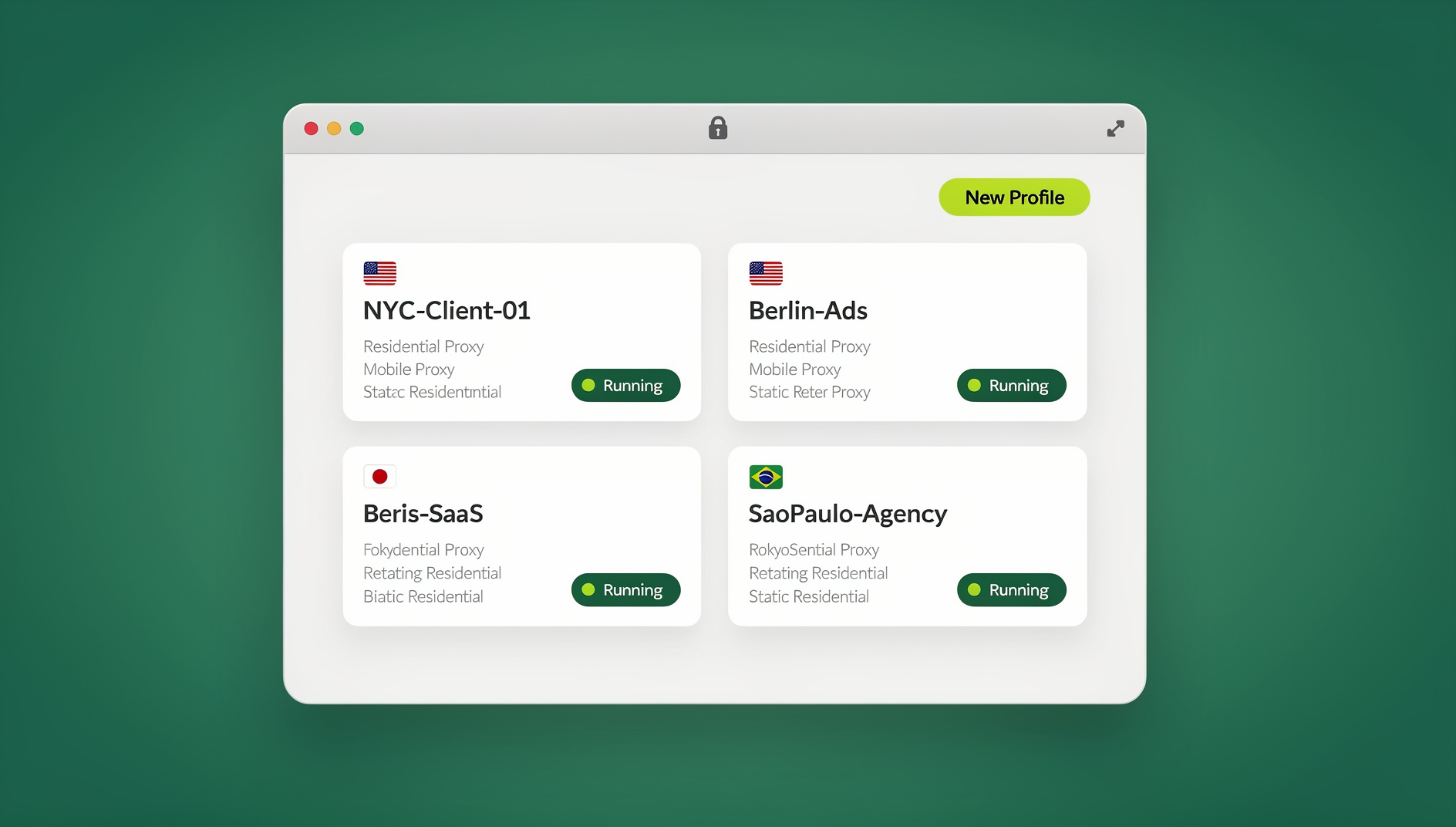
The Send.win web dashboard (send.win) gives you full account-level access with zero install required. You can log in from any browser on any computer and immediately see every saved profile, every proxy assignment, every team member with access, and every session’s status. You can rename profiles, edit fingerprint settings, rotate proxies, generate share links, and manage your whole team’s access — all without ever installing anything locally.
What the dashboard alone can’t do is render a live, uniquely fingerprinted browser tab inside a plain web page — that takes an actual browser engine running the session, not just account data on a page. That’s where the one-click “Launch” button comes in: clicking it from the website either spins up a cloud browser session — a real, fingerprinted browser engine running on Send.win’s servers and streamed straight to your screen, no local install required — or, if you’d rather run it locally, hands off to the Send.win Desktop app installed on your machine. In other words, you manage everything from the website with nothing to install, and even the live browsing itself can stay install-free with a cloud session — but for unmetered, fully local browsing you’ll still want the Desktop app. That distinction matters, and this guide covers exactly how the handoff works so you’re never caught off guard.
Why You’d Want to Access a Session Without Installing Anything
This isn’t a niche use case. It comes up constantly for people who manage more than one browser profile:
- New or borrowed computer: You’re traveling, using a client’s laptop, or logging in from a shared office machine and don’t want to install anything on hardware you don’t own.
- Locked-down corporate machines: Some IT policies block software installs entirely. The web dashboard still works because it’s just a normal HTTPS website, and a cloud browser session runs without installing anything either.
- Quick account audits: You just need to check which proxy is attached to a profile, or confirm a teammate hasn’t touched a session, without launching a full browser window.
- Team hand-offs: A manager wants to review or reassign a profile that a freelancer created, without installing anything themselves.
- Mobile and tablet checks: Checking session status or proxy health from a phone browser while you’re away from your desk.
- First-time setup before installing anything: Reviewing the dashboard and pricing before committing to install the Desktop app.
In all of these, the web dashboard removes the friction of “I need to install something first.” For scenarios where you eventually need to actually load and browse inside the session — like running a marketing campaign or managing a multi-login browser workflow across a dozen accounts — you’ll still want a cloud browser session or the Desktop app close by.
Step-by-Step: Access and Launch a Session From the Send.win Website
Here’s the exact flow for reaching your saved sessions with nothing but a browser and your login credentials:
- Go to send.win and click “Log In.” Enter your email/password or SSO credentials — no download prompt appears at this stage.
- Land on your dashboard. You’ll immediately see every profile you’ve saved, grouped by folder/tag if you’ve organized them, along with status indicators (active, idle, proxy attached, last used).
- Search or filter by profile name, tag, proxy location, or team member if you’re managing a large workspace.
- Open a profile’s detail view to review or edit its fingerprint settings, assigned proxy, saved cookies/storage, notes, and sharing permissions — all inline, in the browser, no extension required.
- Click “Launch” when you’re ready to actually browse inside that profile. If the Desktop app is already installed and signed in, the session opens instantly in an isolated window on your machine. If it isn’t, Send.win opens the profile as a cloud browser session right in your existing browser tab — no install required, within your plan’s cloud browsing time — or you can install the Desktop app for unmetered local launches going forward.
- Manage on the go. Once launched, you can close the tab and return to the dashboard to launch other profiles, share access, or check proxy bandwidth — the dashboard and your live sessions run independently of each other.
Notice that steps 1 through 4 — logging in, browsing your profile library, editing settings, sharing access — genuinely require nothing but a normal web browser. Step 5, the actual live launch, can also stay install-free if you use a cloud browser session — the Desktop app is only needed if you want unmetered, fully local browsing.
Three Ways to Open a Send.win Profile
Send.win gives you three separate entry points into the same underlying session data, and knowing when to use each one saves a lot of confusion:
1. The Web Dashboard
Best for management, review, sharing, and account administration. Works on any device with a browser. Zero install. Cannot render a fingerprinted browsing session by itself.
2. Cloud Browser Sessions
Launch a profile so it runs entirely on Send.win’s servers and streams straight into your existing browser tab — no download, no install, nothing added to your toolbar. Best if you’re on a borrowed or locked-down machine, or you just want to try a profile before committing to install anything. Usage is metered as cloud browsing time (Free: 10 minutes/day, 1 saved cloud session; Pro: unlimited cloud browsing time, 20 saved cloud sessions, 3 concurrent; Team: more concurrent sessions across 16 seats).
3. The Desktop App
Send.win’s native Desktop app is available for Windows, macOS, and Linux and runs as a standalone client outside your regular browser. It’s the most reliable way to launch sessions — it’s local-first, so it doesn’t depend on your everyday browser staying open or a live connection to stream your session from the cloud, and it handles proxy connections, fingerprint rendering, and multiple simultaneous profile windows more efficiently than a cloud browser session can. If you manage a large number of profiles or run automation, the Desktop app is the recommended default rather than a fallback.
| Access Method | Requires Install? | Can Manage Profiles? | Can Launch a Live Session? | Best For |
|---|---|---|---|---|
| Web Dashboard | No | Yes | No (hands off to a cloud session or the app) | Reviewing, sharing, editing on any device |
| Cloud Browser Session | No | Yes | Yes | No-install browsing from any device, metered by cloud browsing time |
| Desktop App | Yes (native client) | Yes | Yes | Heavy daily use, many profiles, stability |
| Automation API | No UI at all | Yes (programmatic) | Yes (headless/scripted) | Selenium/Puppeteer/Playwright workflows |
What You Can Actually Do From the Website Without Installing Anything
It’s worth being specific about the scope of “no extension needed,” because it covers more ground than most people expect:
- View every saved profile — name, tags, creation date, last-used timestamp, and assigned proxy.
- Edit fingerprint configuration — user agent, screen resolution, timezone, WebRTC and canvas settings — before you ever open the window.
- Attach or swap a proxy on any profile, matching timezone and geolocation automatically to the proxy’s IP.
- Generate a shareable session link for a teammate or client, with view-only or full-control permissions, so they never see your raw login credentials.
- Duplicate or archive profiles in bulk when you’re cleaning up an old campaign or onboarding a new one.
- Check team activity logs — who launched which profile and when — for accountability across a shared workspace.
- Manage billing, seats, and plan upgrades without installing anything at all.
For agencies and teams, this web-first management layer is often what makes sharing sessions with a team so much less painful than emailing credentials back and forth — a manager can review, reassign, or revoke access entirely from the browser, no install coordination required across a dozen teammates’ machines.
Setting Up a Profile Before You Ever Launch It
Because the dashboard lets you configure everything before the first launch, the smart workflow is to build the profile fully on the website first, then launch once. If you haven’t created a profile yet, our walkthrough on how to create sessions in Send.win covers the initial setup in more depth — naming conventions, tagging, and choosing a fingerprint template — all of which you can do from the web dashboard alone.
Once the profile exists, each saved session behaves like its own sandboxed identity: separate cookies, separate local storage, separate cache, and (if you’ve attached one) a separate proxy IP. This is the same principle behind session isolation — no cross-contamination between profiles, whether you’re switching between five e-commerce storefronts or fifty ad accounts.
Accessing Sessions Remotely or From a Different Device
Because your profiles are tied to your Send.win account rather than to one physical machine, you can log into the dashboard from a completely different computer and see the exact same profile library. This is functionally close to what security teams call remote access browser isolation — your actual browsing environment isn’t bound to the hardware in front of you. The practical benefit: if your laptop dies, gets replaced, or you’re simply working from a hotel business center, none of your saved fingerprints, cookies, or proxy assignments are lost. Log in, review the dashboard, install the Desktop app on the new machine (a two-minute step), and every profile launches exactly as it did before.
Automating Session Access: The Automation API
For teams on the Team plan, there’s a fourth way to reach a session that skips the dashboard, cloud browser sessions, and the Desktop app entirely: the Automation API. It exposes Send.win’s fingerprinted, proxy-attached profiles to Selenium, Puppeteer, and Playwright, so a script can spin up a specific saved session, drive it programmatically, and tear it down — all without a human ever clicking “Launch” on the website.
This is the natural next step once “access without installing anything” stops being about convenience and starts being about scale. A QA team running regression tests across a dozen fingerprint/proxy combinations, or a growth team automating routine account checks across managed profiles, doesn’t want to log into a dashboard at all — they want a script that authenticates with an API key, requests a specific profile by ID, and gets back a connectable browser endpoint. That’s exactly what the Automation API is for, and it uses the same session data (cookies, fingerprint, proxy) you configured through the web dashboard.
| Task | Web Dashboard | Cloud Session | Desktop App | Automation API |
|---|---|---|---|---|
| Review/edit profile settings | Yes | No | Yes | Yes (via API calls) |
| Manual, interactive browsing | No | Yes | Yes | No |
| Scripted/headless browsing | No | No | No | Yes |
| Team sharing and permissions | Yes | No | No | Yes (programmatic) |
| Requires install | No | No | Yes | No (API key only) |
Security Considerations When Managing Sessions From the Web
Opening up account-level access from any browser is convenient, but it does raise the bar on how carefully you should treat your login. A few practical habits:
Use a Strong, Unique Password and 2FA
Since the dashboard is reachable from anywhere, treat your Send.win login the same way you’d treat a password manager or cloud storage account — unique password, two-factor authentication turned on, and a password manager rather than a reused login.
Use Shared Links Instead of Shared Credentials
When a teammate or client needs access to one profile, generate a scoped share link from the dashboard rather than handing over your account password. You can revoke that access instantly from the same screen.
Log Out on Shared or Public Machines
If you accessed the dashboard from a client’s laptop or a shared office computer, log out fully when you’re done — the dashboard itself doesn’t leave fingerprint data behind since it never rendered a live session, but your account session cookie will persist until you sign out.
Review Activity Logs Periodically
Team plan workspaces can check the activity log to confirm which profiles were launched, by whom, and when — useful for catching unauthorized access early.
Common Issues and Fixes
| Problem | Likely Cause | Fix |
|---|---|---|
| “Launch” button does nothing | Out of free cloud browsing time for the day and the Desktop app isn’t installed | Wait for your daily cloud browsing time to reset, upgrade for unlimited cloud time, or accept the one-click Desktop app install prompt, then retry launch |
| Profile launches with old cookies | Session hasn’t synced since the last edit | Refresh the dashboard, confirm “last synced” timestamp before launching |
| Can’t see a teammate’s shared profile | Share link permission was view-only or has expired | Ask the profile owner to re-share with the correct permission level |
| Proxy shows disconnected | Proxy bandwidth limit reached or provider outage | Check proxy usage in the dashboard, swap to a backup proxy if needed |
| Automation API call returns an auth error | Expired or incorrectly scoped API key | Regenerate the key from Team plan settings and re-scope permissions |
🏆 Send.win Verdict
If you need to review, edit, or share browser sessions without being tied to one specific machine or install, Send.win’s web dashboard genuinely delivers — full account and profile management from any browser, no install required. For the actual live, fingerprinted browsing itself, use a cloud browser session for zero-install access, or pair it with the Desktop app (Windows/macOS/Linux) for the most reliable, unmetered launch experience, or the Automation API on the Team plan if you want Selenium, Puppeteer, or Playwright driving your sessions with no UI at all.
Try Send.win free today — start your 30-day free trial, no credit card required, and see how far you can manage your sessions before you ever install anything.
Frequently Asked Questions
Do I need to install anything to manage my sessions?
No. You can log into the web dashboard at send.win from any browser to view, edit, tag, share, and organize every saved profile without installing anything. You only need a cloud browser session or the Desktop app when you’re ready to actually open and browse inside a live session.
What’s the real difference between the web dashboard and the Desktop app?
The dashboard is a management console — it shows and lets you edit your profile data but can’t render a fingerprinted browser window by itself. The Desktop app is the native client (Windows/macOS/Linux) that actually launches and runs your isolated sessions locally, with better stability and performance than a cloud browser session for heavy daily use.
Can I launch a profile on a computer that’s never had Send.win installed?
Yes. Log into the dashboard and click “Launch” on the profile you need — Send.win opens it as a cloud browser session right away with no install, or you can choose to install the Desktop app for local, unmetered launches instead. Once installed, future launches on that machine run locally and instantly.
Is it safe to log into my Send.win dashboard on a shared or public computer?
It’s workable if you’re careful: use two-factor authentication, avoid saving your password in the browser, and log out fully when you’re finished. Since the dashboard itself doesn’t render live fingerprint data, there’s nothing session-specific left behind — but your account login session will persist until you sign out.
Can I share a session with a teammate without giving them my password?
Yes. Generate a scoped share link or add them as a team member with specific profile permissions from the dashboard. They get access to exactly the profiles you assign, and you can revoke that access instantly without changing your own login credentials.
Does the Automation API replace the need for a cloud session or the Desktop app?
For scripted, headless, or CI/CD workflows, yes — the Automation API (available on the Team plan) lets Selenium, Puppeteer, and Playwright connect directly to a session by API key, with no cloud session, Desktop app, or manual dashboard clicks involved. For interactive, hands-on browsing, you’ll still want a cloud browser session or the Desktop app.
Will accessing a session from the website use up my profile limit faster?
No. Viewing, editing, or sharing a profile from the dashboard doesn’t count as an additional profile — your plan’s profile limit (Pro: 150 profiles, Team: 500 profiles) is based on saved sessions, not how many times or from where you access them.
What happens to my cookies and fingerprint settings when I launch a cloud session versus the Desktop app?
They’re identical. The web dashboard, cloud browser sessions, and the Desktop app all read from the same underlying session data stored on your account, so a profile launched as a cloud session from the website opens with the exact same cookies, fingerprint configuration, and proxy assignment as if you’d launched it from the Desktop app directly.