A browser sandbox is an isolated environment — built into the browser itself, run inside a container, or hosted entirely in the cloud — that keeps web pages, scripts, and login sessions from touching your operating system or leaking into one another. It stops malicious code from reaching your files, and it lets you run multiple accounts on the same platform without one profile contaminating another. Send.win applies this idea to everyday multi-account browsing, available either as a native desktop app or as a fully cloud-hosted session.
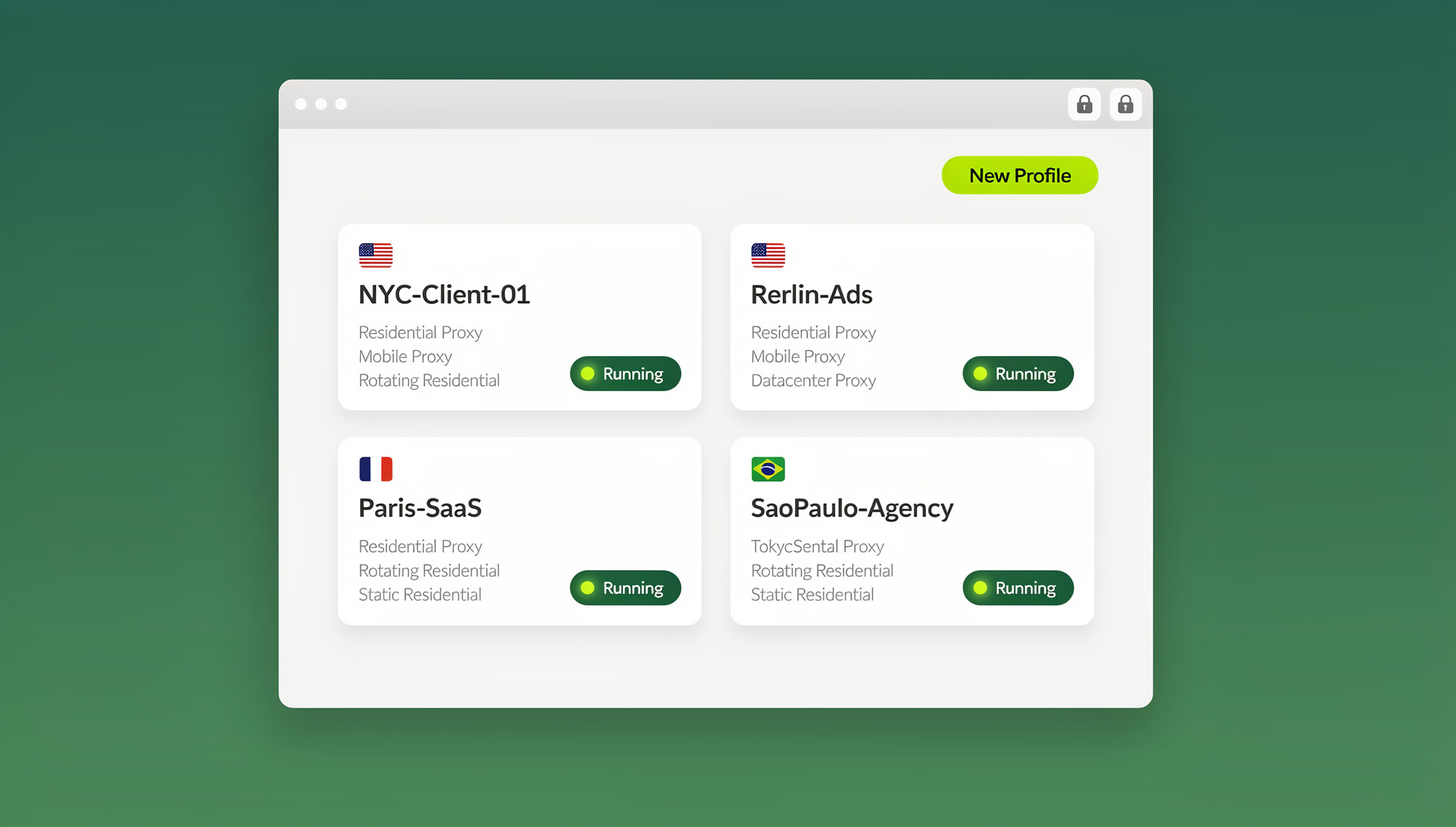
What Is a Browser Sandbox?
A browser sandbox is a security boundary that separates whatever a web page or script is doing from the rest of your computer. If a tab is compromised by malicious JavaScript, a sandboxed browser stops that code from reading your files, installing software, or moving to another process. The browser itself becomes the containment wall.
Modern sandboxing has grown beyond pure security into identity management. Advanced implementations create fully separate browser environments for different purposes, each with its own cookies, cache, and fingerprint — letting one person safely run several accounts on the same platform, keep client work separate from personal browsing, or test unfamiliar sites without risk to their main machine.
How Browser Sandboxing Works
Sandboxing operates at several technical layers, and understanding them helps explain why some sandboxes protect you far better than others.
1. Process Isolation
Modern browsers such as Chrome and Firefox use a multi-process architecture, where each tab, plugin, and extension runs in its own process. If one process crashes or is compromised, it cannot reach into other processes or the underlying system.
- Privilege separation — renderer processes run with minimal system privileges and cannot make direct system calls
- Inter-process communication (IPC) — processes talk to each other only through channels the browser controls
- Memory protection — each process gets its own isolated memory space, preventing cross-contamination
2. Filesystem Isolation
Sandboxed browsers restrict what a web page can do to your disk:
- Web content cannot read or write files without explicit permission
- Temporary files are isolated and cleaned up automatically
- Downloads require a user action before anything touches disk
- Filesystem APIs are heavily restricted by default
3. Network Isolation
Network activity is controlled and monitored at the sandbox boundary:
- Cross-origin requests are blocked by default (CORS policy)
- DNS lookups can be isolated per tab or per session
- Creating raw network sockets requires explicit permission
- WebRTC connections can be isolated or blocked to prevent IP leaks
4. System Resource Isolation
Sandboxes also gate access to hardware and system resources:
- Camera and microphone require explicit user permission
- Clipboard access is limited to specific, user-initiated actions
- Geolocation services require authorization per site
- USB and Bluetooth access is restricted by default
Types of Browser Sandboxing
1. Built-In Browser Sandboxing
Google Chrome/Chromium uses a multi-process architecture with site isolation, so each tab runs in its own renderer process and plugins run separately with limited system access. Firefox uses a similar multi-process model plus container tabs for session isolation. Safari relies on the WebKit2 process model with network process isolation and macOS’s App Sandbox. All three stop a compromised page from touching the rest of your system, but none of them randomize your browser fingerprint or separate your IP address per profile.
2. Container-Based Sandboxing
Technical users sometimes run an entire browser inside a Docker container or virtual machine for complete isolation from the host system. Containers are disposable — destroy them after use and nothing persists — and network access can be locked down independently. Virtual machines add full OS-level separation and snapshot rollback, but both approaches are resource-intensive and require real technical skill to set up and maintain.
3. Cloud-Based Browser Sandboxing
Instead of running the browser locally at all, a cloud sandbox executes the browser on a remote server and streams only the rendered pixels to your device. No web code ever touches your endpoint, which means zero local footprint and centralized security management — the model that a cloud browser is built around. It’s the strongest isolation available for opening suspicious links or working from an untrusted device, because compromise of the session never reaches your actual computer.
4. Profile-Based Sandboxing
Purpose-built multi-account browsers create isolated profiles rather than isolating the whole OS. Each profile keeps its own cookies, cache, and local storage, is assigned its own fingerprint, and can run through its own proxy — which is what makes reliable session isolation possible when you’re logged into ten accounts on the same platform at once.
Benefits of Browser Sandboxing
Security Benefits
Malware containment — even if malicious JavaScript exploits a browser vulnerability, the sandbox stops it from reaching your files or installing software. Zero-day mitigation — sandboxing is defense-in-depth, so even unknown vulnerabilities stay contained within the sandbox boundary. Safe testing — developers and researchers can open suspicious sites or code without risking their primary machine.
Privacy Benefits
Tracking prevention — sandboxed profiles stop sites from linking your activity across sessions or accounts. Cookie isolation — each sandbox holds its own cookies, blocking cross-site and third-party tracking. Fingerprint isolation — better implementations vary the canvas, WebGL, audio, and font signatures per profile, so a site can’t quietly stitch two “different” accounts back together.
Operational Benefits
Multi-account management — run several accounts on one platform at the same time without conflicts. Work/personal separation — keep business and personal browsing fully apart, which also simplifies compliance with data-protection rules. Parallel testing — QA teams can validate an application across several configurations at once instead of serializing every test.
Browser Sandboxing for Multi-Account Management
Traditional browser sandboxing was built to stop malware. Multi-account management asks something extra of it: the sandbox also has to survive a platform that is actively trying to link your accounts back together.
Challenge: Platform Detection
Facebook, Google, Amazon, eBay, and similar platforms use detection methods well beyond your login credentials, including:
- Browser fingerprinting — canvas, WebGL, audio, and font signatures that uniquely identify a device
- Shared cookies — separate profiles that still leak a shared tracking cookie
- IP address tracking — several accounts logging in from the same IP trigger linking algorithms
- Behavioral patterns — login times, activity rhythms, and usage habits that look identical across “different” accounts
Solution: Advanced Browser Sandboxing
Professional multi-account management needs a sandbox that closes every one of those vectors at once: complete session isolation (separate cookies, cache, local storage, and IndexedDB per profile, with independent login states), a distinct browser fingerprint for every profile, and network isolation — a dedicated proxy per profile, WebRTC leak protection, and DNS isolation. Miss any one of these and the platform can often still connect the dots.
Best Browser Sandboxing Tools Compared
1. Firefox Multi-Account Containers
Type: Free, built-in extension for session isolation. Best for: basic account separation for personal use. It’s free, open-source, and lets you color-code container tabs with isolated cookies and storage. It has no fingerprint randomization, though, shares one fingerprint across every container, only works in Firefox, and offers no per-container proxy support.
2. Multilogin
Type: Desktop antidetect browser with sandboxing. Best for: large agencies managing many client accounts. Pricing: roughly $99–$399/month. It ships two browser cores (Chromium- and Firefox-based), advanced fingerprint spoofing, team collaboration, and API access — but it’s expensive for small teams, fiddly to configure, and requires installed desktop software.
3. GoLogin
Type: Cloud-stored, sandboxed browser profiles. Best for: social media managers and marketers. Pricing: roughly $24–$149/month. It offers cloud profile storage, mobile fingerprints, a built-in proxy manager, and automation support, though fingerprint quality trails the premium tier and support can be slow.
4. Qubes OS
Type: Security-focused operating system with VM-based isolation. Best for: maximum security for technically confident users. It runs each application in a separate VM with color-coded window borders and disposable VMs for temporary browsing, but it demands dedicated hardware, real technical skill, and heavy system resources — it’s not built for non-technical users.
Send.win: Native Desktop App and Cloud Browser Sessions
Where the tools above force a choice between a clunky desktop install and a pure cloud stream, Send.win gives you both modes under one account, and you pick whichever fits the task.
Sendwin Browser (native desktop app) — a real, downloadable application for Windows, macOS, and Linux. It runs locally, so browsing feels exactly like your normal browser, while your profiles sync through encrypted cloud storage so the same sandboxed sessions are available the next time you sign in on another machine. Because it’s local-first, this is the mode power users reach for when they need consistent day-to-day performance and want their profile history to travel with them.
Cloud browser sessions — run entirely on Send.win’s servers with zero local install. Only the rendered page streams to your device, exactly like the cloud-based sandboxing described earlier in this guide, so nothing the site does can ever reach your endpoint. Cloud sessions are metered by cloud browsing time rather than a flat seat price, which makes them a good fit for short, high-risk tasks — opening an unfamiliar link, testing a site from a “clean” location, or handing a session to someone without installing anything on their machine.
Both modes share the same profile isolation, per-profile fingerprint settings, and one-click proxy assignment, so switching between them doesn’t mean re-configuring anything.
Send.win has no free trial; the first card purchase is covered by a 7-day money-back guarantee. The Pro plan runs $19/month ($83.88/year) with 150 profiles and 5GB of proxy bandwidth; the Team plan is $49/month ($251.88/year) with 500 profiles, 20GB of bandwidth, and 16 seats for agencies and larger teams. Full details are on the pricing page.
Send.win vs. Traditional Browser Sandboxing
| Feature | Firefox Containers | Desktop Antidetect Browsers | Send.win |
|---|---|---|---|
| Session Isolation | Cookie level only | Complete | Complete — desktop app or cloud session |
| Fingerprint Protection | None | Manual configuration | Automatic per profile |
| Proxy Support | Limited | Complex manual setup | One-click assignment |
| Local Installation | Browser feature, no install | Required | Optional — native app, or zero-install cloud sessions |
| Automation | None | Varies by vendor | None |
| Starting Price | Free | $99–$399/mo | $19/mo ($83.88/yr); no free trial, 7-day money-back guarantee on the first card purchase |
Browser Sandboxing Security Best Practices
1. Sandbox Every Sensitive Activity, Not Just Banking
Don’t limit sandboxing to banking or shopping. Apply it to webmail, social media logins, business applications, cloud storage, and any login that requires credentials.
2. Separate Work and Personal Browsing
Never mix business and personal activity in the same profile. Keep a dedicated sandbox for work accounts and a separate one for personal browsing to prevent data leakage between contexts and simplify compliance.
3. Use Disposable Sandboxes for Risky Sites
When you’re visiting an unknown or suspicious site, spin up a temporary sandbox, browse the site, then destroy it after the session. Never reuse a disposable sandbox for anything else.
4. Combine Sandboxing With Other Security Layers
Sandboxing is one layer of defense, not the whole stack. Pair it with updated antivirus software, a firewall, strong passwords with 2FA, and regular software updates.
5. Clear Sandbox Data Regularly
Even sandboxed data deserves periodic cleanup: clear cookies and cache monthly, review stored passwords, delete profiles you no longer use, and audit extension permissions.
Common Browser Sandbox Mistakes
1. Assuming Incognito Mode Is Sandboxing
Myth: private/incognito browsing provides sandboxing. Reality: incognito mode only discards cookies after the session ends. Your browser fingerprint, IP address, and network activity all remain exposed — it offers minimal privacy and zero true sandboxing.
2. Reusing the Same Credentials Across Sandboxes
Mistake: logging into different profiles with the same username or email. Issue: platforms can still link accounts through credential matching even when every fingerprint is different.
3. Neglecting Proxy Assignment
Mistake: creating separate sandboxes but routing them all through the same IP address. Issue: IP address is the primary linking vector for most platforms, so sandboxing without per-profile proxies is incomplete for multi-account work.
4. Sharing One Sandbox Across Unrelated Purposes
Mistake: using a single sandbox for several unrelated accounts. Issue: this defeats the point of isolation — each distinct use case should get its own dedicated sandbox.
🏆 Send.win Verdict
Browser sandboxing genuinely reduces risk, but the strength of that protection depends entirely on which sandbox you use. Built-in browser containers stop crashes, not fingerprinting. Desktop browsers add fingerprint control but demand manual setup and steep monthly fees. Send.win closes that gap by pairing a native desktop app with encrypted cloud sync for everyday sandboxed browsing, plus fully cloud-hosted sessions with zero local install for higher-risk, one-off tasks — with per-profile fingerprints, one-click proxies, and separate cookies and storage for every profile.
Try the Send.win cloud demo — a 3-minute preview without signup, or 10 minutes a day with a free account.
Frequently Asked Questions
Are sandboxed browsers slower than regular browsers?
There’s a small performance cost from process isolation overhead, but modern computers handle it easily. Cloud-based sandboxes can actually feel faster on an underpowered device, since the heavy lifting happens on remote servers rather than your local hardware.
Can a browser sandbox prevent all malware?
No security measure is 100% effective, but sandboxing significantly reduces risk. Even if malware exploits a browser vulnerability, it stays contained within the sandbox boundary instead of reaching the rest of your system.
Do I need technical skill to use browser sandboxing?
Basic sandboxing, like Firefox Containers or Chrome profiles, needs no technical skill at all. More advanced platforms like Send.win handle the hard parts — per-profile fingerprint settings, proxy assignment, session isolation — so professional-grade sandboxing stays accessible to non-technical users too.
Can platforms detect that I’m using a sandbox?
Low-quality sandboxes can be detected through fingerprint analysis, shared IPs, or matching behavioral patterns. Well-built solutions use varied, authentic-looking fingerprints and proper network isolation, which is why the setup details in this guide matter as much as the tool you pick.
What’s the difference between the Sendwin Browser app and a cloud browsing session?
The Sendwin Browser is a native app you download for Windows, macOS, or Linux; it runs locally and syncs your profiles to the cloud with encryption. A cloud browsing session runs entirely on Send.win’s servers with no local install at all, and is metered by cloud browsing time — better suited to short, higher-risk tasks.
Does browser sandboxing replace a VPN or antivirus?
No. Sandboxing isolates what a web session can touch on your device; it doesn’t encrypt your traffic or scan for malware on the rest of your system. Use it alongside a VPN, antivirus, and 2FA rather than instead of them.
How much does Send.win cost, and is there a free trial?
Send.win has no free trial; the first card purchase is covered by a 7-day money-back guarantee. Pro is $19/month ($83.88/year) with 150 profiles, and Team is $49/month ($251.88/year) with 500 profiles and 16 seats.
Is cloud-based browser sandboxing secure?
Reputable providers pair cloud isolation with strong encryption and access controls. Because the browsing session never executes on your local machine, a compromised page in a cloud session has nothing local to reach in the first place.
Conclusion: Choosing the Right Browser Sandbox
Browser sandboxing is foundational to modern internet security and to running more than one account without conflict. Basic privacy needs are well served by Firefox Containers or Chrome profiles; maximum security calls for VM-based isolation like Qubes OS; and professional multi-account work is best handled by a platform built for it. For most individuals, agencies, and teams juggling multiple logins across the best browser for multiple accounts, Send.win’s combination of a native desktop app and on-demand cloud sessions covers both the everyday case and the occasional high-risk one, without forcing a trade-off between convenience and isolation. Try the free cloud demo and see which mode fits your workflow.