Hide your IP address using Send.win and you stop websites, advertisers, and even your own internet provider from tracing your browsing back to your real location and device. Every time you open a browser tab, your IP address quietly travels along with the request — revealing your city, your internet provider, and often enough context for a website to build a profile of you over time. In 2026, with data brokers, ad networks, and anti-fraud systems getting more aggressive about fingerprinting visitors, simply closing a private window is not enough. This guide walks through exactly what an IP address exposes, why you’d want to mask it, and how to use Send.win’s built-in proxy tools — through the native desktop app or cloud browser sessions with zero local install — to hide your IP address properly in 2026.
What Is an IP Address, and What Does It Actually Reveal?
An IP (Internet Protocol) address is a numerical label assigned to every device that connects to a network. It has two jobs: identifying your device on the network, and routing data to and from it. On its own, an IP address looks like a meaningless string of numbers — but combined with the databases that ISPs, ad networks, and websites maintain, it becomes a surprisingly detailed fingerprint of who and where you are.
| What Your IP Address Reveals | Why It Matters |
|---|---|
| Approximate city or region | Used for geo-targeted ads, price discrimination, and content geo-blocking |
| Internet Service Provider (ISP) | Can be cross-referenced with public records or leaked databases |
| Connection type (residential, mobile, datacenter) | Anti-fraud systems use this to flag “suspicious” traffic like VPNs or proxies |
| Browsing history across sites (via shared ad networks) | Lets advertisers link your activity across unrelated websites |
| Device count behind one IP | Platforms use this to detect multiple accounts operating from the same network |
Because IP addresses persist across every site you visit unless actively hidden, they function as a passive tracking ID — no cookies or login required.
Why Should You Hide Your IP Address?
There isn’t a single reason people hide their IP address — it’s usually a combination of privacy, security, and practical business needs. The most common motivations in 2026 include:
- Preventing tracking and profiling. Ad networks and data brokers stitch together browsing behavior using your IP as a stable identifier.
- Avoiding account bans tied to shared IPs. Running multiple business, freelance, or client accounts from one home or office IP is one of the fastest ways to trigger a platform’s multi-accounting detection.
- Blocking government or workplace surveillance. In regions with heavy internet censorship, hiding your real IP is often the only way to reach blocked services at all.
- Stopping identity theft and doxxing risk. A leaked or logged IP address can be used to approximate a physical location.
- Accessing geo-restricted content or pricing. Streaming catalogs, SaaS pricing tiers, and regional promotions often vary by IP location.
- Protecting business intelligence work. Competitor research, ad verification, and price monitoring are far less reliable — and easier to get blocked doing — from a visibly identifiable IP.
- Keeping ISPs from logging your activity. In many countries, ISPs are legally required to log browsing metadata; masking your IP at least keeps that log meaningless.
Common Ways to Hide Your IP Address, Compared
Before settling on a method, it helps to understand the trade-offs. Not every IP-masking tool is built for the same job — a VPN protects a single device, while a proxy-per-profile browser like Send.win is built for running many separate, IP-isolated identities at once.
| Method | Anonymity Level | Multiple Identities? | Best For |
|---|---|---|---|
| Free public proxy | Low — often logged or shared with abusers | No native isolation | Casual, low-stakes browsing |
| Consumer VPN | Medium — hides IP, but browser fingerprint stays identical | No — one IP for the whole device | General privacy, streaming, public Wi-Fi |
| Tor Browser | High, but slow and often flagged by sites | No — single identity | Maximum anonymity, low speed tolerance |
| Browser profile manager with built-in proxy (Send.win) | High — unique IP + unique fingerprint per profile | Yes — unlimited isolated profiles | Multi-account management, agencies, teams |
The key limitation with a VPN or Tor is that they only solve half the problem. Your IP address changes, but your browser’s fingerprint — canvas rendering, fonts, screen resolution, WebGL signature, timezone — stays exactly the same. Sophisticated anti-fraud and anti-bot systems increasingly ignore IP address alone and instead correlate it with your fingerprint, which is why simply hiding your IP without also isolating your fingerprint often fails.
What Is Send.win?
Send.win is a browser profile manager built for anyone who needs to manage multiple accounts, run parallel browsing sessions, or keep their real identity separate from their online activity. Instead of relying on a single browser fingerprint for every tab you open, Send.win generates a unique, isolated profile for each session — complete with its own cookies, cache, fonts, canvas signature, and IP address. That combination is what makes Send.win fundamentally different from a plain VPN: it doesn’t just change your IP, it changes your entire browser identity.
Send.win is available as a native Sendwin Browser desktop app for Windows, macOS, and Linux, and as cloud browser sessions that run entirely on Send.win’s servers with zero local install. Whether you’re an individual trying to protect your privacy or an agency running dozens of client accounts, the underlying mechanism is the same: every profile gets its own IP and its own fingerprint, so nothing links back to a shared source.
How Send.win Hides Your IP Address
Built-In Proxy Support Per Session
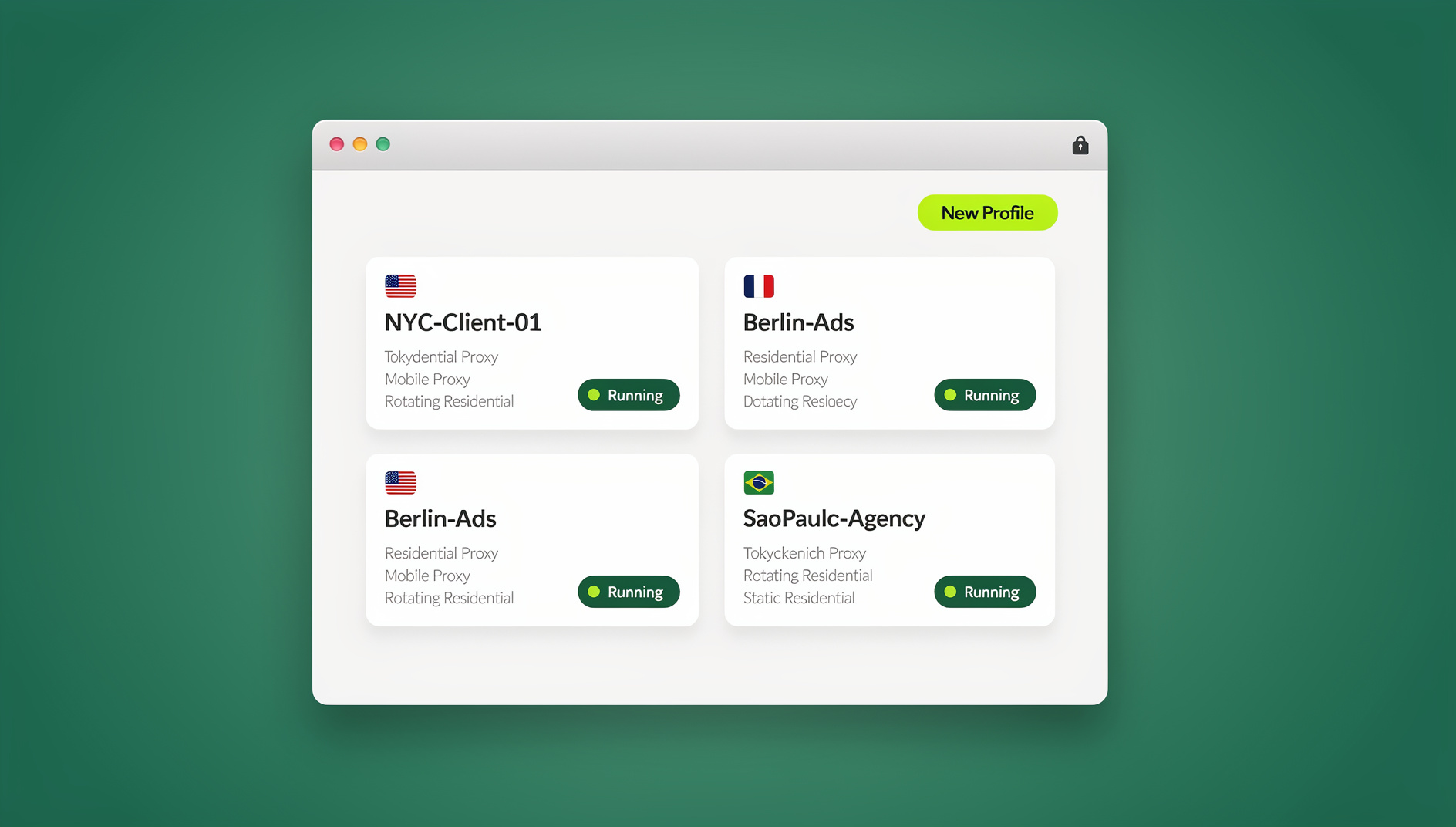
Every profile (“session”) you create in Send.win can be assigned its own proxy — residential, datacenter, or mobile — directly from the session settings. You can either bring your own proxy (if you already have one from a separate provider) or use proxy bandwidth included in your Send.win plan. Because the proxy is bound to the individual session rather than the whole browser, you can run one session through a US residential IP and another through a UK datacenter IP simultaneously, without touching your operating system’s network settings.
Unique Fingerprint Per Profile
Changing your IP address alone doesn’t stop fingerprint-based tracking. Send.win generates a distinct, consistent fingerprint for every session — covering things like user agent, WebGL renderer, canvas hash, fonts, and hardware concurrency — so that even if two sessions somehow shared a proxy, they still wouldn’t look like the same device to a tracking script.
Session Isolation
Each Send.win session runs in its own sandboxed container. Cookies, local storage, and cache never leak between sessions, which means there’s no shared browsing history or login state that could accidentally tie two “anonymous” identities back together.
For a deeper technical breakdown of how proxy IPs interact with browser-level leaks, our WebRTC leak protection guide covers a failure mode that catches a lot of people off guard: even with a proxy active, WebRTC can leak your real local IP address unless it’s specifically blocked.
Step-by-Step: How to Hide Your IP Address Using Send.win
Send.win works the same way whether you’re using a cloud browser session or the desktop app — you’re assigning a proxy to a session, not changing a system-wide network setting. Here’s the full walkthrough.
Option 1: Using Send.win Cloud Browser Sessions (No Install)
- Create your Send.win account. Sign up at send.win — there is no free trial, but the first card purchase is covered by a 7-day money-back guarantee, and you can preview the cloud browser for free at the demo.
- Open your Send.win dashboard in any browser. Nothing to download — cloud browser sessions run entirely on Send.win’s servers and stream straight into your browser tab.
- Create a new cloud session. Click “New Session,” pick a cloud session, and give it a name (e.g., “Client A — US”).
- Open the Proxy settings for that session. Inside the session’s settings panel, find the Proxy tab.
- Choose your IP source. Select a built-in Send.win proxy (residential or datacenter, filtered by country) or enter your own proxy’s host, port, username, and password if you’re bringing a third-party proxy.
- Save and launch the session. Click Save, then Launch — the cloud session opens in a new browser tab, already routed through the assigned IP address with its own unique fingerprint.
- Verify the change. Visit an IP-checking site inside the session to confirm the displayed IP matches the proxy you assigned, not your real one.
Option 2: Using the Send.win Desktop App
For heavier day-to-day use — especially if you’re managing many sessions — the native Sendwin Browser desktop app for Windows, macOS, and Linux is the more stable option, since it runs locally and independently of any cloud session’s browsing-time limits.
- Download and install the Send.win desktop app from the Download section of send.win.
- Log in with your existing Send.win account — sessions and proxy assignments sync automatically between your cloud sessions and the desktop app.
- Open the Sessions dashboard and select an existing session, or create a new one directly in the app.
- Assign or edit the proxy under session settings, exactly as with a cloud session.
- Launch the session as a standalone browser window managed entirely by the desktop app — useful for running several IP-isolated sessions side by side without cluttering your main browser.
If you’d rather see the click-by-click flow inside the actual dashboard, our tutorial on adding a proxy to any session walks through the same steps with screenshots of the current interface.
Send.win’s Built-In Proxies vs. Bringing Your Own
You have two options for the IP address behind each session: use proxy bandwidth included in your Send.win plan, or connect a proxy you’ve already purchased elsewhere. Both work — the right choice depends on scale and how much control you need over IP rotation.
| Factor | Send.win Built-In Proxy | Your Own Third-Party Proxy |
|---|---|---|
| Setup effort | One click — select country/type | Manual — enter host, port, credentials |
| Billing | Included bandwidth on Pro/Team plans | Separate subscription with your proxy provider |
| IP type variety | Residential, datacenter, mobile | Depends entirely on your provider |
| Best for | Fast setup, general use, teams standardizing on one vendor | Specialized needs — sticky ISP proxies, niche geo-targeting, existing contracts |
For a broader comparison of proxy types and which situations call for IPv4 versus IPv6, see our IPv6 vs IPv4 proxy guide — it’s a useful reference before deciding whether to stick with Send.win’s built-in pool or bring a specialized proxy of your own.
Managing Many Sessions at Once
Verifying Your IP Address Actually Changed
Never assume a proxy is working — confirm it. After launching a Send.win session:
- Visit an IP-lookup site (such as whatismyipaddress.com) inside the session and confirm the country and IP shown match the proxy you assigned, not your home connection.
- Run a WebRTC leak test — some browsers expose your real local IP through WebRTC even while a proxy is active on the main connection.
- Check that the session’s browser fingerprint (available in Send.win’s session details) differs from your regular browser’s fingerprint.
- Repeat the check periodically, especially after any Send.win or browser update.
Best Practices for Staying Anonymous Online
- Don’t mix real and masked identities in one session. Logging into a personal account inside an IP-hidden session defeats the purpose.
- Match your proxy location to your claimed context. A US-targeted account browsing through an obviously mismatched country’s IP is a common giveaway.
- Rotate IPs deliberately, not randomly. Constant IP switching mid-session on platforms that expect a stable identity can itself look suspicious.
- Keep session cookies and cache isolated. This is handled automatically in Send.win, but it’s the reason a plain VPN alone isn’t equivalent — a VPN doesn’t isolate cookies or fingerprints.
- Use residential over datacenter IPs for sensitive accounts. Many anti-fraud systems weight datacenter IPs as higher risk by default.
Common Mistakes When Trying to Hide Your IP Address
| Mistake | Why It Fails |
|---|---|
| Using a free public proxy for anything sensitive | Often logged, shared with unknown users, or intercepted |
| Relying on a VPN alone for multi-account work | Fingerprint stays identical across accounts even though the IP changes |
| Forgetting to check for WebRTC leaks | Your real IP can leak even with a proxy active |
| Reusing the same proxy across many unrelated accounts | Platforms detect the shared IP and link the accounts together |
| Not verifying the IP actually changed before browsing | A misconfigured proxy setting can silently fail open |
Send.win Pricing
Send.win has no free trial; the first card purchase is covered by a 7-day money-back guarantee, and you can preview the cloud browser for free at the demo before committing.
| Plan | Price | Includes |
|---|---|---|
| Free Trial | $0 for 30 days | No credit card required |
| Pro | $19/mo ($6.99/mo billed annually — 63% off) | 150 profiles, 5GB proxy bandwidth |
| Team | $49/mo or $251.88/yr | 500 profiles, 20GB proxy bandwidth, 16 seats |
Add-on proxy bandwidth is available at $6/GB, and extra profiles beyond your plan’s limit cost $0.05 each.
If your goal is broader anonymous browsing rather than just IP masking for account management, our guide to anonymous browsing covers the additional tracker-blocking layer worth pairing with your proxy setup.
🏆 Send.win Verdict
Hiding your IP address is only half the job — a VPN or a free proxy will change the number that shows up in a lookup tool, but your browser’s fingerprint stays exactly the same underneath it. Send.win solves both problems at once: every session gets its own proxy-backed IP and its own unique fingerprint, isolated in its own sandboxed container. Whether you need it for personal privacy or running multiple business accounts, Send.win’s native desktop app and cloud browser sessions make it a genuinely stronger setup than IP masking alone.
Try the Send.win cloud demo — a 3-minute preview without signup, 10 minutes a day with a free account.
Frequently Asked Questions
Does Send.win hide my real IP address completely?
Yes, when a proxy is assigned to a session, all traffic from that session’s browser window routes through the assigned IP instead of your real one. Send.win also isolates the browser fingerprint per session, which prevents the kind of cross-referencing that can undermine IP masking done through a VPN alone.
Is using a proxy through Send.win legal?
Using a proxy to change your visible IP address is legal in the vast majority of countries and is a standard practice for businesses, researchers, and privacy-conscious individuals. What you do while connected still needs to comply with the terms of service of the sites you visit and the laws of your jurisdiction — Send.win changes your IP, it doesn’t authorize any specific use.
What’s the difference between Send.win’s proxy feature and a VPN?
A VPN reroutes your entire device’s traffic through one IP address and leaves your browser fingerprint untouched. Send.win assigns a separate IP to each individual session while also generating a unique fingerprint per session, so you can run several distinct, unlinkable identities at the same time — something a standard VPN can’t do.
Can I use my own proxy with Send.win instead of its built-in IPs?
Yes. Each session’s proxy settings accept custom proxy credentials (host, port, username, password), so you can connect a residential, mobile, or datacenter proxy from any third-party provider you already use, or mix your own proxies with Send.win’s built-in pool across different sessions.
Does hiding my IP with Send.win also stop fingerprint tracking?
Yes — this is the core difference between Send.win and IP-only tools. Every session gets a distinct fingerprint (canvas, WebGL, fonts, user agent, and more) in addition to its own IP, so sites can’t correlate sessions by fingerprint even if they somehow shared a proxy.
Do I need the Send.win desktop app, or can I use a cloud browser session instead?
Cloud browser sessions need no install at all and are fine for casual or light use, though they’re metered by cloud browsing time. The native Sendwin Browser desktop app for Windows, macOS, and Linux is recommended if you’re managing many sessions daily or want local session management independent of the cloud’s time limits — it syncs with the same account and sessions as your cloud sessions.
Can I automate IP-protected browsing with Selenium or Playwright?
No. Send.win has no automation interface — no API, SDK, headless mode or Selenium/Puppeteer/Playwright support on any plan. It is built for managing isolated browser profiles manually, each with its own cookies, storage, fingerprint and proxy.
How much does it cost to hide my IP address with Send.win?
There is no free trial. The Pro plan is $19/mo or $83.88/yr, and the Team plan is $49/mo or $251.88/yr. The first card purchase is covered by a 7-day money-back guarantee, and the only free option is the cloud demo at send.win/demo-browser.
Hiding your IP address in 2026 means going beyond a single VPN toggle. Between built-in proxy support, per-session fingerprint isolation, a native desktop app, and a cloud browser, Send.win gives you a way to mask your IP that actually holds up against the fingerprinting and anti-fraud systems that plain proxies and VPNs increasingly fail against.