Why Your Social Media Accounts Feel So Disorganized
If you manage more than two or three social profiles, you already know the drill: a dozen browser tabs, a password manager full of near-identical entries, and a constant game of “wait, which account am I logged into right now?” Learning how to organize social media accounts properly isn’t a nice-to-have anymore — for creators running multiple brand pages, agencies juggling client logins, and marketers spread across Instagram, LinkedIn, Pinterest, and X, disorganized accounts cost real time and create real risk (accidental cross-posting, mixed-up DMs, and platforms flagging “suspicious” logins from constantly shifting IP addresses and browser fingerprints).
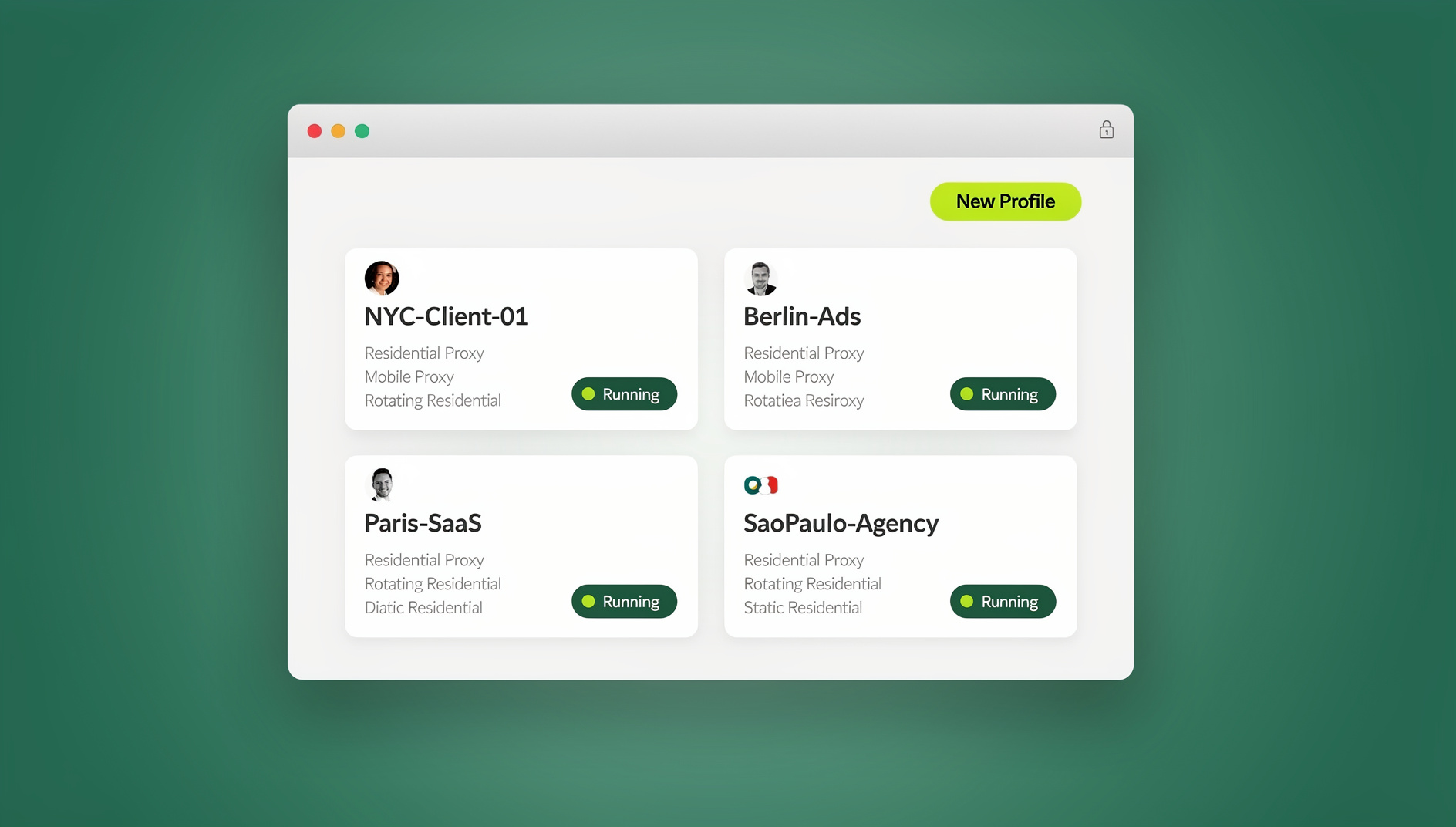
This guide walks through why the usual fixes — logging in and out, separate browsers, sticky notes with passwords — eventually break down, and what an actual system for organizing social accounts looks like in 2026, including where a dedicated multi-login browser fits in.
The Real Cost of Messy Multi-Account Management
Before jumping to solutions, it helps to name the actual pain points, because most people underestimate how much time this “small” problem eats up:
- Constant re-authentication. Logging out of one Instagram account to log into another, entering 2FA codes repeatedly, and re-approving trusted devices.
- Cross-contamination. Posting a client’s content from your personal account (or vice versa) because you forgot which tab was which.
- Platform flags and lockouts. Rapidly switching accounts from the same IP and browser fingerprint reads as suspicious to Meta, LinkedIn, and Pinterest’s anti-abuse systems, sometimes triggering temporary account restrictions.
- Lost context. Scattered bookmarks, half-remembered passwords, and no single place to see “which accounts do I even manage right now.”
- Team confusion. When a teammate needs access to a shared account, sharing the actual password is the default — which is both insecure and hard to revoke later.
None of these are dramatic on their own, but stacked across 10, 20, or 50 accounts, they add up to hours lost every week and a genuine security liability.
Three Common (Flawed) Ways People Try to Organize Accounts
1. Logging In and Out Constantly
The simplest approach — and the worst at scale. Every switch means re-entering credentials, waiting for 2FA, and hoping the platform doesn’t flag the login as unusual. It also means you can never have two accounts open and active at the same time, which kills any workflow that involves comparing accounts side by side or responding to messages across profiles simultaneously.
2. Separate Browsers or Browser Profiles
A step up: using Chrome for one account, Firefox for another, Edge for a third. This works for two or three accounts but collapses once you’re past five, because you run out of browsers and each one still shares the same underlying device fingerprint, IP address, and often the same saved autofill data. Native browser “profiles” (Chrome People, Firefox Multi-Account Containers) help with cookie separation but were never built to also rotate proxies or mask fingerprint signals like canvas, WebGL, and font lists — which is what actually keeps platforms from linking your accounts together.
3. Password Managers Alone
A password manager solves credential storage but not session organization. You still have to manually log in and out, you still share one browser fingerprint across every account, and there’s no clean way to hand a teammate access without literally handing over the password (or paying for shared-vault seats that still expose the raw credential).
The Better System: A Dedicated Multi-Login Browser
The workflow that actually scales is built around browser profiles — isolated environments, each with its own cookies, local storage, cache, and (critically) its own unique browser fingerprint and IP address, all sitting inside one interface you control. This is the model tools like Send.win are built around, and it changes how “organizing” social accounts actually works.
What Organizing Looks Like With Profiles
Instead of one browser with a dozen logged-in-and-out accounts, you get a dashboard of named profiles: “Instagram — Brand A,” “LinkedIn — Client B,” “Pinterest — Personal,” and so on. Each one stays permanently logged in, sits in its own tab or window, and can be grouped, tagged, searched, and reordered exactly the way you’d organize files in folders. You click a profile, it opens already authenticated, and you’re working — no re-entering passwords, no waiting on 2FA every single time.
Saved vs. Temporary Sessions
Most multi-login browsers, Send.win included, let you choose between a saved session (credentials and cookies persist, so the profile logs itself back in every time) and a temporary session (nothing is retained after you close it — useful for one-off checks or accounts you don’t want lingering in your profile list). This distinction alone solves a lot of the “why do I have 40 stale logins in my password manager” problem, because temporary sessions simply don’t accumulate.
Unique Fingerprints Keep Every Account Genuinely Separate
The part manual methods miss entirely: each profile in a proper multi-login browser gets its own randomized browser fingerprint (user agent, canvas signature, WebGL renderer, timezone, fonts) plus its own IP address through built-in proxies. To the platform on the other end, each profile looks like a completely different device in a different location — not five accounts suspiciously logging in from the same machine seconds apart. That’s what actually prevents the “unusual activity” flags that come from account-switching on a single fingerprint.
Manual Methods vs. a Multi-Login Browser
| Factor | Logging In/Out | Separate Browsers | Multi-Login Browser (Send.win) |
|---|---|---|---|
| Accounts open simultaneously | 1 | 3-5 (browser limited) | Hundreds, in labeled profiles |
| Re-authentication needed | Every switch | Sometimes | Never (saved sessions) |
| Unique fingerprint per account | No | No | Yes, per profile |
| Built-in proxy/IP per account | No | No | Yes |
| Team sharing without passwords | No | No | Yes |
| Naming/grouping/tagging | No | Manual bookmarks only | Built-in dashboard |
| Automation support | No | No | No |
Step-by-Step: Organizing Your Social Accounts with Send.win
- Pick a paid plan. Send.win has no free trial; plans start at $19/mo for Pro or $49/mo for Team, and your first card purchase is covered by a 7-day money-back guarantee, so you can set up your full account structure before committing. You can also preview the cloud browser for free at the demo.
- Install the app. Install Sendwin Browser, the native desktop app for Windows, macOS, or Linux — a full standalone application, and it’s the version most heavy multi-account users run day to day since it handles more simultaneous profiles smoothly and doesn’t compete for resources with your main browser. Prefer not to install anything? You can instead run a profile as a cloud browser session that lives entirely in the cloud.
- Create a profile per account. One profile for each Instagram, Facebook, LinkedIn, Pinterest, X, or TikTok account you manage — name each one clearly (e.g., “IG — ClientName” or “LI — Personal Brand”).
- Group profiles by client, brand, or platform. Use folders or tags so a 30-account list stays scannable instead of becoming a wall of undifferentiated tabs.
- Assign a proxy to each profile. Send.win includes built-in proxies, or you can plug in your own residential/datacenter proxy per profile so each account gets a distinct, consistent IP address.
- Log in once per profile and save the session. After that, opening the profile logs you straight in — no repeated 2FA prompts breaking your workflow.
- Share specific profiles with teammates instead of handing out raw passwords — team members get access to the profile itself, and you can revoke it instantly without changing any credentials.
Platform-by-Platform Organization Tips
Instagram and Facebook
Meta’s platforms are the most aggressive about flagging rapid account switching from a single device. If you’re managing multiple Instagram accounts for different clients or brands, keep each one in its own isolated profile with a distinct fingerprint and IP from the start — retrofitting isolation after an account has already been flagged is much harder than preventing the flag in the first place.
Pinterest and X (Twitter)
Pinterest business accounts tied to different niches benefit enormously from clean separation, since Pinterest’s algorithm learns from account-level engagement patterns — mixing signals across accounts on one browser session muddies your analytics. The same logic applies to X: if you’re managing multiple Pinterest accounts alongside a handful of X profiles, group them by niche or client so you always know which analytics dashboard belongs to which account.
LinkedIn and B2B Accounts
LinkedIn is unusually strict about account activity that looks automated or duplicated, which makes it one of the riskiest platforms to manage carelessly. If you need to manage LinkedIn accounts in one browser — your personal profile, a company page, and maybe a client’s executive profile — isolated, saved-session profiles with their own fingerprint are close to mandatory rather than optional.
TikTok, Snapchat, and Emerging Platforms
Newer platforms tend to have less mature (but sometimes stricter) automated-abuse detection. Treat every new platform you add to your stack the same way: a dedicated profile, a dedicated proxy, and a clear name in your dashboard from day one, rather than bolting on organization after you already have five untracked logins.
Organizing Accounts Across Devices: Desktop App vs. Cloud Browser Sessions
A big shift since the early days of multi-login tools is that this workflow no longer has to live entirely inside a browser tab. Send.win’s desktop app (Sendwin Browser) — available natively for Windows, macOS, and Linux — runs as its own application, which means your organized profile dashboard isn’t competing for memory and CPU with fifty other browser tabs, and it survives browser crashes or updates that would otherwise wipe out an in-browser session manager. For anyone managing double-digit account counts daily, the desktop app is generally the more stable home base, with cloud browser sessions — which run entirely in the cloud with no local install — staying useful for quick, on-the-go profile access from any device.
For Agencies and Teams: Organizing Shared Social Accounts
Organization gets harder — and more important — the moment more than one person touches an account. Agencies managing client social media typically hit three problems: who has the password, what happens when someone leaves the team, and how do you stop a freelancer’s personal device from becoming a security hole for a client’s Instagram.
A shared-profile system solves all three at once. You create the profile, configure its proxy and fingerprint once, and grant team access to that specific profile rather than the underlying credentials. If a contractor’s engagement ends, you revoke their access to the profile — the password never has to change, and the client’s account stays untouched. This is a meaningfully different (and safer) model than a shared spreadsheet of logins, and it’s the reason “who organizes the team’s social accounts” and “who secures them” have effectively become the same question for most agencies. Teams that need clean, parallel access across many accounts typically set up multi-login profiles for teams from day one rather than retrofitting access control after the fact.
Automating Repetitive Organization Tasks
Once your accounts are organized into clean, isolated profiles, the next step for larger operations is keeping the repetitive parts manageable — scheduled logins, bulk status checks, posting flows, or QA checks across dozens of accounts. Send.win has no automation interface: there is no API, SDK, headless mode or Selenium/Puppeteer/Playwright support on any plan. What each profile does keep is its own cookies, storage, fingerprint and proxy, so your profiles stay separate and organised. For larger operations, the practical next step is team sharing and a clear naming and grouping system, so instead of a person clicking through 40 profiles every morning, the right profiles are easy to find and hand off.
Security Practices While You Organize
- Never reuse the same proxy across accounts you want kept separate — a shared IP is one of the fastest ways platforms link “different” accounts back to one operator.
- Match timezone and locale settings to the proxy’s location where possible; a mismatch between IP geography and browser locale is a common fingerprinting red flag.
- Use saved sessions instead of storing passwords in browser autofill — autofill data is often the first thing malware or a compromised extension goes after.
- Enable 2FA on every account and store backup codes in a password manager, not a plain text file.
- Audit your profile list monthly. Remove or archive profiles for accounts you no longer manage — stale, forgotten profiles are a common source of security incidents.
Pricing: What Organizing Your Accounts Actually Costs
| Plan | Price | Profiles | Best For |
|---|---|---|---|
| Free Trial | No free trial; paid plans from $19/mo with a 7-day money-back guarantee | Limited | Testing the workflow before committing |
| Pro | $19/mo ($6.99/mo billed annually — 63% off) | 150 profiles, 5GB proxy bandwidth | Solo creators, freelancers, small brands |
| Team | $49/mo ($251.88/yr) | 500 profiles, 20GB bandwidth, 16 seats | Agencies and teams needing shared access |
Extra profiles and bandwidth are available as add-ons ($0.05/extra profile, $6/GB) if a plan’s included limits fall short mid-cycle.
🏆 Send.win Verdict
If you’re still organizing social media accounts with sticky-note passwords and constant logouts, you’re solving a systems problem with manual effort. A browser profile manager like Send.win turns “organize my accounts” into a one-time setup — named, grouped profiles with their own cookies, storage, fingerprint and proxy, saved sessions that never make you re-authenticate, and secure team sharing that doesn’t involve handing out passwords. Add the desktop app for a stable daily driver, and the whole multi-account headache mostly disappears.
Try the free Send.win cloud demo — set up your first ten organized profiles in under fifteen minutes, no signup required for the 3-minute preview.
Frequently Asked Questions
What’s the best way to organize social media accounts?
The most reliable method is isolating each account in its own browser profile with a unique fingerprint and IP address, then naming and grouping those profiles in a dashboard. This avoids the constant logging in and out that makes manual organization fall apart past a handful of accounts, and it prevents platforms from linking accounts together based on shared device signals.
Is it safe to manage multiple social media accounts from one device?
Yes, as long as each account is properly isolated. The risk isn’t the device itself — it’s using the exact same browser fingerprint and IP for every account, which is what triggers platform “suspicious activity” flags. A multi-login browser handles that isolation automatically.
Can I organize accounts without paying for a tool?
You can get partway there with browser profiles and a password manager, but you’ll hit a ceiling around 5-10 accounts, and you won’t get fingerprint or IP isolation, which matters most on platforms like Instagram and LinkedIn that actively monitor for coordinated account switching.
Does Send.win have a desktop app, or is it a browser extension?
Send.win is not a browser extension. It’s Sendwin Browser, a native desktop app for Windows, macOS, and Linux, plus cloud browser sessions that run entirely in the cloud with no local install needed — so you can pick a dedicated, stable application for heavy daily use or a no-install cloud session for quick, on-the-go access.
How do I share an organized account with a team member without giving them the password?
With a multi-login browser, you share access to the specific profile rather than the raw credentials. The teammate can use the account without ever seeing the password, and you can revoke their access instantly if needed without changing the account’s login details.
Do I need an automation interface?
Send.win has no automation interface: there is no API, SDK, headless mode or Selenium/Puppeteer/Playwright support on any plan. Most solo users won’t need one, and agencies running scheduled checks, bulk actions, or QA flows across dozens of accounts can rely on team sharing and a clear profile naming and grouping system instead.
How many social media accounts can I realistically organize with a multi-login browser?
Send.win’s Pro plan supports up to 150 profiles, and the Team plan scales to 500 — well beyond what most individuals or agencies need. Each profile stays fully isolated regardless of how many you run.
Will organizing my accounts this way stop me from getting flagged by platforms?
It significantly reduces the risk. Fingerprint and IP isolation address the primary signal platforms use to link accounts together, but you should still follow each platform’s own rules around account creation, posting frequency, and behavior — no tool eliminates the need to use accounts reasonably.