Manage multiple Discord accounts and most people end up with the same mess: one browser profile that keeps logging you out, a graveyard of forgotten passwords, or a phone full of alt accounts you’re too scared to touch in case Discord flags your main. If you moderate three servers, run a community alongside a personal account, test bots, or manage Discord presence for several clients, switching accounts shouldn’t feel like defusing a bomb. This guide walks through exactly how to manage multiple Discord accounts using Send.win in 2026 — the browser profile manager built for people who need more than one identity online, with separate cookies, storage and fingerprint per profile.
We’ll cover what Send.win actually is, why Discord’s detection systems care about “multiple accounts, one browser” in the first place, and a full step-by-step walkthrough covering the native Sendwin Browser desktop app and cloud browser sessions. By the end, you’ll know exactly which setup fits your situation, whether that’s two accounts for gaming or fifty for a community management agency.
Why Managing Multiple Discord Accounts Gets Messy Fast
Discord doesn’t technically forbid having more than one account, but the way most people run multiple accounts — same browser, same IP, constant logging in and out — creates exactly the fingerprint pattern that trust-and-safety systems are built to catch. Every browser leaves behind a fingerprint: canvas rendering, WebGL output, installed fonts, screen resolution, timezone, and dozens of smaller signals that combine into something close to a unique ID. When five “different” Discord accounts all share that same fingerprint and the same IP address, Discord’s systems can reasonably conclude they’re linked — even if you never meant to break any rules.
That’s the real problem this guide solves. It’s not about ban evasion or anything against Discord’s terms of service — it’s about giving each account the isolation it needs so your legitimate multi-account workflow (moderation, community growth, bot testing, client management) doesn’t get mistaken for abuse.
What Is Send.win?
Send.win is a browser profile manager built for exactly this kind of problem. Instead of juggling incognito windows or wiping cookies between logins, Send.win gives every Discord account its own isolated browser profile — a self-contained environment with its own cookies, local storage, cache, and a unique, consistent browser fingerprint. Each profile can also run through its own built-in proxy, so every Discord account you manage keeps its own separate cookies, storage and fingerprint rather than sharing one browser identity.
Beyond the core isolation engine, Send.win ships with a few features that matter a lot for Discord power users specifically:
- Unlimited profile switching — jump between Discord accounts with one click instead of logging out and back in.
- Team sharing — hand a moderator or VA access to a specific Discord profile without ever handing over the password.
- Built-in residential and datacenter proxies — assign a different IP to each profile directly inside the app, no separate proxy subscription required.
- A native Desktop app (Sendwin Browser) for Windows, macOS, and Linux — a local-first, downloadable application with encrypted cloud sync, running each profile in its own dedicated window.
If your workflow already involves juggling logins across other platforms too, the same profile-based approach works well for managing multiple accounts safely with a multi-login browser generally, not just on Discord.
How to Manage Multiple Discord Accounts Using Send.win (Step-by-Step)
Here’s the full setup, from installing Send.win to running several Discord accounts side by side without tripping any alarms.
Step 1: Install Send.win — Desktop App or Cloud Browser Session
Send.win is available two ways, and which one you pick depends on how you use Discord:
- Native Desktop app (Sendwin Browser) — download the standalone Windows, macOS, or Linux client if you want each Discord profile to open as its own separate application window, running just as independently as the official Discord desktop client itself.
- Cloud browser session — run a Discord profile entirely in the cloud with zero local install if you just need quick access from whatever device you’re on, metered by cloud browsing time rather than a download.
The Desktop app is worth calling out specifically because it’s where Send.win’s full feature set lives — local profile storage, proxy assignment, and the fastest performance all run through the installed Sendwin Browser app. Cloud browser sessions need no install at all, but they’re metered by cloud browsing time (10 minutes a day on the free account, unlimited on paid plans), so heavy daily Discord use is usually smoother through the Desktop app.
Step 2: Create a Sign-In Account and Open the Dashboard
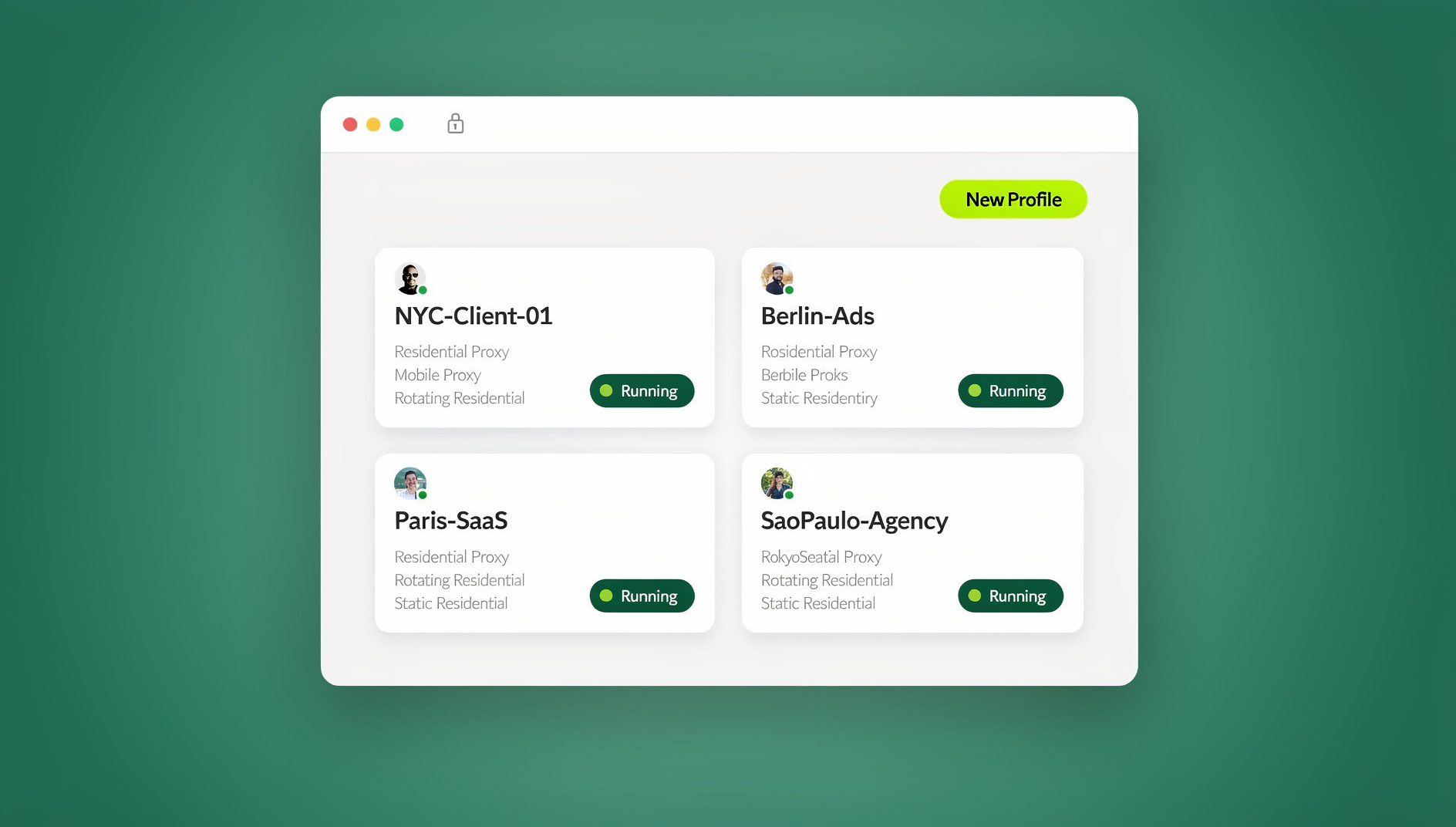
Sign up for Send.win (paid plans start at $19/month, and your first card purchase is covered by a 7-day money-back guarantee), then open the dashboard. This is your control center — every Discord profile you create shows up here as its own card, with its own name, tags, proxy status, and last-active time.
Step 3: Create a New Profile for Each Discord Account
Click New Profile and give it a clear name — something like “Discord – Main Community” or “Discord – Client B Mod Account” so you’re never guessing which is which six weeks from now. Each profile automatically gets:
- Its own isolated cookies, cache, and local storage
- A unique, consistent browser fingerprint (canvas, WebGL, fonts, screen size, timezone)
- Its own proxy slot, ready to be assigned
Repeat this for every Discord account you need — a moderator handling three community servers might create three profiles; an agency managing Discord presence for ten clients might create ten.
Step 4: Assign a Unique Proxy to Each Profile
Open the profile’s proxy settings and either use one of Send.win’s built-in residential or datacenter proxies, or paste in your own. Match the proxy’s location to where that account is supposed to be based — a Discord account for a European community should run through a European IP, not one that jumps between continents every session. This single step is what stops five accounts on one laptop from ever looking like five accounts on one laptop.
Step 5: Log Into Discord Inside That Profile
Launch the profile and navigate to discord.com (or open the profile in the Desktop app). Log in with that account’s credentials exactly as you would in a normal browser. Because the profile is isolated, this session’s cookies never touch any other profile — Discord sees a clean, dedicated environment with no crossover.
Step 6: Switch Between Discord Accounts With One Click
Instead of logging out and back in, just switch profiles from the Send.win dashboard. Each profile stays logged into Discord in the background, so reopening it drops you straight back into that account — no re-authentication, no 2FA prompts, no lost session.
Step 7: Share Access Without Sharing Passwords
If you run a moderation team or work with a virtual assistant who needs access to a specific Discord account, use Send.win’s team sharing feature rather than emailing out the password. You can grant access to a single profile, revoke it instantly when someone leaves the team, and never have to do a password reset scramble. This is especially useful if you need to share sessions to your team without losing control over who can log back in later.
Step 8: Manage Repetitive Setup at Scale
Send.win Desktop App vs Cloud Browser Sessions: Which Should You Use for Discord?
Both options give you the same isolated profiles and fingerprints — the difference is where and how you run them.
| Feature | Cloud Browser Session | Desktop App |
|---|---|---|
| Installation | None — runs entirely in the cloud | Native installer for Windows, macOS, Linux |
| Best for | Quick access from any device | Running profiles as separate app windows |
| Performance | Good for light, everyday use | Faster for heavy multi-profile sessions |
| Feels like | Runs remotely with no install | A dedicated, standalone application window per account |
| Team sharing | Supported | Supported |
| Automation API access | Not available | Not available |
If you’re only running two or three Discord accounts casually, a cloud browser session is the fastest way to get started with zero install. If you’re a moderator or agency juggling ten-plus accounts daily, the Desktop app’s separate windows make it much easier to keep track of which profile is which at a glance.
Common Reasons People Run Multiple Discord Accounts
There’s no one-size-fits-all use case here — the setup above works whether you’re an individual or running a team. Some of the most common scenarios:
- Community moderators who run a personal account separate from their moderator/admin account to keep their own DMs private.
- Server owners managing a “founder” account and a day-to-day active account without one bleeding into the other.
- Bot developers who need several test accounts to simulate real user behavior across permission levels without triggering rate limits tied to a single IP.
- Marketing and community teams maintaining brand presence across multiple Discord servers for different clients or products.
- Gaming clans and esports orgs running separate accounts for competitive play, recruiting, and public relations.
- Content creators who keep a fan-facing community account distinct from a private friends-only server account.
If any of this sounds like your day-to-day, it’s worth reading how similar principles apply when you’re managing multiple Discord accounts from one browser more broadly — the isolation logic is identical whether you’re running two accounts or twenty.
Best Practices for Running Multiple Discord Accounts Safely
Isolation software does the heavy lifting, but a few habits make the difference between a clean multi-account setup and one that eventually raises flags:
- One profile, one account, always. Never log a second Discord account into a profile that already has one logged in — that defeats the entire point of isolation.
- Match proxy location to account context. A community account “based” in the US shouldn’t suddenly log in from three different countries in a week.
- Keep session activity human-paced. Switching between fifteen accounts in ten seconds looks automated even with perfect fingerprint isolation — pace your activity naturally.
- Use unique emails per account where possible. Shared recovery emails across “separate” accounts are a much simpler correlation signal than browser fingerprints, and no isolation tool can fix that.
- Enable 2FA on every account. Isolation protects you from fingerprint-based detection, not from account takeover — don’t skip basic account security.
- Add a proxy to every session, not just some. If you’re unsure how, Send.win’s guide on how to add a proxy to any session walks through it directly inside the dashboard.
- Don’t reuse the exact same profile name pattern Discord bans have flagged before. If you’ve had an account actioned in the past, start that profile completely fresh rather than trying to resurrect old cookies.
These habits matter beyond Discord too — the same discipline is what separates a safe multi-account workflow from one that gets flagged when you’re running multiple social media campaigns without getting banned across other platforms.
Send.win vs Other Ways to Manage Multiple Discord Accounts
Before settling on Send.win, it’s worth understanding how it compares to the other common approaches people try first.
| Method | Fingerprint Isolation | Built-In Proxies | Team Sharing | Setup Effort |
|---|---|---|---|---|
| Multiple browser tabs / logout-login | None | No | No | Low, but high risk |
| Chrome profiles | Partial (separate cookies only) | No | No | Low |
| VPN + single browser | None | IP only | No | Medium |
| Incognito/private windows | None | No | No | Low, but sessions don’t persist |
| Send.win | Full unique fingerprint per profile | Yes, built-in | Yes | Low, guided setup |
Chrome’s native profile switcher is the closest free alternative, but it only separates cookies and local storage — it doesn’t touch canvas, WebGL, font, or timezone fingerprinting, all of which Discord’s systems can still read as identical across “different” profiles on the same machine. A VPN changes your IP but does nothing about the browser fingerprint underneath it. Send.win is the only option in this list that solves both halves of the problem at once.
What Does It Cost?
Send.win has no free trial, but paid plans start at $19/month and your first card purchase is covered by a 7-day money-back guarantee, so you can set up a handful of Discord profiles and test the full workflow before committing. You can also preview it for free in the cloud demo at https://send.win/demo-browser/. Plans:
- Pro plan — $19/month: 150 profiles and 5GB of proxy bandwidth, plenty for most individual moderators, streamers, or small community teams.
- Team plan — $49/month: 500 profiles, 20GB of bandwidth, and 16 seats for team sharing — the plan to pick if you’re managing accounts across a moderation or marketing team.
For most people managing two to five personal Discord accounts, the Pro plan is more than enough. Community management agencies and larger teams will want the Team plan for its 500 profiles and 16 shared seats.
🏆 Send.win Verdict
If you’re managing more than one Discord account — whether that’s a personal account plus a moderator account, or a dozen accounts across client communities — Send.win solves the actual problem that logging in and out never fixes: a shared browser fingerprint. Isolated profiles, built-in proxies, and a native Desktop app for heavier daily use make it a complete option for running multiple Discord accounts in 2026.
Try Send.win today — set up your first isolated Discord profile in minutes. Paid plans start at $19/month, with a 7-day money-back guarantee on your first card purchase.
Frequently Asked Questions
Is it against Discord’s rules to have multiple accounts?
Discord’s Terms of Service don’t prohibit owning multiple accounts. What gets accounts flagged or actioned is behavior that looks like evasion or abuse — the same device and IP repeatedly logging into accounts that are supposed to be unrelated, or using alt accounts to get around a specific ban or restriction. Running separate accounts for legitimate reasons like moderation, testing, or managing different communities is generally fine as long as you’re not using them to circumvent an enforcement action.
Do I need a separate proxy for every Discord account?
It’s strongly recommended, especially if the accounts are meant to represent genuinely separate identities (different moderators, different clients, different regions). Without a unique IP per profile, Discord can still see that multiple “separate” accounts are connecting from the same network, which undermines the isolation your browser fingerprint setup provides.
Can I use Send.win on my phone for Discord?
Send.win’s core profile-isolation engine is built around the native Sendwin Browser desktop app for Windows, macOS, and Linux, plus cloud browser sessions that run with no local install. For mobile Discord use, the isolation model works differently since mobile apps don’t rely on browser fingerprinting the same way desktop browsers do — the Send.win setup in this guide is specifically for managing Discord through the Desktop app, a cloud browser session, or the Discord web client.
What happens if Discord bans one of my profiles?
Because each Send.win profile is fully isolated — separate fingerprint, separate cookies, separate proxy — a ban on one profile’s account shouldn’t cascade to your other profiles, provided you followed the one-profile-one-account rule and didn’t reuse recovery emails or payment methods across “separate” accounts. That said, no isolation tool can undo an enforcement action against the account itself; it can only prevent unrelated accounts from being wrongly associated with it.
How many Discord accounts can I realistically manage at once?
Technically, as many as your plan’s profile limit allows — 150 on Pro, 500 on Team. Practically, most individual users manage two to five accounts comfortably. Larger numbers (10+) usually belong to agencies or moderation teams, at which point the Team plan’s shared access and 16 seats become genuinely useful rather than optional extras.
Does the Desktop app work differently from a cloud browser session for Discord?
Both give you the same isolated, fingerprinted profiles. The Desktop app opens each profile as its own standalone application window installed on your machine, while a cloud browser session runs the same profile remotely with no install — most people managing several accounts daily find the Desktop app’s separate windows easier to keep track of.
Can I automate creating and testing Discord bot accounts?
Is there a free way to try this before paying?
Send.win has no free trial, but paid plans start at $19/month and your first card purchase is covered by a 7-day money-back guarantee — enough time to set up several Discord profiles, assign proxies, and confirm the workflow fits how you actually use Discord. You can also try the free cloud demo at https://send.win/demo-browser/ first.