
A proxy browser routes your internet traffic through proxy servers, concealing your real IP
address and location from websites you visit. Whether you’re managing multiple accounts, conducting market
research, or protecting your privacy, understanding how to properly configure and use proxy browsers is
essential for 2026.
In this comprehensive guide, we’ll cover everything you need to know about proxy browsers: what they are, how
they work, how to set them up, and why Send.win’s one-click proxy integration eliminates the
technical complexity entirely.
What is a Proxy Browser?
A proxy browser is any web browser configured to route traffic through a proxy server instead of
connecting directly to websites. This creates a layer between you and the internet:
- You connect to the proxy server
- The proxy server connects to the website
- The website sees the proxy’s IP, not yours
- Responses route back through the proxy to you
Why Use a Proxy Browser?
- IP Location Masking: Appear to be in a different city or country
- Multi-Account Management: Different IP per account prevents linking
- Privacy Protection: Hide your real IP from websites
- Access Geo-Restricted Content: Bypass regional blocks
- Web Scraping: Avoid IP-based rate limits
- Market Research: See localized content and pricing
Types of Proxy Servers
1. HTTP Proxies
Protocol: HTTP/HTTPS only
Use Cases: Web browsing, API requests
Pros:
- ✅ Fast and efficient
- ✅ Widely supported
- ✅ Good for browser use
Cons:
- ❌ HTTP only (no FTP, SMTP, etc.)
2. SOCKS5 Proxies
Protocol: Any protocol (HTTP, FTP, P2P, etc.)
Use Cases: Advanced applications, torrenting
Pros:
- ✅ Protocol-agnostic
- ✅ Better authentication
- ✅ Works with any application
Cons:
- ❌ Slightly slower than HTTP
- ❌ Complex configuration
3. Residential Proxies
IP Source: Real residential ISPs
Detection Risk: Very low
Pros:
- ✅ Appear as real users
- ✅ Difficult to detect/block
- ✅ High trust score
Cons:
- ❌ Expensive ($5-15/GB)
- ❌ Variable speed
4. Datacenter Proxies
IP Source: Datacenter/Hosting providers
Detection Risk: Higher
Pros:
- ✅ Very fast
- ✅ Cheap ($0.50-2/proxy/month)
- ✅ Reliable uptime
Cons:
- ❌ Easier to detect
- ❌ Often blocked on sensitive sites
5. Mobile Proxies
IP Source: Mobile carrier networks (4G/5G)
Detection Risk: Extremely low
Pros:
- ✅ Highest trust score
- ✅ Shared IPs (many users = more anonymity)
- ✅ Rarely blocked
Cons:
- ❌ Most expensive ($80-200/proxy/month)
- ❌ Limited availability

How to Set Up a Proxy Browser (Manual Method)
Chrome/Edge Proxy Setup
Step 1: Open Settings
- Chrome: Settings → System → Open proxy settings
- Edge: Settings → System → Open proxy settings
Step 2: Configure Proxy
Windows:
- Network & Internet → Proxy
- Manual proxy setup → Use a proxy server
- Enter proxy IP and port
- Save
Mac:
- System Preferences → Network
- Advanced → Proxies
- Check “Web Proxy (HTTP)” or “Secure Web Proxy (HTTPS)”
- Enter server and port
- OK → Apply
Limitations of Manual Setup
- ❌ Changes system-wide proxy (affects all apps)
- ❌ Can’t use different proxies per browser profile
- ❌ Tedious to switch between proxies
- ❌ No authentication management
Firefox Proxy Setup
Step 1: Open Settings
- Settings → Network Settings → Settings button
Step 2: Configure Proxy
- Select “Manual proxy configuration”
- Enter HTTP/SOCKS5 proxy details
- Port number
- Check “Use this proxy for HTTPS”
- OK
Advantage: Firefox proxy settings are browser-specific, not system-wide.
Browser Extensions for Proxy Management
Extensions make proxy switching easier:
FoxyProxy
- ✅ Multiple proxy profiles
- ✅ Quick switching
- ✅ Pattern matching (different proxy per site)
- ❌ Still shares browser fingerprint across proxies
Proxy SwitchyOmega
- ✅ Rule-based proxy selection
- ✅ Auto-switching
- ✅ Backup proxies
- ❌ Complex configuration
The Problem with Traditional Proxy Browsers
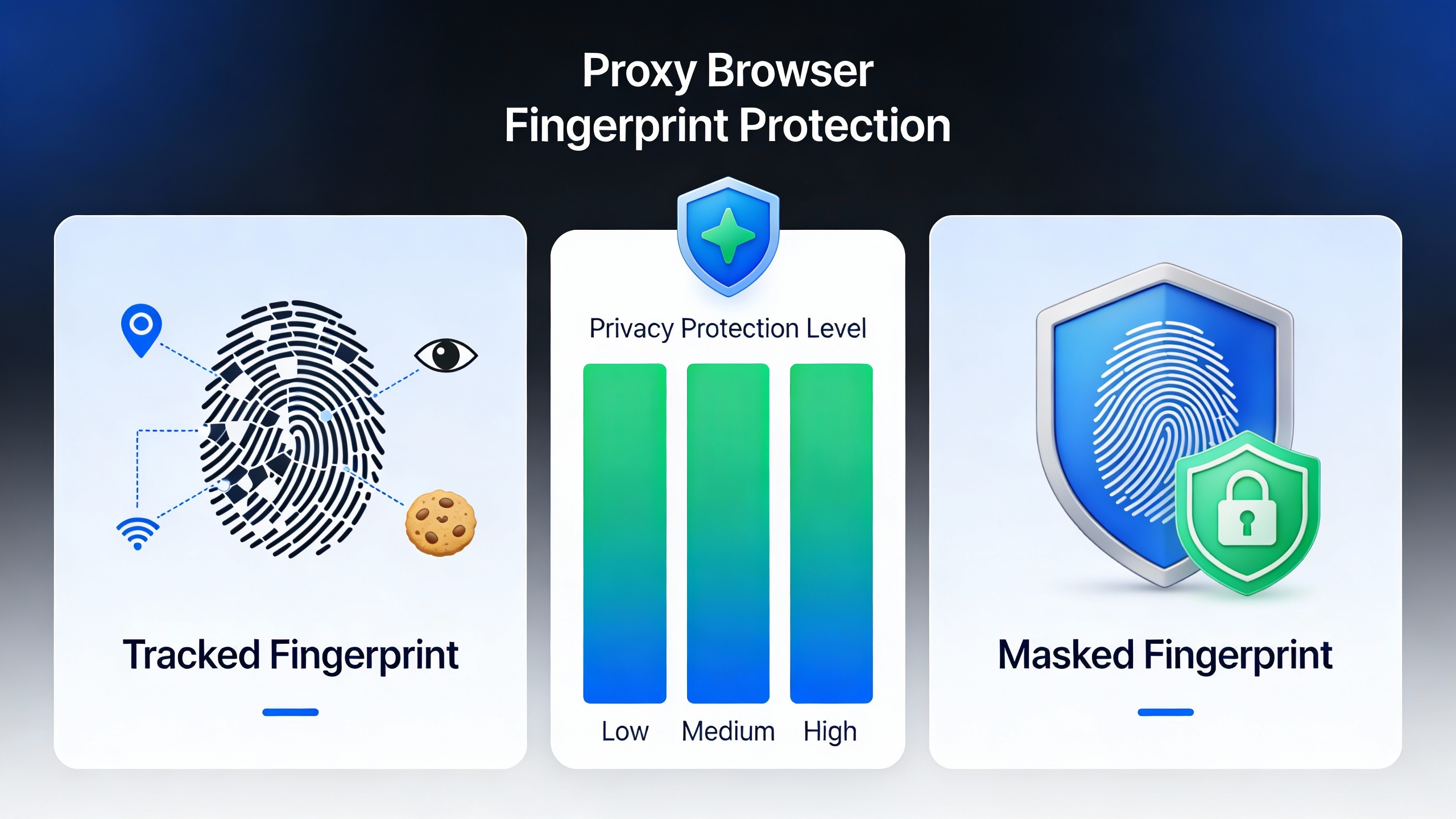
1. Fingerprint Leakage
Using a proxy doesn’t hide your browser fingerprint:
- Websites see your proxy IP (good)
- But also your canvas fingerprint (bad)
- Your WebGL fingerprint (bad)
- Your fonts, plugins, screen size (bad)
Result: Platforms can link accounts despite different IPs.
2. WebRTC IP Leaks
WebRTC can bypass proxies and reveal your real IP:
- Happens automatically in Chrome/Firefox
- Leaks even with proxies configured
- Requires extensions to disable
3. DNS Leaks
Your DNS requests may bypass the proxy:
- Shows which websites you visit
- Can reveal your ISP
- Requires DNS configuration
4. Configuration Complexity
Managing proxies manually is tedious:
- Authenticating each proxy
- Testing proxy functionality
- Rotating when proxies fail
- Managing proxy lists
Send.win: The Better Proxy Browser Solution
Send.win eliminates all proxy browser complexity with one-click proxy integration plus complete
fingerprint isolation.
Why Send.win is Superior
✅ One-Click Proxy Setup
No complex configuration:
- Enter proxy details once
- Select proxy from dropdown
- Launch – proxy is active
- No system settings changes
✅ Proxy + Fingerprint Isolation
Unlike traditional proxy browsers:
- Different IP (from proxy)
- Different fingerprint (from Send.win)
- Complete account isolation
- No linking possible
✅ No WebRTC/DNS Leaks
Cloud browser architecture prevents leaks:
- Cloud server makes WebRTC connections
- Your real IP never exposed
- DNS requests through proxy
✅ All Proxy Types Supported
- HTTP proxies
- HTTPS proxies
- SOCKS5 proxies
- Residential proxies
- Mobile proxies
- Authentication supported
✅ Different Proxy Per Profile
Unlimited proxy configurations:
- US proxy for Account A
- UK proxy for Account B
- Germany proxy for Account C
- All running simultaneously
✅ Proxy Testing Built-In
Verify proxy before using:
- Test connection
- Check IP detection
- Verify location
- Confirm anonymity
Proxy Browser Use Cases
Multi-Account Social Media
Manage client accounts with location-specific IPs:
- LA client → LA residential proxy
- NYC client → NYC residential proxy
- Each account appears local
- No account linking
E-Commerce Seller Accounts
Run multiple Amazon/eBay stores:
- Different IP per seller account
- Match IP to business location
- Avoid account suspension
- Residential proxies recommended
Ad Account Management
Manage Facebook/Google Ads accounts:
- Different proxy per ad account
- Match IP to billing location
- Avoid ad account bans
- Mobile proxies work best
Market Research
View localized content and pricing:
- Germany proxy → see German Amazon prices
- Japan proxy → see Japanese search results
- Compare markets globally
- Verify international campaigns
Web Scraping
Collect data without IP bans:
- Rotate through proxy pool
- Avoid rate limiting
- Residential proxies for sneaker sites
- SOCKS5 for maximum compatibility
Choosing the Right Proxy Type
| Use Case | Recommended Proxy | Why |
|---|---|---|
| Social Media Accounts | Residential or Mobile | Highest trust, hardest to detect |
| E-Commerce Stores | Residential (static) | Consistent IP, looks like home user |
| Ad Accounts | Mobile | Best for ad platforms |
| Web Scraping | Datacenter (rotating) | Fast and cheap for high volume |
| Market Research | Residential | See real user experience |
| Privacy Browsing | HTTP or SOCKS5 | Simple and effective |
Best Proxy Providers
For Residential Proxies
- Bright Data (formerly Luminati): Largest pool, expensive
- Smartproxy: Good balance of price/quality
- Oxylabs: Premium provider
- IPRoyal: Budget-friendly option
For Datacenter Proxies
- HighProxies: Reliable and affordable
- MyPrivateProxy: Fast speeds
- Proxy-Seller: Good for beginners
For Mobile Proxies
- Proxy-Cheap: Affordable mobile proxies
- Soax: Premium mobile proxy pool
- AirProxy: 4G/5G proxies
Setting Up Proxies in Send.win
Step 1: Get Proxy Credentials
From your proxy provider, get:
- Proxy IP address
- Port number
- Username (if required)
- Password (if required)
- Protocol type (HTTP/SOCKS5)
Step 2: Create Send.win Profile
- Log into Send.win
- Click “New Profile”
- Name your profile
Step 3: Configure Proxy
- Click “Proxy” section
- Select protocol (HTTP/SOCKS5)
- Enter IP and port
- Add username/password if needed
- Click “Test Proxy”
Step 4: Launch
- Click “Launch Browser”
- Browser opens with proxy active
- Visit whatismyip.com to verify
- Should show proxy IP, not yours
Frequently Asked Questions
Do I need a proxy and VPN together?
No. Both serve similar purposes (hiding IP). For browser use, proxies are better because they’re faster and you
can use different proxies per browser profile. VPNs affect your entire device.
Can websites detect I’m using a proxy?
Yes, but it depends on proxy quality. Residential and mobile proxies are hardest to detect. Datacenter proxies
are easier to detect. Send.win’s fingerprint isolation makes detection much harder regardless of proxy type.
Will a proxy slow down my browsing?
Slightly, yes. Datacenter proxies add 10-50ms latency. Residential proxies add 50-200ms. Mobile proxies can add
100-300ms. In practice, this is barely noticeable for normal browsing.
Can I use free proxies?
Not recommended. Free proxies are slow, unreliable, often malicious (logging your data), and quickly
detected/blocked by websites. Invest in paid proxies for serious use.
How many proxies do I need?
One unique proxy per account you’re managing. If you have 10 Amazon accounts, you need 10 different proxies.
Send.win supports unlimited proxies across profiles.
Conclusion
While manual proxy browser setups require technical knowledge and constant maintenance, Send.win’s
one-click proxy integration makes professional proxy management accessible to everyone.
Combined with Send.win’s complete fingerprint isolation, you get the ultimate privacy and multi-account solution:
different IP + different fingerprint for every account.
Ready to simplify proxy browser management?
Try Send.win free at send.win – add proxies with one click, no technical expertise required.
Experience why thousands of professionals trust Send.win for proxy-based multi-account management.
How Send.win Helps You Master Proxy Browsers
Send.win makes Proxy Browsers simple and secure with powerful browser isolation technology:
- Browser Isolation – Every tab runs in a sandboxed environment
- Cloud Sync – Access your sessions from any device
- Multi-Account Management – Manage unlimited accounts safely
- No Installation Required – Works instantly in your browser
- Affordable Pricing – Enterprise features without enterprise costs
Try Send.win Free – No Credit Card Required
Experience the power of browser isolation with our free demo:
- Instant Access – Start testing in seconds
- Full Features – Try all capabilities
- Secure – Bank-level encryption
- Cross-Platform – Works on desktop, mobile, tablet
- 14-Day Money-Back Guarantee
Ready to upgrade? View pricing plans starting at just $9/month.