Why Chrome Extensions Still Matter for Entrepreneurs in 2026
Running a business today means living inside a browser. Invoicing, client calls, social media, ad accounts, research, writing, hiring — almost none of it requires leaving Chrome anymore. That’s exactly why the right set of chrome extensions for entrepreneurs can quietly save you hours every week, while the wrong set can slow your machine to a crawl and quietly leak your data to third parties. This is a full refresh of our original “Top 11” list — some of the 2022 picks have aged out, a couple got acquired or abandoned, and a few new categories (multi-account security chief among them) deserve a spot that older lists missed entirely. Below you’ll find 11 extensions that are still genuinely useful for founders, freelancers, and small teams in 2026, alongside practical guidance on installing them safely and knowing when a browser extension isn’t enough anymore. If you want the broader productivity picture beyond just these 11 picks, our roundup of chrome extensions for productivity covers additional tools worth a look.
What Makes an Extension Worth Installing (Quick Criteria)
Before the list, it’s worth being deliberate about what actually earns a spot in your toolbar. Every extension you install gets some level of access to the pages you visit, so the bar should be higher than “looks useful.”
- Clear, single purpose — the best extensions do one job extremely well instead of trying to be a Swiss army knife.
- Minimal permissions — an extension that only needs to read the current tab shouldn’t be asking to “read and change all your data on all websites.”
- Active maintenance — check the Chrome Web Store listing for a recent update date; abandoned extensions are a common attack vector.
- Reputable developer — a verified publisher with a real support page beats an anonymous listing every time.
- Actually saves time — if you have to think about how to use it every time, it’s not a productivity tool yet.
Quick-Reference Table: The Top 11 Chrome Extensions for Entrepreneurs in 2026
Here’s the full list at a glance before we break down each one in detail.
| # | Tool | Best For | Price |
|---|---|---|---|
| 1 | Grammarly | Writing, grammar, tone | Free / Premium from $12/mo |
| 2 | Todoist | Task and project tracking | Free / Pro $4/mo |
| 3 | Loom | Async video messages for clients/teams | Free / Business $12.50/mo |
| 4 | Clockify | Time tracking and billing | Free / Paid from $3.99/user |
| 5 | Bitwarden | Password management | Free / Premium $10/yr |
| 6 | Google Keep | Quick notes and to-dos | Free |
| 7 | Momentum | Focused new-tab dashboard | Free / Plus $3.33/mo |
| 8 | StayFocusd | Blocking time-wasting sites | Free |
| 9 | Google Docs Offline | Editing docs without internet | Free |
| 10 | Similarweb | Competitor and traffic research | Free / Paid tiers |
| 11 | Send.win (desktop app + cloud sessions) | Managing multiple logins/accounts securely | No free trial / Pro $19/mo / Team $49/mo |
The Top 11 Chrome Extensions for Entrepreneurs in 2026
1. Grammarly
Grammarly remains the gold standard for on-page writing assistance. It follows you across Gmail, Google Docs, Slack, LinkedIn, and pretty much any text field in Chrome, flagging typos, grammar issues, tone problems, and clarity gaps as you type.
Why entrepreneurs use it: when you’re the one writing every client email, proposal, and cold outreach message, a typo-riddled message can cost credibility (and deals). Grammarly cuts editing time dramatically and helps you sound consistently professional even when you’re typing fast between meetings.
2. Todoist
Todoist’s Chrome extension lets you turn any webpage, email, or idea into a task with one click, complete with due dates, labels, and priority levels, without ever leaving the tab you’re on.
Why entrepreneurs use it: founders juggle dozens of open loops — a task manager that captures things the instant you think of them (instead of “I’ll remember to follow up on this”) is one of the highest-leverage habits you can build. Natural language due dates (“every Monday at 9am”) make recurring business tasks nearly effortless to schedule.
3. Loom
Loom lets you record your screen, webcam, or both in a couple of clicks and instantly get a shareable link — no file uploads, no scheduling a call.
Why entrepreneurs use it: a 3-minute Loom walkthrough often replaces a 30-minute meeting. It’s become a default for client onboarding, bug reports, sales demos, and async updates to remote teams across time zones.
4. Clockify
Clockify is a free time tracker that starts and stops with one click from the extensions bar — no need to open the app or log into a dashboard.
Why entrepreneurs use it: if you bill clients hourly or just want to know where your day actually goes, Clockify gives you accurate, exportable time data (PDF reports, project breakdowns) without the friction of manual timesheets.
5. Bitwarden
Password managers are non-negotiable for anyone running a business online. Bitwarden (an open-source alternative to LastPass, which had well-publicized breaches in recent years) auto-fills logins, generates strong unique passwords, and syncs across devices.
Why entrepreneurs use it: reused or weak passwords are still one of the top causes of business account takeovers. A password manager removes the temptation to reuse “just one more password” across a dozen tools.
6. Google Keep
Google Keep is a lightweight, color-coded notes app that lives in your toolbar for capturing quick thoughts, checklists, and saved snippets from the web.
Why entrepreneurs use it: not every idea deserves a full task in your project manager. Keep is the fast, frictionless place for the stuff in between — and it syncs instantly across your phone and desktop.
7. Momentum
Momentum replaces Chrome’s blank new-tab page with a personal dashboard: a daily focus prompt, to-do list, weather, and a calming photo.
Why entrepreneurs use it: when you open dozens of tabs a day, the new-tab page becomes a recurring nudge. Momentum turns that moment into a small prompt to stay on your top priority instead of drifting to email or social media.
8. StayFocusd
StayFocusd limits how long you can spend on distracting sites each day. Once your allotted time is up, the site is blocked until the next day.
Why entrepreneurs use it: founders don’t lack ambition, they lack uninterrupted focus time. A hard limit on Reddit, X, or YouTube during work hours is a blunt but effective way to protect deep work blocks.
9. Google Docs Offline
This extension lets you view and edit Google Docs, Sheets, and Slides without an internet connection, syncing automatically the moment you’re back online.
Why entrepreneurs use it: flights, spotty co-working wifi, and client-site visits shouldn’t mean lost productivity. It’s a small extension that quietly removes a real point of friction for anyone who works on the move.
10. Similarweb
The Similarweb extension shows traffic estimates, top referral sources, and audience overlap for any site you visit — useful for quick competitive research without leaving the page you’re on.
Why entrepreneurs use it: before a partnership pitch, an ad placement decision, or simply sizing up a competitor, a quick traffic snapshot right in the browser saves a trip to a separate research tool.
11. Send.win
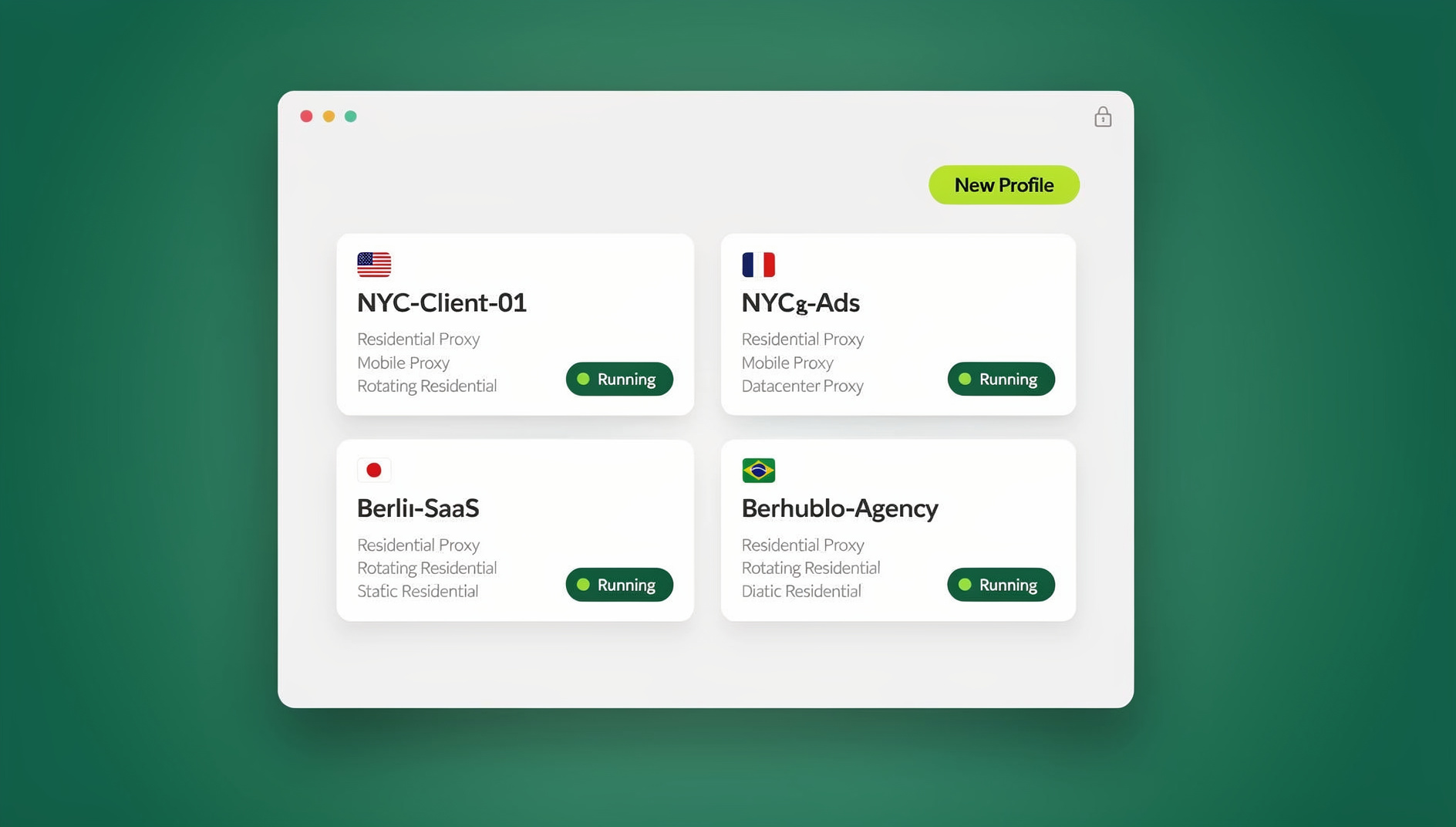
Send.win is where this list starts to look different from a typical productivity roundup — and deliberately so: it’s a native desktop browser for Windows, macOS, and Linux, with cloud browser sessions available too when you just need quick, install-free access. As an entrepreneur, you’re rarely managing just one account per platform. You’ve got a personal and business Gmail, several client ad accounts, multiple social profiles, maybe a handful of marketplace or freelance accounts too. Send.win is a multi-login browser that gives each account its own isolated profile — separate cookies, separate fingerprint, separate session — so you can be logged into several accounts on the same site simultaneously, without triggering the platform’s duplicate-login flags or juggling incognito windows.
Why entrepreneurs use it: switching accounts used to mean logging out, clearing cache, or running a separate browser altogether. Send.win replaces all of that with one click between clean, isolated profiles — each with its own built-in proxy option, so accounts tied to different regions or clients stay properly separated. If you also run or manage manage multiple ad accounts safely for clients, this isolation is what keeps one account’s activity from ever bleeding into another’s — a common cause of unexplained platform bans.
Chrome Extension vs. a Dedicated Multi-Login Browser: When You’ve Outgrown Extensions
Most of the tools above are lightweight add-ons to a single Chrome profile — perfect for writing, tracking time, or taking notes. But account management is different in kind, not just degree. A browser extension can’t give two logins on the same site their own fingerprint, cookies, and cache; it can only hide or clear things inside the one profile you’re already in, which is why entrepreneurs juggling several client accounts, ad accounts, or social profiles eventually hit a wall with extension-only workflows.
This is where Send.win fits in. Send.win ships as a native Desktop app for Windows, macOS, and Linux (the Sendwin Browser) that runs each profile as its own contained browser instance — useful when you’re managing dozens of profiles rather than a handful, or when you want profile management to survive a restart or crash without losing session state. You can also run a profile entirely in the cloud with zero local install, metered by cloud browsing time rather than a fixed seat. Send.win has no automation interface — no API, SDK, headless mode or Selenium/Puppeteer/Playwright support on any plan — so profiles are operated through the app itself. If your day-to-day already involves managing multiple Gmail and social accounts, that’s usually the signal that it’s time to graduate from “extensions plus incognito windows” to a purpose-built tool.
How to Install and Set Up These Extensions Without Slowing Down Chrome
A toolbar with 20 extensions fighting for memory is its own productivity problem. Here’s a sane rollout order:
- Start with the essentials. Install a password manager (Bitwarden) and a writing assistant (Grammarly) first — these have the broadest daily impact.
- Add one task-capture tool. Pick either Todoist or Google Keep based on whether you need full project structure or just quick notes — running both creates duplicate systems.
- Layer in time and focus tools. Clockify, Momentum, and StayFocusd work well together since they touch different moments of your day (start of task, new tab, distraction site).
- Add research and communication tools as needed. Loom and Similarweb are situational — install them when a client project actually calls for screen recording or competitor research, not just “in case.”
- Set up account isolation separately. If you manage more than two accounts on any platform, install Send.win and move those logins into dedicated profiles rather than juggling them inside your main Chrome profile.
- Audit quarterly. Go to
chrome://extensionsevery few months and remove anything you haven’t used in 30 days — unused extensions are attack surface with zero upside.
Security Considerations When Adding Extensions to a Business Browser
Extensions are small pieces of software with real permissions, and business browsers are a higher-value target than personal ones. A few habits worth adopting:
- Read the permissions prompt. A note-taking extension asking for access to your clipboard and all site data is a red flag worth investigating before you click “Add extension.”
- Check the last update date and review count on the Chrome Web Store listing — abandoned extensions with sudden ownership changes have been used to push malware in the past.
- Separate business and personal browsing profiles so a compromised personal extension can’t touch your client accounts.
- Isolate high-value accounts. Ad accounts, banking, and client logins are worth keeping in dedicated profiles (whether that’s separate Chrome profiles or a tool like Send.win) rather than a single browsing session with dozens of extensions attached.
- Remove extensions you no longer use instead of just disabling them — disabled extensions can sometimes still be re-enabled by other software.
🏆 Send.win Verdict
Grammarly, Todoist, and the rest of this list handle writing, tasks, and focus brilliantly — but none of them solve the specific headache of running multiple client, ad, or social accounts side by side. That’s the gap Send.win closes: isolated profiles with their own cookies, storage, sessions and fingerprint settings, and a native desktop app for heavier multi-profile workloads.
Try Send.win today — plans start at Pro for $19/mo, and your first card purchase is covered by a 7-day money-back guarantee. You can also preview it free in the cloud demo.
Frequently Asked Questions
What are the best Chrome extensions for entrepreneurs in 2026?
The most consistently useful Chrome extensions are Grammarly for writing, Todoist for task capture, Loom for async video, Clockify for time tracking, Bitwarden for passwords, Google Keep for quick notes, Momentum for focus, StayFocusd for blocking distractions, Google Docs Offline for editing on the go, and Similarweb for research. Alongside these, Send.win rounds out the list as a native desktop browser (with cloud session support) for managing multiple business accounts securely.
Are Chrome extensions safe to use for business accounts?
Most reputable, actively maintained extensions from verified publishers are safe, but every extension carries some risk since it can request access to the pages you visit. Review permissions before installing, stick to well-known developers, and periodically audit your extension list to remove anything unused.
How many Chrome extensions should an entrepreneur realistically install?
There’s no fixed number, but 6-10 well-chosen extensions that each solve a distinct problem is a healthy range. Beyond that, memory usage climbs and the security surface grows without proportional productivity gains.
What’s the difference between a Chrome extension and a browser profile manager like Send.win?
A Chrome extension modifies or adds a feature inside your single existing browser profile. A browser profile manager like Send.win creates multiple fully isolated profiles — each with its own cookies, storage, sessions and fingerprint settings — so you can run several accounts on the same platform at once without them interfering with each other.
Do I need the Send.win desktop app, or can I use it without installing anything?
Send.win is available as a native Desktop app for Windows, macOS, and Linux for the full experience, or you can run a browsing session entirely in the cloud with zero local install if you just need something quick — the cloud option is metered by cloud browsing time rather than a fixed seat.
Does Send.win support automation tools like Selenium or Playwright?
No. Send.win has no automation interface — no API, SDK, headless mode or Selenium/Puppeteer/Playwright support on any plan — so profiles are operated manually through the app.
Will these extensions work on Chromium-based browsers like Edge or Brave?
Yes. The 10 Chrome extensions on this list are built on the Chromium extension standard, so they install and run the same way on Edge, Brave, and other Chromium-based browsers, not just Google Chrome. Send.win, the 11th pick above, is a native desktop app (with cloud session support) that runs independently of any browser, Chromium-based or otherwise.
How much does Send.win cost?
Send.win has no free trial. Paid plans start at Pro for $19/mo, with the Team plan at $49/mo and higher profile/bandwidth limits — your first card purchase is covered by a 7-day money-back guarantee, and details and current pricing are on the Send.win pricing page.