Why You Need Multiple LinkedIn Accounts in One Browser
If you recruit, sell, run outreach campaigns, or manage LinkedIn presence for more than one brand, you’ve almost certainly hit this wall: LinkedIn really wants you to have exactly one account, tied to one identity, in one browser session. But real work doesn’t fit that mold. Recruiters juggle a personal profile and a company Talent Solutions seat. Agencies manage LinkedIn pages for five different clients. Sales teams share a handful of Sales Navigator licenses across a team. Founders run a personal thought-leadership account alongside a company page. None of that is “sketchy” — it’s just how modern LinkedIn work actually happens.
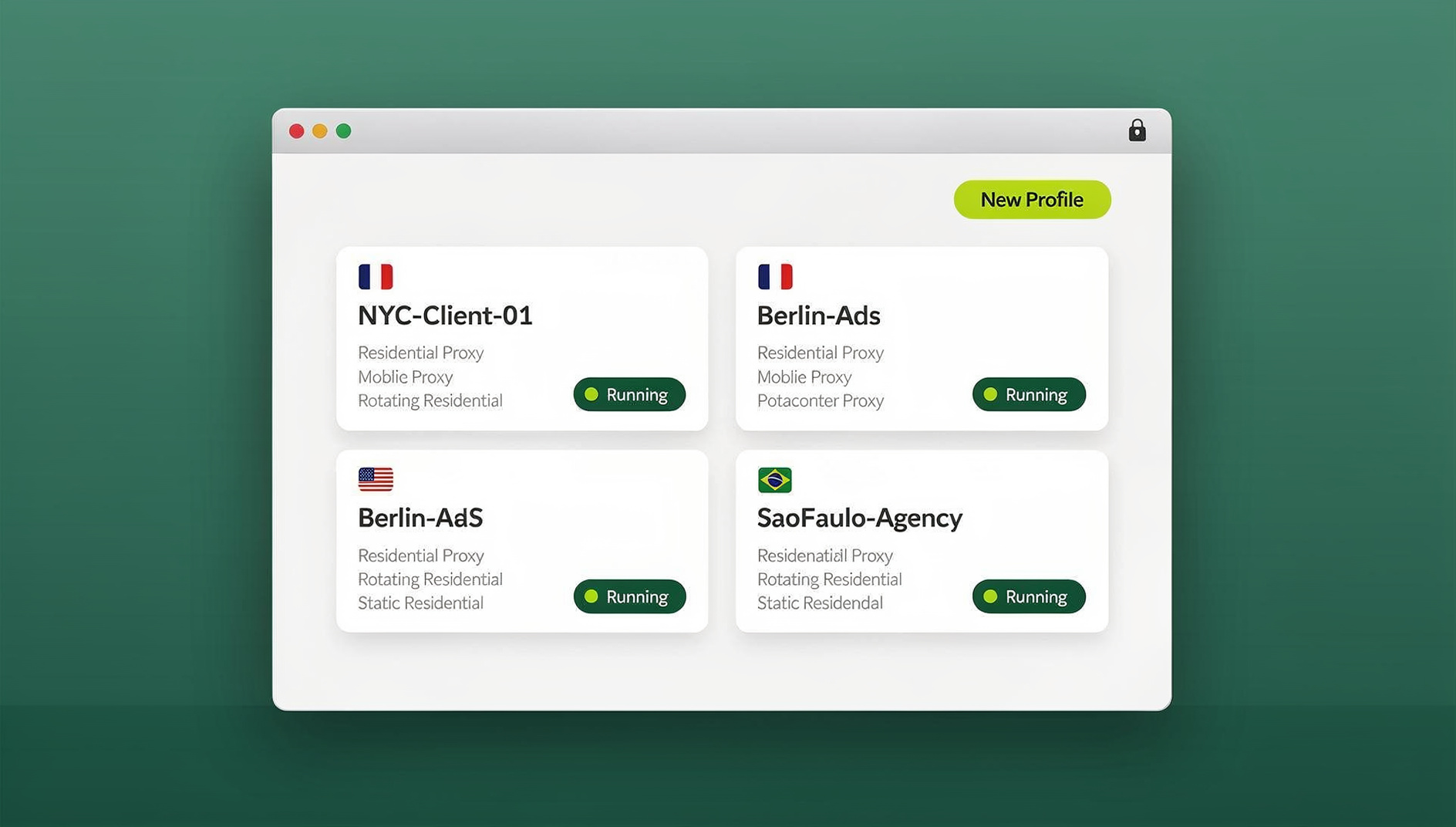
The problem isn’t wanting multiple LinkedIn accounts in one browser — it’s that the naive ways of doing it (logging out and back in, incognito windows, a pile of different browsers) are slow, error-prone, and can still get flagged by LinkedIn’s automated defenses. This guide covers what actually changed since the “just install an extension and click switch” advice from a few years ago, why LinkedIn’s detection has gotten smarter, and the browser-level setup that lets you run several LinkedIn accounts side by side without constantly re-authenticating or triggering security checkpoints.
Why LinkedIn Flags Multi-Account Behavior
LinkedIn doesn’t ban accounts because you logged into a second profile — it flags accounts when its systems see patterns that look like automation, account farming, or ban evasion. Understanding what those systems actually look at explains why some multi-account setups get you a security checkpoint email within a week, while others run for years without issue.
It’s Not Just Cookies Anymore
A decade ago, “clearing cookies” or using a private window was enough to look like a fresh visitor. Today, LinkedIn (like most large platforms) fingerprints your session using far more than a cookie ID: canvas and WebGL rendering signatures, installed fonts, screen resolution, timezone offset, GPU details, audio stack quirks, and dozens of other signals that combine into a near-unique browser fingerprint. Two “different” accounts logged in from incognito windows on the same physical machine still share the exact same fingerprint — because it’s generated by your hardware and browser build, not your login state.
What Actually Trips the Alarm
In practice, LinkedIn’s trust systems tend to escalate scrutiny when they see a combination of:
- Identical browser fingerprint across multiple accounts — several profiles that all render the same canvas/WebGL hash and hardware signature.
- Shared IP address for accounts with no obvious real-world connection — e.g., five “different people” logging in from one home IP.
- Rapid switching between accounts in a short time window, especially paired with connection requests or messages sent right after switching.
- Automation-shaped behavior — perfectly timed actions, identical message templates, or scroll/click patterns that don’t look human.
- New account + aggressive activity — a brand-new profile that immediately starts sending 50+ connection requests.
None of these alone is usually fatal. It’s the combination — same fingerprint plus same IP plus fast switching — that pushes LinkedIn from “probably fine” to “please verify your identity.”
Old Ways to Manage Multiple LinkedIn Accounts (and Why They Fall Short)
Before getting into what works well, it’s worth being honest about why the common workarounds are frustrating in practice.
Logging Out and Back In
The most obvious method — and the slowest. Every switch means re-entering credentials, possibly clearing a two-factor prompt, and losing whatever tab state you had open. For anyone switching accounts more than once or twice a day, this is a real productivity drain, and it does nothing to change your fingerprint or IP, so it doesn’t reduce detection risk either.
Incognito or Private Browsing Windows
Private windows stop LinkedIn from auto-logging you into your default account, but they don’t generate a new browser fingerprint. Every incognito window on the same computer still reports the same canvas hash, the same fonts, the same GPU signature, and (unless you’re using a VPN or proxy) the same IP address. It looks like the same person to LinkedIn’s systems — because it is.
Separate Browser Profiles (Chrome/Edge “Add Person”)
Built-in browser profiles are a step up — they keep cookies and extensions separate per profile, which is genuinely useful for organization. But most profiles created this way still share the same underlying browser engine fingerprint and the same public IP, so from LinkedIn’s perspective, several “different” people are still logging in from one identical-looking device.
Multiple Physical Devices or Virtual Machines
This actually works for isolation, but it’s expensive and doesn’t scale. Buying a laptop per LinkedIn account, or spinning up a VM for every client you manage, burns money and time that most recruiters, agencies, and sales teams don’t have to spare.
The Right Way: A Multi-Login Browser With True Profile Isolation
The actual fix is a purpose-built multi-login browser — a tool that creates genuinely separate browser environments inside one app, each with its own isolated cookies, local storage, and — critically — its own distinct browser fingerprint. Send.win is built exactly for this: every “profile” you create looks, to LinkedIn, like an entirely separate device and person, while staying organized in one place for you.
| Method | Fingerprint Isolation | Own IP per Account | Setup Time | Cost | Team Sharing |
|---|---|---|---|---|---|
| Logout / re-login | None | No | ~2 min per switch | Free | No |
| Incognito windows | None | No (unless separate proxy) | ~1 min per switch | Free | No |
| Browser profiles | Partial | No (unless separate proxy) | ~1 min per switch | Free | No |
| Separate devices/VMs | Full | Yes (if configured) | Hours (per device) | High (hardware) | Hard |
| Multi-login browser (Send.win) | Full, per profile | Yes, built-in proxies | ~30 seconds per profile | $9.99–$49/mo | Yes, one click |
How to Set Up Multiple LinkedIn Accounts in Send.win
Here’s the actual workflow, step by step:
- Create your Send.win account and pick a paid plan (Pro $19/mo or Team $49/mo) — your first card purchase is covered by a 7-day money-back guarantee. You can also preview it free in the cloud demo.
- Download the Sendwin Browser desktop app, or start a cloud browser session. Send.win runs as a native desktop application for Windows, macOS, and Linux — this matters for LinkedIn specifically, because the desktop client runs each profile in its own isolated browser instance rather than a tab layered on top of your everyday browsing, which keeps your personal LinkedIn session completely separate from client or team accounts. Prefer not to install anything? Send.win’s cloud browser sessions run entirely in the cloud with no download required.
- Create a new profile for each LinkedIn account. Give each one a clear name (“LinkedIn — Personal,” “LinkedIn — Acme Corp Recruiting,” “LinkedIn — Client X”) so you’re never guessing which one you’re in.
- Assign a dedicated proxy to each profile. Send.win includes built-in residential proxies you can attach per profile, so each LinkedIn account also gets its own believable IP address and location, not just a different fingerprint.
- Log into LinkedIn inside that profile exactly as you normally would. The session, cookies, and credentials stay locked to that profile going forward.
- Switch between accounts from the dashboard — no logging out, no incognito juggling, no re-entering two-factor codes every time. Click the profile you need and you’re in, with tabs and session state preserved from last time.
Why the Desktop App Matters for LinkedIn Specifically
LinkedIn is particularly aggressive about session-layer signals — things like WebRTC leaks, timezone/locale mismatches, and font enumeration — that typical browser-extension-based tools can struggle to fully mask because they still run inside your main browser’s engine. The Send.win desktop app spins up each profile as its own contained browser process with a matched fingerprint, proxy, timezone, and locale, which closes most of the gaps that extension-based tools leave open. If you’re managing more than two or three LinkedIn accounts, the desktop app (or a cloud browser session, if you’d rather skip the install) is worth using over a typical browser-extension tool.
Best Practices to Avoid LinkedIn Restrictions
A good multi-login browser removes the technical risk, but a few behavioral habits matter too:
- Warm up new accounts slowly. Don’t send 50 connection requests on day one. Ramp up activity over 2-3 weeks like a real new user would.
- Match proxy location to the account’s stated location. A profile claiming to be based in Chicago shouldn’t be routing through a proxy in Singapore.
- Vary your outreach messaging. Identical copy-pasted connection notes across accounts is one of the easiest automation patterns to detect.
- Keep timezone and browser locale consistent with the proxy’s region — Send.win profiles handle this automatically, but it’s worth spot-checking.
- Don’t switch accounts and immediately blast activity. A short pause after opening a profile looks far more natural than instant automated-looking bursts.
- Respect LinkedIn’s connection and messaging limits per account rather than trying to push every account to its absolute ceiling simultaneously.
Who Actually Uses This Setup
Recruiters and Staffing Agencies
Recruiters often run a personal outreach profile alongside a company recruiting seat, or manage several client-branded searches at once. Isolated profiles mean candidate messages sent from a client account never bleed into a recruiter’s personal network, and vice versa.
Sales Teams and SDRs
Teams sharing a limited number of Sales Navigator seats can assign each rep their own isolated profile pointed at the same underlying account, avoiding the “logged in on another device” kickouts that happen when several people fight over one raw login.
Agencies Managing Client Accounts
Social media and B2B marketing agencies frequently need to log into multiple clients’ LinkedIn company pages and founder profiles in the same day. Isolated profiles mean there’s zero risk of posting to the wrong client’s page or mixing up saved drafts.
Founders and Personal Branding
Many founders run a personal thought-leadership profile, a co-founder’s ghostwritten account, and a company page — three very different “voices” that need to stay cleanly separated in the same working session.
Scaling Up: Team Sharing
Solo use is one thing; running this across a team is another. Send.win’s Team plan lets you invite teammates and share sessions with your team without ever handing out raw passwords — each teammate gets access to the profile they need, activity stays attributable, and you can revoke access instantly if someone leaves.
Send.win Pricing for Multi-Account LinkedIn Management
| Plan | Price | Profiles | Proxy Bandwidth | Best For |
|---|---|---|---|---|
| Free Trial | $0 for 30 days | Limited | Included | Testing the workflow, no credit card required |
| Pro | $19/mo ($6.99/mo billed annually — 63% off) | 150 profiles | 5GB | Solo recruiters, founders, small agencies |
| Team | $49/mo ($251.88/yr) | 500 profiles | 20GB, 16 seats | Sales teams, agencies |
Add-ons are available for teams that outgrow their plan: extra proxy bandwidth at $6/GB and additional profiles at $0.05 each.
🏆 Send.win Verdict
Running multiple LinkedIn accounts in one browser isn’t the problem — running them all with the same fingerprint and IP is. Send.win solves that at the source: every profile gets its own isolated browser environment, its own cookies and storage, its own proxy, and (via the desktop app) its own contained process, so switching between a personal profile, a client account, and a team seat takes seconds instead of full logouts. For teams, shared profiles and seats keep everyone working in the same organised setup. If LinkedIn’s security checkpoints have been slowing you down, this is the setup that actually fixes it.
Try Send.win today — paid plans start at $19/mo, your first card purchase is covered by a 7-day money-back guarantee, and your first LinkedIn profile can be up and running in under five minutes.
Frequently Asked Questions
Is it against LinkedIn’s terms of service to have multiple accounts?
LinkedIn’s User Agreement generally expects one account per individual person, but it explicitly permits company pages and allows business accounts like Recruiter and Sales Navigator seats. Multiple accounts for legitimate business reasons — separate client work, separate company pages, shared team seats — are common in practice, but bulk automation, fake identities, or account farming are what actually gets accounts banned. Always check LinkedIn’s current User Agreement for specifics relevant to your situation.
Will using a multi-login browser get my LinkedIn account banned?
Using a multi-login browser itself isn’t what triggers bans — the behavior on top of it is. A tool like Send.win is a browser profile manager: each profile keeps its own cookies, storage and fingerprint, so your profiles stay separate and organised, but it doesn’t override LinkedIn’s rules around spam, fake profiles, or aggressive activity. Pair the tool with reasonable, human-paced activity.
Is Send.win a browser extension or a desktop app?
Send.win is not a browser extension. It’s the native Sendwin Browser desktop app (Windows, macOS, and Linux), which runs each profile as its own isolated browser process for the strongest fingerprint isolation, plus cloud browser sessions that run entirely in the cloud with zero local install if you’d rather not download anything — recommended if you’re managing more than a couple of LinkedIn accounts or handling sensitive client logins.
Do I need a proxy for every LinkedIn account?
It’s strongly recommended. Multiple LinkedIn accounts sharing one IP address is one of the clearer signals that ties separate profiles together in LinkedIn’s systems. Send.win includes built-in residential proxies you can assign per profile so each account gets a distinct, matched IP and location.
Can my whole team share LinkedIn logins without sharing passwords?
Yes. Send.win’s Team plan lets you share specific profiles with teammates without ever exposing the underlying password — you can grant and revoke access per person, and every session stays isolated to its assigned profile.
Do I need an automation interface?
Send.win does not offer an automation interface — there is no API, SDK, headless mode or Selenium/Puppeteer/Playwright support on any plan. Profiles are managed manually in the desktop app or the cloud browser.
How many LinkedIn accounts can I realistically manage in Send.win?
Technically, up to your plan’s profile limit — 150 on Pro, 500 on Team, with additional profiles available as an add-on. Practically, most recruiters and agencies manage somewhere between 2 and 15 LinkedIn-related profiles (personal, company pages, and client accounts combined).
Does switching between LinkedIn accounts log me out of the others?
No. Each profile keeps its own session state, so switching from one to another doesn’t log you out — you can come back to a previous profile later and still be signed in, with your tabs and session exactly as you left them.