Web browsing security means protecting yourself from phishing pages, malware, tracking, and network attacks every time you open a browser tab — through updated browser settings, strong authentication, careful habits, and, for higher-risk activity, isolating sessions away from your main device entirely. Roughly 90% of successful cyberattacks now start in the browser, so treating it as your primary security perimeter is no longer optional.
Why Web Browsing Security Matters More Than Ever
The average person spends more than six hours a day inside a browser — banking, shopping, working, and logging into dozens of accounts. During that time they run into tracking scripts, fingerprinting attempts, phishing pages, and malicious ads, often without realizing it. In 2026, AI tools make it trivial for attackers to clone a bank or SaaS login page pixel-for-pixel in minutes, which means the old advice of “just look for spelling mistakes” no longer holds up. Web browsing security today has to combine a hardened browser, disciplined habits, and, increasingly, structural isolation between what you do online and what actually touches your hardware.
The Top Web Browsing Threats
Phishing Attacks
Phishing remains the single most common browsing threat because it targets people, not software.
- How it works: Fake websites mimic legitimate login pages to steal credentials and session tokens
- Delivery: Email links, SMS (“smishing”), social media DMs, and paid search ads that outrank the real site
- Success rate: Roughly 3–5% of recipients click a generic phishing link; targeted spear-phishing campaigns can exceed 20%
- AI-generated pages: Generative tools now produce near-perfect clones of banking, email, and SaaS login screens, complete with matching fonts and working “forgot password” flows
Malware Distribution
- Drive-by downloads: Malicious code that installs automatically when you land on a compromised page
- Malvertising: Malware served through legitimate-looking ad networks on otherwise trustworthy sites
- Trojanized downloads: Fake installers, cracked software, or “free” tools bundled with malware
- Browser exploits: Code that abuses unpatched browser vulnerabilities to run outside the sandbox
Tracking, Fingerprinting, and Surveillance
- Third-party cookies: Following you across unrelated sites to build an ad profile
- Browser fingerprinting: Identifying your device from screen size, fonts, plugins, and hardware quirks — no cookie required
- Canvas and WebGL fingerprinting: Using how your device renders graphics to generate a near-unique ID
- Link decoration: Tracking parameters silently appended to URLs you click or share
- Behavioral tracking: Mouse movement, scroll speed, and typing rhythm used to re-identify you even after clearing cookies
Man-in-the-Middle (MitM) Attacks
- Public Wi-Fi interception: Attackers on the same open network reading unencrypted traffic
- DNS hijacking: Redirecting your requests to malicious copies of real sites
- SSL stripping: Silently downgrading an HTTPS connection to unencrypted HTTP
- Rogue access points: Fake Wi-Fi hotspots designed to look like the coffee shop or airport network
Risky Browser Extensions
Third-party browser extensions are one of the most overlooked attack surfaces because people install them once and forget they exist.
- Data harvesting: Extensions that quietly log every page you visit
- Credential exposure: Extensions with broad permissions that can read form fields, including passwords
- Session hijacking: Extensions that exfiltrate authentication cookies
- Cryptojacking: Extensions that mine cryptocurrency in the background using your CPU
This is one of the reasons a growing number of privacy-conscious users are shifting sensitive or high-risk browsing into an isolated environment rather than trying to police an ever-growing pile of extensions — a topic covered in more depth in this browsing protection guide.
Essential Web Browsing Security Practices
1. Browser Configuration
- Keep your browser updated: Enable automatic updates so security patches land immediately
- Enable HTTPS-only mode: Force encrypted connections and block silent downgrades to HTTP
- Disable unnecessary features: Turn off WebRTC where you don’t need it (it can leak your real IP even behind a VPN) and disable autofill for sensitive fields
- Use strict cookie settings: Block third-party cookies and clear cookies on close
- Enable Safe Browsing: Google Safe Browsing or Microsoft Defender SmartScreen for known-bad site warnings
- Control JavaScript on unknown sites: Use a script blocker to limit what unfamiliar pages can execute
2. Password and Authentication Security
- Password manager: Bitwarden, 1Password, or KeePass to generate and store a unique password per site
- Two-factor authentication (2FA): Enable everywhere, ideally with an authenticator app or hardware key rather than SMS
- Passkeys: Use WebAuthn/passkeys wherever supported — they’re phishing-resistant by design
- Never reuse passwords: One breach shouldn’t compromise every account you own
- Length over complexity: A 16+ character passphrase beats an 8-character jumble of symbols
3. Extension Hygiene
- Minimize extensions: Every extension you install is a new attack surface
- Audit permissions: Check exactly what data each extension can read or modify
- Source verification: Only install from official browser stores, and check the publisher
- Regular reviews: Remove anything you’re not actively using
- Watch for copycats: Fake versions of popular extensions are a recurring scam
4. Safe Browsing Habits
- Verify the URL: Check the address bar before entering any credentials
- Hover before clicking: Preview link destinations in emails and messages first
- Avoid sensitive activity on public Wi-Fi: Use mobile data, a VPN, or an isolated session instead
- Download carefully: Only from official sources, and scan before opening
- Be suspicious of urgency: Phishing pages almost always manufacture time pressure
Best Tools and Approaches for Web Browsing Security
Privacy-Focused Browsers and Isolation Tools
| Tool | Privacy Level | Key Feature | Best For |
|---|---|---|---|
| Brave | High | Built-in ad/tracker blocking | Daily driver browsing |
| Firefox | High | Enhanced Tracking Protection | Customization and control |
| Tor Browser | Maximum | Onion routing anonymity | Strong anonymity needs |
| Mullvad Browser | Very High | Anti-fingerprinting by default | Fingerprint resistance |
| Send.win | Very High | Isolated profiles with unique fingerprints, plus optional cloud-hosted sessions | Separating risky or sensitive browsing from your main device |
Essential Security Extensions (for Your Everyday Browser)
| Extension | Purpose | Available On |
|---|---|---|
| uBlock Origin | Ad and tracker blocking | Chrome, Firefox, Edge |
| Bitwarden | Password management | All major browsers |
| Privacy Badger | Learning-based tracker blocking | Chrome, Firefox, Edge |
| NoScript | Fine-grained JavaScript control | Firefox |
| ClearURLs | Strips tracking parameters from links | Chrome, Firefox |
How Send.win Strengthens Web Browsing Security
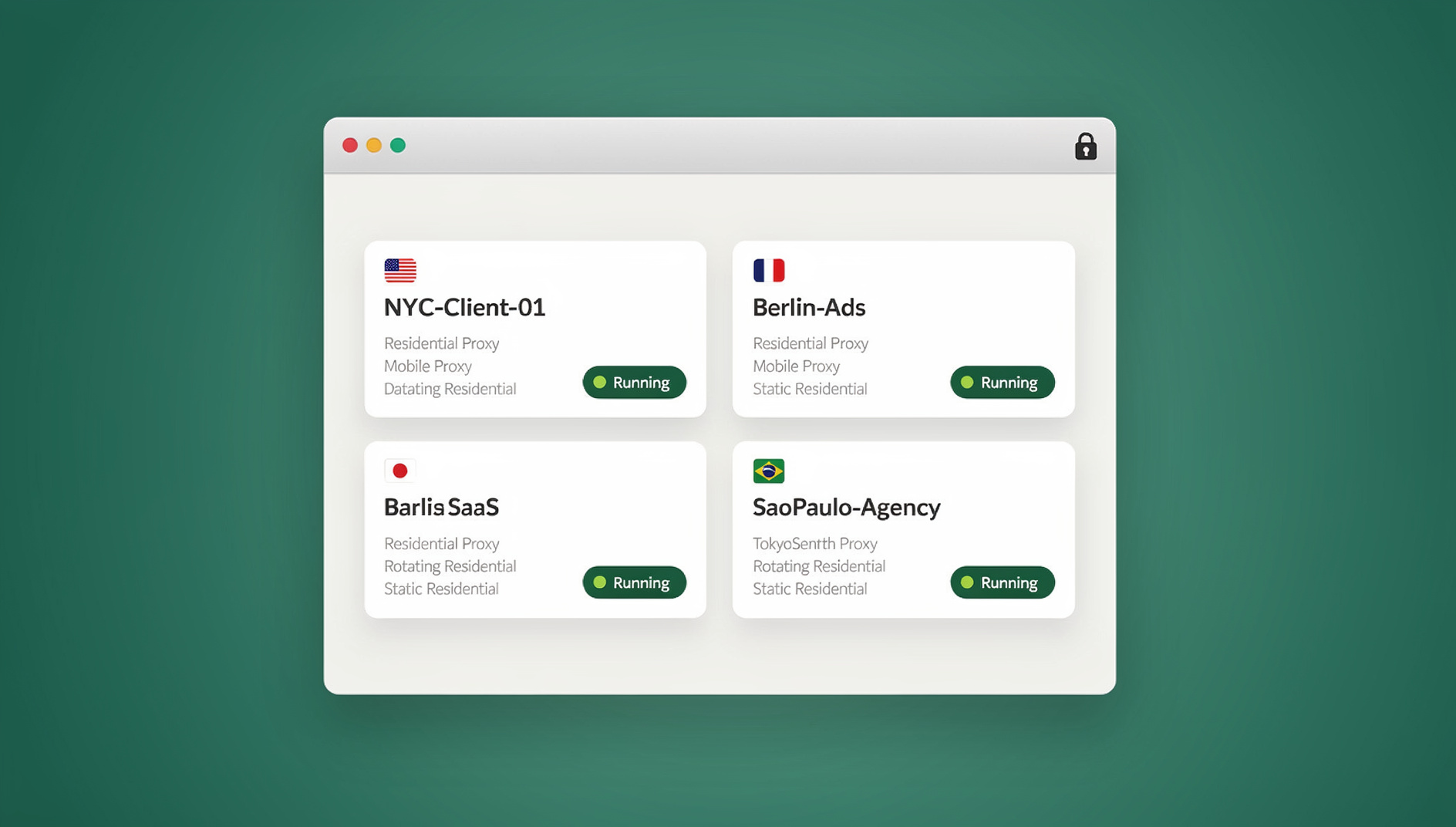
Send.win takes a different approach to web browsing security: instead of only trying to catch threats after they arrive, it isolates the browsing itself. There are two ways to use it. The Sendwin Browser is a native desktop app you download and install on Windows, macOS, or Linux — it’s local-first, meaning your profiles and sessions live on your machine, with encrypted sync to the cloud so you can pick up where you left off on another device. The second option is a fully cloud-hosted browser session: the page renders entirely on Send.win’s servers and only pixels get streamed to you, with no local install at all, metered by cloud browsing time.
That distinction matters for security. With a cloud session, malware and drive-by downloads never reach your actual hardware — if a page is compromised, the damage is contained to a disposable remote environment you can simply close. With the desktop app, each browsing profile gets its own isolated fingerprint and cookie jar, so a compromised or flagged session on one profile doesn’t bleed into the rest of your browsing identity. Built-in per-profile proxy support also helps keep your real IP out of the session, which pairs well with the fundamentals covered in this WebRTC leak protection guide if you’re trying to close every leak, not just the obvious ones.
If you want the deeper technical comparison of why running risky sessions in the cloud beats running everything locally, this browser isolation technology guide walks through the architecture in more detail, and this cloud browser comparison is useful if you’re weighing Send.win against other cloud-hosted options.
Send.win Pricing at a Glance
| Plan | Price | Profiles | Proxy Bandwidth | Seats | |
|---|---|---|---|---|---|
| Free Trial | No free trial; 7-day money-back guarantee on first card purchase | Limited | — | — | 1 |
| Pro | $19/mo ($6.99/mo billed annually — 63% off) | 150 | 5GB | Included | 1 |
| Team | $49/mo ($20.99/mo billed annually — 57% off) | 500 | 20GB | Included | 16 |
Web Browsing Security for Different Scenarios
Work and Corporate Browsing
- Use separate browser profiles for work and personal accounts
- Follow your organization’s security policies rather than working around them
- Use a VPN when connecting remotely
- Never save work credentials inside a personal browser
- Report suspicious emails and links to IT immediately, before clicking
Banking and Financial Sites
- Type the bank’s URL manually rather than clicking a link from an email
- Use a dedicated browser profile reserved only for financial sites
- Enable 2FA — hardware key or authenticator app, not SMS, where possible
- Check statements regularly for unauthorized transactions
- Consider running financial sessions inside an isolated Send.win profile or cloud session for an extra layer of separation from everything else you browse
Shopping and E-Commerce
- Confirm HTTPS and the padlock icon before entering payment details
- Use virtual or single-use card numbers where your bank offers them
- Be skeptical of deals that seem too good to be true
- Check seller reviews and site reputation before checkout
- Use a payment provider with strong buyer protection when possible
Public Wi-Fi Browsing
- Always use a VPN on open networks
- Avoid banking or email logins over public Wi-Fi entirely if you can
- Keep HTTPS-only mode on
- Disable Wi-Fi auto-connect on your devices
- Run sensitive sessions through a cloud browser so the untrusted network only ever sees encrypted pixel traffic, not your actual browsing data
Advanced Security Measures
DNS Security
- Encrypted DNS: DNS over HTTPS (DoH) or DNS over TLS (DoT) to stop DNS snooping
- Security-focused resolvers: Cloudflare (1.1.1.1) or Quad9 (9.9.9.9), both of which filter known-malicious domains
- Pi-hole: Network-wide ad and tracker blocking for an entire household
Browser Compartmentalization
- Different browsers for different tasks: One for work, one for personal, one for anything sensitive
- Container tabs: Firefox Multi-Account Containers to keep sites from seeing each other’s cookies
- Isolated profiles: Send.win profiles or cloud sessions for anything that needs a genuinely separate identity or environment
- Incognito for one-off tasks: Quick searches or single logins that don’t need to persist
Network Security
- VPN: Encrypts traffic and hides your IP from the local network and ISP
- Firewall: Blocks unauthorized outbound connections from compromised software
- Network monitoring: Watch for unusual traffic patterns on your home or office network
- Router security: Keep firmware updated, use WPA3, and change default admin credentials
How to Check If Your Browsing Is Secure
Quick Security Audit
- Browser version: Check the “About” page — are you on the latest release?
- HTTPS everywhere: Visit your most-used sites — do they all show a secure padlock?
- Extensions: Review what’s installed — do you recognize and actually need every one?
- Passwords: Open your password manager — any reused or weak passwords flagged?
- 2FA coverage: List your important accounts — is 2FA enabled on all of them?
- Cookie settings: Confirm third-party cookies are blocked
Online Security Tests Worth Running
- EFF Cover Your Tracks: Tests how unique (and trackable) your browser fingerprint is
- Have I Been Pwned: Checks whether your email has appeared in a known data breach
- DNS leak test: Confirms your DNS queries aren’t leaking outside your VPN
- WebRTC leak test: Confirms your real IP isn’t exposed even when a VPN is active
- SSL Labs: Verifies that sites you rely on have a properly configured certificate
Web Browsing Security Checklist
| Category | Action | Priority |
|---|---|---|
| Browser | Keep browser updated | Critical |
| Browser | Enable HTTPS-only mode | Critical |
| Passwords | Use a password manager | Critical |
| Passwords | Enable 2FA everywhere | Critical |
| Privacy | Block third-party cookies | Important |
| Privacy | Install a tracker/ad blocker | Important |
| Extensions | Audit and minimize installed extensions | Important |
| Network | Use encrypted DNS | Recommended |
| Network | Use a VPN on public Wi-Fi | Important |
| Advanced | Isolate sensitive or high-risk sessions with a tool like Send.win | Recommended |
🏆 Send.win Verdict
Good web browsing security starts with the basics — an updated browser, a password manager, 2FA, and sane habits around links and downloads. But those basics don’t fully solve the problem of a single compromised session bleeding into everything else you do online. That’s where Send.win fits in: the native Sendwin Browser gives every profile its own isolated identity and fingerprint, while fully cloud-hosted sessions keep the riskiest browsing off your device entirely. Neither replaces good habits — they add a structural layer underneath them.
Try the Send.win cloud demo — a 3-minute preview without signup, or 10 minutes a day with a free account.
Frequently Asked Questions
Is Chrome or Firefox more secure for everyday browsing?
Both are secure when kept up to date. Chrome benefits from Google’s large security team and strong sandboxing; Firefox offers more granular privacy controls and doesn’t share data with Google’s ad business. For maximum web browsing security, either works well paired with a tracker blocker and a password manager.
Does a VPN make my browsing completely secure?
No. A VPN encrypts your connection and hides your IP address, but it does nothing to stop phishing pages, malicious downloads, or browser fingerprinting. Treat it as one layer among several, not a complete solution on its own.
Can someone see what I’m browsing over public Wi-Fi?
On unencrypted HTTP sites, yes — anyone on the same network can potentially read the traffic. On HTTPS sites, an eavesdropper can see which domains you visit but not the page content. A VPN hides even the domain names from your ISP and anyone else on the local network.
How often should I clear my browser data?
Setting your browser to clear cookies on close is enough for most people. If you want to skip the manual cleanup entirely, running certain activities through separate, disposable profiles or a cloud session — as with Send.win — achieves the same result without you having to remember to do it.
Are passwords saved in the browser safe?
Modern browsers encrypt saved passwords, but they’re only as safe as the device they’re stored on — anyone with device access can often extract them. A dedicated password manager adds a separate master password, cross-device sync, and breach monitoring that browser-native storage doesn’t offer.
Does Send.win replace antivirus software?
No. Antivirus software protects your device from malware that’s already there or being downloaded; Send.win’s isolation model reduces how much risky content ever reaches your device in the first place, particularly when using cloud-hosted sessions. They address different parts of the problem and work well together.
Do I need a separate tool for automated browser testing and security checks?
Not necessarily. If you already use Send.win for isolated profiles, you can keep that isolated environment for manual QA and monitoring instead of setting up a separate throwaway machine.
What’s the single highest-impact step I can take today?
Turn on a password manager and enable 2FA on your email account first — email is the recovery path for almost every other account you own, so securing it has an outsized effect on your overall web browsing security.
Conclusion
Web browsing security isn’t one setting you flip once — it’s a stack of updated software, disciplined habits, and the right tools layered on top of each other. Start with the fundamentals: keep your browser current, use a password manager, enable 2FA everywhere, and install a solid tracker blocker. Then add encrypted DNS, a VPN for untrusted networks, and browser compartmentalization for anything sensitive.
For the sessions that carry real risk — unfamiliar links, financial accounts, multiple identities, or anything you’d rather not have touch your main device at all — pairing those habits with isolation tools like Send.win’s native profiles or cloud-hosted sessions closes the gap that basic hygiene alone can’t.