The Agency Playbook for Running 50+ Facebook Ad Accounts
To manage multiple Facebook ad accounts agency-wide without triggering bans, you need isolated browser environments, dedicated proxies per account, and a structured team workflow. Most agencies learn this the hard way — one linked fingerprint takes down an entire Business Manager, and suddenly ten clients lose their campaigns overnight. This playbook breaks down exactly how media buying agencies run 50, 100, or even 200+ ad accounts from a single dashboard without Meta ever connecting the dots.
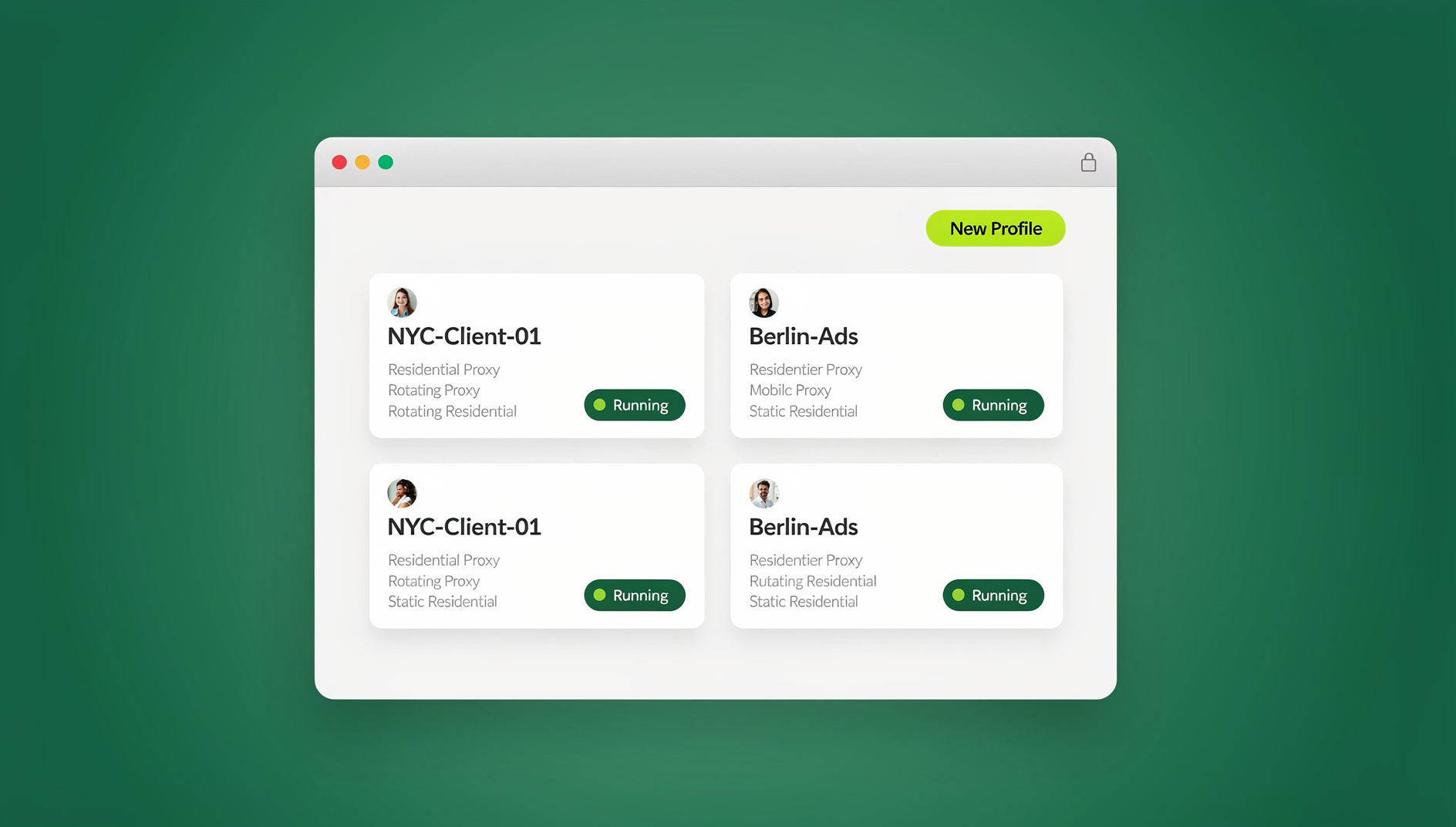
A Day in the Life of a Media Buying Agency
It’s 8:47 AM. Your senior media buyer, Alex, opens the agency dashboard. Today’s queue: launch three new campaigns for a DTC skincare brand, scale spend on a SaaS client’s retargeting funnel, troubleshoot a disapproved ad for a fitness supplement account, and onboard a new e-commerce client who just signed a six-month contract.
Alex doesn’t open Chrome. He doesn’t log into Facebook from his personal browser. Instead, he opens Send.win, where each client’s ad account lives inside its own isolated browser profile — complete with a unique fingerprint, dedicated residential proxy, and saved login session. He clicks “Skincare Brand – US – Ad Account 3,” and a browser window opens. Facebook sees a returning user from Dallas, Texas, on a Windows machine with a consistent browsing history. No flags. No verification prompts. Just a clean session.
Meanwhile, your junior buyer, Priya, is working remotely from her apartment. She doesn’t need Send.win installed locally — she launches a cloud browser session directly from her web browser. She’s assigned three profiles: two e-commerce accounts and the fitness supplement account with the disapproved ad. She can’t accidentally access Alex’s client profiles because team permissions restrict her view. Every action she takes happens inside the same isolated environment as if she were sitting in the office.
By 11 AM, the new e-commerce client is onboarded. The operations manager, David, created a fresh Send.win profile using the agency’s template: US residential proxy, Windows fingerprint, timezone set to the client’s headquarters, and a clean cookie jar. He assigned it to Priya, added the naming tag “ECOM-LUXBAGS-US-01,” and documented the proxy credentials in the profile notes. Total setup time: four minutes.
This is what a well-oiled agency operation looks like. But getting here requires understanding exactly what can go wrong — and most agencies have the scars to prove it.
The Four Risks That Kill Agency Ad Accounts
Facebook’s enforcement systems are built to detect coordinated inauthentic behavior. When you’re an agency running dozens of accounts, you look exactly like the kind of operation Meta wants to shut down — unless you take deliberate steps to separate each account’s digital identity. Here are the four biggest threats.
1. Account Linking Through Browser Fingerprints
Every browser broadcasts a fingerprint: screen resolution, installed fonts, WebGL renderer, canvas hash, audio context, timezone, language settings, and dozens more data points. When two Facebook ad accounts share the same fingerprint, Meta’s systems flag them as linked. If one account gets banned for a policy violation, every linked account is now under scrutiny.
Standard browsers — even in incognito mode — leak the same hardware fingerprint across every tab and window. Using Chrome multi-account setups with separate profiles helps slightly, but Chrome profiles still share underlying hardware identifiers that Meta can read.
2. Business Manager Ban Cascades
This is the nightmare scenario. An agency typically houses multiple ad accounts under one or more Business Managers. When Facebook detects suspicious activity on one account, it doesn’t just disable that account — it often cascades the restriction to the entire Business Manager. Every ad account, every page, every pixel connected to that BM goes dark.
The cascade happens because Meta assumes shared infrastructure means shared intent. If your accounts share IP addresses, browser fingerprints, or payment methods, a single policy violation can trigger a domino effect that takes your entire client roster offline.
3. Team Member Device Contamination
Your media buyers use their personal laptops. They check their own Facebook accounts during lunch. They test client landing pages in the same browser they use for ad management. Each of these actions leaves traces — cookies, cached data, logged-in sessions — that create invisible connections between accounts.
When a new hire logs into a client’s ad account from a device that previously accessed a banned account, that device’s fingerprint carries the ban association forward. Meta doesn’t forget devices. The contamination is silent and cumulative. Even Firefox multi-account containers can’t fully isolate hardware-level fingerprints from leaking across sessions.
4. Payment Method Flagging
Agencies often use a small number of corporate credit cards across many ad accounts. Facebook tracks payment method associations. When two accounts share a card — even if everything else is separated — they’re linked in Meta’s database. A chargeback or declined payment on one account can trigger reviews on every account that shares that payment method.
The solution isn’t complicated, but it requires discipline: unique virtual cards per account, consistent billing addresses that match the account’s geographic profile, and never reusing payment methods across unrelated ad accounts.
Step-by-Step Setup With Send.win
Here’s exactly how to build an agency infrastructure that keeps every Facebook ad account isolated, secure, and scalable. This setup works whether you’re managing multiple accounts for five clients or fifty.
Step 1: Create One Profile Per Ad Account
Open Send.win and create a new browser profile for each Facebook ad account. Not per client — per ad account. A client with three ad accounts (prospecting, retargeting, brand awareness) gets three separate profiles.
Each profile generates a unique browser fingerprint automatically. Canvas hash, WebGL parameters, audio context, screen resolution, installed fonts, user agent — all randomized but internally consistent. Facebook sees each profile as a completely different device owned by a completely different person.
- Name each profile with your agency’s naming convention (more on this in the scaling section)
- Set the operating system fingerprint to match your proxy location’s typical user base (Windows for US/EU, mixed for Southeast Asia)
- Enable cookie persistence so your media buyers stay logged in between sessions
- Add profile notes with the client name, ad account ID, Business Manager ID, and assigned buyer
Step 2: Assign Dedicated Proxies Per Geographic Region
Every profile needs its own IP address — or at minimum, a proxy that isn’t shared with any other Facebook ad account. Residential proxies are ideal because they look like real household connections to Meta’s systems.
Match the proxy location to the ad account’s billing address and target market. A US-based ad account running campaigns targeting New York should route through a New York or East Coast residential proxy. Geographic consistency is one of the strongest trust signals for Facebook’s verification systems.
- Use sticky residential proxies with session durations of at least 30 minutes
- Assign one proxy per profile — never share proxies between ad accounts
- Send.win’s Pro plan includes 5GB of proxy bandwidth; Team plan includes 20GB, which typically covers 30-50 active ad accounts
- Store proxy credentials directly in the profile settings so they auto-connect on launch
Step 3: Set Up Team Seats and Permissions
On Send.win’s Team plan, you get 16 seats — enough for most mid-size agencies. Assign each media buyer their own seat with access only to the profiles they manage. This prevents accidental cross-contamination and creates accountability.
- Senior buyers get access to high-spend accounts and new campaign launches
- Junior buyers handle ongoing optimization and reporting on established accounts
- Account managers get read-only access for client communication and status checks
- Operations staff manage profile creation, proxy assignments, and onboarding
Permission isolation isn’t just about security — it’s about preventing the fingerprint contamination that happens when team members access accounts they shouldn’t. Every unnecessary login from an unassigned device is a risk.
Step 4: Enable Cloud Sessions for Remote Team Members
Remote media buyers don’t need to install the Send.win desktop app. They launch cloud browser sessions directly from any web browser. The session runs on Send.win’s infrastructure, so the fingerprint, proxy, and cookies all stay consistent regardless of the buyer’s physical location or local device.
This solves the single biggest problem with remote agency teams: device inconsistency. When Priya accesses a client’s ad account from her home laptop via a cloud session, Facebook sees the exact same device fingerprint as when Alex accessed it from the office yesterday. No location jumps. No device changes. No verification triggers.
- Cloud sessions maintain full fingerprint consistency across any device
- No local data storage means no contamination risk on personal machines
- Sessions can be launched from Chrome, Firefox, Safari, or any modern browser
- Ideal for freelance media buyers who work across multiple agencies
Step 5: Isolate Payment Methods
For each ad account profile, use a unique virtual credit card. Services like Privacy.com, Revolut Business, or Mercury offer virtual cards that can be created in seconds. Store the card details in the profile notes (encrypted within Send.win) so any authorized buyer can add spend without sharing card numbers over Slack.
- One virtual card per ad account — no exceptions
- Match the card’s billing address to the proxy location
- Set spending limits on each virtual card as an extra safety layer
- If a card is declined, only one account is affected
Agency Workflow Diagram
Here’s how the daily workflow maps across roles, tools, and touchpoints. This is a proven structure used by agencies running 50+ accounts through a browser for ads management setup.
| Workflow Stage | Responsible Role | Send.win Feature Used | Action | Frequency |
|---|---|---|---|---|
| Client Onboarding | Operations Manager | Profile Creation + Proxy Assignment | Create isolated profile per ad account, assign proxy, set naming tag, document credentials | Per new client |
| Team Assignment | Operations Manager | Team Seats + Permissions | Assign profile access to designated media buyer, restrict others | Per new client |
| Campaign Launch | Senior Media Buyer | Desktop App / Cloud Session | Open assigned profile, launch Facebook Ads Manager, build and publish campaigns | As needed |
| Daily Optimization | Media Buyer (any level) | Desktop App / Cloud Session | Open assigned profiles, adjust bids, budgets, audiences, and creatives | Daily |
| Ad Review & Troubleshooting | Junior Media Buyer | Cloud Session (remote) | Review disapproved ads, submit appeals, adjust copy for compliance | As needed |
| Account Health Check | Operations Manager | Automation API | Run automated scripts to verify proxy connectivity, session validity, and account status | Weekly |
| Scaling & Duplication | Operations Manager | Profile Templates | Clone profile template for new ad accounts, update proxy and naming | Per scale event |
| Client Reporting | Account Manager | Cloud Session (read-only) | Access Ads Manager for performance data, export reports for client decks | Weekly / Monthly |
Scaling Tips for Growing Agencies
Once your foundation is solid, scaling from 10 accounts to 100+ becomes a process problem, not a technical one. Here are the systems that separate chaotic agencies from operationally excellent ones.
Naming Conventions That Actually Work
When you have 150 profiles in your dashboard, “Client A – Facebook” tells you nothing. Adopt a structured naming convention that encodes critical information at a glance:
Format: [VERTICAL]-[CLIENTNAME]-[GEO]-[ACCOUNTTYPE]-[NUMBER]
ECOM-LUXBAGS-US-PROSPECT-01— E-commerce client, LuxBags, US market, prospecting campaign, first accountSAAS-ACMECRM-UK-RETARGET-02— SaaS client, AcmeCRM, UK market, retargeting, second accountDTC-GLOWSKIN-DE-BRAND-01— DTC client, GlowSkin, Germany, brand awareness, first account
This convention lets your team instantly identify any profile’s purpose, client, and geographic targeting. It also makes bulk operations — like searching for all US-based profiles or all accounts belonging to a single client — fast and error-free.
Profile Templates for Instant Deployment
Create a master template for each major market you serve. A US template might include: Windows 11 fingerprint, English (US) language, Eastern timezone, Chrome user agent, 1920×1080 resolution. A German template: Windows 11, German language, CET timezone, Chrome user agent, 1920×1080.
When a new client signs, your operations manager doesn’t configure each setting manually. They clone the appropriate regional template, swap in the client-specific proxy and naming tag, and the profile is ready in under two minutes. At scale, this saves hours per week and eliminates configuration errors that could trigger fingerprint inconsistencies.
Automated Health Checks With the Automation API
Send.win’s Team plan includes access to the Automation API, which supports Selenium, Puppeteer, and Playwright. Build scripts that automatically verify:
- Proxy connectivity: Is the assigned proxy still active? Is the IP in the correct geographic region? Has the IP been flagged by any blacklists?
- Session validity: Is the Facebook login session still active, or has it expired? Are there any pending verification prompts?
- Account status: Is the ad account active, restricted, or disabled? Are there any policy violations pending review?
- Fingerprint consistency: Has the profile’s fingerprint drifted from its template baseline? Are all parameters still internally consistent?
Schedule these checks to run weekly — or daily for high-spend accounts. The script opens each profile headlessly, navigates to the relevant Facebook pages, checks for warning banners or restriction notices, and logs the results. Any anomalies trigger an alert to the operations manager before they become account-threatening problems.
Warm-Up Protocol for New Accounts
New ad accounts are fragile. Facebook watches new accounts more closely and is quicker to restrict them. Before launching any paid campaigns on a fresh account, run a warm-up protocol:
- Day 1-3: Log into the profile and browse Facebook organically. Like pages, join groups related to the client’s niche, watch videos. Build a browsing history that looks human.
- Day 4-5: Set up the Facebook Pixel on the client’s website. Create a Business Manager (if needed) and verify the business domain.
- Day 6-7: Create a small engagement campaign with a $5-10/day budget targeting a broad audience. Let it run for 48 hours.
- Day 8-14: Gradually increase spend by 20-30% per day. Introduce conversion campaigns once the pixel has gathered sufficient data.
- Day 15+: Scale normally. The account has established a history of compliant behavior and consistent login patterns.
Skipping this protocol is the number-one reason new agency accounts get restricted within the first week. Patience during warm-up saves months of recovery time later.
Client Offboarding Without Collateral Damage
When a client leaves, don’t just delete their profiles. Proper offboarding protects your remaining accounts:
- Remove the client’s ad accounts from your Business Manager before deleting profiles
- Revoke any shared pixel or page access
- Archive (don’t delete) the Send.win profiles for 90 days in case of billing disputes or data requests
- Reassign the proxy IPs to a cool-down pool — don’t immediately reuse them for new clients
- Update your naming convention index to mark those slots as available
Why Send.win Fits the Agency Model
Agencies need three things from their multi-account infrastructure: isolation, collaboration, and scalability. Send.win delivers all three without requiring your team to become DevOps engineers.
Isolation: Every profile is a self-contained browser environment with unique fingerprints, cookies, and proxy routing. No leakage between accounts, no shared state, no contamination risk.
Collaboration: Team seats with granular permissions let your operations manager control who accesses what. Cloud sessions let remote buyers work inside the same isolated environments as on-site staff. No more “can you send me the login?” messages on Slack.
Scalability: The Team plan supports 500 profiles and 16 seats. Profile templates and the Automation API turn manual processes into repeatable systems. Onboarding a new client goes from a half-day project to a four-minute task.
The pricing structure also works in your favor. At $49/month for the Team plan (or $20.99/month billed annually), the cost per ad account is cents. Compare that to the revenue loss from a single cascading Business Manager ban — which can easily cost tens of thousands in lost client spend and damaged relationships.
For smaller agencies just getting started, the Pro plan at $19/month ($6.99/month annual — 63% savings) supports 150 profiles with 5GB of proxy bandwidth — more than enough for a five to ten client roster. And every plan starts with a 30-day free trial, no credit card required, so you can test the entire workflow before committing a dollar.
🏆 Send.win Verdict
For agencies managing multiple Facebook ad accounts, Send.win eliminates the three biggest operational risks: fingerprint linking, Business Manager ban cascades, and team device contamination. The combination of isolated browser profiles, dedicated proxy routing, team permissions, and cloud sessions gives you enterprise-grade account separation at a fraction of the cost of running dedicated machines per account. Whether you’re managing 10 accounts or 200, the workflow stays the same — only the number of profiles in your dashboard changes.
Try Send.win free today — 30-day trial, no credit card required. Build your first 10 profiles in under an hour and see why agencies are switching from manual browser management to full isolation.
Frequently Asked Questions
How many Facebook ad accounts can I manage with Send.win?
The Pro plan supports up to 150 browser profiles, and the Team plan supports 500. Since each ad account gets its own profile, you can manage up to 500 completely isolated Facebook ad accounts from a single dashboard. Most agencies running 50-100 accounts find the Team plan covers their needs with room to grow.
Will Facebook detect that I’m using an antidetect browser?
No. Send.win generates browser fingerprints that are indistinguishable from regular consumer browsers. Each profile presents a unique combination of hardware identifiers, screen resolution, fonts, WebGL parameters, and other data points. Facebook’s detection systems see each profile as a separate, legitimate device — because functionally, it is one.
Can my remote team members access ad accounts without installing software?
Yes. Send.win’s cloud browser sessions let any team member launch an isolated browser profile directly from their web browser — no desktop installation required. The session runs on Send.win’s cloud infrastructure, so the fingerprint, proxy, and cookies remain consistent regardless of where your team member is located or what device they’re using.
What happens if one of my Facebook ad accounts gets banned?
Because each ad account runs inside a completely isolated browser profile with its own fingerprint and proxy, a ban on one account does not affect any other accounts. There are no shared identifiers for Facebook to trace between profiles. This is the core advantage over running multiple accounts in a standard browser, where a single ban can cascade to every account accessed from that device.
Do I need a separate proxy for every ad account?
For maximum security, yes — each ad account should have its own dedicated residential proxy. At minimum, never share a proxy between ad accounts that belong to different clients or different Business Managers. Send.win’s plans include proxy bandwidth (5GB on Pro, 20GB on Team), and you can also bring your own proxies from any provider.
How do I onboard a new client without risking existing accounts?
Create a fresh Send.win profile using your regional template, assign a new residential proxy that hasn’t been used for any other account, apply your naming convention, and assign the profile to the designated media buyer. The new profile is completely isolated from your existing profiles, so there’s zero risk of cross-contamination during onboarding. Follow the warm-up protocol outlined above before launching paid campaigns.
Can I automate account health checks across all my profiles?
Yes. The Team plan includes access to the Automation API, which supports Selenium, Puppeteer, and Playwright. You can build scripts that automatically open each profile, check proxy connectivity, verify Facebook login sessions, and scan for account restrictions or policy warnings. Schedule these scripts to run daily or weekly to catch issues before they escalate.
Is Send.win cost-effective for smaller agencies with fewer than 20 accounts?
Absolutely. The Pro plan at $19/month ($6.99/month with annual billing) supports 150 profiles — far more than a 20-account agency needs. The 30-day free trial lets you test the entire workflow with real accounts before spending anything. Compare that monthly cost to the revenue impact of even one cascading Business Manager ban, and the ROI becomes obvious immediately.
How Send.win Helps With Manage Multiple Facebook Ad Accounts Agency
Send.win is an antidetect browser built for exactly this kind of work — every profile is a clean, isolated identity:
- Isolated profiles – unique fingerprint, separate cookies and storage per profile
- Stealth engine – canvas, WebGL, fonts, and audio spoofed at the engine level
- Desktop app + cloud sessions – native app for Windows, macOS, and Linux, or run profiles in the cloud with no install
- Built-in residential proxies – with automatic timezone, locale, and WebRTC matching
- Team features – share logged-in profiles with teammates without sharing passwords
Try the instant cloud browser demo — no install, no signup — or download the desktop app. The 30-day free trial needs no credit card, and paid plans start at $6.99/month billed annually (see pricing).