What’s the Best App to Manage Multiple Cloud Accounts?
The best app to manage multiple cloud accounts depends on what you actually need to do with them: MultCloud wins for web-based syncing and transfers between services, Rclone wins for free, scriptable, unlimited-account control, and CloudMounter wins for mounting cloud drives directly into Finder or File Explorer. If you’re juggling Google Drive, Dropbox, OneDrive, AWS, and iCloud across personal and business logins, picking the right one of these — rather than switching apps manually all day — is what actually saves the hours.
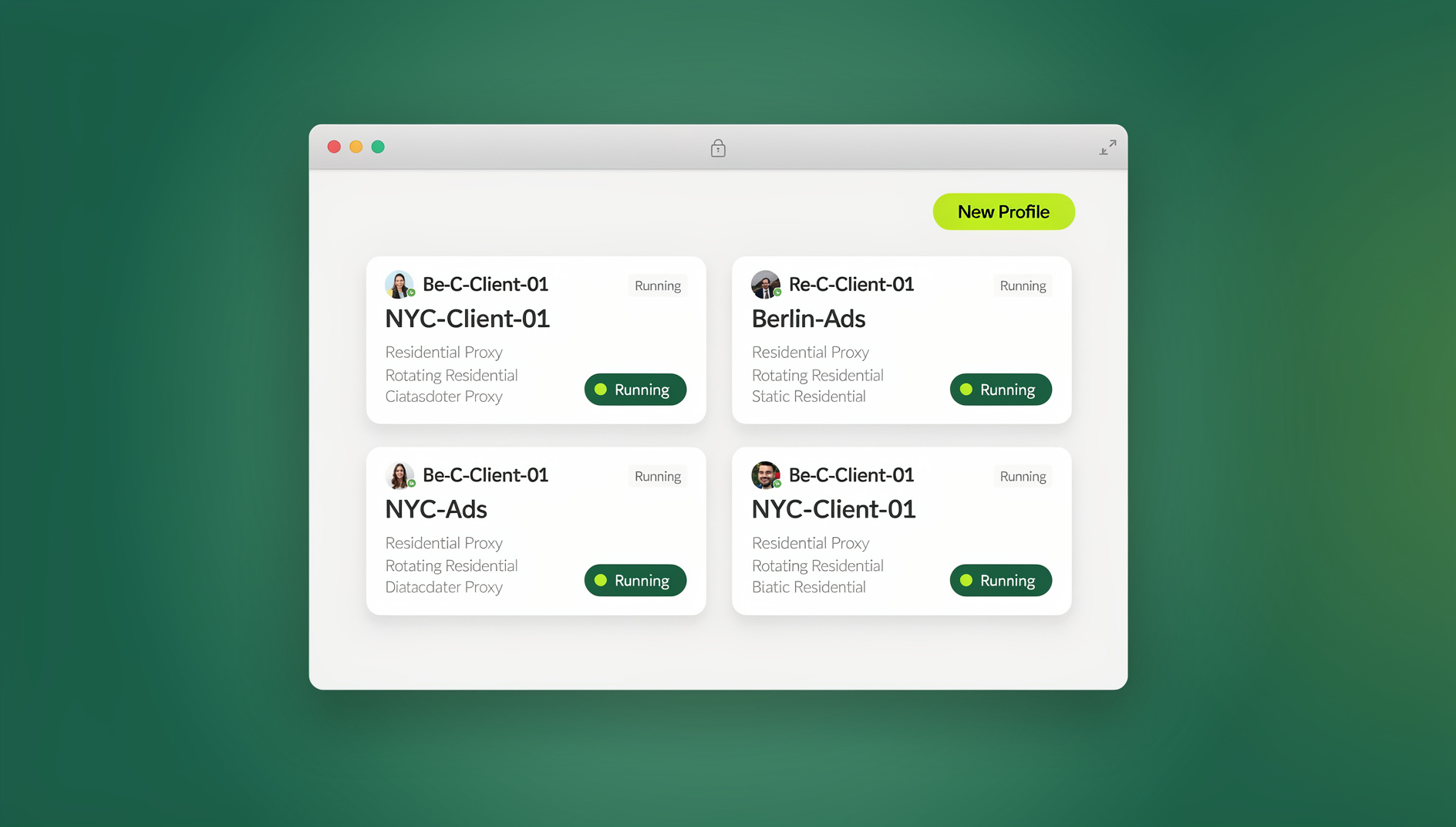
Why Multi-Cloud Management Is a Real Problem
The Multi-Cloud Reality
Most professionals already run three or four cloud services at once: Google Drive for personal files, OneDrive for work documents, Dropbox for client file sharing, and iCloud for device backups. Add a personal and a business account to each, and managing 6–10 cloud accounts stops being unusual — it’s the default.
Where the Time Actually Goes
- Scattered files: important documents spread across services with no single source of truth
- Storage waste: the same file duplicated across two or three platforms, quietly eating quota
- Transfer friction: moving files between clouds means manual download-then-reupload
- Access confusion: forgetting which account holds which folder
- Credential sprawl: juggling separate logins, 2FA prompts, and session timeouts across every service
Top Apps for Managing Multiple Cloud Accounts
1. MultCloud
MultCloud is a web-based dashboard that connects 30+ cloud services in one place, with genuine cloud-to-cloud transfer — no local download required.
| Feature | Details |
|---|---|
| Supported Services | Google Drive, Dropbox, OneDrive, AWS S3, Box, pCloud, 30+ more |
| Cloud-to-Cloud Transfer | Yes — direct, no local download |
| Sync | One-way, two-way, and real-time sync |
| Multiple Accounts | Unlimited accounts per service |
| Scheduling | Automated transfer/sync schedules |
| Pricing | Free (5GB/mo) or $19/mo unlimited |
Best for: anyone who regularly moves or mirrors files between different cloud services without wanting to script it.
2. Rclone
Rclone is a free command-line tool that talks to 40+ cloud storage providers — often described as the Swiss Army knife of cloud storage, and the closest thing to an unlimited-account solution that costs nothing.
| Feature | Details |
|---|---|
| Supported Services | 40+, including every major provider plus S3-compatible storage |
| Cloud-to-Cloud Transfer | Server-side copy when the provider supports it |
| Encryption | Client-side encryption for any cloud |
| Mount as Drive | Mounts any cloud storage as a local filesystem |
| Multiple Accounts | Unlimited, via named remotes |
| Pricing | Free, open source |
Best for: technical users who want maximum flexibility, scriptable automation, and zero recurring cost.
3. CloudMounter
CloudMounter mounts cloud accounts as local drives on macOS and Windows, so cloud files show up directly in Finder or File Explorer without a separate app window.
| Feature | Details |
|---|---|
| Supported Services | Google Drive, Dropbox, OneDrive, AWS S3, FTP/SFTP, Backblaze |
| Mount as Local Drive | Full filesystem integration |
| Encryption | On-the-fly encryption for cloud files |
| Multiple Accounts | Multiple accounts per service |
| Pricing | $29.99 one-time (macOS or Windows) |
Best for: users who’d rather browse cloud files as regular folders than sync everything to local disk.
4. Cyberduck
Cyberduck is an open-source file browser that connects to cloud storage, FTP servers, and other remote file systems through one visual interface.
| Feature | Details |
|---|---|
| Supported Services | Google Drive, Dropbox, OneDrive, S3, Azure, FTP/SFTP, WebDAV |
| File Management | Browse, upload, download, and organize files |
| Encryption | Cryptomator vault support |
| Multiple Accounts | Via saved bookmarks |
| Pricing | Free (donation-ware) or $23.99 on the App Store |
Best for: anyone who wants a straightforward visual browser across multiple cloud accounts plus FTP/SFTP.
5. Air Explorer
Air Explorer gives you a dual-panel view for moving and transferring files directly between cloud accounts, similar to a classic two-pane file manager.
| Feature | Details |
|---|---|
| Supported Services | 20+ cloud services |
| Dual Panel UI | Side-by-side cloud account view |
| Cloud-to-Cloud | Direct transfers between panels |
| Multiple Accounts | Unlimited |
| Pricing | Free or $43.80 Pro one-time |
Best for: people who prefer a traditional two-pane file manager for cloud operations.
Specialized Multi-Account Management by Provider
AWS Multi-Account Management
- AWS Organizations: centrally manage billing, access control, and compliance across accounts
- AWS SSO (IAM Identity Center): single sign-on across every AWS account you own
- AWS Control Tower: sets up and governs multi-account environments with best-practice blueprints
Google Multi-Account Management
Managing multiple Google accounts (Drive, Gmail, Calendar) works best with real browser profile isolation rather than staying signed into several accounts in one tab. A multi-login browser gives each Google account its own session, while a full virtual browser setup keeps them completely independent at the fingerprint level too, which matters if you’re also worried about cross-account tracking.
Microsoft Multi-Account Management
- Microsoft 365 Admin Center: manages multiple tenants and subscriptions from one console
- OneDrive app: supports signing into a personal account and a work/school account at the same time
- Azure Active Directory: centralizes identity management across Microsoft accounts and tenants
Side-by-Side Comparison
| Tool | Best Feature | Platform | Price | Skill Level |
|---|---|---|---|---|
| MultCloud | Cloud-to-cloud sync | Web | Free–$19/mo | Beginner |
| Rclone | Maximum flexibility | CLI (all OS) | Free | Advanced |
| CloudMounter | Local drive mounting | macOS/Windows | $29.99 one-time | Beginner |
| Cyberduck | Visual file browsing | macOS/Windows | Free | Intermediate |
| Air Explorer | Dual-panel transfers | Windows | Free–$43.80 | Intermediate |
Security When Managing Multiple Cloud Accounts
Authentication Best Practices
- Enable two-factor authentication on every cloud account, not just the primary one
- Use a password manager for unique passwords per service
- Review connected apps and third-party access quarterly
- Prefer OAuth over storing raw passwords inside third-party tools
Data Protection
- Turn on encryption at rest wherever the provider offers it
- Use client-side encryption (Cryptomator or similar) for sensitive files before they ever reach the cloud
- Audit sharing permissions monthly and remove stale shares
- Keep a local backup of anything critical using Rclone or a similar tool, separate from the cloud copy
Browser Security for Cloud Access
When you access several cloud accounts through a browser, isolated sessions matter more than most people assume — a shared browser profile can leak cookies and correlate accounts even when the underlying services are unrelated. Running each account inside its own cloud browser session, with session isolation between them, keeps each cloud login sealed off from the others so a compromised session in one account can’t quietly leak into the next.
Common Multi-Cloud Management Mistakes
- Treating every account the same: a personal photo backup account and a business contract-storage account need very different retention and sharing rules — apply one blanket policy and you’ll either over-restrict the casual account or under-protect the sensitive one.
- Skipping the audit step: connected third-party apps quietly accumulate access over years. An app you tested once in 2023 may still have full read/write access to a cloud account today.
- Relying on sync as backup: real-time sync propagates accidental deletions and ransomware encryption just as fast as legitimate edits. Sync is not a substitute for versioned, offline backups.
- Ignoring storage tiers: hot storage tiers cost far more than cold/archive tiers for files you rarely touch. Multi-cloud tools that support tiering (like AWS S3 lifecycle rules) can cut storage costs substantially with zero effort once configured.
- Staying logged into everything in one browser tab: convenience logins across five cloud accounts in one browser session make it trivial for a single compromised cookie or extension to reach all five at once.
Migrating Files Between Cloud Providers
Switching a cloud account — say, consolidating two personal Dropbox accounts into one, or moving a client’s files from Google Drive to OneDrive after an offboarding — is one of the most common reasons people go looking for a dedicated multi-cloud app in the first place. Direct cloud-to-cloud transfer (available in MultCloud and Rclone) is almost always faster and safer than downloading everything locally first: it skips the round trip through your own bandwidth, preserves folder structure automatically, and avoids the risk of a partially-downloaded batch of files. For anything containing sensitive client data, run the transfer through a tool with client-side encryption support (Rclone’s crypt remotes or Cyberduck’s Cryptomator integration) so the files are never sitting in plaintext mid-transfer.
How to Choose Between Them
If you mostly need to move or sync files between cloud services without writing scripts, start with MultCloud’s free tier and upgrade only if you exceed the 5GB/month cap. If you’re comfortable with a terminal and want the broadest provider support at zero cost, Rclone pays for itself in flexibility within the first afternoon of setup. If your workflow is really about browsing cloud files like local folders, CloudMounter or Cyberduck will feel far more natural than any web dashboard. And if you’re managing cloud accounts as part of a broader multi-account workflow — separate client logins, separate business identities, or a team accessing shared cloud storage — layer in browser-level isolation on top of whichever file tool you pick, rather than relying on the file tool’s login screen alone to keep things separate.
🏆 Send.win Verdict
File-sync apps like MultCloud and Rclone solve the transfer problem, but they don’t solve the login problem — if you’re signed into multiple cloud accounts through the same browser, cookies and fingerprints can still tie them together. Send.win’s cloud browser sessions give each cloud account its own isolated environment with no local install needed, while the Sendwin Browser desktop app does the same locally when you want everything running on your own machine. Paid plans start at $19/mo, and your first card purchase is covered by a 7-day money-back guarantee.
Try Send.win free today — keep every cloud account properly isolated.
Frequently Asked Questions
What’s the best free app to manage multiple cloud accounts?
Rclone is the most powerful free option, though it requires basic command-line comfort. For a free graphical option, Cyberduck or MultCloud’s free tier offer a friendlier interface for multi-cloud management.
Can I sync files between Google Drive and Dropbox automatically?
Yes. MultCloud and Rclone both support automated sync jobs between different cloud services, so you can keep folders mirrored between Google Drive and Dropbox on whatever schedule you set.
Is it safe to give third-party apps access to my cloud accounts?
Reputable cloud management tools use OAuth, meaning they never see or store your password — they request specific read/write permissions instead of full account control. Still, review granted permissions periodically and revoke access for anything you’ve stopped using.
How do I manage multiple AWS accounts efficiently?
Use AWS Organizations for centralized billing and policy management, AWS SSO for single sign-on, and AWS Control Tower for governance. Day to day, the AWS Console’s profile switching or the AWS CLI’s named profiles handle most multi-account work without extra tooling.
Can I have two Google Drive accounts on the same computer?
Yes — the Google Drive desktop app supports signing into a personal account and a Workspace account simultaneously, with both showing up as separate drives in File Explorer or Finder.
Do I need a different app for personal vs. business cloud accounts?
Not necessarily. Most of the tools above (MultCloud, Rclone, CloudMounter) support unlimited accounts per service, so one tool can manage both your personal and business logins — the important part is keeping them logically separated with clear folder naming and, ideally, isolated browser sessions when you’re accessing them through the web.
What happens if I hit MultCloud’s free transfer limit?
Transfers pause once you exceed the 5GB monthly cap on the free tier. You can either wait for the monthly reset, upgrade to the $19/mo unlimited plan, or switch that particular transfer job to Rclone, which has no transfer cap at all.
Can I automate cloud account management with scripts?
Yes. Rclone is built for this — its command-line interface can be wrapped in cron jobs or scheduled tasks to run backups, syncs, and cleanup jobs across every named remote unattended. AWS users get the same effect through the AWS CLI combined with Organizations policies, so routine account maintenance never needs a human to click through a dashboard.
Bottom Line
There’s no single best app to manage multiple cloud accounts — there’s a best app for your specific mix of technical comfort and workflow. MultCloud is the easiest starting point for web-based sync and transfers, Rclone rewards the time investment with unmatched flexibility and zero cost, and CloudMounter turns cloud storage into local folders for anyone who’d rather not think about “the cloud” at all. Whichever tool you pick, pair it with two-factor authentication, a password manager, and isolated browser sessions for each account, and multi-cloud management stops being a daily chore.
{
“@context”: “https://schema.org”,
“@type”: “FAQPage”,
“mainEntity”: [
{
“@type”: “Question”,
“name”: “What’s the best free app to manage multiple cloud accounts?”,
“acceptedAnswer”: {
“@type”: “Answer”,
“text”: “Rclone is the most powerful free option, though it requires basic command-line comfort. For a free graphical option, Cyberduck or MultCloud’s free tier offer a friendlier interface for multi-cloud management.”
}
},
{
“@type”: “Question”,
“name”: “Can I sync files between Google Drive and Dropbox automatically?”,
“acceptedAnswer”: {
“@type”: “Answer”,
“text”: “Yes. MultCloud and Rclone both support automated sync jobs between different cloud services, so you can keep folders mirrored between Google Drive and Dropbox on whatever schedule you set.”
}
},
{
“@type”: “Question”,
“name”: “Is it safe to give third-party apps access to my cloud accounts?”,
“acceptedAnswer”: {
“@type”: “Answer”,
“text”: “Reputable cloud management tools use OAuth, meaning they never see or store your password — they request specific read/write permissions instead of full account control. Still, review granted permissions periodically and revoke access for anything you’ve stopped using.”
}
},
{
“@type”: “Question”,
“name”: “How do I manage multiple AWS accounts efficiently?”,
“acceptedAnswer”: {
“@type”: “Answer”,
“text”: “Use AWS Organizations for centralized billing and policy management, AWS SSO for single sign-on, and AWS Control Tower for governance. Day to day, the AWS Console’s profile switching or the AWS CLI’s named profiles handle most multi-account work without extra tooling.”
}
},
{
“@type”: “Question”,
“name”: “Can I have two Google Drive accounts on the same computer?”,
“acceptedAnswer”: {
“@type”: “Answer”,
“text”: “Yes — the Google Drive desktop app supports signing into a personal account and a Workspace account simultaneously, with both showing up as separate drives in File Explorer or Finder.”
}
},
{
“@type”: “Question”,
“name”: “Do I need a different app for personal vs. business cloud accounts?”,
“acceptedAnswer”: {
“@type”: “Answer”,
“text”: “Not necessarily. Most of the tools above (MultCloud, Rclone, CloudMounter) support unlimited accounts per service, so one tool can manage both your personal and business logins — the important part is keeping them logically separated with clear folder naming and, ideally, isolated browser sessions when you’re accessing them through the web.”
}
},
{
“@type”: “Question”,
“name”: “What happens if I hit MultCloud’s free transfer limit?”,
“acceptedAnswer”: {
“@type”: “Answer”,
“text”: “Transfers pause once you exceed the 5GB monthly cap on the free tier. You can either wait for the monthly reset, upgrade to the $19/mo unlimited plan, or switch that particular transfer job to Rclone, which has no transfer cap at all.”
}
},
{
“@type”: “Question”,
“name”: “Can I automate cloud account management with scripts?”,
“acceptedAnswer”: {
“@type”: “Answer”,
“text”: “Yes. Rclone is built for this — its command-line interface can be wrapped in cron jobs or scheduled tasks to run backups, syncs, and cleanup jobs across every named remote unattended. AWS users get the same effect through the AWS CLI combined with Organizations policies, so routine account maintenance never needs a human to click through a dashboard.”
}
}
]
}