
Every time you visit a website, your browser reveals a unique “fingerprint” – a combination of technical details
that can identify you across the web, even without cookies. Learning to disable browser
fingerprinting is crucial for online privacy, multi-account management, and avoiding tracking in
2026.
In this comprehensive guide, we’ll explain what browser fingerprinting is, why it’s invasive, how to disable it,
and why Send.win’s automated fingerprint randomization is the most reliable solution for
professionals who need serious privacy protection.
What is Browser Fingerprinting?
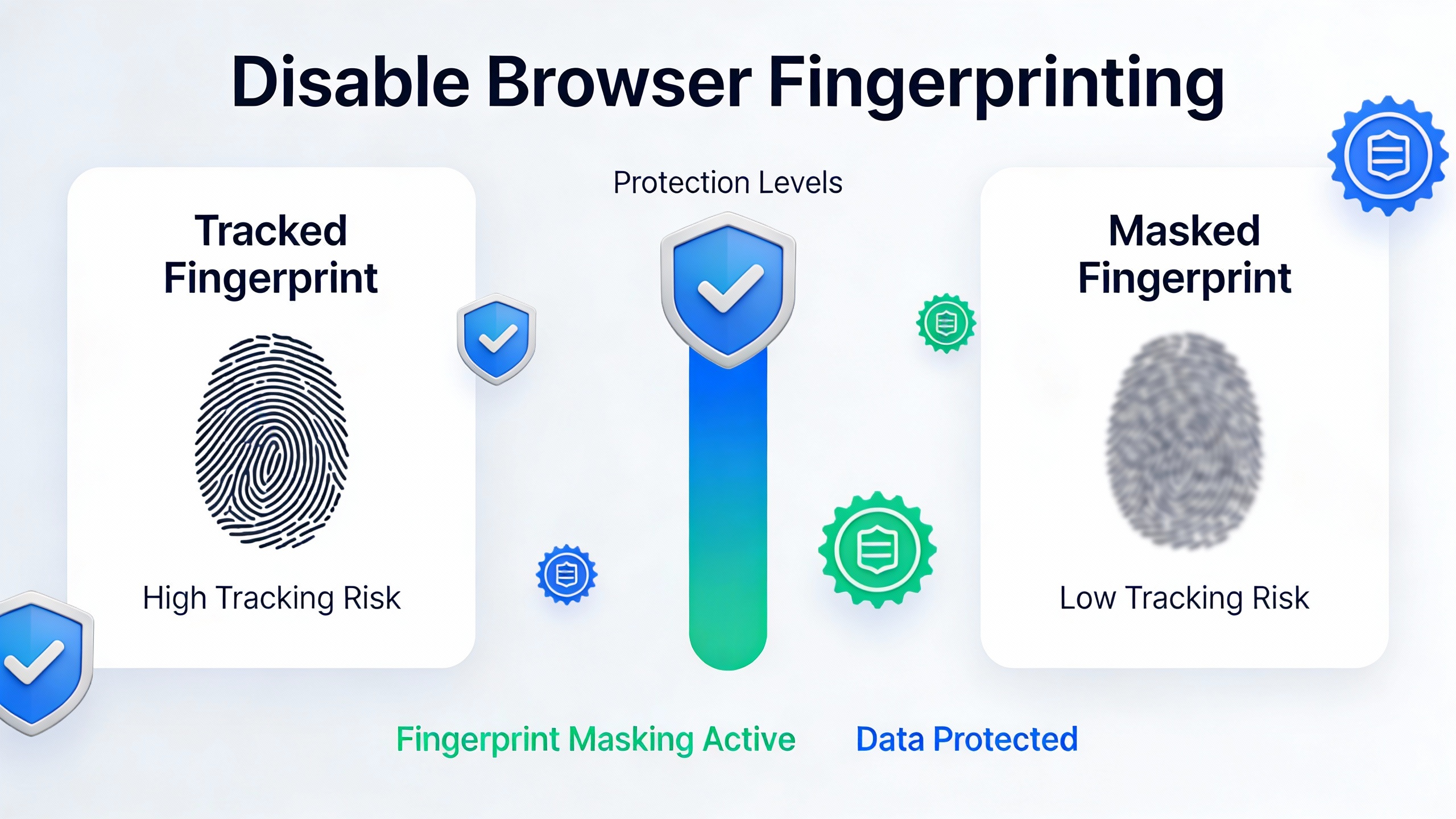
Browser fingerprinting is a tracking technique that collects information about your browser and
device configuration to create a unique identifier – your “fingerprint”. Unlike cookies, which you can delete,
your fingerprint is calculated from your actual hardware and software.
What Information Creates Your Fingerprint?
Websites collect dozens of data points:
Hardware Fingerprints:
- Screen resolution and color depth
- GPU model and capabilities (WebGL)
- CPU core count
- RAM amount
- Touch screen support
- Battery status
Software Fingerprints:
- Browser type and version
- Operating system
- Installed fonts
- Browser plugins
- Language and timezone
- Canvas rendering
- Audio context fingerprint
Network Fingerprints:
- IP address
- DNS settings
- WebRTC IP leaks
- HTTP headers
- TLS/SSL version
When combined, these create a fingerprint so unique that 87% of browsers can be uniquely
identified (EFF’s Panopticlick study).
Why Browser Fingerprinting is Dangerous
1. Cookie-less Tracking
Fingerprinting works even when you:
- ❌ Delete all cookies
- ❌ Use incognito/private mode
- ❌ Clear browser history
- ❌ Use different browsers
Your fingerprint persists because it’s based on your actual system configuration.
2. Cross-Site Tracking
Third-party trackers use fingerprints to:
- Track you across different websites
- Build detailed behavioral profiles
- Link your activities across platforms
- Target ads based on full browsing history
3. Account Linking
Platforms use fingerprints to detect multi-accounting:
- Amazon links seller accounts
- Facebook connects business pages
- Ad platforms detect multiple ad accounts
- Social networks identify ban evasion
4. Price Discrimination
E-commerce sites use fingerprints for:
- Dynamic pricing based on your device
- Higher prices for returning visitors
- Location-based pricing adjustments
How to Disable Browser Fingerprinting (Complete Methods)
Method 1: Browser Privacy Settings
Firefox Privacy Protection
Firefox has the strongest built-in fingerprint protection:
Step 1: Enable Strict Tracking Protection
- Settings → Privacy & Security
- Select “Strict” protection
- Blocks known fingerprinters
Step 2: Enable Resist Fingerprinting
- Type
about:configin address bar - Search for
privacy.resistFingerprinting - Set to
true - Standardizes many fingerprint attributes
What This Does:
- ✅ Standardizes screen resolution to common values
- ✅ Blocks font enumeration
- ✅ Adds noise to canvas
- ⚠️ May break some websites
- ⚠️ Still doesn’t randomize fingerprint
Chrome Fingerprint Protection
Chrome has weaker built-in protection:
- Settings → Privacy → Third-party cookies → Block third-party cookies
- ⚠️ Only blocks tracking cookies, not fingerprinting
- ⚠️ No fingerprint randomization
Brave Browser
Brave has strong built-in fingerprint blocking:
- Settings → Shields → Fingerprinting blocking
- Select “Strict” mode
- ✅ Blocks most fingerprinting
- ✅ Randomizes some attributes
- ⚠️ Still shares some fingerprint data
Method 2: Privacy Extensions
Canvas Defender
Adds noise to canvas fingerprinting:
- ✅ Randomizes canvas output
- ✅ Different fingerprint each session
- ❌ Only protects canvas (not WebGL, fonts, etc.)
Privacy Badger (EFF)
Blocks trackers including fingerprinters:
- ✅ Learns and blocks trackers
- ✅ Open-source
- ❌ Doesn’t randomize fingerprint
- ❌ Just blocks known fingerprinters
uBlock Origin
Ad blocker that also blocks some fingerprinting:
- ✅ Blocks fingerprinting scripts
- ✅ Customizable filters
- ❌ Doesn’t modify fingerprint
Method 3: Disable JavaScript
Most fingerprinting requires JavaScript:
- ✅ Completely prevents JavaScript-based fingerprinting
- ❌ Breaks most modern websites
- ❌ Impractical for normal browsing
Not recommended for everyday use.
Method 4: Tor Browser
Tor Browser makes all users look identical:
- ✅ Everyone has same fingerprint
- ✅ Strong privacy protection
- ❌ Very slow browsing speed
- ❌ Many sites block Tor
- ❌ Inconvenient for normal use
The Problem with These Methods
1. Incomplete Protection
Browser settings and extensions only block some fingerprinting:
- Canvas may be protected, but not WebGL
- Fonts might be blocked, but not audio
- Some vectors always remain exposed
2. Fingerprint Paradox
Privacy tools can make you MORE unique:
- Only 5% of users use privacy.resistFingerprinting
- This makes you stand out from the 95%
- Your “privacy fingerprint” becomes identifying
3. No Randomization
Most methods just standardize or block, they don’t randomize:
- Your fingerprint is still static
- Can still be tracked across sessions
- Account linking still possible
4. Website Breakage
Aggressive fingerprint blocking causes issues:
- Forms don’t submit
- Videos won’t play
- Features fail silently
- Frustrating user experience
Send.win: The Professional Solution to Disable Fingerprinting
Send.win doesn’t just block fingerprinting – it generates unique, realistic fingerprints for every
browser profile, eliminating tracking while maintaining full website compatibility.
How Send.win Fingerprint Protection Works
✅ Complete Fingerprint Randomization
Every Send.win profile gets a unique, randomized fingerprint:
- Canvas: Random noise added to canvas rendering
- WebGL: Different GPU vendor and renderer strings
- Fonts: Randomized font list per profile
- Audio: Unique audio context fingerprint
- Screen: Different resolution per profile
- Plugins: Customized plugin enumeration
- User Agent: Real, common user agent strings
✅ Cloud-Based Isolation
Your real fingerprint never exposed:
- Browser runs in the cloud, not locally
- Websites see cloud server’s hardware
- Your actual device completely hidden
- No leakage possible
✅ Realistic Fingerprints
Send.win generates believable fingerprints:
- Common hardware combinations
- Matching screen/GPU/OS combinations
- Consistent WebGL and canvas data
- Not suspicious to detection systems
✅ Zero Configuration
Fingerprint protection is automatic:
- Click “New Profile”
- Fingerprint generated automatically
- Launch and browse
- No extensions or settings required
✅ Perfect for Multi-Accounting
Each account gets unique fingerprint:
- Account A: Windows 10 + Chrome + Nvidia GPU
- Account B: macOS + Safari + AMD GPU
- Account C: Ubuntu + Firefox + Intel GPU
- Completely different fingerprints
- No account linking possible
Comparing Fingerprint Protection Methods
| Method | Protection Level | Website Compatibility | Ease of Use | Multi-Account |
|---|---|---|---|---|
| Firefox ResistFingerprinting | ⚠️ Medium | ⚠️ Some breakage | ✅ Easy | ❌ Same fingerprint |
| Privacy Extensions | ⚠️ Low-Medium | ✅ Good | ✅ Easy | ❌ Same fingerprint |
| Tor Browser | ✅ High | ❌ Many blocks | ⚠️ Complex | ❌ Same for all |
| Brave Shields | ⚠️ Medium | ✅ Good | ✅ Easy | ⚠️ Limited |
| Send.win | ✅ Complete | ✅ Perfect | ✅ Effortless | ✅ Unlimited unique |
Testing Your Fingerprint Protection
Verify your fingerprint is protected with these tools:
1. Panopticlick (EFF)
- Visit: panopticlick.eff.org
- Click “Test Me”
- Shows your uniqueness score
- Lower = better
2. AmIUnique
- Visit: amiunique.org
- Comprehensive fingerprint analysis
- Shows all collected data points
3. BrowserLeaks
- Visit: browserleaks.com
- Multiple fingerprint tests
- Canvas, WebGL, fonts, etc.
- WebRTC leak detection
What to Look For
Test with and without protection:
- Fingerprint should be different each test
- Canvas hash should change
- WebGL renderer should vary
- Font list should be randomized
Best Practices for Fingerprint Protection
For General Privacy
- Use Firefox with privacy.resistFingerprinting enabled
- Install uBlock Origin
- Disable WebRTC in about:config
- Use VPN or Tor for sensitive browsing
For Multi-Account Management
- Use Send.win for each account
- Different fingerprint per profile
- Add unique proxy per account
- Never log into multiple accounts from same fingerprint
For Maximum Privacy
- Use Send.win with residential proxy
- Different proxy each session
- Rotate fingerprints regularly
- Avoid logging into personal accounts
Frequently Asked Questions
Can I completely disable browser fingerprinting?
Not entirely, but you can make it ineffective. Tools like Send.win randomize your fingerprint so tracking becomes
impossible, even though fingerprinting scripts still run.
Does incognito mode prevent fingerprinting?
No. Incognito mode only prevents local history/cookie storage. Your fingerprint is identical in incognito vs
normal mode because it’s based on your hardware/software.
Will fingerprint protection slow down my browsing?
Browser extensions may slightly slow you down. Send.win actually improves performance because processing happens
in the cloud instead of your device.
Do I need a proxy along with fingerprint protection?
For multi-account management, yes. Fingerprint randomization prevents fingerprint-based linking, but you also
need different IPs (proxies) to prevent IP-based linking. Send.win supports both.
Is browser fingerprinting legal?
Yes, fingerprinting is legal in most jurisdictions. However, GDPR in Europe requires disclosure. Regardless of
legality, you have the right to protect your privacy.
Conclusion
While browser settings and extensions can reduce fingerprinting, only complete fingerprint randomization
provides true protection. Send.win’s cloud-based architecture and automated fingerprint generation
delivers professional-grade privacy without complexity or website breakage.
For users managing multiple accounts or requiring serious privacy protection, Send.win is the most reliable
solution: unique, realistic fingerprints for every profile, with zero configuration required.
Ready to disable browser fingerprinting completely?
Try Send.win free at send.win – automatic fingerprint randomization, no technical knowledge
needed. Experience true fingerprint protection in under 60 seconds.
How Send.win Helps You Master Disable Browser Fingerprinting
Send.win makes Disable Browser Fingerprinting simple and secure with powerful browser isolation technology:
- 🔒 Browser Isolation – Every tab runs in a sandboxed environment
- ☁️ Cloud Sync – Access your sessions from any device
- 🔐 Multi-Account Management – Manage unlimited accounts safely
- 🚀 No Installation Required – Works instantly in your browser
- 💰 Affordable Pricing – Enterprise features without enterprise costs
Try Send.win Free – No Credit Card Required
Experience the power of browser isolation with our free demo:
- ✨ Instant Access – Start testing in seconds
- 🎯 Full Features – Try all capabilities
- 🔒 Secure – Bank-level encryption
- 📱 Cross-Platform – Works on desktop, mobile, tablet
- 💸 14-Day Money-Back Guarantee
Ready to upgrade? View pricing plans starting at just $9/month.