
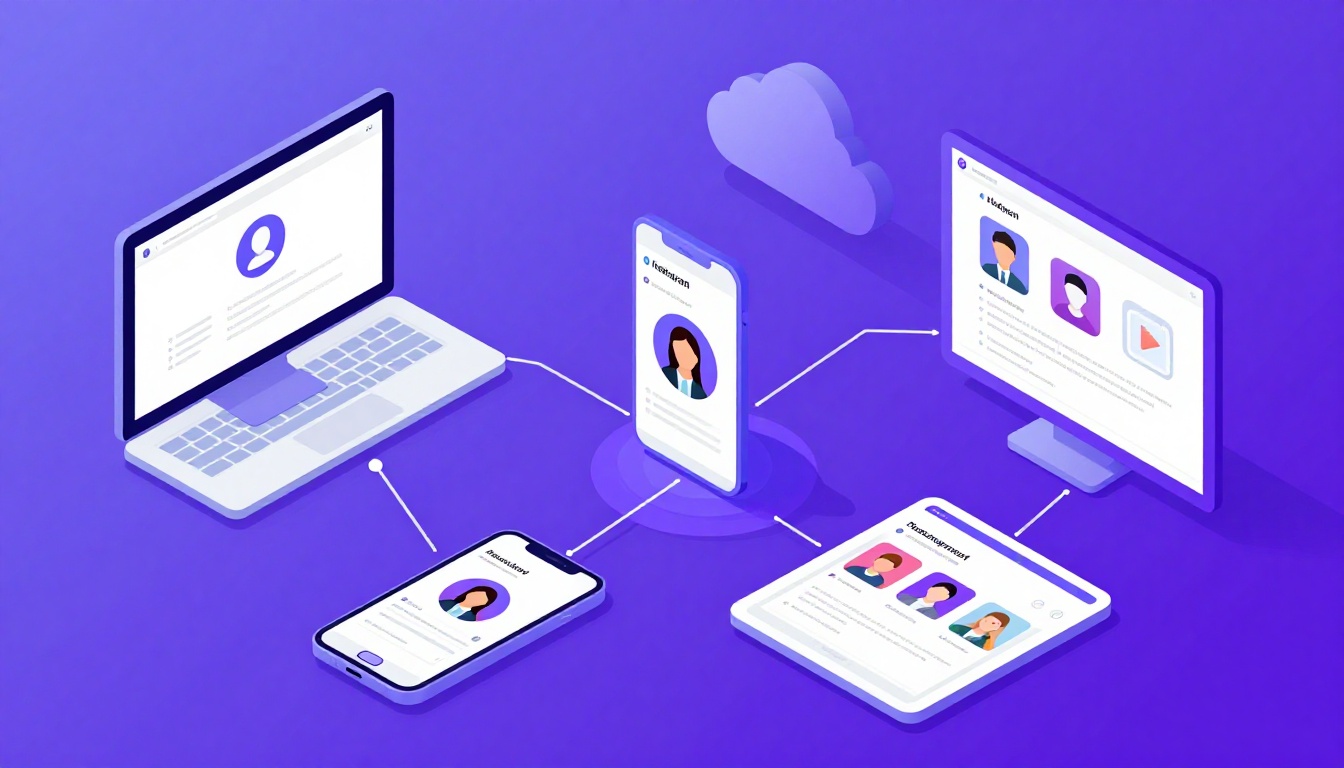
Adding Multiple Instagram Accounts: The Basics
Knowing how to add and manage multiple Instagram accounts is essential whether you are a small
business owner with personal and brand profiles, a social media manager juggling client accounts, or a content
creator separating niche identities. Instagram officially supports multi-account login, but there are important
limitations and risks that most guides fail to mention.
This guide covers every method—from Instagram’s built-in account switching to professional cloud browser isolation—so
you can choose the right approach for your specific situation.
Method 1: Adding Accounts in the Instagram Mobile App
Step-by-Step Instructions (iOS and Android)
- Open Instagram and go to your profile (bottom-right icon).
- Tap the hamburger menu (☰) in the top-right corner.
- Tap Settings and privacy.
- Scroll down to Login section.
- Tap Add account.
- Choose Log into existing account or Create new account.
- Enter the credentials for the second account.
- Once logged in, switch between accounts by long-pressing your profile photo at the bottom of the screen.
Current Limits
- Maximum 5 accounts can be logged into the Instagram app simultaneously.
- All 5 accounts share the same device ID, IP address, and mobile advertising identifier.
- Instagram (Meta) permanently links all accounts logged into the same device in their backend systems.
Method 2: Adding Accounts on Instagram Desktop (Browser)
Step-by-Step Instructions
- Go to instagram.com in your web browser.
- Log into your first account.
- Click your profile picture in the top-right corner.
- Select Switch accounts from the dropdown.
- Click Log into an existing account.
- Enter the second account’s credentials.
Desktop Limitations
- Instagram desktop supports switching between accounts but with the same browser fingerprint and cookie
session. - All accounts share the same IP address.
- Stories, Reels creation, and some engagement features may be limited on desktop compared to mobile.
Method 3: Using Meta Business Suite
If your Instagram accounts are Professional accounts (Business or Creator), you can manage them through Meta Business
Suite:
- Go to business.facebook.com.
- Connect your Instagram Professional account through Business Settings > Instagram Accounts.
- Manage multiple Instagram accounts from the Business Suite dashboard.
What Business Suite Can Do
- Schedule posts, Stories, and Reels across multiple Instagram accounts.
- Manage comments and DMs from a unified inbox.
- View analytics across accounts in one dashboard.
- Run and manage ads (via Ads Manager).
What Business Suite Cannot Do
- Browse the Explore page or engage with other users’ content.
- Participate in Instagram Live.
- Use Instagram Shopping’s full management interface.
- Create collaborative posts or branded content tags.
- Provide account isolation—all accounts are visibly connected through the Business Manager.
Method 4: Cloud Browser Isolation (Professional Scale)
When you need to manage more than 5 Instagram accounts, or when account isolation is critical (agencies, e-commerce,
affiliate marketing), cloud browser isolation is the professional solution.
Using Send.win:
- Create a profile for each Instagram account: “Brand A – Instagram” gets a unique browser
fingerprint, cookie store, and residential proxy. - Log in once: Complete any security verification. The session persists indefinitely—no daily
re-authentication. - Manage natively: Full access to the Instagram web interface including feed browsing, Stories
viewing, DM conversations, Reels engagement, and Instagram Shopping. - No account limit: Create as many profiles as needed. 5, 25, or 100 Instagram accounts—each in
its own isolated environment. - Team delegation: Share authenticated sessions with team members via session sharing without revealing
passwords.
Choosing the Right Method
| Method | Account Limit | Isolation | Best For |
|---|---|---|---|
| Instagram App | 5 | ❌ None | Personal use, 2-3 accounts |
| Desktop Browser | ~3 | ❌ None | Quick switching between few accounts |
| Meta Business Suite | Unlimited (Pages) | ❌ None | Scheduling and inbox management |
| Send.win Cloud Browser | Unlimited | ✅ Full | Agencies, e-commerce, professional scale |
Setting Up Notifications for Multiple Accounts
Mobile App Notifications
When you have multiple accounts in the Instagram app, notifications can be configured per account:
- Switch to the target account.
- Go to Settings > Notifications.
- Customize which notifications you receive (likes, comments, DMs, live videos, etc.).
- Repeat for each account.
Pro tip: Disable notifications for secondary accounts during focus hours. Enable only DM
notifications for client accounts that require urgent response capabilities.
Content Planning Across Multiple Accounts
The Content Calendar Approach
When managing multiple Instagram accounts, a shared content calendar prevents scheduling conflicts and ensures varied
content across accounts:
- Use a project management tool (Notion, Asana, ClickUp) with a separate board or calendar view
per account. - Plan in weekly batches: Dedicate Monday mornings to planning the week’s content for all
accounts. - Diverse content types: Each account should mix feed posts (3-4/week), Stories (daily), and
Reels (2-3/week). - Never cross-post identical content: Even between accounts that serve different audiences,
Instagram’s systems can flag duplicate content as spam.
Hashtag Libraries Per Account
Maintain a curated hashtag library for each managed account, organized by content pillar:
- Save 90-120 hashtags per account in a spreadsheet or Notion database.
- Rotate sets: Use different hashtag combinations for each post. Repeating the exact same set
signals automation. - Research monthly: Update hashtag libraries monthly based on performance data and trending
topics within each account’s niche.
Engagement Strategies That Scale
The 20-Minute Engagement Block
For each managed account, schedule a focused 20-minute engagement block:
- Minutes 1-7: Respond to all new comments and DMs.
- Minutes 7-14: Engage with 10 posts from target hashtags. Leave genuine, thoughtful comments
(minimum 4 words—no emoji-only responses). - Minutes 14-20: View and react to Stories from key accounts in the client’s industry. This
drives reciprocal engagement and increases story views on the managed account.
Cross-Account Safety Rules
- Never have managed accounts interact with each other. No follows, likes, comments, or story
views between accounts you control. - Stagger engagement times. If you manage 5 accounts, do not run engagement blocks back-to-back
from the same device or IP. Use isolated
browser profiles with unique proxies for each. - Vary engagement patterns. Do not follow the exact same sequence (check DMs → comment → stories)
at the exact same time every day on every account.
Security Best Practices
Two-Factor Authentication
Enable 2FA on every Instagram account using an authenticator app (Google Authenticator, Authy), not SMS. If one
account is compromised, you do not want the attacker using that access to reach other accounts.
Password Management
- Use a unique, strong password for every Instagram account.
- Store credentials in a password manager (1Password, Bitwarden), never in plain text documents or shared Slack
channels. - When delegating account access to team members, use session sharing
rather than sharing passwords directly.
Frequently Asked Questions
Can I have two Instagram accounts with the same email?
No. Each Instagram account requires a unique email address or phone number. You can use email aliases (e.g.,
[email protected]) to create accounts with a single Gmail address, though Meta may still link them
internally.
Will Instagram ban me for having multiple accounts?
Instagram allows multiple accounts. You will not be banned simply for having them. Bans occur when accounts engage in
spam, coordinated inauthentic behavior, or policy violations. Proper content strategy and engagement practices
prevent this.
How do I remove an account from my Instagram app?
Go to Settings > Login > Multi-account login > Deselect the account you want to remove. This logs you out of that
account on the device but does not delete the account itself.
Can I manage more than 5 Instagram accounts?
The Instagram app limits you to 5. To manage more, use cloud browser isolation with Send.win, where each account
operates in its own isolated profile with no practical limit on the number of accounts.
Conclusion
Understanding how to add and manage multiple Instagram accounts comes down to choosing the right
method for your scale. Individual users and small businesses can use Instagram’s built-in multi-account feature for
up to 5 accounts. Meta Business Suite adds scheduling and inbox management for Professional accounts. For agencies
and professionals managing 5+ accounts where isolation, security, and team delegation are critical,
Send.win provides unlimited isolated profiles with persistent sessions and secure team access.
How Send.win Helps You Master How To Add And Manage Multiple Instagram Accounts
Send.win makes How To Add And Manage Multiple Instagram Accounts simple and secure with powerful browser isolation technology:
- Browser Isolation – Every tab runs in a sandboxed environment
- Cloud Sync – Access your sessions from any device
- Multi-Account Management – Manage unlimited accounts safely
- No Installation Required – Works instantly in your browser
- Affordable Pricing – Enterprise features without enterprise costs
Try Send.win Free – No Credit Card Required
Experience the power of browser isolation with our free demo:
- Instant Access – Start testing in seconds
- Full Features – Try all capabilities
- Secure – Bank-level encryption
- Cross-Platform – Works on desktop, mobile, tablet
- 14-Day Money-Back Guarantee
Ready to upgrade? View pricing plans starting at just $9/month.